
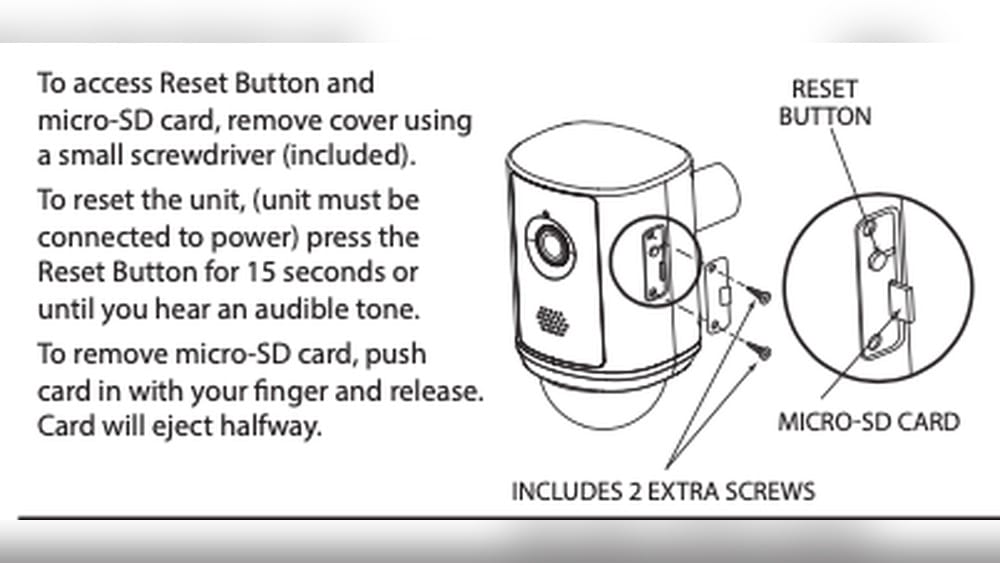
Resetting your Feit floodlight camera can solve many issues, from lost Wi-Fi connections to camera malfunctions. Many users find themselves needing a reset when the camera stops responding, won’t connect to the app, or changes in the home network occur.
Even if you’re not tech-savvy, the process is straightforward if you follow the correct steps. In this article, you’ll learn exactly how to reset a Feit floodlight camera, why resets are sometimes necessary, and how to avoid common mistakes. Along the way, you’ll also find comparison tables, troubleshooting tips, and expert insights that go beyond the basics.
Understanding Feit Floodlight Cameras
Feit floodlight cameras combine bright outdoor lighting with video surveillance. They’re popular for home security because they offer motion detection, two-way audio, and night vision in one device. Most Feit models connect to your home Wi-Fi and are managed through the Feit Electric app.
This makes it easy to monitor your property from anywhere.
Homeowners choose Feit floodlight cameras for their reliability and value. However, like any smart device, things can go wrong. Sometimes, the camera might not respond, or the app loses connection. In these cases, resetting the camera is often the quickest fix.
When And Why Should You Reset Your Feit Floodlight Camera?
You might wonder if a reset is always necessary. The answer is no—resetting should be your last option after trying simpler fixes. Still, there are clear signs that a reset is the best step:
- The camera does not connect to Wi-Fi after several attempts.
- The Feit app cannot find or control the camera.
- You changed your Wi-Fi network name or password.
- The camera behaves unpredictably (freezing, not recording, or not responding to commands).
- You want to give the camera to someone else or sell it.
Many users try restarting their router or reinstalling the Feit app first. These simple fixes can solve minor problems. But if your camera still doesn’t work, a reset erases all settings and lets you set up the device as new.
Key Insight: A reset will remove all custom settings, including Wi-Fi details and saved preferences. After the reset, you’ll need to set up the camera again from scratch.
Types Of Resets: Soft Reset Vs. Hard Reset
You might have seen terms like “soft reset” and “hard reset” in user manuals or online forums. Here’s what they mean for Feit floodlight cameras:
- Soft reset: This is a simple restart, like turning the camera off and then on again. It does not erase settings.
- Hard reset (Factory reset): This erases all data and returns the camera to its original factory condition.
Most problems require a hard reset. Soft resets can help with small glitches but won’t fix deeper issues like lost Wi-Fi connections.
Here’s a quick comparison:
| Type of Reset | What It Does | When to Use |
|---|---|---|
| Soft Reset | Restarts camera, keeps settings | Minor glitches, temporary freeze |
| Hard Reset | Erases all data, returns to factory settings | Lost connection, major issues, new owner |
Preparing For A Camera Reset
Before you start, make sure you have:
- Access to the camera (you may need a ladder if it’s mounted high).
- Your Wi-Fi network name and password (for re-setup).
- The Feit Electric app installed and updated on your phone.
- A small pin or paperclip (for most models’ reset button).
Expert Tip: Take note of any custom settings or device names before the reset. You’ll lose these, so having a backup helps during reinstallation.
How To Soft Reset A Feit Floodlight Camera
A soft reset is rarely needed, but if you want to try it:
- Turn off power to the camera: Use the wall switch or circuit breaker connected to the floodlight.
- Wait 30 seconds: This lets the internal circuits fully discharge.
- Turn the power back on: The camera will reboot.
A soft reset is safe and doesn’t affect your settings. If problems remain, move on to the hard reset.
How To Hard Reset (factory Reset) Your Feit Floodlight Camera
This is the main process most users need. The steps are similar for most Feit models, but always check your specific product’s manual for small differences.
1. Locate The Reset Button
On Feit floodlight cameras, the reset button is usually a small round button. It’s often recessed to prevent accidental presses. The button is typically found:
- On the bottom of the camera unit, near the lens.
- Behind a small rubber or plastic cover.
- Sometimes on the back, depending on your model.
Tip: Use a flashlight to spot the button if your camera is mounted in a dark area.
2. Press And Hold The Reset Button
- Use a pin, paperclip, or small tool to press and hold the reset button.
- Hold for 10 to 20 seconds. Some models require exactly 15 seconds, so count carefully.
- Look for a flashing light or hear a voice prompt (if your model supports audio). This signals the reset has started.
3. Wait For The Camera To Reboot
- Release the button after the light starts flashing or you hear the prompt.
- The camera will power cycle automatically.
- Wait 1–2 minutes. The indicator light should flash rapidly, showing it’s ready for setup.
4. Set Up The Camera Again
- Open the Feit Electric app.
- Tap the “+” icon to add a new device.
- Follow the on-screen steps to connect the camera to your Wi-Fi.
- Rename the device and restore any custom settings.
Insight: If your camera doesn’t flash or respond after holding the reset button, double-check that you held the button long enough and that the device has power.
Step-by-step Example: Resetting The Feit Electric Cam/fl/2/rp Model
To make things clearer, here’s a real-world reset example for the popular Feit Electric CAM/FL/2/RP model:
- Ensure the camera is powered on.
- Locate the reset button under the lens, behind the rubber cover.
- Use a paperclip to press and hold the button for 15 seconds.
- Watch for the red LED to start blinking rapidly.
- Release the button.
- Wait for the LED to switch to a slow blink, showing it’s ready for setup.
- Open the Feit Electric app, tap “Add Device,” and follow the instructions.
What To Do If The Reset Doesn’t Work
Sometimes, your camera may not respond to the reset process. Here’s how to troubleshoot:
- Check the power supply: Make sure the floodlight is getting electricity. Test with another device if needed.
- Try a different reset tool: Some reset buttons are deep—use a sturdy pin or the official tool if provided.
- Hold the button longer: Some users report needing up to 20 seconds.
- Update the Feit Electric app: An outdated app can cause connection failures.
If you’ve tried all these and the camera still won’t reset, contact Feit Electric support. There may be a hardware problem that needs professional repair or replacement.
Resetting Feit Floodlight Cameras After Changing Wi-fi
One of the most common reasons for a reset is changing your Wi-Fi network or password. Feit cameras can’t switch networks automatically. Here’s what to do:
- Perform a hard reset using the steps above.
- Set up the camera again in the app, entering the new Wi-Fi information.
- Confirm the camera connects and streams video.
Pro Insight: Some users try to update Wi-Fi without resetting, but this rarely works. Always perform a factory reset when changing networks.
Resetting Multiple Feit Cameras At Once
If you have more than one Feit floodlight camera, each must be reset individually. There is no way to reset all cameras at once from the app. Here’s why:
- The reset process is hardware-based, requiring you to press the physical reset button on each camera.
- This prevents accidental resets of all devices and increases security.
If you manage several cameras, plan time to access each one. Labeling cameras in the app helps you keep track during the setup process.

Credit: www.youtube.com
Comparing Feit Floodlight Camera Reset Methods With Other Brands
To give you a better sense of how Feit’s reset process compares, here’s a look at popular brands:
| Brand | Reset Method | Average Reset Time | App Required? |
|---|---|---|---|
| Feit Electric | Press & hold reset button | 2–3 minutes | Yes (for setup) |
| Ring | Press reset button + app steps | 4–5 minutes | Yes |
| Arlo | Sync button + app | 5 minutes | Yes |
| Wyze | Hold setup button | 2–3 minutes | Yes |
As you can see, Feit’s reset process is among the fastest and simplest. You don’t need to connect to a computer or follow complicated steps.
Pros And Cons Of Resetting Your Feit Floodlight Camera
Resetting can solve many problems, but it’s not always the perfect answer. Here’s a quick overview:
| Pros | Cons |
|---|---|
| Solves most connection issues | Erases all settings and recordings |
| Allows new Wi-Fi setup | Requires physical access to camera |
| Simple and fast process | May not fix hardware faults |
| Helpful before selling/gifting | All cameras must be reset separately |
Practical Note: Always try simpler troubleshooting steps before a factory reset, especially if you want to keep custom settings.
Mistakes To Avoid When Resetting Your Feit Floodlight Camera
Beginners often make these errors during the reset process:
- Not holding the reset button long enough: Many users release the button too early. Always hold for at least 10 seconds.
- Forgetting to restore power: If you turn off the camera for a soft reset, remember to turn it back on.
- Losing Wi-Fi details: After a reset, you’ll need your Wi-Fi name and password. Write them down first.
- Resetting without a backup: All settings and device names will be lost. Take notes if you want to restore them quickly.
- Trying to reset from the app only: The Feit app cannot reset the camera without pressing the physical button.
Non-Obvious Insight: Some users think unplugging the camera is enough for a reset. This only restarts the device; it does not erase settings.
What Happens After A Reset?
After a successful factory reset, your Feit floodlight camera will:
- Delete all saved Wi-Fi and app connections.
- Remove any recorded footage stored on the device.
- Return to its original setup state, like when first purchased.
- Wait for pairing with the Feit Electric app.
You’ll need to:
- Go through the full setup process in the app.
- Reconnect to your Wi-Fi network.
- Name your camera and adjust settings as needed.

Credit: help.feit.com
Tips For A Smooth Reset And Setup
To avoid frustration, keep these tips in mind:
- Have your phone, Wi-Fi password, and ladder (if needed) ready before starting.
- Use a sturdy tool for the reset button—soft items might not press deep enough.
- Check your camera’s indicator lights: Blinking patterns show status.
- Stay close to your Wi-Fi router during setup for a strong signal.
- Update the Feit Electric app before resetting for better compatibility.
Hidden Pitfall: If your home has dual-band Wi-Fi (2.4GHz and 5GHz), Feit cameras usually only connect to 2.4GHz. Make sure your phone and camera are on the same band during setup.
Advanced Troubleshooting: When Resetting Doesn’t Solve The Problem
Sometimes a factory reset won’t fix the issue. Here’s what to check next:
- Inspect for physical damage: Water, insects, or weather can harm outdoor cameras.
- Try a different power outlet or breaker: Faulty wiring can prevent resets.
- Test with another phone or tablet: Sometimes the problem is with the app, not the camera.
- Check for firmware updates: After resetting and reconnecting, see if the app offers a camera firmware update.
- Contact Feit Electric customer support: If you’ve tried everything, support can guide you through advanced solutions or warranty options.
For more detailed troubleshooting, you can visit the official Feit Electric support page.
Security Considerations After Resetting
Resetting your camera does more than fix tech problems—it also protects your privacy. After a reset:
- Old app connections are erased: Only new users with the device can access the camera.
- Video history is deleted: Prevents previous footage from being recovered.
- Device is ready for resale or gifting: The new owner won’t see your old settings.
Practical Security Tip: Always reset your camera before selling or giving it away. This keeps your home and data safe from unauthorized access.
Maintaining Your Feit Floodlight Camera After Reset
After you’ve completed the reset and re-setup, follow these best practices to keep your camera running smoothly:
- Regularly check for app and firmware updates.
- Clean the camera lens and housing to prevent dirt and spider webs from blocking the view.
- Test the camera monthly by checking live video and motion alerts.
- Ensure the mounting is secure so the camera doesn’t shift or fall.
These steps help your camera last longer and provide reliable security.

Credit: www.youtube.com
Comparison: Feit Floodlight Camera Vs. Competitors After Reset
To help you see where Feit stands, here’s a quick feature comparison after a reset:
| Feature | Feit Floodlight Camera | Ring Floodlight Cam | Arlo Pro 3 Floodlight |
|---|---|---|---|
| Setup Time After Reset | ~3 minutes | ~5 minutes | ~5 minutes |
| 2.4GHz Wi-Fi Support | Yes | Yes | Yes |
| App Required | Feit Electric | Ring | Arlo |
| Keeps Custom Settings? | No | No | No |
| Physical Reset Button | Yes | Yes | No (uses sync button) |
Feit’s process is fast and straightforward. It’s designed for average users, not just tech experts.
Useful Resources For Further Help
If you need more guidance, check these resources:
- Feit Electric official support: Feit Electric Support
- User forums for troubleshooting tips
- YouTube channels with Feit camera setup videos
These can offer visual guides and answers to unusual problems.
Frequently Asked Questions
How Do I Know If My Feit Floodlight Camera Has Been Reset Successfully?
A successful reset is shown by the camera’s indicator light blinking rapidly, or a voice prompt (on supported models). After this, the device will not appear in the app until you add it again. If the camera still connects to your old Wi-Fi or shows previous settings, the reset did not work—try the process again, holding the reset button for a full 15 seconds.
Can I Reset My Feit Floodlight Camera Remotely Through The App?
No, a factory reset requires you to press the physical reset button on the camera. The app can only remove the device from your account, not reset the hardware. This is a security feature to prevent unauthorized users from wiping the device remotely.
Will Resetting My Feit Camera Delete All My Video Recordings?
Yes, a factory reset erases all locally stored recordings and preferences. If you use cloud storage, your videos may remain on Feit’s servers, but you’ll need to reconnect the camera to access them. Always download important footage before performing a reset.
What Should I Do If My Camera Doesn’t Reconnect After Resetting?
Double-check your Wi-Fi credentials and make sure you’re using the Feit Electric app’s latest version. Stay close to your router during setup, and ensure you’re connecting to a 2. 4GHz network. If problems continue, try resetting again or contact Feit customer support for help.
Is It Safe To Reset My Camera If I’m Selling Or Giving It Away?
Absolutely. Resetting your Feit floodlight camera before selling or gifting is recommended. It removes your personal data, account links, and previous footage, making the device safe for the new owner to set up and use.
Resetting a Feit floodlight camera is a simple but powerful solution to many common issues. By following the steps and advice in this guide, you can confidently restore your camera to working order, protect your privacy, and keep your home secure.
Whether you’re troubleshooting a problem or preparing the device for a new owner, a proper reset ensures your Feit camera delivers reliable performance for years to come.