
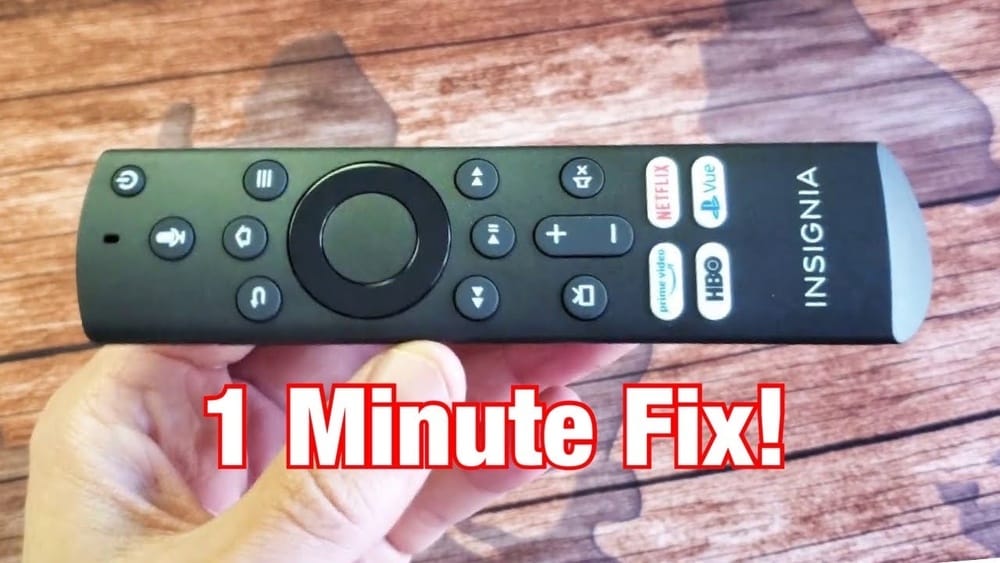
Resetting your Insignia remote control can solve many common problems. Maybe the buttons stopped working, the remote is not connecting to your TV, or you want to pair it with a new device. Knowing how to reset your remote can save you time, money, and frustration.
You do not need to be a tech expert. With a few simple steps and a little patience, you can fix most Insignia remote issues at home.
In this guide, you will learn everything you need to know about resetting your Insignia remote control. We’ll cover why resets are needed, step-by-step instructions for different types of Insignia remotes, troubleshooting advice, and tips to avoid future problems. You will also find helpful tables comparing Insignia remote models and their reset methods, plus answers to common questions.
By the end, you will feel confident about handling remote reset problems quickly and easily.
Why Resetting An Insignia Remote Is Important
Insignia is a popular electronics brand, especially for TVs and home entertainment systems. Their remotes are used by millions of people around the world. Like any electronic device, Insignia remotes can sometimes stop working properly. This can happen for several reasons:
- Signal interference from other devices
- Battery issues or low power
- Software glitches or firmware problems
- Accidental programming errors
- Pairing loss with your TV or streaming device
When your remote does not work, it can be very frustrating. Resetting the remote is often the best first step. It can restore your remote to its original settings, fix most common problems, and save you from buying a new one.
In most cases, a reset takes just a few minutes and does not require special tools.
Types Of Insignia Remotes
Not all Insignia remotes are the same. The reset process can be different depending on the type and model. Here are the main types of Insignia remotes you may have at home:
- Standard IR (Infrared) Remotes: These are the most basic remotes. They use an infrared signal to control your TV or device.
- Universal Remotes: These can be programmed to work with many devices, not just Insignia products.
- Smart TV Remotes: These are designed for Insignia Smart TVs and often include extra buttons for streaming apps.
- Fire TV Edition Remotes: Some Insignia TVs come with built-in Amazon Fire TV. These remotes have voice control and special pairing features.
- Remote Apps: Insignia also offers mobile apps that can act as a remote for your TV.
Understanding your remote type is important because the reset steps may be different. You can check your remote’s model number, usually printed inside the battery compartment or on the back of the remote.
Here’s a quick comparison of common Insignia remote types and their reset methods:
| Remote Type | Common Features | Reset Method |
|---|---|---|
| Standard IR Remote | Basic TV control, no voice or app features | Battery removal/reset code |
| Universal Remote | Controls multiple devices, programmable | Factory reset button or code |
| Smart TV Remote | App buttons, menu control, sometimes voice | Button combination or unpair/repair |
| Fire TV Edition Remote | Voice control, pairing, Bluetooth | Special button sequence, re-pairing |
| Remote App | Control from phone, Wi-Fi/Bluetooth | App settings reset or reinstall |

Credit: www.wikihow.com
When Should You Reset Your Insignia Remote?
Resetting is not always needed. Sometimes, a simple battery change or cleaning is enough. However, you should consider resetting your Insignia remote if you notice any of these issues:
- Buttons are unresponsive or only some buttons work
- The remote does not pair or loses pairing with the TV
- The remote controls the wrong device or functions
- Volume, input, or power buttons stop working
- You see strange lights or blinking on the remote
- Remote is not recognized after replacing batteries
- You want to erase old settings and start fresh
A reset can clear stored codes, fix software glitches, and restore default settings. This is especially helpful if you have tried other solutions and nothing worked.
Preparing For A Remote Reset
Before you begin, check a few things to avoid unnecessary trouble:
- Check the Batteries: Replace old batteries with new, high-quality ones. Weak batteries can cause many remote problems.
- Clean the Remote: Dust, dirt, or sticky spills can make buttons unresponsive. Wipe the remote with a dry, soft cloth. Avoid using water or harsh cleaners.
- Remove Obstructions: Make sure nothing is blocking the signal between your remote and the TV.
- Test the Remote on Another Device: If possible, try the remote with another Insignia TV or device to check if the issue is with the remote or the TV.
If these steps do not solve the problem, move on to the reset process.
How To Reset Different Types Of Insignia Remote Controls
Resetting an Insignia remote is easy once you know which type you have. Here are step-by-step instructions for each major type.
Resetting A Standard Insignia Ir Remote
Most Insignia TVs come with a standard infrared (IR) remote. To reset:
- Remove the battery cover on the back of the remote.
- Take out both batteries.
- Press and hold any button on the remote for 30 seconds. This drains any remaining power and clears memory.
- Release the button and wait 60 more seconds.
- Insert new batteries.
- Test the remote with your TV.
If the remote still does not work, check for physical damage or try resetting your TV as well.
Resetting An Insignia Universal Remote
Universal remotes can control multiple devices, so their reset process is different.
- Locate the Setup button, usually near the top of the remote.
- Press and hold the Setup button until the LED light turns on.
- Enter the factory reset code. For many Insignia universal remotes, this is 9-8-1 or 9-8-0. (Check your manual if these codes do not work.)
- The LED will blink twice to confirm the reset.
- Release the buttons and test the remote.
Remember, after a factory reset, you will need to reprogram the remote for your TV and other devices. Keep your instruction manual or device codes handy.
Resetting An Insignia Smart Tv Remote
Smart TV remotes often have extra features, such as dedicated app buttons or voice control. If your Smart TV remote stops working, try this:
- Remove the batteries.
- Press and hold the Power button for 30 seconds.
- Release the button, wait 30 more seconds, and reinsert the batteries.
- If the remote still does not work, look for a pairing or reset button on the remote (sometimes inside the battery compartment).
- Press and hold the pairing/reset button for 5-10 seconds.
- Follow on-screen instructions to pair the remote with your TV again.
If your Smart TV remote connects by Bluetooth, you may also need to go to the TV’s settings menu and unpair/repair the remote.
Resetting An Insignia Fire Tv Edition Remote
Some Insignia TVs include Amazon Fire TV features. Their remotes use Bluetooth and may have a microphone button for voice commands.
To reset a Fire TV Edition remote:
- Unplug your TV from the wall and wait 60 seconds.
- Hold down the Left, Menu, and Back buttons at the same time for 12 seconds.
- Release all buttons and wait 5 seconds.
- Remove the batteries from the remote.
- Plug in your TV and wait for the Home screen to appear.
- Insert the batteries back into the remote.
- Press and hold the Home button for 10 seconds to pair the remote with your TV.
This method clears all old pairing data. If it does not work, try repeating the steps or replacing the batteries.
Resetting The Insignia Remote App
If you use the Insignia remote control app on your smartphone, resetting is usually done through the app’s settings.
- Open the app on your phone.
- Go to the Settings or Menu section.
- Look for an option like Reset, Clear Data, or Disconnect.
- Select the option and confirm your choice.
- Reconnect the app to your TV following the on-screen prompts.
You can also uninstall and reinstall the app for a fresh start.
Troubleshooting After Reset
Sometimes, a reset does not fix the problem right away. Here are some common reasons and solutions:
- Remote still not working: Try new batteries, clean the battery contacts, or check for physical damage.
- TV not responding: Make sure the TV’s remote sensor is not blocked. Try resetting the TV as well.
- Remote pairs but no buttons work: Check if the remote is set to the correct device mode (TV, DVD, etc. ).
- Voice control not working: For Fire TV remotes, reconnect your Amazon account and check for software updates.
- Universal remote lost programming: Re-enter the device codes for your TV and other devices.
If you try all these steps and the remote still does not work, it may be time to replace it. Insignia remotes are usually affordable and easy to find online or in electronics stores.
Common Mistakes To Avoid
Resetting a remote is simple, but there are mistakes that many people make. These can waste your time or even damage your remote.
- Forgetting to remove batteries first: Always remove batteries before starting a reset.
- Using old or weak batteries: A reset won’t help if the power source is bad.
- Not holding buttons long enough: Timing matters. Follow instructions exactly.
- Entering the wrong reset code: For universal remotes, use the correct factory reset code.
- Skipping the pairing step: Some remotes need to be paired again after reset.
- Damaging the battery compartment: Be gentle when removing and replacing batteries.
Avoid these mistakes for a smoother reset experience.
Comparing Insignia Remote Models And Features
With many Insignia remotes on the market, it helps to compare their features. This can help you identify your remote and understand the reset process better.
| Model | Type | Key Features | Common Reset Method |
|---|---|---|---|
| NS-RC4NA-18 | Standard IR | Basic TV control, simple layout | Battery removal, power button hold |
| NS-RMT415 | Universal | Device programming, multiple modes | Factory reset code (981/980) |
| NS-RCFNA-19 | Smart TV Remote | App shortcut buttons, menu navigation | Pairing/reset button |
| Fire TV Edition Remote | Bluetooh/Voice | Alexa voice, Bluetooth pairing | Button sequence, re-pairing |
| Remote App | Mobile | Wi-Fi/Bluetooth control, phone-based | App settings reset |

Credit: www.ebay.com
Resetting Insignia Remotes: Step-by-step Quick Reference
Sometimes, you just need the main steps without all the details. Here’s a quick reference for resetting the most common Insignia remote types:
- Standard IR: Remove batteries → Hold Power button 30 seconds → Wait 1 minute → Insert batteries.
- Universal: Hold Setup → Enter reset code (981 or 980) → Wait for LED blink.
- Smart TV: Remove batteries → Hold Power or Reset button 30 seconds → Reinsert batteries → Pair if needed.
- Fire TV Edition: Unplug TV → Hold Left + Menu + Back 12 seconds → Remove batteries → Plug TV → Insert batteries → Hold Home 10 seconds.
- Remote App: Reset in app settings or reinstall app.
Keep this reference handy for quick troubleshooting.
Hidden Insights: What Most People Miss
Many users miss a few important details about remote resets:
- Bluetooth and IR are different: Some Insignia remotes use Bluetooth (like Fire TV) instead of infrared. Bluetooth remotes need to be paired, while IR remotes do not. If you’re not sure, check for a pairing process in your manual.
- TV software updates can affect remotes: Sometimes, an Insignia TV software update can cause the remote to stop working. If a reset doesn’t help, check for TV firmware updates in the settings menu.
- Interference from other remotes or devices: Other electronic devices, LED lights, or even sunlight can interfere with your remote’s signal. Try moving other electronics away or using the remote in a different room.
Understanding these less obvious points can help you fix problems faster.
When To Replace Your Insignia Remote
Resetting can solve most issues, but sometimes remotes wear out or break. Consider replacing your remote if:
- The remote is physically damaged or buttons are missing
- No response even after replacing batteries and resetting
- The remote is more than 5-7 years old and shows signs of wear
- The cost of repair or replacement is low (most Insignia remotes are $10-$30)
When buying a replacement, make sure it matches your TV model and features. You can often find genuine or compatible remotes through Insignia’s official website or trusted retailers.
Preventing Future Remote Problems
After resetting your remote, you want it to work well for as long as possible. Here are some practical tips to keep your Insignia remote in top shape:
- Change batteries every 6-12 months or when you notice slow response.
- Store the remote in a clean, dry place away from food, liquids, and pets.
- Clean the remote regularly with a soft cloth. Avoid harsh chemicals.
- Keep firmware updated on your Smart TV or Fire TV Edition.
- Avoid dropping or sitting on the remote, which can damage internal parts.
- Write down your device codes if you use a universal remote, in case you need to reprogram it.
Simple habits can extend the life of your remote and prevent future resets.
Real User Experiences: Common Problems And Solutions
It helps to learn from the experiences of other Insignia remote users. Here are a few examples:
- Problem: After a power outage, the remote would not control the TV.
- Solution: Unplugged the TV and removed remote batteries for 5 minutes. After plugging in and resetting, the remote worked again.
- Problem: Only the power button worked, other buttons did nothing.
- Solution: Performed a factory reset (holding Setup and entering 981), then reprogrammed device codes.
- Problem: The remote app stopped connecting after a phone update.
- Solution: Uninstalled and reinstalled the app, then reconnected to the TV via Wi-Fi.
Most users find that a reset, new batteries, and a little patience can solve nearly all remote problems.
Insignia Remote Reset: Myths Vs. Facts
There are many myths about remote resets. Let’s clear up a few:
| Myth | Fact |
|---|---|
| Resetting deletes all TV settings | Resetting the remote only affects the remote, not your TV settings |
| All remotes use the same reset code | Different remotes and models use different codes and methods |
| Remote resets are risky | Remote resets are safe and supported by the manufacturer |
| Bluetooth remotes don’t need pairing after reset | Bluetooth remotes must be paired again after reset |
| Only experts can reset remotes | Anyone can reset an Insignia remote with simple steps |
Knowing the facts helps you avoid confusion and solve problems faster.
Where To Find Official Help
If you try all the reset steps and your remote still does not work, you may need extra help. Insignia has an official support website with troubleshooting guides, manuals, and contact information. You can visit the Insignia Support Center for more resources. You can also check your TV manual for model-specific instructions.
Frequently Asked Questions
How Do I Know Which Insignia Remote Model I Have?
You can find the model number printed inside the battery compartment or on the back of the remote. If you’re still not sure, check your TV’s manual or look up your TV model online for compatible remotes.
Do I Need To Reprogram My Universal Remote After A Reset?
Yes, after a factory reset, all programming is deleted. You must enter the device codes for your TV and any other devices you want to control. Keep your device code list or manual handy.
Why Is My Insignia Remote Not Working Even After A Reset?
The most common reasons are dead batteries, physical damage, or a problem with your TV’s sensor. If the remote still does not work after a reset and new batteries, try using another remote or contact Insignia support.
Can I Use My Smartphone As An Insignia Remote?
Yes, many Insignia TVs support the Insignia Remote App or other universal remote apps. Download the app from the App Store or Google Play, and follow the setup instructions to control your TV from your phone.
Is It Safe To Reset My Remote Often?
Yes, resetting your remote is safe and does not harm the remote or TV. However, if you need to reset very often, there may be a deeper issue (like faulty hardware or interference) that needs attention.
Resetting your Insignia remote control is a simple way to fix many common problems. With the right steps, most issues can be solved at home in just a few minutes. Remember to check your remote type, follow the reset process carefully, and avoid common mistakes.
If you ever feel stuck, official support is always available. With this knowledge, you can keep your entertainment system working smoothly and enjoy your Insignia devices with confidence.

Credit: www.youtube.com