
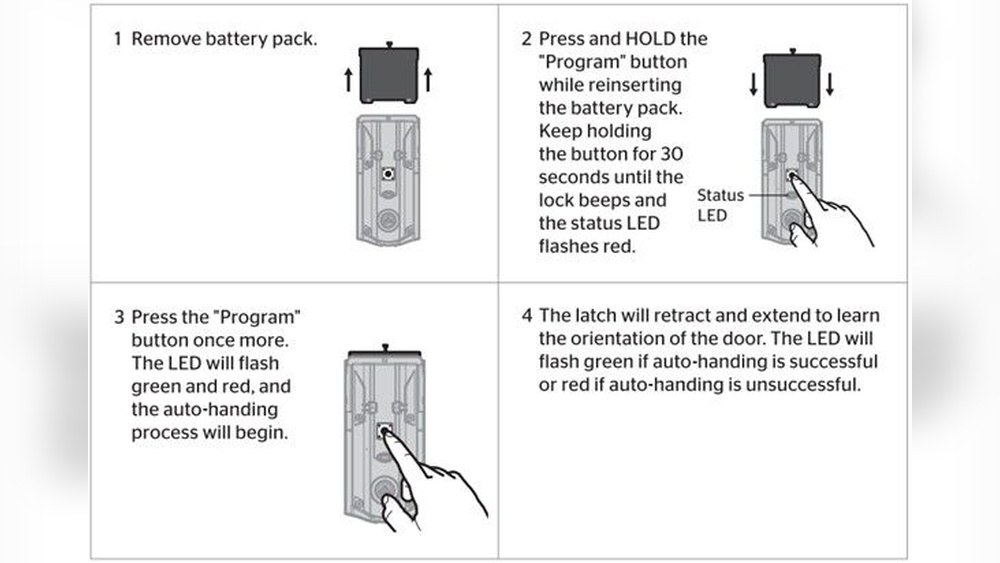
If you own a Kwikset smart lock, you know how much easier it makes entering your home without a key. But sometimes, things go wrong. Maybe you forgot your code, bought a used lock, or need to erase all previous users. In these cases, a reset is the best way to start fresh and make sure your lock is secure. Resetting a smart lock might sound technical, but with the right steps and clear instructions, anyone can do it—even if you’re not a tech expert.
This guide will walk you through everything you need to know about resetting Kwikset smart locks. You’ll learn why a reset might be needed, the differences between models, and the step-by-step process for each type. You’ll also find troubleshooting tips, security advice, and answers to common questions. By the end, you’ll have the confidence to reset your lock safely, keep your home secure, and avoid the problems many beginners face.
Understanding Kwikset Smart Locks
Before you start, it helps to know a little about how Kwikset smart locks work. These locks use an electronic keypad, touchscreen, or even Bluetooth/Wi-Fi to let you in without a traditional key. Popular models include the Kwikset SmartCode series (like 909, 910, 913, 914, and 916), Kwikset Halo, and the Kwikset Premis.
Each model may look similar, but their reset methods can be different. Some have a physical button inside the lock, while others need a special code or app. Understanding your specific model is the first step to a smooth reset.
Why Reset A Kwikset Smart Lock?
Resetting your smart lock is not something you do every day, but there are important reasons to do it:
- Lost or forgotten code: If you can’t remember your user code, a reset is the quickest way to restore access.
- Bought a used lock: Secondhand locks might still have old codes or users saved. Resetting clears all data.
- Moving out or changing tenants: You want to make sure only new users can access the lock.
- Malfunction or glitches: Sometimes the lock doesn’t respond or acts strangely. A reset can fix many common issues.
- Security concerns: If you worry someone else knows your code, a reset guarantees only you can program new codes.
Types Of Kwikset Smart Locks And Their Reset Methods
Kwikset has several smart lock models, each with a unique way to reset. It’s very important to identify your lock’s model before starting. Here’s a quick guide to the most common types.
| Model | Key Features | Reset Method |
|---|---|---|
| Kwikset SmartCode 909/910 | Keypad, Z-Wave compatibility | Button reset |
| Kwikset SmartCode 913/914 | Keypad, Z-Wave, Auto-lock | Button reset |
| Kwikset SmartCode 915/916 | Touchscreen, Z-Wave/Zigbee | Button reset |
| Kwikset Halo | Wi-Fi, App control, Keypad | Button or app reset |
| Kwikset Premis | Apple HomeKit, Touchscreen | Button or app reset |
Preparation: What To Do Before Resetting
Resetting a Kwikset smart lock wipes all your current codes and settings. Before you start, take a few minutes to prepare:
- Identify your model: Check your lock or the user manual for the model number. If you don’t have the manual, look inside the battery cover or on the back of the unit.
- Have fresh batteries: A reset needs enough power. Replace old batteries to avoid problems during the process.
- Write down current codes (if possible): If you still have access, note your user codes. You’ll need to re-enter them after the reset.
- Keep your tools ready: Some models require a screwdriver to remove the cover and access the reset button.
- Download the app: For models like Kwikset Halo and Premis, make sure you have the right app installed on your phone.
Non-obvious Insight 1
Some users forget to remove the lock from their smart home system (like Z-Wave or HomeKit) before resetting. If you skip this, you might have trouble re-adding it later. Always remove the device from your app before you reset the hardware.
How To Reset Kwikset Smartcode Series (909, 910, 913, 914)
These models are some of the most popular and have a similar reset process. Here’s how to do it:
Step 1: Remove The Interior Cover
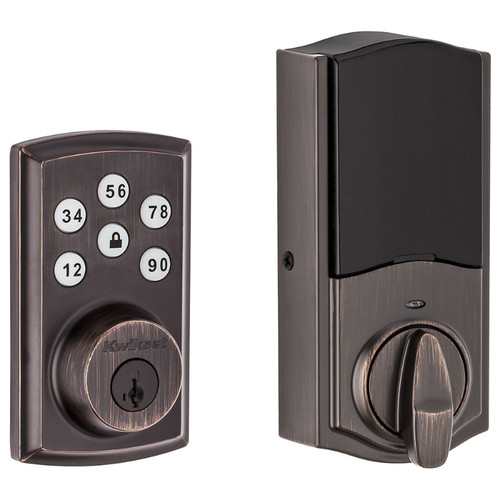
Use a screwdriver to take off the cover on the inside part of your lock. This exposes the battery pack and the program button (usually black or red).
Step 2: Remove The Battery Pack
Take out the battery pack to cut power to the lock. Wait 10 seconds to be sure all memory is cleared.
Step 3: Hold The Program Button
While holding down the program button, reinsert the battery pack. Keep holding the button for 30 seconds, or until you hear a long beep and see the lock’s LED flash red. This means the reset is starting.
Step 4: Finalize The Reset
Release the program button. Wait for about 1 minute. The lock will beep again or the LED will flash green, signaling the reset is complete.
Step 5: Reprogram The Lock
All old codes and settings are now erased. You must add a new master code and user codes. Follow your manual or the lock’s instructions to set these up.
Example
Let’s say you bought a house and the previous owner left a SmartCode 913 installed. You don’t know the codes and want to be sure no one else can enter. By following these reset steps, you clear out all old codes and start with your own.
Credit: doorlocksdirect.com
How To Reset Kwikset Smartcode 915/916 (touchscreen Models)
The 915 and 916 models use a touchscreen instead of a keypad. The reset is similar but with small differences.
Step 1: Remove Interior Cover And Batteries
Take off the inside cover and remove the batteries.
Step 2: Press Program Button
Hold the program button while reinserting the batteries. Keep holding for 30 seconds, until you hear a long beep and the lock flashes red.
Step 3: Wait For Reset Confirmation
Release the button. The lock will beep again and the light will turn green, meaning the reset was successful.
Step 4: Reprogram The Lock
You must now set up a new master code and user codes using the touchscreen.
Non-obvious Insight 2
If you skip the master code setup after a reset, anyone can program a new code at the lock. Always set your master code first to protect against this risk.
How To Reset Kwikset Halo
The Kwikset Halo is a Wi-Fi-connected lock controlled by an app or keypad. It offers two ways to reset: using the reset button, or through the Kwikset app. Here’s how to reset using the button:
Step 1: Remove Interior Cover
Take off the cover on the inside part of the lock.
Step 2: Locate The Reset Button
Find the small reset button (often labeled “A” or “Reset”) near the battery pack.
Step 3: Press And Hold The Button
Hold the reset button for 10 seconds. The lock will beep and the LED will flash red.
Step 4: Wait For Reset To Complete
Release the button. The lock will restart and erase all settings. Wait for a green light or a beep to confirm the reset.
Step 5: Reconnect To Wi-fi And App
Open the Kwikset app and follow the prompts to add the lock back to your account. You will need to set up Wi-Fi and new user codes.
Resetting Via The Kwikset App
If your lock is still connected to Wi-Fi and working, you can also reset it from the app:
- Open the Kwikset app and go to your lock’s settings.
- Look for the “Factory Reset” or “Remove Device” option.
- Confirm your choice. The app will erase all data and remove the lock from your account.
Example
You’re having trouble connecting your Halo lock to Wi-Fi. A reset clears old settings and allows you to set up the connection again from scratch.
How To Reset Kwikset Premis
The Kwikset Premis is designed for Apple HomeKit users. It can be reset with the button or through the Premis app.
Physical Reset Steps
- Remove the interior cover.
- Hold down the program button while reinserting the batteries.
- Keep holding for 30 seconds until the LED flashes red.
- Release and wait for a green light or sound to confirm.
Reset Using The App
- Open the Premis app on your iPhone.
- Go to the lock’s settings.
- Select “Remove Lock” or “Factory Reset.”
- Confirm your choice. The app will reset and remove the lock from your HomeKit account.
Important Note
After a reset, you must re-add the lock to HomeKit using the pairing code found on the lock or in the manual.
How To Reset Kwikset Smartkey Security
Some Kwikset locks have SmartKey Security, allowing you to rekey the lock without replacing it. This is different from a digital reset, but it’s important for full security.
To rekey a SmartKey lock:
- Insert your current key and turn it 90 degrees clockwise.
- Insert the SmartKey tool into the slot and remove it.
- Insert your new key and turn it back to the starting position.
- Remove the new key. The lock is now rekeyed.
This process doesn’t reset codes, but it changes the physical key that works with the lock.

Credit: www.youtube.com
Common Mistakes To Avoid When Resetting
Many first-time users make mistakes that cause frustration or security risks. Here are the most frequent errors:
- Not using fresh batteries: Low battery during reset can corrupt the lock’s memory.
- Missing the master code step: If you don’t set a new master code, anyone can program the lock.
- Forgetting to remove from smart home app: Always remove the lock from your app before resetting, or you may need extra steps to add it back.
- Not waiting for confirmation: If you don’t wait for the final beep or light, the reset may not complete.
- Using the wrong reset method: Each model is different. Using the wrong steps won’t work and may confuse you further.
Step-by-step Comparison: Physical Reset Vs. App Reset
It’s helpful to see the differences between physical resets and app-based resets side by side.
| Physical Reset | App-Based Reset |
|---|---|
| Requires access to the lock hardware | Can be done remotely (if lock is connected) |
| Works if lock is unresponsive to app | Faster and more convenient |
| Always erases all data | May allow you to keep some settings |
| Ideal for forgotten codes or used locks | Ideal if you still have app access |
What To Do After Resetting Your Kwikset Smart Lock
Resetting is just the first step. After a reset, you need to secure and set up your lock properly. Here’s what to do next:
- Set a strong master code: Choose a code that’s not easy to guess. Don’t use 1234 or your birth year.
- Add user codes for family or roommates: Give each person a unique code. This lets you delete codes if someone moves out.
- Connect to your smart home system: Add the lock back to your Z-Wave, Zigbee, HomeKit, or Wi-Fi system as needed.
- Test the lock: Make sure all codes work and the lock responds as expected.
- Update firmware (if available): Some smart locks allow firmware updates via the app. This can fix bugs and improve security.
- Keep a backup: Write down your master code and store it somewhere safe (not on your phone or near the door).
- Set up alerts and notifications: If your lock supports it, enable notifications for lock/unlock activity.
Example
After resetting, you program a master code and give your kids their own codes. You also connect the lock to your Wi-Fi so you get alerts if someone unlocks the door.
Advanced Troubleshooting Tips
Sometimes, a reset doesn’t go as planned. Here are solutions to common reset problems:
- Lock won’t reset: Double-check you are holding the correct button and using fresh batteries. Try again, holding the button for a full 30 seconds.
- LED doesn’t flash or beep: Replace batteries and make sure the battery pack is fully inserted.
- Can’t add new codes after reset: Make sure you followed all steps, especially setting the master code.
- App won’t reconnect: Remove the lock from your app account, reset the lock, and try adding it again as a new device.
- Smart home system won’t detect lock: After a reset, you may need to exclude the lock from your smart hub before including it again.
Security Tips After Resetting
Resetting your Kwikset lock is a chance to improve your home’s security. Here’s how to make the most of it:
- Don’t share your master code: Only give user codes to people you trust.
- Change codes regularly: For rentals or Airbnbs, change user codes after every guest.
- Enable two-factor authentication: If your app supports it, use extra security for your account.
- Keep the firmware updated: Hackers sometimes target old software. Regular updates help protect you.
- Disable unused features: If you don’t use remote unlock, turn it off for extra safety.
Real-world Example: Resetting A Used Kwikset Lock
Imagine you bought a used Kwikset 914 from an online marketplace. The old owner didn’t give you the master code. You follow the reset steps, clearing out all old codes and programming your own. You then add the lock to your smart home hub, set unique codes for each family member, and enable alerts on your phone.
Now, you know exactly who enters and when—and you’re sure no one from the past can get in.
Data: Why Resetting Matters For Security
According to security studies, nearly 60% of smart lock owners never reset their lock after moving in or buying secondhand. This leaves them open to unwanted access. Resetting is a simple but powerful way to take control of your home’s safety. For more on smart lock security, see this Wikipedia overview.
Table: Model-specific Reset Summary
Here’s a quick summary to help you remember which reset method fits each Kwikset model:
| Model | Reset Button | App Reset | Special Notes |
|---|---|---|---|
| SmartCode 909/910 | Yes | No | Physical reset only |
| SmartCode 913/914 | Yes | No | Physical reset only |
| SmartCode 915/916 | Yes | No | Touchscreen steps |
| Halo | Yes | Yes | Wi-Fi, app needed for some features |
| Premis | Yes | Yes | HomeKit integration |

Credit: www.youtube.com
Frequently Asked Questions
How Do I Know If My Kwikset Lock Reset Was Successful?
After a reset, most Kwikset locks will make a long beep or the LED will flash green. If you try a user code from before the reset and it doesn’t work, the reset was successful.
Can I Reset My Kwikset Lock Without The Master Code?
Yes, most Kwikset smart locks use a physical reset button. This does not require a code. Just follow the steps for your model.
Do I Need To Remove My Lock From My Smart Home Hub Before Resetting?
Yes, it’s best to remove the device from your smart home app first. If you reset before removing, your hub may have trouble finding the lock later.
Will Resetting My Kwikset Lock Delete My App Settings?
Yes, a full reset erases all codes, settings, and app connections. You must set up the lock again from the beginning.
What Should I Do If My Kwikset Lock Won’t Reset?
Check the batteries, make sure you are holding the correct button, and follow the steps carefully. If it still doesn’t work, contact Kwikset support or refer to your lock’s user manual for help.
Resetting your Kwikset smart lock doesn’t have to be stressful. With the right steps and a little preparation, you can protect your home, control who comes in, and avoid the common mistakes that frustrate many users. Take your time, follow the guide, and enjoy a safer, smarter front door.