
When your LG TV remote control stops working, it can be frustrating. You click a button, but nothing happens. You try changing the batteries, but still, no response. Sometimes, the remote loses connection or gets stuck due to software glitches or accidental button presses. Resetting the remote often solves these problems. If you want to know how to reset your LG TV remote control, this guide will help you step by step. You will learn not only how to reset the remote, but also why it matters, what mistakes to avoid, and how to check if your remote is really the problem. By the end, you will feel confident handling your LG remote issues.
Understanding The Basics Of Lg Tv Remote Controls
LG TV remote controls come in different models. The most common types are the standard remote, which has simple buttons, and the Magic Remote, which offers smart features like voice control and pointer navigation. Knowing your remote type is important because each model may have a slightly different reset process.
- Standard Remote: Most LG TVs include this basic remote. It operates with infrared (IR) signals and has familiar buttons like Power, Volume, Channel, Menu, and Number pad.
- Magic Remote: This advanced remote connects via Bluetooth and can control your TV like a mouse. It often includes a microphone for voice commands and a wheel for scrolling.
If you are not sure which remote you have, check the model number printed on the back or inside the battery compartment. The Magic Remote usually has a unique shape and fewer buttons compared to the standard remote.
Why Remote Controls Fail
Several problems can cause your LG TV remote to stop working:
- Dead batteries
- Signal interference
- Software glitches
- Physical damage
- Pairing loss (for Magic Remote)
Sometimes, the issue is with the TV itself, not the remote. For example, the TV sensor may be blocked, or the TV software may freeze. It is important to check all possibilities before resetting.
When Should You Reset Your Lg Tv Remote?
Resetting your LG TV remote is not always the first step. Sometimes, a simple battery replacement or cleaning fixes the problem. However, you should reset your remote when:
- The remote does not respond after battery change
- Certain buttons stop working
- The remote is not pairing with the TV (Magic Remote)
- The TV is not responding to any command
- You see blinking lights on the remote but nothing happens
Many users overlook the pairing issue with the Magic Remote. If your remote is not paired, it cannot control the TV. Also, software glitches after a TV update may cause the remote to stop working, which a reset can fix.
Preparing To Reset: Quick Checks Before You Start
Before you reset your LG TV remote, do these simple checks. They can save you time and help you avoid mistakes.
- Check Batteries: Replace with fresh alkaline batteries. Make sure they are installed correctly.
- Clean the Remote: Wipe the IR sensor and buttons. Dust can block signals.
- Remove Obstacles: Make sure nothing is blocking the TV’s IR sensor.
- Test with Another Remote: If possible, use another LG remote to see if the TV responds.
- Restart the TV: Unplug the TV, wait 30 seconds, then plug back in.
If the remote still does not work after these checks, proceed to reset.
How To Reset A Standard Lg Tv Remote
Resetting a standard LG TV remote is simple. It involves removing batteries and pressing buttons to clear the memory. Follow these steps:
- Remove Batteries
- Open the battery compartment.
- Take out both batteries.
- Press All Buttons
- With batteries removed, press every button on the remote one by one.
- This discharges any residual power and clears stuck signals.
- Wait 30 Seconds
- Leave the remote empty for at least 30 seconds.
- Insert New Batteries
- Use fresh alkaline batteries.
- Make sure you insert them with correct polarity (+/-).
- Test the Remote
- Point the remote at the TV and press Power or Volume.
If the remote works, the reset is successful. If not, try again or check for other issues.
Common Mistakes When Resetting Standard Remotes
- Using old or weak batteries after reset
- Not pressing all buttons to clear memory
- Forgetting to check battery polarity
Many beginners think only removing batteries is enough. Pressing all buttons is a non-obvious step that often fixes stuck remotes.
Credit: www.youtube.com
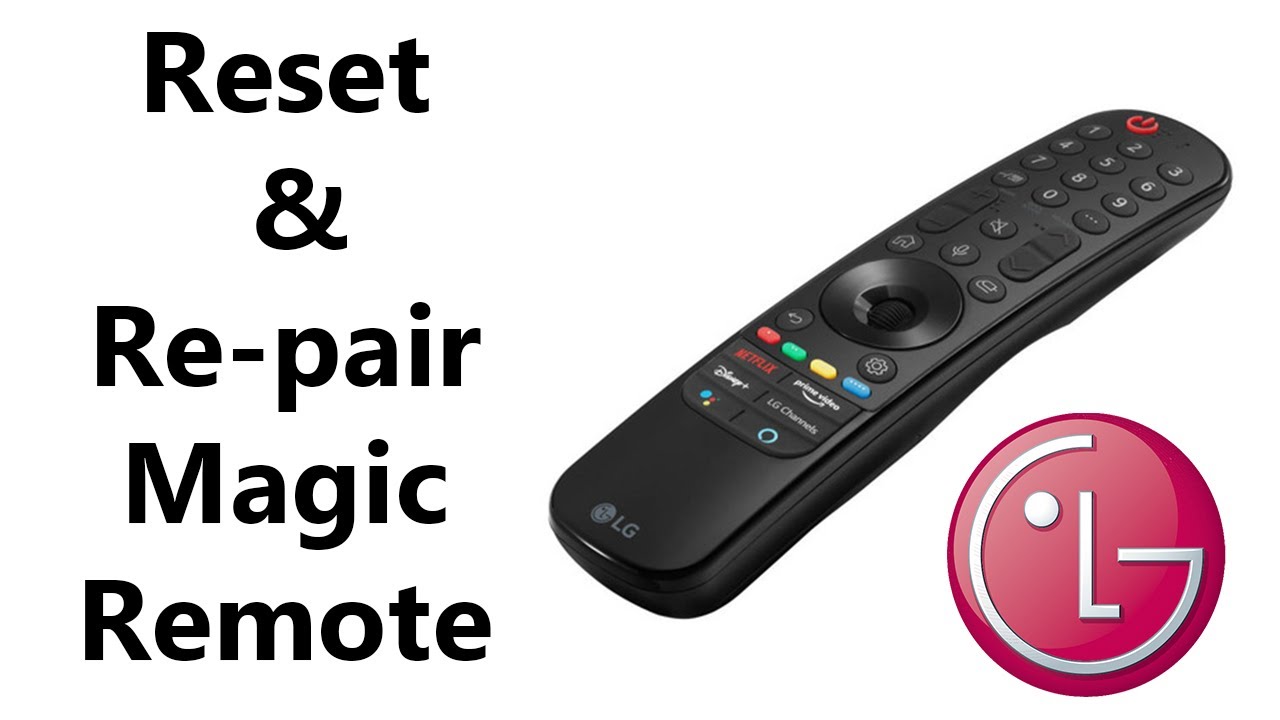
How To Reset Lg Magic Remote (bluetooth)
The Magic Remote needs special handling because it connects via Bluetooth. Resetting it involves unpairing and pairing again.
Unpairing The Magic Remote
- Remove Batteries
- Open the battery compartment and remove both batteries.
- Press Power Button
- Hold the Power button for 5 seconds to discharge any power.
- Wait 30 Seconds
- Let the remote sit without batteries.
- Insert New Batteries
- Use fresh batteries and close the compartment.
Pairing The Magic Remote With Your Tv
- Turn on the TV
- Use the physical button on the TV if the remote is not working.
- Point the Remote at the TV
- Hold the remote towards the TV.
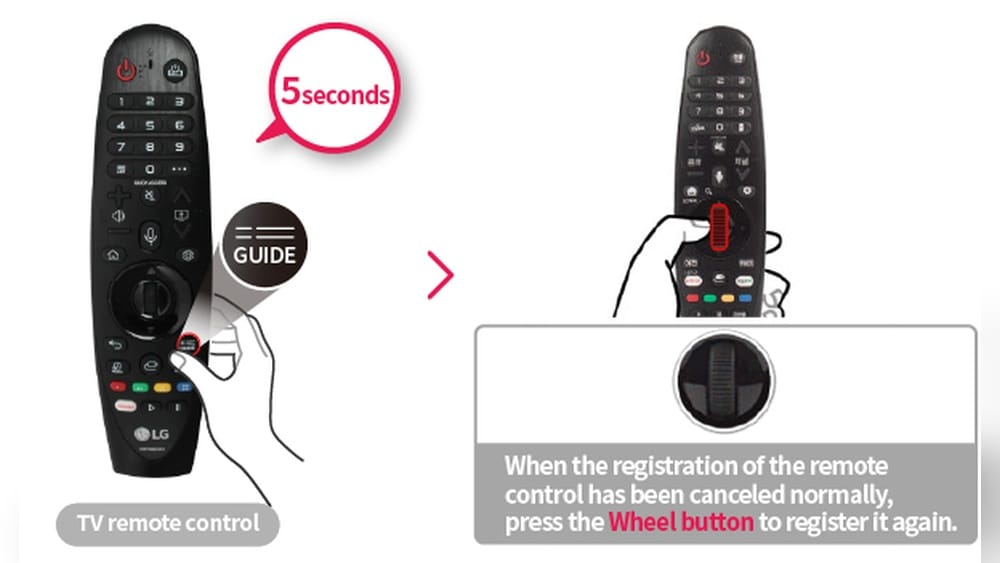
- Press the Wheel (OK) Button
- Hold the Wheel button (sometimes labeled OK) for 5 seconds.
- Look for Pairing Confirmation
- The TV screen will show a message: “Remote paired successfully.”
If you see an error, repeat the steps. Sometimes, the TV may ask to turn off and on again.
Troubleshooting Magic Remote Pairing
- If pairing fails, check if another Bluetooth device is interfering.
- Make sure the TV’s Bluetooth is not disabled in settings.
- Move closer to the TV.
Many users miss the need to hold the Wheel button for several seconds. A quick press does not trigger pairing.
Advanced Reset: Factory Resetting The Remote And Tv
Sometimes, the problem is deeper, like a software bug or a TV firmware issue. In this case, you may need to factory reset both the remote and the TV.
Factory Resetting The Lg Tv
- Go to Settings
- Use the TV’s physical button or on-screen controls.
- Find General > Reset to Initial Settings
- Navigate through menus: Settings > All Settings > General > Reset to Initial Settings.
- Enter PIN
- The default PIN is usually 0000 unless changed.
- Confirm Reset
- The TV will restart and erase all settings.
After the TV resets, pair your remote again as described above.
Factory Resetting Magic Remote
There is no direct “factory reset” button for the Magic Remote, but following the unpairing and pairing steps above achieves similar results. If you have trouble, repeat the steps or contact LG support.

Credit: www.lg.com
Comparing Lg Remote Types And Reset Methods
To help you understand which reset method fits your remote, see this comparison:
| Remote Type | Reset Method | Pairing Needed | Common Problems |
|---|---|---|---|
| Standard Remote | Battery removal, button press | No | Stuck buttons, IR signal loss |
| Magic Remote | Battery removal, re-pairing | Yes | Pairing loss, Bluetooth interference |
| Universal Remote | Code reset, battery removal | Yes (for universal models) | Wrong code, signal mismatch |
Other Ways To Control Your Lg Tv If The Remote Fails
If you cannot reset your remote or it is broken, you have alternatives:
- LG ThinQ App: Download the app on your smartphone. It can control your TV over Wi-Fi.
- Physical TV Buttons: Most LG TVs have buttons for Power, Volume, and Input.
- Universal Remote: Buy a compatible universal remote and set it up with LG codes.
- Keyboard and Mouse: Some LG smart TVs accept USB keyboards and mice.
These options help you keep using your TV while you fix or replace the remote.
Diagnosing Remote Problems: Is It The Remote Or The Tv?
Sometimes, the issue is not with the remote but with the TV. Here’s how to check:
- Check IR Signal: Use your smartphone camera. Point the remote at the camera and press buttons. If you see a flashing light, the remote is sending signals.
- Test Another Remote: Use a different LG remote. If it works, your original remote is faulty.
- Check TV Sensor: Clean the TV’s IR receiver area.
- Update TV Software: Go to Settings > All Settings > Support > Software Update.
If the remote sends signals but the TV does not respond, the TV may need service.
Data And Statistics: Remote Failures And Resets
According to LG customer service reports, about 40% of remote issues are solved by battery replacement or basic reset. Around 25% require pairing or software updates. Only 10% involve hardware failure. The rest are due to user errors, such as wrong button presses or blocked sensors.
Most Magic Remote users face pairing loss after TV software updates. Standard remotes mostly suffer from stuck buttons or weak signals.
Practical Tips For Successful Lg Remote Reset
Resetting your LG TV remote is easy, but these tips can help you avoid mistakes:
- Always use fresh alkaline batteries. Old batteries often cause weak signals.
- Press all buttons firmly during reset. Some buttons may be stuck.
- When pairing Magic Remote, make sure the TV is on and Bluetooth is active.
- Avoid using multiple remotes at the same time. Bluetooth interference can cause pairing problems.
- After factory resetting the TV, set up the remote from scratch.
Common Problems After Reset And Their Solutions
Sometimes, even after resetting, the remote may not work as expected. Here are common issues and how to fix them:
- Remote still not responding: Try resetting again and check batteries.
- Buttons not working: Clean the remote. Dirt can block button contacts.
- TV not pairing: Move closer to the TV and avoid other Bluetooth devices.
- TV does not recognize remote: Update TV software.
- Remote works but TV is slow: Restart the TV. Software lag can cause delays.
If none of these solutions work, consider replacing the remote or contacting LG support.
How To Set Up A Replacement Lg Tv Remote
If your remote is broken, you can buy a new one. Setting up a replacement remote is easy:
- Buy the Correct Model: Check your TV model number. Buy the same type of remote.
- Insert Batteries: Use fresh batteries.
- Pair Magic Remote: Hold the Wheel button (OK) for 5 seconds.
- Test All Functions: Try Power, Volume, Channel, and Menu.
Some universal remotes need you to enter LG codes. Follow the instructions in the package.
Comparing Lg Magic Remote And Universal Remotes
Many users ask if a universal remote can replace the Magic Remote. Here’s a comparison:
| Feature | Magic Remote | Universal Remote |
|---|---|---|
| Voice Control | Yes | No (most models) |
| Pointer Navigation | Yes | No |
| Bluetooth Pairing | Yes | No (IR only) |
| Setup | Easy pairing | Code entry |
| Compatibility | LG only | Multiple brands |
Magic Remote offers more features but only works with LG TVs. Universal remotes work with many brands but lack advanced functions.
How To Avoid Remote Issues In The Future
Once you reset your LG TV remote, you want it to keep working. These tips help you avoid problems:
- Change batteries every 6 months.
- Keep the remote clean and dry.
- Do not drop or spill liquids on the remote.
- Avoid pressing multiple buttons at once.
- Keep the TV’s IR sensor area clear.
Many people ignore the importance of clean contacts and proper battery handling. Small steps prevent most remote failures.
Quick Reference: Steps To Reset Lg Tv Remote
Here’s a quick summary for easy reference:
- Remove batteries.
- Press all buttons.
- Wait 30 seconds.
- Insert fresh batteries.
- Pair Magic Remote (hold Wheel button).
- Test all functions.
These steps solve most common remote problems.
Lg Tv Remote Reset: Data Table For Troubleshooting
If you are unsure which reset process to use, this troubleshooting table helps:
| Problem | Remote Type | Reset Steps | Extra Actions |
|---|---|---|---|
| No response | Standard | Battery removal, button press | Check IR signal |
| Pairing lost | Magic Remote | Battery removal, re-pairing | Enable Bluetooth |
| Stuck button | Any | Press all buttons, clean | Replace batteries |
| Universal remote not working | Universal | Code reset, battery removal | Enter correct code |
When To Contact Lg Support
If you have tried all reset steps and your remote still does not work, you may need help from LG support. Some problems, like hardware failure or broken circuit, cannot be fixed by reset. You can contact LG support online or by phone.
They can guide you or arrange a replacement.
For official guidance and troubleshooting, visit the LG Support site.

Credit: www.youtube.com
Frequently Asked Questions
How Do I Know If My Lg Tv Remote Needs Resetting?
If your remote stops responding, buttons do not work, or the TV does not react, your remote may need resetting. Try changing batteries first. If that does not work, follow the reset steps.
What Is The Best Way To Reset The Magic Remote?
Remove batteries, hold the Power button for 5 seconds, wait 30 seconds, insert new batteries, then pair with the TV by holding the Wheel (OK) button for 5 seconds. Wait for the pairing message.
Can I Use My Phone As An Lg Tv Remote?
Yes. Download the LG ThinQ app on your smartphone. Connect your phone and TV to the same Wi-Fi network. The app can control most TV functions.
Why Is My Lg Tv Not Responding To Any Remote, Even After Reset?
The problem may be with the TV’s IR sensor or software. Clean the sensor, check for software updates, and restart the TV. If another remote works, your original remote is faulty.
How Often Should I Reset My Lg Tv Remote?
You do not need to reset regularly. Only reset when the remote stops working or after a TV software update that causes pairing issues.
Resetting your LG TV remote control is a simple process but requires careful steps. Whether you have a standard remote or a Magic Remote, following the right method can restore full functionality. Remember to check batteries, clean the remote, and pair it correctly.
If problems persist, use alternative control options or contact LG support. With this guide, you can solve most remote issues confidently and keep your TV experience smooth.