
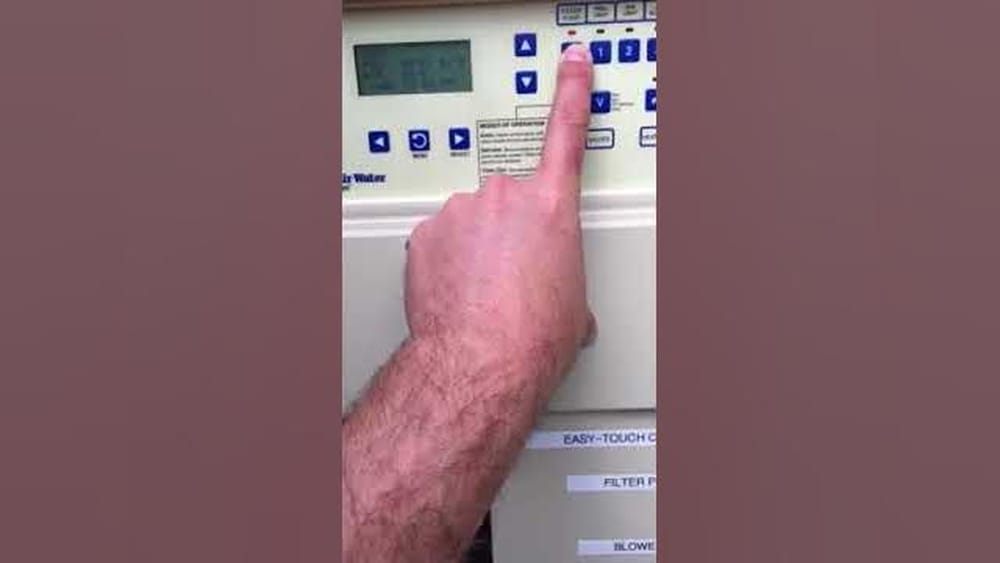
Many pool owners rely on the Pentair Easy Touch panel to control their pool systems. This device lets you manage pumps, heaters, lights, and other equipment with just a few taps. But sometimes, the panel may stop responding, show errors, or behave strangely.
When this happens, knowing how to reset your Pentair Easy Touch panel can save you time, money, and frustration.
Resetting the panel is not always straightforward. Some issues need a simple reboot, while others require more advanced steps. In this article, you’ll learn the different ways to reset the Pentair Easy Touch panel, when each method is best, and how to avoid mistakes that could damage your system.
Whether you’re a homeowner or a pool technician, you’ll find practical advice to get your panel working again. Let’s dive in.
Understanding The Pentair Easy Touch Panel
Before you reset your panel, it’s important to know what the Pentair Easy Touch does. This device is a digital controller for your pool and spa systems. It manages:
- Pool pumps
- Heaters
- Lights
- Valves
- Water features
- Chemical automation
You can operate the panel through its physical buttons, a wireless remote, or a mobile app (if connected). The panel is mounted near your pool equipment, usually in a weather-resistant box.
How The Panel Works
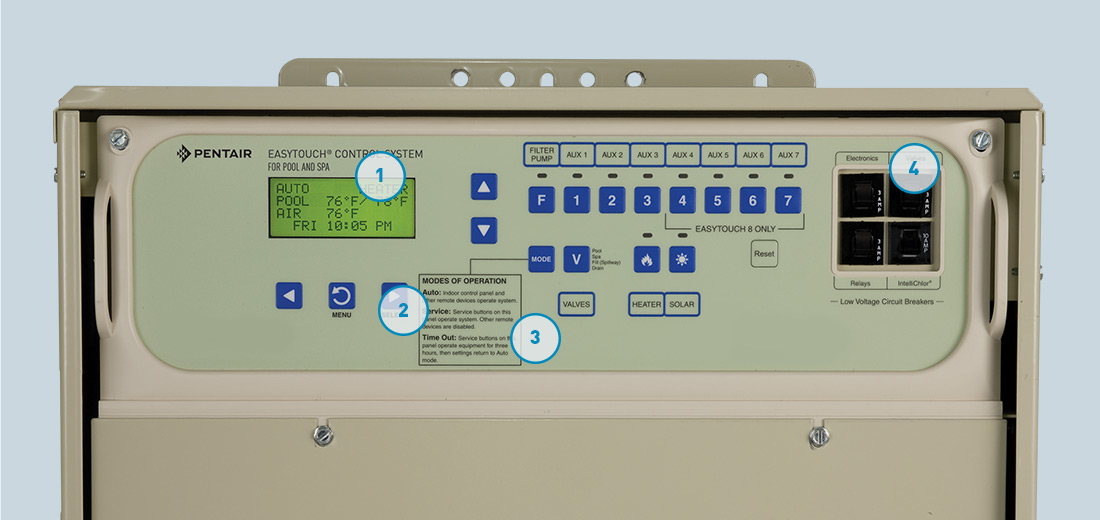
The Easy Touch panel uses a microcontroller to process commands. When you press a button or send a signal from the app, the panel translates this into actions, like turning on the pool heater or switching lights. It has an LCD screen that shows system status, error messages, and settings.
Common Reasons For Resetting
You might need to reset the panel if you see:
- Blank screen
- Frozen display
- Unresponsive buttons
- Network issues
- Strange behavior after a power outage
- Error codes that won’t clear
Resetting helps restore normal function, clear bugs, and apply new settings. But it’s important to know which reset method to use, as some will erase your settings while others won’t.
Types Of Reset For The Pentair Easy Touch Panel
Not all resets are the same. Depending on your issue, you may need one of these methods:
- Soft Reset – Reboots the panel without erasing settings.
- Power Cycle – Turns the unit off and on to clear basic errors.
- Factory Reset – Restores original settings, erasing all custom programming.
- Network Reset – Fixes Wi-Fi or remote connection problems.
Let’s look at each type in detail.
Soft Reset
A soft reset is like restarting a computer. It’s the safest option and solves most minor glitches. Use this if your panel is slow, buttons aren’t responding, or you see a blank screen.
Power Cycle
This method involves turning off the power to the panel and then turning it back on. It clears temporary faults caused by power surges or outages. If your panel is totally unresponsive, try this first.
Factory Reset
A factory reset wipes all custom settings, schedules, and device configurations. Use this only if your panel has major software errors or you’re setting up the system for a new pool owner.
Network Reset
If you use a wireless remote or mobile app, sometimes the panel loses connection. A network reset restores communication without affecting other settings.
How To Perform A Soft Reset
A soft reset is quick and easy. Here’s how you do it:
1. Locate The Reset Button
On the inside of the Easy Touch box, find a small button labeled “Reset. ” It’s usually near the LCD screen or circuit board.
2. Press And Hold
Using a finger or insulated tool, press the reset button for 3–5 seconds.
3. Release And Wait
The LCD screen will go blank, then restart. Wait about 1 minute for the system to reboot.
4. Check System Status
Once the panel comes back on, check the display for normal operation. Test the buttons and remote.
Tip: If you don’t see a reset button, check your user manual. Some models require a combination of buttons to trigger a soft reset.
How To Power Cycle The Pentair Easy Touch Panel
Power cycling clears stubborn glitches. Follow these steps:
1. Turn Off Power
Find the circuit breaker for your pool equipment. Switch it off to cut power to the Easy Touch panel.
2. Wait For 30 Seconds
Give the system time to discharge any residual power.
3. Turn Power Back On
Flip the breaker back to on. The panel should reboot automatically.
4. Observe The Screen
Watch the display as it boots. Look for error messages or normal operation.
Safety Note: Always wear dry shoes and stand on dry ground when working near electrical equipment. If you’re not sure which breaker to use, consult a licensed electrician.

Credit: www.youtube.com
How To Factory Reset The Pentair Easy Touch Panel
A factory reset is more complex and should only be done when necessary. This process erases all settings and returns the panel to its original state.
1. Back Up Your Settings
Write down or take photos of your schedules, device names, and preferences. You’ll need to re-enter these after the reset.
2. Access Service Mode
Open the panel and press the “Mode” button until the display shows “Service”.
3. Locate The Reset Option
Navigate the menu using the arrow buttons. Look for “Reset All Settings” or a similar option.
4. Confirm Reset
Press “Enter” to start the reset. The screen will ask you to confirm—press “Yes” or “Enter” again.
5. Wait For Reboot
The panel will restart and show the default settings. This may take up to 2 minutes.
6. Reprogram Your Settings
Enter your schedules, device names, and preferences again.
Warning: Factory reset cannot be undone. Only use this if you’re sure you need a fresh start.
How To Reset Network Settings
If your Pentair Easy Touch is connected to Wi-Fi, a remote, or a mobile app, network issues can prevent you from controlling the system. Here’s how to reset network settings:
1. Open The Network Menu
On the panel display, find the menu labeled “Network” or “Wireless Setup”.
2. Select “reset Network”
Use the arrow keys to highlight the reset option. Press “Enter.”
3. Confirm Action
The Screen May Ask For Confirmation. Press “yes” Or “enter.”
4. Reconnect Devices
After the reset, reconnect your wireless remote or app. Enter the Wi-Fi password if needed.
Note: For persistent network issues, check your router settings and make sure the panel firmware is updated.
Troubleshooting After A Reset
Resetting the Easy Touch panel solves many problems, but sometimes issues persist. Here’s what to do next:
Panel Still Unresponsive
If the screen is blank or buttons don’t work after a reset:
- Double-check the breaker and power supply.
- Inspect for loose wires or damaged connectors inside the box.
- Make sure there’s no water damage.
Error Codes Won’t Clear
Some error codes remain after a reset. Try these steps:
- Reboot the panel again.
- Check the user manual for specific code meanings.
- Inspect connected devices (pumps, heaters, etc.) For faults.
Remote Or App Won’t Connect
If your wireless remote or app can’t connect:
- Repeat the network reset.
- Verify your Wi-Fi signal is strong near the panel.
- Update the app and panel firmware.
Persistent Software Issues
Rarely, the panel may have deeper software bugs. Contact Pentair support or visit their official site for firmware updates and technical help.
Common Mistakes When Resetting The Easy Touch Panel
Resetting the panel seems simple, but mistakes can make things worse. Avoid these errors:
1. Resetting Without Backing Up Settings
Factory reset erases all schedules and preferences. Always record your settings first.
2. Using The Wrong Breaker
Accidentally turning off another circuit can leave the panel powered and unresponsive.
3. Skipping Safety Checks
Never work with wet hands or near water when handling electrical equipment.
4. Ignoring Firmware Updates
Old firmware can cause glitches. Check for updates after a reset.
5. Not Waiting Long Enough
Some panels take up to 2 minutes to reboot. Impatiently pressing buttons can cause errors.
Data Table: Reset Methods Comparison
Here’s a quick comparison of different reset methods:
| Reset Method | What It Does | Best For | Risks |
|---|---|---|---|
| Soft Reset | Reboots panel, keeps settings | Minor glitches, slow response | None |
| Power Cycle | Turns off/on, clears faults | Frozen screen, power issues | Electrical safety |
| Factory Reset | Erases all settings | Major software errors | Loss of schedules |
| Network Reset | Resets Wi-Fi/remote settings | Network problems | Must reconnect devices |
Step-by-step Guide: Factory Reset Example
Here’s a detailed example for a factory reset, using a typical Easy Touch model.
1. Switch To Service Mode
Open the panel door. Press the “Mode” button until you see “Service” on the display.
2. Find Reset Menu
Press the arrow buttons to navigate to “Settings”, then “Reset All.”
3. Select Reset Option
Press “enter”. The Screen Will Display “reset All Settings?”
4. Confirm
Press “Yes”. The panel will erase all settings.
5. Wait For Reboot
The screen will go blank for up to 2 minutes.
6. Check Default Settings
After reboot, you’ll see the default configuration. Re-enter your schedules and preferences.
Tip: If your panel doesn’t have a “Reset All” option, check the manual or contact Pentair support.
Credit: www.antillespr.edu
Data Table: Error Codes And Solutions
Easy Touch panels display error codes when something goes wrong. Here are common codes and what to do:
| Error Code | Meaning | Solution |
|---|---|---|
| ERR1 | Communication error | Power cycle panel, check cables |
| ERR2 | Heater fault | Inspect heater, reset panel |
| ERR3 | Pump error | Check pump, restart panel |
| ERR4 | Low voltage | Check power supply, call electrician |
| ERR5 | Water sensor issue | Inspect sensor, reset panel |
Data Table: Panel Models And Reset Options
Different Easy Touch models have unique reset options. Here’s a comparison:
| Model | Soft Reset | Factory Reset | Network Reset |
|---|---|---|---|
| Easy Touch 4 | Button inside box | Menu option | Menu option |
| Easy Touch 8 | Button inside box | Menu option | Menu option |
| Easy Touch PL4 | Button on PCB | Manual reset | Not available |
| Easy Touch PSL4 | Button on PCB | Manual reset | Not available |
What To Do If Reset Doesn’t Work
Sometimes, even after trying all reset methods, the panel won’t respond. Here’s what you can do:
- Check Power Supply
Make sure the panel is getting proper voltage. Use a multimeter if you’re comfortable, or call a professional.
- Inspect Internal Components
Open the panel and look for signs of damage. Loose wires, corrosion, or burned parts mean the panel needs repair.
- Update Firmware
Visit Pentair’s official site for firmware updates. Follow instructions carefully to avoid bricking the panel.
- Call Pentair Support
If you’re stuck, contact Pentair customer service for expert help. They can guide you through advanced troubleshooting or recommend a technician.
Real-life Example: Solving A Frozen Screen
A pool owner notices the Easy Touch panel screen is frozen and won’t respond. Here’s how they solved it:
1. Tried Soft Reset
Pressed the reset button, but nothing changed.
2. Power Cycle Attempt
Turned off the breaker for 30 seconds, then turned it back on. The screen rebooted, but froze again.
3. Factory Reset Step
Backed up settings, then performed a factory reset. The screen restarted and worked normally.
4. Reprogrammed Settings
Entered schedules and preferences again.
Key Insight: Sometimes, only a factory reset will clear deep software bugs. Always back up settings before trying this.
Credit: www.troublefreepool.com
Non-obvious Insights For Beginners
Many pool owners overlook these points:
1. Firmware Matters
Keeping your panel’s firmware up to date prevents many glitches. After any reset, check for updates on Pentair’s site.
2. Network Issues Can Affect Panel Behavior
If your panel is slow or unresponsive, poor Wi-Fi can be the cause. Try moving your router closer or using a Wi-Fi extender.
3. Reset Does Not Fix Hardware Problems
If you see signs of water damage, corrosion, or burnt smell, resetting won’t help. You need professional repair.
How To Prevent Future Problems
To keep your Pentair Easy Touch panel running smoothly:
- Update Firmware Regularly
Visit Pentair’s official site for updates.
- Inspect Panel Monthly
Look for signs of moisture or loose wires.
- Keep Panel Dry and Clean
Wipe dust and moisture from the box and screen.
- Record Your Settings
Keep a notebook or take photos of your schedules.
When To Call A Professional
Some problems are too complex for DIY fixes. Call a professional if:
- The panel smells burnt or has visible damage.
- You experience repeated resets or constant errors.
- Water is leaking into the box.
- Electrical problems are suspected.
A qualified technician can safely diagnose and repair your panel.
Frequently Asked Questions
How Often Should I Reset My Pentair Easy Touch Panel?
Only reset the panel when you notice glitches, errors, or unresponsive behavior. Regular resets are not needed for normal operation.
Will Resetting Erase My Schedules And Preferences?
A soft reset and power cycle keep your settings safe. Only a factory reset erases schedules, device names, and preferences.
What Should I Do If I Can’t Find The Reset Button?
Check your user manual or visit the official Pentair website. Some models require a combination of buttons or menu navigation to reset.
Can I Reset The Panel From My Mobile App?
Most mobile apps only allow basic controls. To fully reset the panel, you need to use the physical device or access the service menu.
Where Can I Find Official Troubleshooting Advice?
For official troubleshooting and firmware updates, visit the Pentair Easy Touch Control Systems page.
Resetting your Pentair Easy Touch panel is a valuable skill for every pool owner. With the right method, you can solve many common issues and restore smooth operation. Always start with the safest reset, back up your settings before major changes, and know when to call a professional.
By following these tips, your pool system will stay reliable and easy to manage.