
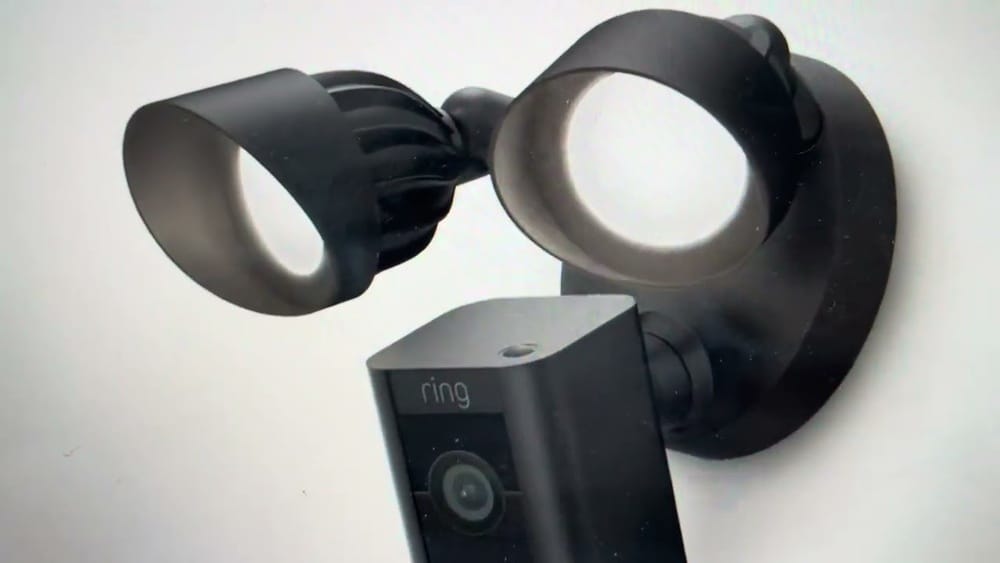
Resetting a smart device like the Ring Floodlight Camera can be a lifesaver when things don’t work as expected. Maybe your camera stopped connecting to Wi-Fi, or you want to give the device to someone else. Sometimes, a reset is the only way to solve persistent errors. If you’re new to smart home gadgets, the process might feel confusing or even risky. But don’t worry—resetting a Ring Floodlight Camera is straightforward when you know what steps to follow. This guide will take you through every aspect, from when to reset your camera, how to do it, and what to watch for, to troubleshooting tips and real-life examples.
Whether you’re a homeowner, a renter, or just helping a friend, you’ll find everything you need here. You’ll also learn about the difference between a soft reset and a hard reset, discover what information you’ll lose, and get tips for a smooth setup after the reset.
By the end, you’ll feel confident managing your Ring Floodlight Camera, even if you’re not a tech expert.
Understanding The Ring Floodlight Camera
Before jumping into the reset process, it’s important to know what makes the Ring Floodlight Camera unique. This device combines a motion-activated camera with powerful LED floodlights, offering both security and visibility for your outdoor spaces. It connects to your Wi-Fi, allowing you to view live video, receive alerts, and control settings through the Ring app.
Key features:
- 1080p HD video for clear monitoring
- Two-way audio so you can talk to visitors
- Motion-activated lights that help deter intruders
- Siren alarm to scare off unwanted guests
- Night vision for round-the-clock coverage
The camera relies on a steady Wi-Fi connection and regular software updates. Like all smart devices, it can sometimes face glitches, software errors, or network issues that a reset can fix.
When And Why You Might Need To Reset
Resetting isn’t something you should do every day. But there are certain situations where it’s the best solution. Understanding these helps you avoid unnecessary resets and know when it’s truly needed.
Common Reasons To Reset Your Ring Floodlight Camera
- Device is unresponsive: The camera stops streaming video, does not react to motion, or the app shows it as offline.
- Connection problems: The camera won’t connect to your Wi-Fi, or keeps dropping the connection even after reboots.
- Setup errors: The device won’t complete the setup process, or you see error messages in the app.
- Transferring ownership: You’re selling, giving away, or moving the camera to a new owner.
- Persistent bugs: Issues like motion detection not working, settings not updating, or the siren/alerts not functioning.
- Security concerns: If you suspect unauthorized access to your camera, a reset wipes data and removes linked accounts.
Types Of Reset: Soft Reset Vs. Hard Reset
- Soft reset: Power cycling the device (turning off and on). Fixes simple glitches, but does not erase settings or remove accounts.
- Hard reset (Factory reset): Erases all data, settings, and user info. The camera returns to its original state, as if it’s brand new.
For most serious problems, you’ll need a hard reset.
Preparing For The Reset
Resetting a Ring Floodlight Camera is not complicated, but good preparation prevents mistakes and saves time.
Backup Important Data
- Video recordings: Download any important videos from your Ring app before resetting. After a factory reset, stored videos and events are deleted from the device.
- Settings: Note your preferred motion zones, light schedules, and notification preferences. You’ll have to set these up again after the reset.
Gather The Tools
- Small pin or paperclip: Needed to press the reset button.
- Stable internet connection: For setup after the reset.
- Ring account login: Username and password for re-adding the device.
Safety First
- Turn off power to the camera at the breaker if you need to access wiring or the reset button is hard to reach.
- Use a sturdy ladder if the camera is mounted high.
Tip: Many people forget to download important video clips before a reset. These cannot be recovered after the process.
How To Soft Reset Your Ring Floodlight Camera
A soft reset is simply turning the device off and on again. This step can solve many minor issues without erasing your settings.
Steps:
- Turn off the power to your Ring Floodlight Camera at the circuit breaker or wall switch.
- Wait 30 seconds to one minute.
- Turn the power back on.
- Wait for the device to reboot (the lights may flash, and you’ll hear a click).
After a soft reset, check if your device is working normally. If not, proceed to a factory reset.

Credit: www.urlaub-hund.at
How To Hard Reset (factory Reset) Ring Floodlight Camera
A hard reset will erase all user data and settings. Use this only if you plan to set up the camera again from scratch, or before transferring it to someone else.
Step-by-step Guide
- Locate the reset button: On most Ring Floodlight Cameras, the reset button is a small, black button located on top of the camera (not the lights). You may need a ladder to reach it.
- Press and hold the button: Use a pin or paperclip to press and hold the reset button for 30 seconds. You’ll see the camera lights flash, which means the reset is starting.
- Release the button: After 30 seconds, let go of the reset button.
- Wait for the camera to restart: The lights will flash again, and the device will reboot. This can take about a minute.
- Ready for setup: When the camera’s front light starts pulsing, it’s ready to be set up again in the Ring app.
Important: All previous connections, Wi-Fi settings, and customizations are deleted. The camera will no longer show up in your Ring account until you add it again.
What Happens After A Factory Reset?
Many users are surprised by what they lose after a reset. Here’s what you can expect:
- All video history is lost (unless saved in the cloud or downloaded).
- Camera is removed from your Ring account.
- Custom settings like motion zones, light schedules, and Wi-Fi info are erased.
- Device firmware remains the same (updates are not deleted).
You’ll need to set up the camera as if it’s new. The Ring app will guide you through the process.
Step-by-step: Setting Up After The Reset
Once your Ring Floodlight Camera is reset, here’s how to get it working again.
- Open the Ring app on your smartphone or tablet.
- Tap “Set Up a Device.”
- Select “Security Cams.”
- Scan the QR code on your device (usually on the camera or in the box). If you don’t have it, select “Can’t Scan the Code?” and enter the device’s MAC address manually.
- Follow the on-screen instructions: Connect to your home Wi-Fi, give the camera a name, and set preferences.
- Test the camera: Check live view, motion alerts, and floodlights.
Tip: Use a strong password and consider two-factor authentication for extra security when setting up again.
Troubleshooting: When A Reset Doesn’t Work
Sometimes, even after a reset, your Ring Floodlight Camera might not behave as expected. Here are common problems and how to fix them:
Camera Won’t Enter Setup Mode
- Double-check the reset button: Make sure you’re pressing and holding for a full 30 seconds.
- Power cycle: Turn off power, wait, then try the reset again.
- Check wiring: Loose wires can cause the camera not to start properly.
Camera Not Connecting To Wi-fi
- Move your router closer or use a Wi-Fi extender if your signal is weak.
- Check your Wi-Fi password: Typos are a common issue.
- Restart your router and try again.
Device Not Showing In The Ring App
- Log out and back in to your Ring account.
- Refresh the app or reinstall if it’s not responding.
Floodlights Not Working
- Check the app’s light settings: Sometimes, lights are set to manual or scheduled off.
- Inspect wiring: If you installed the device yourself, ensure wires are tight and not damaged.
Pro insight: Sometimes, a poor Wi-Fi connection causes setup failures. Test your internet with another device at the camera’s location before blaming the camera itself.
Real-world Examples And Common Mistakes
Learning from others’ experiences can help you avoid problems.
Example 1: Forgotten Video Clips
A homeowner reset their camera before downloading important event videos, losing evidence of a package theft. Always download key footage before a factory reset.
Example 2: Wrong Button Pressed
Some users confuse the reset button with the setup button (on some models, these are different). Pressing the wrong button won’t reset the device. Double-check your user manual or the Ring website for your specific model.
Example 3: Power Issues
After a reset, one user found their camera offline. The real problem was a tripped circuit breaker, not a camera error. Check your power supply before starting a reset.
Mistakes To Avoid
- Not holding the reset button long enough: Less than 30 seconds won’t start a factory reset.
- Resetting too often: Repeated resets can create new problems. Use only when truly needed.
- Ignoring security: If you suspect your camera was hacked, always reset and change passwords.
Comparison: Soft Reset Vs. Hard Reset
Understanding the difference helps you decide which reset to use.
| Feature | Soft Reset | Hard Reset (Factory Reset) |
|---|---|---|
| Data Lost | No | Yes |
| Settings Erased | No | Yes |
| Removes from Account | No | Yes |
| Fixes Major Errors | Sometimes | Yes |
| Time Needed | 1-2 minutes | 5-10 minutes |
Reset Button Locations: Different Ring Floodlight Models
Ring has released several versions of the Floodlight Camera. The reset button is not always in the same spot.
| Model Name | Reset Button Location | Special Notes |
|---|---|---|
| Floodlight Cam (Original) | Top of the camera | Small black button |
| Floodlight Cam Wired Plus | Bottom of the camera | Next to power cable |
| Floodlight Cam Pro | Behind the cover | May need to unscrew cover |
Tip: If you’re not sure about your model, check the Ring app or your purchase receipt. The wrong reset method can waste time.
Security After Reset: What You Need To Know
Resetting your Ring Floodlight Camera erases all personal data from the device. However, your Ring account and any cloud recordings (if you subscribe to a Ring Protect Plan) are still stored online.
- Remove device from account: If you’re selling or giving away the camera, delete it from your Ring app after the factory reset. This prevents the new owner from seeing your previous data.
- Change your account password: If you reset due to a security concern, update your password and enable two-factor authentication.
Non-obvious insight: Factory reset does NOT remove your video history from the Ring cloud. You must delete these manually in your account if needed.

Credit: www.youtube.com
Advanced Troubleshooting Tips
Some issues go beyond a simple reset. Here’s what to do if you face stubborn problems:
Device Stuck In Setup Mode
- Hold the reset button longer: Try holding for 60 seconds.
- Check for firmware updates: Use the Ring app to update after setup.
Camera Won’t Power On
- Test with another device: Plug something else into the same outlet.
- Check GFCI outlets: Outdoor outlets sometimes trip during storms.
Persistent Connection Issues
- Assign a static IP address to your camera in your router settings. This avoids IP conflicts.
- Change your Wi-Fi channel: Congested channels can drop connections.
Contacting Support
If all else fails, contact Ring Support. They can check for hardware problems, warranty status, or offer advanced fixes. Visit the official Ring Support site for live chat or phone help.
Resetting Vs. Removing A Device In The Ring App
Some users confuse resetting the camera with removing it from the app. Here’s how they differ:
- Resetting: Wipes the device itself. Needed for major issues or before a new owner uses it.
- Removing from app: Unlinks the device from your account but does not erase device data. Useful if you’re reorganizing your devices or accounts.
Pro tip: Always reset the device before removing it from your app if you’re selling or giving away the camera.
How To Ensure A Smooth Setup After Reset
Many users get stuck during re-setup. Here’s how to avoid common headaches:
- Update your Ring app before starting.
- Keep your Wi-Fi password handy.
- Position your router to ensure strong signal at the installation spot.
- Follow app prompts step by step—don’t rush.
- Test after setup: Walk in front of the camera to check motion alerts and lights.
Advanced hint: If your home Wi-Fi uses both 2.4 GHz and 5 GHz bands, the Floodlight Camera usually connects best to 2.4 GHz for longer range, especially outdoors.
Data Privacy: What Stays And What Goes
With smart devices, privacy matters. Here’s what happens to your data:
- Wiped from camera: All local settings, Wi-Fi info, and user data.
- Saved in cloud: If you have a Ring Protect Plan, videos are saved online for up to 60 days (US) unless deleted.
- Shared devices: If you shared access with family or friends, they’ll lose control after a reset.
To fully erase all traces, delete videos from your account before or after the reset.

Credit: www.greensboroughhomebrew.com.au
Expert Tips For Maintaining Your Ring Floodlight Camera
A reset shouldn’t be your first step. Preventing problems is better. Here’s how:
- Update firmware regularly: The Ring app prompts you for updates. These fix bugs and add features.
- Clean the camera lens: Dirt and spiderwebs can trigger false motion alerts.
- Check your Wi-Fi speed: At least 2 Mbps upload is needed for smooth video.
- Review alert settings: Make sure notifications are on for important zones.
- Use surge protectors: Outdoor devices can be damaged by power surges.
Bonus tip: Schedule regular checkups in your calendar to review your camera’s health and settings.
Comparing Ring Floodlight Camera To Other Brands
Understanding your options helps if you’re considering a replacement or upgrade after a reset.
| Feature | Ring Floodlight Cam | Arlo Pro 3 Floodlight | Eufy Floodlight Cam |
|---|---|---|---|
| Video Quality | 1080p | 2K | 1080p |
| Storage | Cloud (subscription) | Cloud/local | Local (no fee) |
| Smart Home Integration | Alexa | Alexa/Google | Alexa/Google/Apple |
| Reset Method | Button press | Button press | App/button |
| Price Range | $$ | $$$ | $$ |
Insight: Ring’s reset process is simpler than some competitors, but always check your specific model’s instructions.
Future-proofing: When To Upgrade Instead Of Reset
Sometimes, a reset won’t solve deep hardware problems or outdated technology. Here’s when to consider upgrading:
- Frequent failures: If you reset often, your camera may be failing.
- No software updates: Older models may not get security updates.
- Poor video quality: Newer cameras offer higher resolution and better night vision.
- More smart features: Upgrades may include better detection, integration, or storage options.
Non-obvious tip: Before buying a new camera, check if your Ring Protect Plan or home insurance offers discounts for upgrading.
Frequently Asked Questions
How Do I Know If My Ring Floodlight Camera Needs A Reset?
If your camera is not responding, not connecting to Wi-Fi, or showing errors in the app after troubleshooting, a reset can help. Also, if you plan to give away or sell the device, a factory reset is required for privacy.
Will Resetting My Ring Floodlight Camera Delete My Videos?
A factory reset wipes all local data and removes the camera from your account. However, videos stored in the cloud with a Ring Protect subscription stay in your account unless you delete them manually.
How Long Does It Take To Reset A Ring Floodlight Camera?
The whole reset process usually takes about 5 minutes. Holding the reset button for 30 seconds starts the reset; then, the camera takes a minute or two to restart and enter setup mode.
Can I Reset My Ring Floodlight Camera Remotely?
No, you cannot perform a factory reset remotely through the app. You must physically press the reset button on the device. However, you can remove the camera from your account using the app.
What Should I Do If My Camera Doesn’t Work After A Reset?
First, double-check power and Wi-Fi connections. Repeat the reset steps carefully. If problems continue, update the Ring app, check for firmware updates, and contact Ring Support for help.
Resetting your Ring Floodlight Camera doesn’t have to be stressful. By following these steps and tips, you’ll solve most common problems quickly and safely. Always remember to back up important videos, double-check your device model, and take your time during the process.
With a little care, your camera will be back to protecting your home in no time.