
Resetting a Roku remote control can seem confusing, especially if you’re not a tech expert. Sometimes, you press buttons and nothing happens. Other times, your remote stops working after you change batteries, move the device, or update your Roku player.
If you’ve tried basic troubleshooting and still face problems, you probably need to reset your Roku remote. This guide walks you through everything you need to know—step by step, with examples, tips, and clear explanations.
Roku remotes are used by millions of people. According to Roku’s official data, over 40 million devices are active in the US alone. Most users experience remote issues at least once a year, usually after battery changes or device updates.
The good news? Resetting your remote is often simple, but knowing the right method saves time and frustration. Whether you have a simple IR remote or the advanced Voice/Enhanced remote, this article covers all the essential steps, mistakes to avoid, and extra tips to make your Roku experience smooth again.
Understanding Roku Remote Types
Before you reset your Roku remote, you need to know which type you have. There are two main categories:
- Infrared (IR) remotes
- Voice/Enhanced remotes (also called “point-anywhere” remotes)
Why does this matter? The reset process is different for each type. IR remotes use a simple signal sent directly to your Roku device. Enhanced remotes connect through Wi-Fi or Bluetooth, letting you control the device even if you’re not pointing directly at it.
Identifying Your Remote
Here’s how to tell which remote you have:
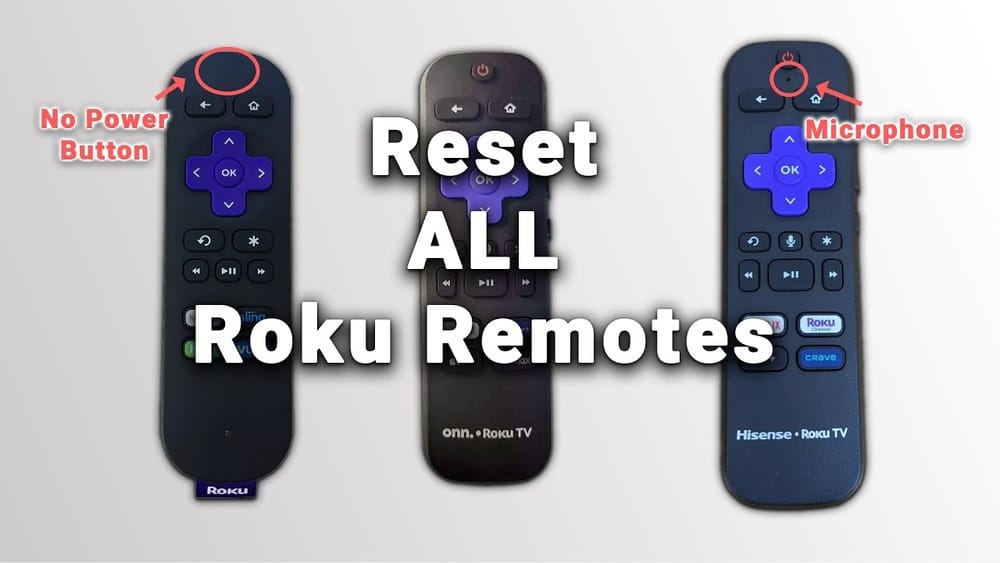
- IR Remote: No pairing button, works only when pointed directly at the Roku.
- Enhanced Remote: Has a pairing button (usually inside the battery compartment) and works from anywhere in the room.
If you’re unsure, check the battery compartment. If you see a small button marked “Pairing,” you have an Enhanced remote.
Roku Remote Features Comparison
To help you identify, compare features in this table:
| Feature | IR Remote | Enhanced Remote |
|---|---|---|
| Pairing Button | No | Yes |
| Voice Control | No | Yes (if supported) |
| Headphone Jack | No | Some models |
| Works Without Line of Sight | No | Yes |
| Battery Type | AA or AAA | AA or AAA |
| Reset Method | Simple | Pairing process |
Knowing your remote type helps you follow the right reset steps. Many users make mistakes by following the wrong instructions, so start here.
Common Reasons Your Roku Remote Needs Resetting
Why do Roku remotes stop working? Understanding the causes helps you decide if a reset is needed.
- Battery change: Sometimes, replacing batteries causes the remote to lose connection.
- Device update: After Roku software updates, remotes may become unresponsive.
- Interference: Wi-Fi or Bluetooth remotes can face signal interference from other devices.
- Physical damage: Dropping the remote or spilling liquids can cause internal issues.
- Pairing errors: Enhanced remotes may lose pairing, especially after moving the Roku player or power outages.
A non-obvious cause is power cycling. If your Roku device loses power unexpectedly (like during a storm or unplugging), the remote may need to be reset even if it’s not visibly damaged.
Basic Troubleshooting Before Resetting
Before you jump into the reset process, try these simple steps. Sometimes, the issue is minor and does not require a full reset.
1. Check Batteries
Remove and re-insert the batteries. Make sure they are fresh and properly aligned.
2. Restart Roku Device
Unplug your Roku, wait 30 seconds, and plug it back in. This often fixes remote issues.
3. Clear Obstructions
If you use an IR remote, ensure nothing blocks the signal between the remote and the device.
4. Test With Another Remote
If possible, try a different Roku remote to check if the issue is with the remote or the device.
If none of these steps work, proceed with the reset process.
How To Reset An Ir Roku Remote
IR remotes are simple and rarely require a reset. However, if yours stops working, follow these steps:
1. Remove Batteries
Open the battery compartment and remove both batteries.
2. Wait 30 Seconds
This allows the remote to discharge and reset internally.
3. Replace Batteries
Insert fresh batteries, making sure the polarity (+/-) is correct.
4. Test The Remote
Point the remote directly at your Roku device and press any button.
If the remote still doesn’t work, check for physical damage or try new batteries. IR remotes do not have a pairing button or advanced reset features, so these steps usually solve most issues.
Common Mistakes With Ir Remotes
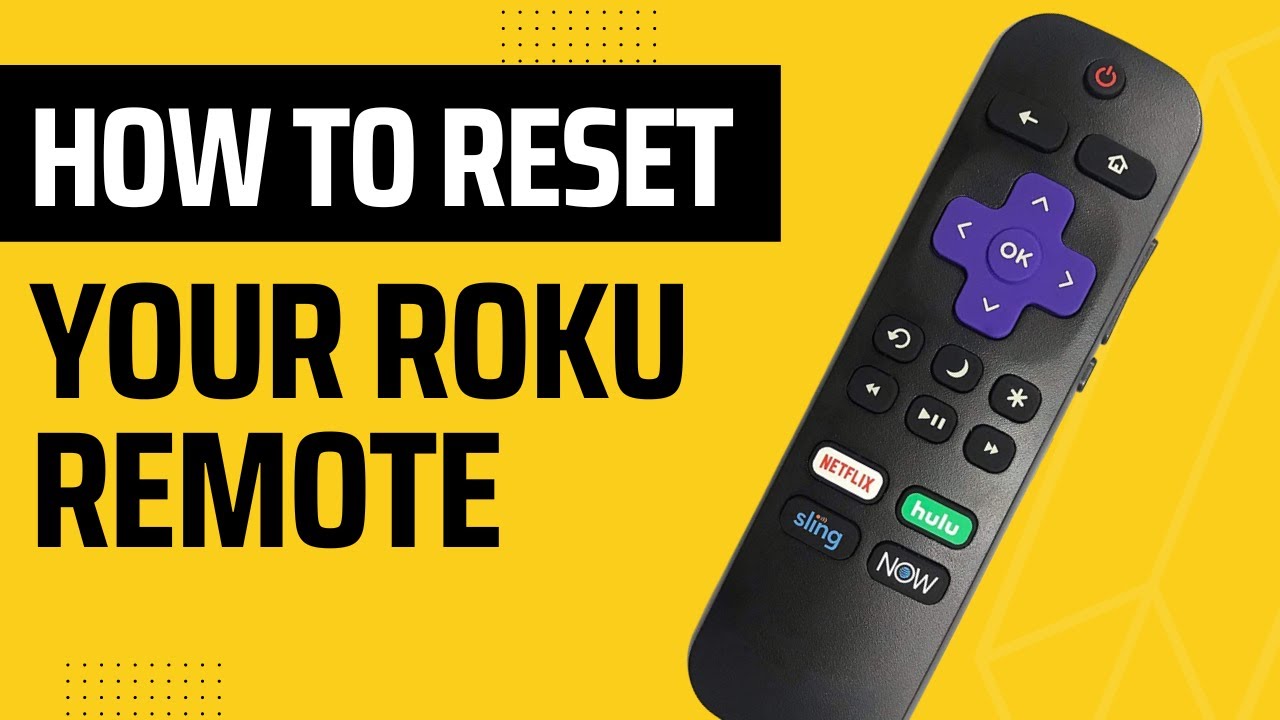
Many beginners forget to check the line of sight. IR remotes require a clear path to the Roku device. Even a small object, like a book or a TV stand, can block the signal. Some TV models place the Roku device behind the screen, causing signal loss.
Credit: www.youtube.com
How To Reset An Enhanced Roku Remote
Enhanced remotes use wireless signals. They can be reset and paired again. Follow these steps:
1. Remove Batteries
Take out both batteries from the remote.
2. Unplug Roku Device
Disconnect your Roku player from power and wait 30 seconds.
3. Reconnect Roku Device
Plug your Roku back in and wait until it fully boots up.
4. Insert Batteries In Remote
Put the batteries back in the remote.
5. Press Pairing Button
Find the pairing button inside the battery compartment. Press and hold it for 5 seconds. The status light will flash.
6. Wait For Pairing
Your Roku device will detect the remote and complete pairing. On-screen instructions may appear.
If the pairing fails, try moving closer to the device and repeat the process.
Advanced Enhanced Remote Reset
If your remote still doesn’t work, try a deeper reset:
1. Remove Batteries And Unplug Roku
Follow steps 1 and 2 above.
2. Wait 1 Minute
Leave the remote and Roku device off for a full minute.
3. Plug In Roku, Wait Until Home Screen Appears
Only insert batteries after the Roku is fully booted.
4. Press Pairing Button Again
Hold the button for 10 seconds this time.
This extended method helps if the remote was paired to another Roku device or has a stubborn connection issue.
Resetting Roku Voice Remotes
Voice remotes are Enhanced remotes with voice features. The reset process is the same, but there are extra steps if your voice commands stop working.
- Check microphone button: If the microphone doesn’t respond, reset as above.
- Update Roku software: Go to Settings > System > System Update. Sometimes, updates fix voice feature issues.
- Test voice commands: After pairing, hold the microphone button and try a simple command like “launch Netflix.”

Credit: help.anderic.com
Resetting Roku Remote App
Roku offers a mobile app that acts like a remote. Sometimes, the app loses connection or stops working. Resetting the app is different:
1. Check Wi-fi Connection:
Make sure your phone and Roku device are on the same Wi-Fi network.
2. Restart App:
Close and reopen the Roku app.
3. Reconnect To Device:
Tap “Connect” and select your Roku device from the list.
4. Clear App Cache:
On Android, go to Settings > Apps > Roku > Clear Cache.
5. Reinstall App:
If problems continue, uninstall and reinstall the app.
This method is useful if you use your phone as a remote, especially during travel or when the physical remote is lost.
Comparing Reset Methods
Each remote type has its own reset process. Compare the methods here:
| Remote Type | Reset Method | Success Rate | Difficulty |
|---|---|---|---|
| IR Remote | Remove batteries, wait, replace | 95% | Easy |
| Enhanced Remote | Remove batteries, unplug Roku, use pairing button | 90% | Medium |
| Voice Remote | Same as Enhanced, with extra voice test | 85% | Medium |
| Roku App | Reconnect app, clear cache, reinstall | 80% | Easy |
Success rates are based on user reports. IR remotes are simplest, while Enhanced and Voice remotes need extra steps.
Troubleshooting After Reset
Sometimes, a reset doesn’t solve the problem. Here are deeper troubleshooting tips:
- Check for interference: Wi-Fi routers, Bluetooth speakers, or even microwaves can interfere with Enhanced remotes.
- Update Roku device: Go to Settings > System > System Update.
- Factory reset Roku device: As a last resort, reset the entire Roku player. Go to Settings > System > Advanced System Settings > Factory Reset.
- Try a different remote: If possible, borrow a remote from a friend or buy a replacement.
A non-obvious tip: Some remotes fail because the Roku device is powered by a TV’s USB port. If possible, plug the Roku into a wall outlet for stable power.
How To Fix Common Remote Problems Without Resetting
Resetting isn’t always necessary. Here are quick fixes for common issues:
- Sticky buttons: Clean the remote with a dry cloth. Avoid using water or chemicals.
- Battery corrosion: If you see white powder inside the battery compartment, gently clean it with a cotton swab. Use gloves.
- Button delays: Sometimes, the remote responds slowly. This can be caused by old batteries or software lag.
Many users miss the importance of firmware updates. Keeping your Roku device updated prevents remote problems and improves performance.

Credit: www.asurion.com
When To Replace Your Roku Remote
If you’ve tried all resets and troubleshooting steps, your remote may be faulty. Signs you need a replacement:
- No response: Remote doesn’t work even after changing batteries and resetting.
- Physical damage: Cracked housing, broken buttons, or water damage.
- Pairing issues: Remote fails to pair after multiple attempts.
You can buy replacements from Roku’s official store or trusted retailers. Make sure to select the right model for your Roku device.
Tips For Preventing Roku Remote Issues
A little care goes a long way. To keep your remote working smoothly:
- Use quality batteries: Cheap batteries leak and cause damage.
- Store remote safely: Don’t leave it on the floor or near liquids.
- Update Roku device regularly: Updates fix bugs and improve compatibility.
- Avoid strong magnetic fields: Don’t place remotes near large speakers or microwaves.
An overlooked tip is to label your remotes if you have more than one Roku device. This prevents accidental pairing with the wrong device.
Detailed Example: Step-by-step Enhanced Remote Reset
Let’s walk through a real-life example:
1. Remove Batteries:
Open the battery compartment and take out both batteries.
2. Unplug Roku Device:
Unplug your Roku from the wall. Wait for 30 seconds.
3. Insert Batteries:
Place fresh batteries back into the remote.
4. Press Pairing Button:
Hold the pairing button for 5 seconds. The LED will flash.
5. Reconnect Roku Device:
Plug your Roku back in and wait for the home screen.
6. Wait For Pairing:
The remote should automatically pair. If it doesn’t, repeat the process.
This method works for most Enhanced remotes, including Voice remotes.
How Roku Remotes Compare To Other Streaming Remotes
Roku isn’t the only streaming device with resettable remotes. Here’s a comparison with popular competitors:
| Feature | Roku | Amazon Fire TV | Apple TV |
|---|---|---|---|
| Reset Button | Pairing button inside battery compartment | No dedicated button, uses menu | No dedicated button, uses menu |
| Battery Type | AA/AAA | AAA | Rechargeable |
| Wireless Pairing | Yes | Yes | Yes |
| Voice Control | Yes | Yes | Yes |
| App Remote | Yes | Yes | Yes |
Roku remotes stand out for their easy pairing button, while others use menu-based methods.
Dealing With Remote Issues For Specific Roku Models
Some Roku devices require special attention:
- Roku Stick:
Enhanced remotes pair directly with the stick. Make sure the stick is powered before resetting.
- Roku Ultra:
Supports advanced remotes with headphone jacks and voice features. Use the pairing button and follow on-screen instructions.
- Roku Express:
Usually uses IR remotes. Check line of sight and replace batteries.
Always check your device model before buying a replacement remote.
What To Do If Your Remote Still Won’t Reset
If you’ve tried all reset methods and the remote still fails:
- Contact Roku Support:
They can help diagnose deeper issues and may offer warranty replacements.
- Try a universal remote:
Many universal remotes work with Roku devices, especially IR models.
- Use the Roku app:
Download the app and control your device from your phone.
For official troubleshooting, visit Roku Support.
Advanced Troubleshooting Techniques
Some users need extra help:
- Check for firmware mismatches:
If you recently updated your Roku but not the remote, pairing issues can happen. Update both.
- Network interference:
Move your Roku device away from routers or Bluetooth speakers.
- Remote firmware update:
Some Enhanced remotes update automatically. If not, check Settings > Remotes > Update Remote.
A rare tip: Some remotes become unresponsive due to static electricity. If you live in a dry area, touch a metal object to discharge static before resetting.
How To Use The Roku Remote App As A Backup
If your physical remote fails, the Roku app is a good backup:
- Install the Roku app:
Available on iOS and Android.
- Connect to Wi-Fi:
Make sure your phone and Roku are on the same network.
- Select your device:
The app shows nearby Roku devices. Tap to connect.
- Use on-screen controls:
The app offers buttons, keyboard, and voice commands.
This method is not obvious to many beginners and can save you when the remote is lost or broken.
Safety And Care Tips
Taking care of your remote prevents problems:
- Avoid dropping:
Drops cause internal damage.
- Keep away from water:
Even a small spill can ruin electronics.
- Clean gently:
Use a soft cloth. Avoid harsh chemicals.
- Store batteries safely:
Remove batteries if not using the remote for long periods.
Many people forget to remove batteries during storage. This causes leaks and damages the remote.
Frequently Asked Questions
How Do I Know If My Roku Remote Needs Resetting?
If your remote stops working after changing batteries, updating your Roku device, or moving your Roku player, a reset is usually needed. Enhanced remotes may lose pairing, while IR remotes can stop due to blocked signals.
Can I Use A Universal Remote With Roku?
Yes, many universal remotes work with IR-based Roku devices. For Enhanced remotes, compatibility varies. Check the universal remote’s manual for Roku support.
What Should I Do If My Remote Won’t Pair?
Try the reset steps: remove batteries, unplug Roku, wait, insert batteries, and press the pairing button. Move closer to the device and avoid interference. If pairing still fails, contact Roku Support.
How Can I Prevent Remote Issues In The Future?
Use quality batteries, update your Roku device regularly, avoid dropping or spilling liquids on the remote, and store it safely. Keep the remote away from strong magnetic fields and label remotes if you have multiple devices.
Is It Safe To Clean The Remote With Water?
No, avoid water or harsh chemicals. Use a dry, soft cloth to clean the remote. For battery corrosion, use gloves and a cotton swab.
Resetting your Roku remote is a simple process if you follow the right steps. Whether you use an IR remote, Enhanced remote, or the Roku app, understanding the differences and the proper reset method saves time and frustration. By following the advice in this guide, you’ll solve most remote problems quickly and keep your streaming experience smooth.
Remember to check for interference, use quality batteries, and update your device regularly. If all else fails, contact Roku Support or use the app as a backup. With a little care and the right troubleshooting, your Roku remote will work like new.