
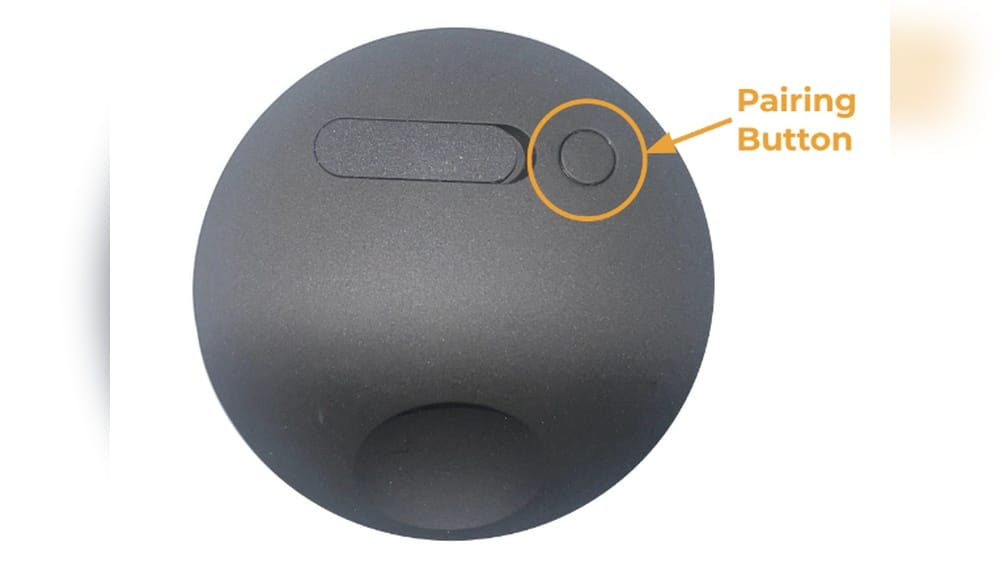
If your SimpliSafe Outdoor Camera is not working as expected, sometimes a reset is the quickest way to solve issues. Many people, even those who are good with technology, find it confusing to reset their security cameras. This guide will walk you through everything you need to know about resetting your SimpliSafe Outdoor Camera, from start to finish. You will learn why and when to reset, the exact steps, and what to do if things do not go as planned. By the end, you will feel confident handling this simple but important task.
Why Reset A Simplisafe Outdoor Camera?
A reset is more than just turning your device off and on. It brings your camera back to its original settings. This can solve many common problems, such as:
- Camera not connecting to Wi-Fi
- Video feed not showing in the SimpliSafe app
- Camera not responding or freezing
- Problems after a firmware update
- Wanting to give the camera to someone else
People often try other things first, like moving the camera closer to the router or restarting the app. If these do not work, a reset is the next best step.
Signs Your Camera Needs A Reset
- Camera is offline: The camera shows as offline in your app, even though Wi-Fi is working.
- App cannot find the camera: When trying to add the camera, the app does not detect it.
- Random disconnects: The camera keeps dropping off the network.
- Unusual behavior: Lights blinking in patterns not listed in the manual, or the camera makes strange sounds.
A reset often solves these problems quickly.
Types Of Resets: Soft Vs Hard Reset
Not all resets are the same. Knowing which one to use can save you time and frustration.
Soft Reset
A soft reset is like a simple reboot. It does not erase your settings or remove the camera from your system. Try this first if your camera is acting up but still responds to commands.
How To Perform A Soft Reset
- Press and hold the reset button (usually located under the battery cover) for about 10 seconds.
- Release the button when you see the status light blink.
- Wait for the camera to restart. This can take up to 2 minutes.
A soft reset is often enough to fix minor issues.
Hard Reset (factory Reset)
A hard reset wipes all settings and removes the camera from your SimpliSafe system. Use this if you plan to sell the camera, give it away, or if a soft reset did not fix your problem.
When To Use A Hard Reset
- You forgot the camera password or PIN
- The camera will not connect to any Wi-Fi network
- The camera is unresponsive even after a soft reset
- You want to start over with setup
A hard reset is more powerful, but you will need to set up the camera again after.
Preparing For A Camera Reset
Before you reset, take a few steps to make the process easier and avoid common mistakes.
Checklist Before You Start
- Charge the camera battery to at least 50%
- Make sure your Wi-Fi network is working
- Have your SimpliSafe app updated to the latest version
- Write down your Wi-Fi password (you will need it after a hard reset)
- Decide if you want to keep your current settings or start fresh
It is important not to rush. A failed reset can sometimes lock the camera or make things worse. Take your time and follow each step.
Backup Important Settings
SimpliSafe does not offer a way to export camera settings. If you have special zones or notifications set up, make a note so you can re-create them after the reset.
Step-by-step: How To Reset Simplisafe Outdoor Camera
This is the most important part of the guide. You will find clear instructions for both soft and hard resets. Follow the steps that match your situation.
Soft Reset Steps
- Remove the camera from its mount: This makes it easier to access the reset button.
- Find the reset button: Look under the battery cover or near the USB charging port.
- Press and hold the reset button for 10 seconds. Use a paperclip or pin if the button is small.
- Wait for the status light: The light will blink yellow, then white.
- Release the button once you see the white light.
- Wait for the camera to restart: This usually takes about 2 minutes.
After the restart, check the SimpliSafe app. The camera should reconnect and work as before. If not, try a hard reset.
Hard Reset (factory Reset) Steps
- Remove the camera from its mount and bring it indoors if weather is bad.
- Open the battery cover to find the reset button.
- Press and hold the reset button for 30 seconds.
- Watch the status light: It will blink in a pattern (yellow, then fast white blinks).
- Release the button when the light turns solid white.
- Wait for the camera to power down and restart. This can take up to 3 minutes.
- Delete the camera from the SimpliSafe app (if it still shows there).
- Set up the camera as new using the app.
You will need to re-enter Wi-Fi details and name your camera again.
Reset Steps At A Glance
Here is a quick comparison of the two reset types:
| Reset Type | How Long to Hold Button | What Happens | When to Use |
|---|---|---|---|
| Soft Reset | 10 seconds | Camera reboots, keeps settings | Minor glitches |
| Hard Reset | 30 seconds | Camera returns to factory settings | Major issues, new owner, cannot connect |
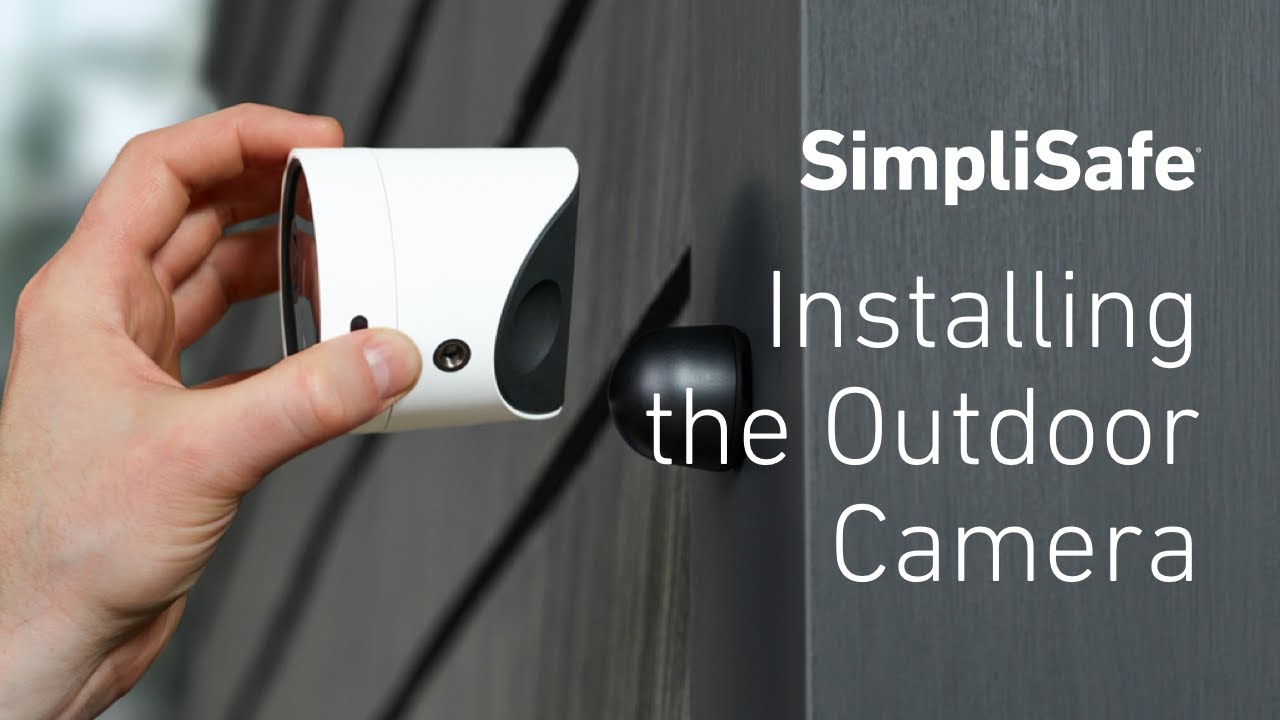
Credit: www.youtube.com
Setting Up Your Camera After Reset
After a hard reset, your camera is like new. You must add it to your SimpliSafe system again.
Steps To Reconnect
- Open the SimpliSafe app on your phone.
- Tap “Add Device”.
- Select “Outdoor Camera” from the list.
- Scan the QR code on your camera using your phone.
- Follow the on-screen instructions to connect to Wi-Fi.
- Name your camera and assign it to a location (e.g., “Front Door”).
- Test the live feed to make sure everything works.
If you run into trouble, try moving the camera closer to your router during setup.
Tips For A Smooth Setup
- Use a strong Wi-Fi signal. Weak signals cause setup failures.
- Update your app before starting.
- Avoid setting up during peak internet usage times (evenings are busiest).
- Have your Wi-Fi password ready.
Troubleshooting: When Reset Does Not Work
Sometimes, a reset does not fix the problem. Here’s what you can do next.
Camera Still Not Connecting
- Check Wi-Fi: Make sure your internet is working on other devices.
- Move closer: Bring the camera within 10 feet of your router for setup.
- Check battery: A low battery can prevent the camera from restarting.
- Restart your router: This can solve network issues.
Camera Not Powering On
- Make sure the battery is charged.
- Try a different USB cable and charger.
- Look for damage near the battery contacts.
Camera Not Found In App
- Remove the camera from your devices list in the app, then try adding again.
- Restart your phone.
- Log out and back into your SimpliSafe account.
Common Error Codes
The SimpliSafe app may show error codes during setup. Here is a quick reference:
| Error Code | Meaning | What to Do |
|---|---|---|
| E001 | Cannot connect to Wi-Fi | Check password, move closer to router |
| E002 | Camera not detected | Repeat reset, check battery |
| E003 | Firmware update failed | Try hard reset, update app |
If you see a code not listed here, check the official SimpliSafe support page for details.
Advanced Tips For Reliable Camera Performance
Resetting can solve many problems, but a few extra steps can keep your camera running smoothly in the future.
Keep Firmware Updated
SimpliSafe releases updates to fix bugs and add features. Most cameras update automatically, but you can check for updates in the app:
- Open SimpliSafe app
- Go to “Devices”
- Tap your camera
- Look for “Firmware” and tap “Update” if available
Use The Best Wi-fi Channel
Many homes have crowded Wi-Fi networks. If your camera often disconnects, changing your router’s Wi-Fi channel can help. Use your router settings or an app like WiFi Analyzer to pick a less crowded channel.
Place The Camera Wisely
- Avoid thick walls between camera and router.
- Keep away from microwaves or other wireless devices.
- Mount the camera where it is shielded from rain and direct sun.
Secure Your Network
A weak password or open Wi-Fi can let others access your camera. Always use WPA2 or WPA3 encryption, and choose a strong password.
Reduce Interference
If you have many smart devices, they can fight for Wi-Fi space. You can:
- Move your router to a central location.
- Use a mesh network for better coverage.
- Limit the number of devices connected during setup.
Battery And Power Issues
Outdoor cameras rely on battery power, which can sometimes cause problems after a reset.
How Long The Battery Lasts
SimpliSafe says their outdoor camera battery can last 3–6 months with normal use. If your camera needs frequent charging, it may be due to:
- Cold weather (battery drains faster below 32°F)
- High activity (more recordings use more power)
- Old battery (capacity drops after 1-2 years)
Tips To Extend Battery Life
- Lower the motion sensitivity if you get too many alerts.
- Use the “People Only” detection to avoid animals and cars.
- Charge the battery fully before reinstalling the camera.
What To Do If Battery Fails
If your camera will not turn on even after charging, the battery may be dead. You can buy a replacement from SimpliSafe or contact their support for warranty service.
Comparing Simplisafe Outdoor Camera With Other Brands
Wondering if the reset process is easier or harder than other popular cameras? Here is a comparison.
| Brand | Reset Method | Time Needed | App Needed |
|---|---|---|---|
| SimpliSafe | Physical button | 10–30 sec | Yes |
| Arlo | Physical button | 15 sec | Yes |
| Ring | App or button | 20 sec | Yes |
| Google Nest | App or button | 15–20 sec | Yes |
SimpliSafe’s reset method is similar to others: you need to find the button and hold it down. The main difference is that some brands also allow full resets from their apps, while SimpliSafe usually requires a physical press.
Mistakes To Avoid When Resetting Your Simplisafe Camera
Many people make small errors during the reset process. Here’s how to avoid them:
- Not holding the button long enough: A quick press will not work for a reset. Count slowly to 30 for a hard reset.
- Resetting with low battery: If the camera shuts off during reset, it can get stuck. Always charge first.
- Not removing the camera from the app: After a hard reset, delete the camera from your devices list before adding it again.
- Forgetting Wi-Fi password: You cannot finish setup without it.
- Doing a hard reset when a soft reset is enough: Hard resets erase all settings and take longer to recover from.

Credit: support.simplisafe.com
When To Contact Simplisafe Support
If you have tried both soft and hard resets and your camera still does not work, it may be time to get help.
What Support Can Do
- Walk you through extra troubleshooting steps
- Check for warranty coverage
- Replace faulty hardware
- Help with account or app problems
How To Contact Support
- Visit the SimpliSafe website and use live chat or email
- Call their support line (number found on their official site)
- Use the in-app help function
Support is usually available 7 days a week. Be ready with your camera’s serial number and a description of your problem.
Non-obvious Insights And Pro Tips
Many guides miss small details that make a big difference.
Wait For The Light Patterns
Do not rush the reset. The status light tells you what the camera is doing. If you let go of the button too soon or too late, the reset may fail. Practice watching the light closely so you can time your release.
Use A Toothpick For The Button
The reset button can be tiny and hard to reach. A toothpick or SIM eject tool works better than a paperclip. Be gentle—pushing too hard can damage the button.
Check For App Updates After Reset
SimpliSafe sometimes updates their app to handle new firmware. After a reset, update your app even if you did recently. Old app versions can block the setup process.
Test With A Different Phone
If the camera will not connect after reset, try using a different phone or tablet. Sometimes device-specific app bugs cause setup problems.

Credit: www.youtube.com
Real-world Example: Resetting A Camera After Moving Homes
Imagine you are moving to a new house and want to use your SimpliSafe Outdoor Camera there. Here’s how to do it:
- Perform a hard reset to erase old Wi-Fi and location settings.
- Remove the camera from your old SimpliSafe system in the app.
- At your new home, charge the battery fully.
- Set up the camera as a new device with your new Wi-Fi and location.
- Test the camera’s view and alerts before mounting.
By resetting, you avoid problems from old network settings and keep your security system running smoothly.
Security And Privacy After Reset
A reset not only fixes problems but also protects your privacy. When you perform a hard reset, all video clips, Wi-Fi details, and passwords are erased from the camera’s memory. This is important if you sell or give away your camera.
- Always reset before selling or donating.
- Make sure the device does not show up in your SimpliSafe app anymore.
- Ask the new owner to set up the camera as new.
For more on privacy and smart devices, you can visit FTC’s guide to home Wi-Fi security.
Frequently Asked Questions
How Do I Know If My Simplisafe Outdoor Camera Reset Worked?
After a reset, the camera’s status light should turn solid white, and you will see it as “ready to set up” in the SimpliSafe app. If it does not, repeat the reset steps and watch the light patterns closely.
Will Resetting My Camera Delete My Recordings?
A factory reset erases all video clips stored on the camera itself. However, clips saved to the SimpliSafe cloud (with a monitoring plan) are not affected. Always download important clips before resetting.
Do I Need To Reset My Camera If I Change Wi-fi Networks?
Yes, you must reset the camera and set it up again if you change to a new Wi-Fi network. The camera cannot automatically switch to a new network without a reset.
Can I Reset My Simplisafe Outdoor Camera Using The App?
No, you cannot perform a full factory reset from the app. You must press and hold the physical reset button on the camera. The app only allows you to remove the device from your system.
What Should I Do If My Camera Keeps Asking To Reset?
If your camera often requests a reset, there may be a deeper issue with power, Wi-Fi, or firmware. Try updating your app and firmware first. If it continues, contact SimpliSafe support for help.
Resetting your SimpliSafe Outdoor Camera is a powerful tool for fixing problems and protecting your privacy. With the steps and tips in this guide, you can handle resets with confidence. Remember to keep your camera’s battery charged, watch for status lights, and take your time. If problems continue after a reset, do not hesitate to get help from SimpliSafe support. With a little care, your outdoor camera will keep your home safe and secure for years to come.