
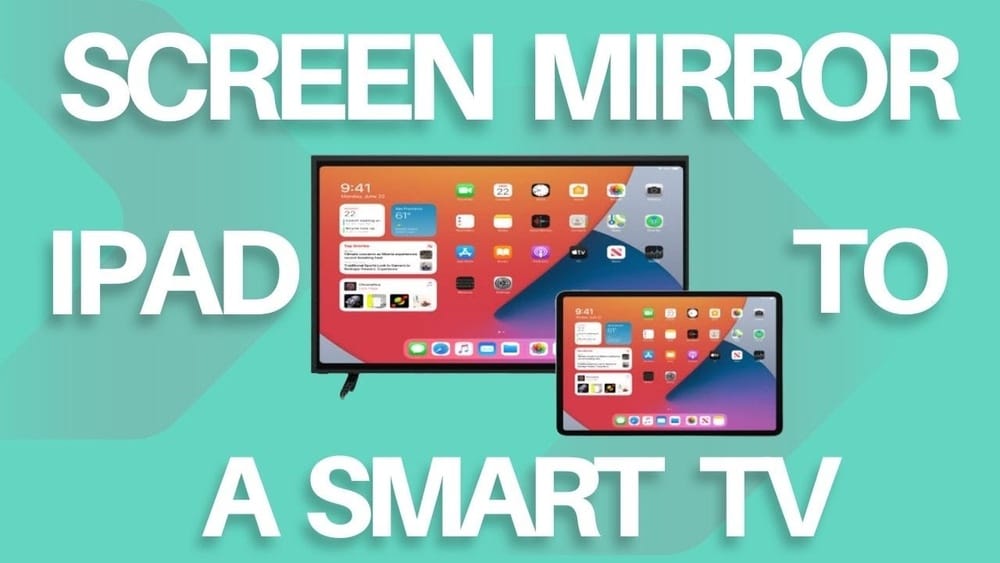
Imagine watching your favorite videos, photos, or games on a big screen without any hassle. Wouldn’t it be great to share everything from your phone, tablet, or laptop directly onto your smart TV?
If you’ve ever wondered how to do that, you’re in the right place. This guide will show you simple, step-by-step ways to screen mirror on your smart TV. By the end, you’ll be able to enjoy your content on the big screen anytime you want.
Ready to make your viewing experience more exciting? Let’s dive in!
Prepare Your Devices
Before you start screen mirroring, prepare your devices properly. This step helps avoid connection issues and makes the process smooth. Both your smart TV and your mobile or computer must be ready to work together.
Check Compatibility
Not all devices support screen mirroring. Check if your smart TV has screen mirroring features like Miracast, AirPlay, or Chromecast. Also, confirm your phone, tablet, or laptop supports these technologies. This ensures both devices can connect without trouble.
Connect To The Same Network
Your smart TV and device must connect to the same Wi-Fi network. This allows them to communicate directly. Using different networks can block the connection or cause delays. Double-check your Wi-Fi settings on both devices before mirroring.

Credit: www.youtube.com
Enable Screen Mirroring On Smart Tv
Enabling screen mirroring on a smart TV allows you to share your phone or computer screen easily. This feature helps you watch videos, view photos, or display apps on a bigger screen. The process is simple and quick to set up.
Start by accessing the screen mirroring settings on your smart TV. This step is important to prepare your TV for connection. Follow the instructions below to activate the mirroring mode and get ready to connect your device.
Access Screen Mirroring Settings
Turn on your smart TV and press the Menu or Home button on your remote. Look for the Settings or Network option in the menu. Find the Screen Mirroring or Miracast setting. Open this option to enter the screen mirroring menu. Make sure your TV is ready to connect to other devices.
Activate Mirroring Mode
Inside the screen mirroring menu, select the option to activate or enable mirroring mode. Your TV will start searching for devices to connect. Keep the screen mirroring option active until your phone or computer finds the TV. This mode allows your smart TV to accept incoming connections from your device.
Mirror From Android Devices
Screen mirroring from Android devices to a smart TV lets you enjoy your phone’s content on a bigger screen. It works with most Android phones and smart TVs. You can share photos, videos, apps, and even games without cables.
Many Android devices have a built-in feature that makes casting easy. Just a few taps, and your phone screen appears on your TV. This method is quick and does not require extra apps.
Use Built-in Cast Feature
Open the Settings app on your Android phone. Find the option named “Cast” or “Screen Cast.” This is usually under “Connected devices” or “Display.”
Turn on your smart TV and make sure it is connected to the same Wi-Fi network as your phone. Tap your TV’s name on the list of available devices. Your phone screen should appear on the TV shortly.
Some phones also let you start casting from the quick settings panel. Swipe down from the top of your screen and tap “Cast” or “Screen Mirroring.” Select your TV from the list, and the connection starts.
Troubleshoot Connection Issues
Check that both your phone and TV are on the same Wi-Fi network. Different networks prevent casting.
Restart your phone and TV if the connection fails. This often fixes temporary glitches.
Turn off any VPN or firewall apps on your phone. These can block the casting process.
Update your phone’s software and your TV’s firmware. Updates improve compatibility and fix bugs.
Move your phone closer to the TV. Distance or obstacles can weaken the Wi-Fi signal.
Mirror From Ios Devices
Screen mirroring from iOS devices to a smart TV is simple and fast. It lets you show photos, videos, and apps on a bigger screen. You do not need extra cables or apps. Your iPhone or iPad connects wirelessly to the TV. This creates a better viewing experience for movies and presentations.
Use Airplay For Mirroring
AirPlay is the built-in feature for mirroring iOS screens. Both your device and smart TV must be on the same Wi-Fi network. Swipe down from the top-right corner of your device to open Control Center. Tap the “Screen Mirroring” icon. Select your smart TV from the list. Your iOS screen will appear on the TV instantly. To stop mirroring, open Control Center and tap “Stop Mirroring.”
Adjust Screen Orientation
You may want to change the screen direction for better viewing. Rotate your iPhone or iPad to switch between portrait and landscape modes. The TV screen will adjust automatically. Some apps lock the orientation. In this case, use the device in the fixed mode. This helps to avoid black bars or stretched images on the TV.
Mirror From Windows And Mac
Screen mirroring from a computer to a smart TV allows you to share videos, photos, and presentations easily. Windows and Mac devices use different methods to connect to your TV. Understanding these methods helps you mirror your screen smoothly.
Use Miracast On Windows
Miracast is a built-in feature on many Windows devices. It lets you wirelessly mirror your screen to a smart TV that supports Miracast. To use it, press the Windows key and the P key together. Select “Connect to a wireless display” from the menu. Your PC will search for available devices. Choose your smart TV from the list. Make sure your TV is ready to receive the connection. Once connected, your PC screen will appear on the TV. You can now enjoy your content on a bigger screen without cables.
Use Airplay Or Third-party Apps On Mac
Mac computers use AirPlay to mirror screens to compatible smart TVs like Apple TV. Click the AirPlay icon on your Mac’s menu bar. Select your smart TV from the drop-down list. Your Mac screen will start showing on the TV. For TVs without AirPlay support, third-party apps like Reflector or AirBeamTV work well. Install the app on your Mac and follow the instructions to connect. These apps allow mirroring to many smart TV brands. Both AirPlay and apps provide smooth screen sharing for Mac users.

Credit: play.google.com
Optimize Screen Mirroring Quality
Optimizing screen mirroring quality makes watching content more enjoyable. Clear images and smooth video enhance the experience. Poor quality can cause frustration and make it hard to see details. Small changes improve picture sharpness and reduce interruptions. Follow simple steps to get the best results from your smart TV.
Adjust Resolution Settings
Check your TV and device resolution settings first. Match the resolution on both for clearer images. Lower resolution creates blurry or pixelated screens. Most smart TVs support 1080p or 4K for sharp pictures. Change your device’s display settings to fit your TV’s native resolution. This keeps images crisp and reduces distortion.
Reduce Lag And Delay
Lag causes video to freeze or sound to go out of sync. Use a strong Wi-Fi connection close to your TV. Avoid crowded networks that slow down data transfer. Turn off other devices using the internet while mirroring. Use a 5 GHz Wi-Fi band for faster speeds and less interference. This helps videos play smoothly without delay or buffering.
Common Issues And Fixes
Screen mirroring on a smart TV can sometimes face common problems. These issues can disrupt your viewing experience. Knowing how to fix them helps keep things smooth. Below are typical problems and simple solutions to try.
Connection Drops
Connection drops happen when the TV and device lose signal. This can occur due to weak Wi-Fi or interference. Place your device closer to the router. Avoid walls and metal objects between devices. Restart your router and smart TV to refresh connections. Update the software on both devices for better stability. Using a 5 GHz Wi-Fi band often improves connection strength.
Audio Or Video Sync Problems
Audio and video sync issues cause sound to lag behind the picture. This makes watching videos uncomfortable. Lower the video quality in your device settings to reduce lag. Close other apps running in the background to free up resources. Restart the screen mirroring session to reset timing. Check for firmware updates on your smart TV to fix bugs. Using a wired connection can also help improve sync.
Credit: www.mirrormeister.com
Frequently Asked Questions
What Devices Support Screen Mirroring On Smart Tvs?
Most smartphones, tablets, and laptops support screen mirroring. Common platforms include Android, iOS, Windows, and macOS. Your smart TV must also support casting technologies like Miracast, AirPlay, or Chromecast for compatibility.
How Do I Enable Screen Mirroring On My Smart Tv?
Go to your TV’s settings menu and find the screen mirroring or casting option. Turn it on. Then, connect your device to the same Wi-Fi network for seamless mirroring.
Can I Mirror My Iphone To Any Smart Tv?
IPhones primarily use AirPlay for mirroring, supported on Apple TVs and some smart TVs. For non-AirPlay TVs, third-party apps or adapters may be required to mirror your iPhone screen effectively.
Why Is My Screen Mirroring Not Working Properly?
Screen mirroring issues often stem from weak Wi-Fi, incompatible devices, or outdated software. Restart your devices, check network settings, and update firmware to resolve most connection problems quickly.
Conclusion
Screen mirroring on a smart TV is simple and useful. You can show photos, videos, and apps from your phone or computer. Just follow the steps carefully for a smooth connection. This lets you enjoy content on a bigger screen easily.
Try it out and see how it works for you. Keep your devices updated to avoid issues. Now, sharing your favorite media is quick and fun.