
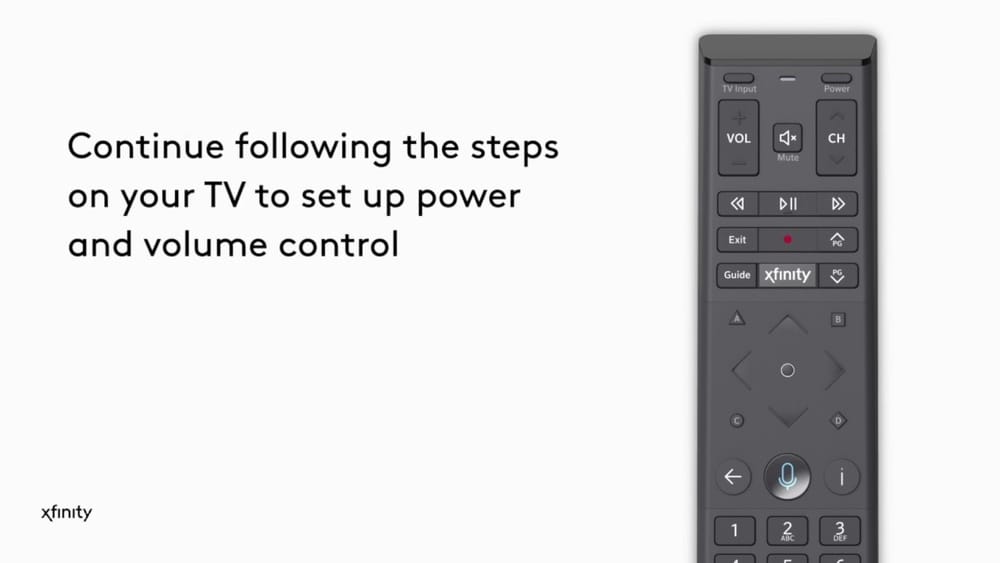
Setting up your Comcast remote control can be confusing if you’ve never done it before. Maybe you just got new cable service, or perhaps you’re replacing an old remote. You want your remote to control your TV, your cable box, and maybe even other devices like a soundbar.
But with so many models, buttons, and steps, it’s easy to get lost. The good news? You don’t need to be a tech expert to set up a Comcast remote. With a bit of guidance and a careful approach, you’ll be flipping channels and adjusting the volume from the comfort of your couch in no time.
This article breaks down everything you need to know about setting up a Comcast remote control. You’ll learn how to identify your remote, pair it to your TV, program it for other devices, and solve common problems. We’ll cover both old and new models, provide practical tips, and answer questions that most guides miss. Whether you have a simple remote or a voice-activated model, you’ll find clear, step-by-step instructions here. Let’s make your remote work exactly the way you want.
Understanding Comcast Remote Models
Comcast, which operates under the Xfinity brand, has released several remote control models over the years. Each has its own design, buttons, and setup process. Before you begin, it’s important to know which remote you have. This ensures you follow the right steps and avoid wasting time.
Common Comcast Remote Types
- XR2, XR5, XR11, XR15: These are some of the most popular Xfinity remotes. The XR11 and XR15 feature voice control, while XR2 and XR5 are traditional models.
- Silver Remote: An older, larger remote with a red “OK/Select” button.
- XRA Large Button Remote: Designed for users who need larger buttons for better accessibility.
- Xfinity Flex Remote: For Xfinity’s streaming box; has unique buttons and a different pairing process.
You can find your remote’s model number on the back or inside the battery compartment. If you’re unsure, look up images of different models on the Xfinity website to match yours visually.
Why Model Matters
Each model may use a different programming method. For example, the XR15 doesn’t have a setup button, while the XR11 does. Older remotes often require you to enter codes, while newer ones can pair automatically. Knowing your model saves time and frustration.
Getting Ready: What You Need
Before setting up your Comcast remote, gather everything you’ll need. This helps avoid interruptions and makes the process smoother.
- Your Comcast remote (with working batteries)
- The device(s) you want to control (TV, cable box, audio receiver, etc.)
- Access to the Xfinity setup website or printed code list (optional but helpful)
- A clear view of your devices (no obstructions blocking the remote’s signal)
Check that your devices are plugged in and powered on. If your remote uses batteries, make sure they’re fresh. Weak batteries often cause pairing issues.
Basic Setup: Pairing Your Remote With The Tv Box
Most Comcast remotes come pre-programmed to work with Xfinity cable boxes. If your remote isn’t working with your box, or if you have a replacement, follow these steps:
For Xr15 (no Setup Button)
- Turn on your TV and Xfinity box.
- Press and hold the Xfinity and Mute buttons together. Hold until the LED at the top turns green.
- Enter the three-digit pairing code shown on your TV screen.
- The remote should now control your cable box.
For Xr11 (with Setup Button)
- Turn on your TV and Xfinity box.
- Press and hold the Setup button until the LED turns green.
- Press the Xfinity button.
- Follow on-screen instructions to enter the pairing code.
For Silver Remote And Older Models
- Turn on your TV and cable box.
- Press the Cable button (sometimes labeled “CBL”).
- Press and hold the Setup button until the light blinks twice.
- Enter the code “981” or another code specified in your manual.
- Test the remote with your cable box.
If the remote still doesn’t control the box, double-check the model and repeat the steps. Sometimes, it takes more than one try for the remote to sync.
Programming Your Comcast Remote For Your Tv
Pairing your remote with your TV lets you control the power, volume, and input without juggling several remotes. This step often requires entering a code specific to your TV brand.
Finding Your Tv Code
The easiest way to get the right code is to use the Xfinity Remote Code Lookup Tool online. You can also find a list of codes in your remote’s manual. Codes are usually three to five digits and vary by TV manufacturer.
Steps For Programming
Xr15 (no Setup Button)
- Hold the Xfinity and Mute buttons together.
- Wait for the LED to turn green.
- Enter the five-digit code for your TV brand.
- If the light blinks green twice, the code was accepted.
- Test power and volume buttons. If they don’t work, repeat with a different code.
Xr11 (with Setup Button)
- Press and hold the Setup button until the LED turns green.
- Enter the five-digit TV code.
- The LED should blink green twice.
- Test power and volume. If needed, try another code.
Silver Remote
- Press the TV button.
- Hold Setup until the TV button blinks twice.
- Enter the code for your TV.
- Test the remote. If the TV doesn’t respond, try the next code on the list.
Pro Tip: If none of the codes work, try the “code search” method by entering “991” and then pressing Power repeatedly until your TV turns off.
Example: Popular Tv Brand Codes
Below is a sample of TV brand codes for quick reference.
| Brand | XR15 Code | XR11 Code | Silver Code |
|---|---|---|---|
| Samsung | 10812 | 12051 | 10060 |
| LG | 11265 | 10178 | 10178 |
| Sony | 11100 | 10810 | 10000 |
| Vizio | 11756 | 11758 | 11758 |
Remember, your exact code may differ. Always check the official Xfinity code lookup if these don’t work.
Programming The Remote For Other Devices
Many Comcast remotes can also control devices like audio receivers, soundbars, or Blu-ray players. The process is similar to programming your TV.
- Find the code for your device brand.
- Press and hold the Setup button (or Xfinity and Mute for XR15).
- Enter the code.
- Test the functions (volume, power, input).
- Repeat with different codes if needed.
If your device isn’t responding, make sure it’s compatible with the remote. Not all models support every device type, especially older audio systems.
Programming Audio Devices: Example Codes
Here are some example audio brand codes to try:
| Brand | Common Code |
|---|---|
| Bose | 31935 |
| Yamaha | 31331 |
| Onkyo | 30135 |
| Samsung | 31868 |
| LG | 31293 |
Note: Some remotes allow you to set the default volume control to your soundbar instead of the TV. This is especially useful if you use an external audio system for all sound.
How To Use Voice Control Features
If you have an XR11 or XR15 remote, you can use voice commands. This is one of the main features that set these remotes apart from older models.
Setting Up Voice Control
- Complete the pairing process with your cable box and TV.
- Press and hold the Microphone button on the remote.
- Speak your command (for example, “Turn on ESPN” or “Show me action movies”).
- Release the button to execute the command.
Voice control works best when you speak clearly and directly into the remote. You can change channels, search for shows, adjust settings, and even open apps.
Common Voice Commands
- “Turn on [Channel Name]”
- “Show me comedies”
- “What’s on tonight?”
- “Open Netflix”
- “Turn off the TV”
Using voice commands can save time, especially if you have trouble remembering channel numbers or want to search quickly.
Tip: If your remote isn’t responding to voice commands, check the batteries and make sure your Xfinity box is connected to the internet.
Troubleshooting Common Remote Issues
Even after following all the steps, you might run into problems. Here are some of the most frequent issues and how to solve them.
Remote Not Working At All
- Check the batteries. Replace with fresh ones if needed.
- Make sure there are no obstructions between the remote and the device.
- Try resetting the remote (see below).
Can’t Control The Tv Or Audio Device
- Double-check the code you entered. Try another code from the list.
- Make sure you pressed the correct buttons (Mute, Xfinity, Setup, etc. ).
- Confirm that your remote supports the device you’re trying to program.
Remote Controls Box But Not Tv
- Repeat the programming steps for the TV. Sometimes it takes several attempts.
- Use the code search method if you can’t find the right code.
Voice Control Not Working
- Ensure your Xfinity box is online and connected.
- Speak clearly and directly into the microphone.
- Reset the remote if the problem continues.
Resetting Your Comcast Remote
If all else fails, you might need to reset your remote to factory settings. This erases all programming and lets you start fresh.
Xr15
- Press and hold the A and D buttons together until the LED turns green.
- Enter 981.
- The LED will blink blue three times, indicating a reset.
Xr11
- Press and hold the Setup button until the LED turns green.
- Enter 981.
- The LED will blink green twice.
After resetting, you’ll need to re-pair the remote to your devices.
Advanced Features And Customization
Comcast remotes offer some advanced settings beyond basic programming. These can help you personalize your experience.
Changing Volume Lock
By default, the remote may control the volume on your TV. If you use a soundbar or receiver, you can change the remote to always control that device’s volume.
- Press and hold Setup until the light changes color.
- Enter 993.
- Press the device button you want to control volume (TV or AUX).
- The light should blink twice.
Now, the remote will always send volume commands to the chosen device.
Pairing With Multiple Devices
Some Comcast remotes can control more than one device at a time. For example, you might set up your remote to control your TV, cable box, and audio receiver.
- Program each device using its code.
- Use the appropriate device button (TV, AUX, CBL) before sending a command.
Non-Obvious Insight: Many users don’t realize that older remotes require you to press the device button before controlling that device. Newer remotes (like XR15) usually control the last device programmed by default.
Using The Xfinity My Account App
If you get stuck, the Xfinity My Account app can help you identify your remote, look up codes, and even provide interactive setup guides. You can download it for free on most smartphones.

Credit: boomertechtalk.com
Device Compatibility And Limitations
While Comcast remotes are versatile, they don’t work with every device on the market. Knowing the limitations saves time and avoids frustration.
Supported Devices
- Most modern TVs (Samsung, LG, Sony, Vizio, TCL, etc.)
- Popular soundbars and audio receivers
- Xfinity cable boxes and Xfinity Flex streaming devices
Not Supported
- Some very old or rare TV brands
- Certain smart TV features (like launching apps) may not be available via remote buttons
- Game consoles, unless they support infrared remote signals
If your device isn’t responding after several attempts, it might not be compatible. In these cases, a universal remote might be a better solution.
Comparison Of Comcast Remote Models
To help you choose or understand your remote, here’s a comparison of key features:
| Remote Model | Voice Control | Setup Button | Device Support | Special Features |
|---|---|---|---|---|
| XR15 | Yes | No | TV, Audio, Box | Backlit, Streamlined Design |
| XR11 | Yes | Yes | TV, Audio, Box | Voice, Backlit Keys |
| XR2/XR5 | No | Yes | TV, Audio, Box | Simple Layout |
| Silver Remote | No | Yes | TV, Audio, Box | Large Size, Red OK Button |
| XRA (Large Button) | No | Yes | TV, Audio, Box | Accessibility, Large Buttons |

Credit: www.youtube.com
Tips For A Smooth Remote Setup
Setting up a Comcast remote isn’t usually difficult, but here are some expert tips that can make it even easier:
- Use the right code: Always start with the code listed first for your brand. These are most likely to work.
- Try automatic pairing first: Newer remotes can often pair without codes. Let the on-screen guide walk you through.
- Reset if stuck: If the remote isn’t working as expected, a reset can solve hidden problems.
- Keep your manual: The small booklet included in the box has useful codes and diagrams.
- Test all functions: After setup, check power, volume, mute, and input buttons to ensure full control.
- Check for firmware updates: Rarely, Xfinity boxes and remotes receive updates that improve compatibility.
Non-Obvious Insight: Many people don’t realize that physical interference (like placing the box behind your TV or in a cabinet) can block the remote signal. Try to keep a clear line of sight, or consider using an IR extender if needed.
When To Contact Comcast Support
Most setup problems can be solved at home, but sometimes you’ll need extra help. Contact Comcast Support if:
- The remote is physically damaged or missing buttons.
- None of the codes work for your TV or audio device.
- The remote won’t pair even after a reset.
- You need a replacement remote.
You can reach Comcast support by phone, chat, or through the Xfinity website. They can also walk you through advanced troubleshooting or send a technician if needed. For more information, check the official Xfinity remote support page.

Credit: www.amazon.com
Frequently Asked Questions
How Do I Know If My Comcast Remote Is Paired?
If your remote is paired with your Xfinity box, pressing buttons like Power or Volume should control your TV or box. For voice remotes, the LED will blink when you press a button. Some remotes display a message on your TV screen when pairing is complete.
Can I Program My Comcast Remote Without A Code?
Yes, some newer models (like XR15) support automatic pairing. Follow on-screen instructions, and the remote will try codes until it finds one that works. If the automatic method fails, you’ll need to use a manual code.
Why Won’t My Remote Control The Volume On My Soundbar?
This usually means the remote hasn’t been programmed with the correct audio device code. Double-check that you entered the right code for your soundbar brand. Also, set volume control to “AUX” or “Audio” if your remote supports volume lock.
What Should I Do If I Lost My Comcast Remote?
You can use the Xfinity Remote App as a temporary replacement if you have a smartphone and a compatible Xfinity box. Otherwise, contact Comcast to order a new remote or pick one up at a service center.
Do Comcast Remotes Work With Smart Tvs?
Most Comcast remotes work with popular smart TV brands for basic functions like power, volume, and input. Some advanced smart TV features (like launching apps) may not be available from the Comcast remote. For full smart TV features, use the original TV remote.
Setting up a Comcast remote control doesn’t have to be stressful. With the right steps, a bit of patience, and the tips in this guide, you can get the most out of your home entertainment system. Remember to check your remote model, use the correct setup method, and don’t hesitate to reset or ask for help if needed.
Once your remote is programmed, you’ll enjoy a much easier and more comfortable viewing experience.