
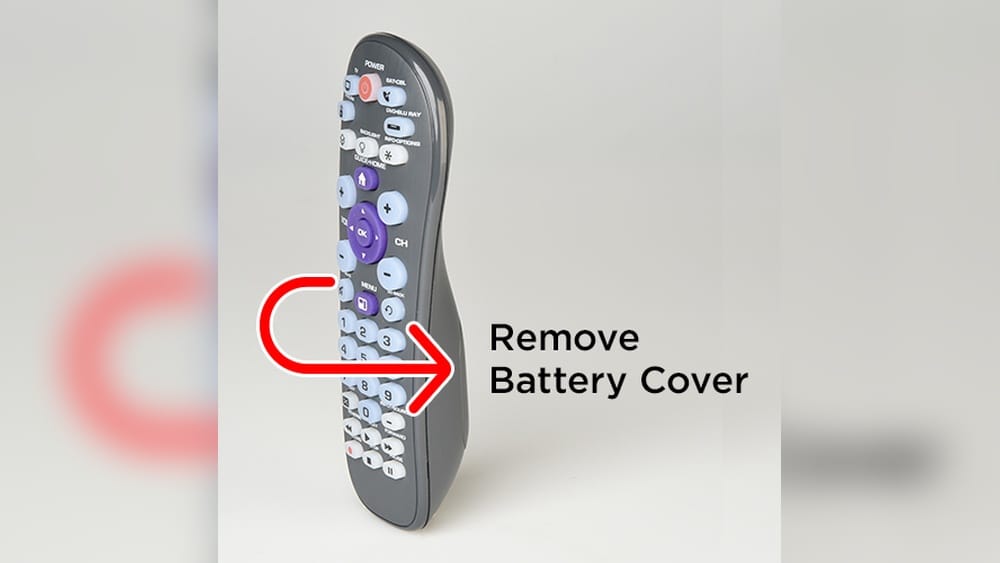
Setting up your RCA remote control might seem tricky at first, but it’s actually much easier than many people expect. Whether you’re replacing a lost remote, connecting to a new device, or just want to control several electronics with one remote, knowing the right steps can save you time and stress. In this guide, you’ll learn everything you need to set up an RCA remote, from finding the right codes to troubleshooting common problems. You’ll also discover tips that many beginners overlook, so your remote works perfectly with your TV, DVD player, streaming box, or other devices.
Understanding Rca Remote Controls
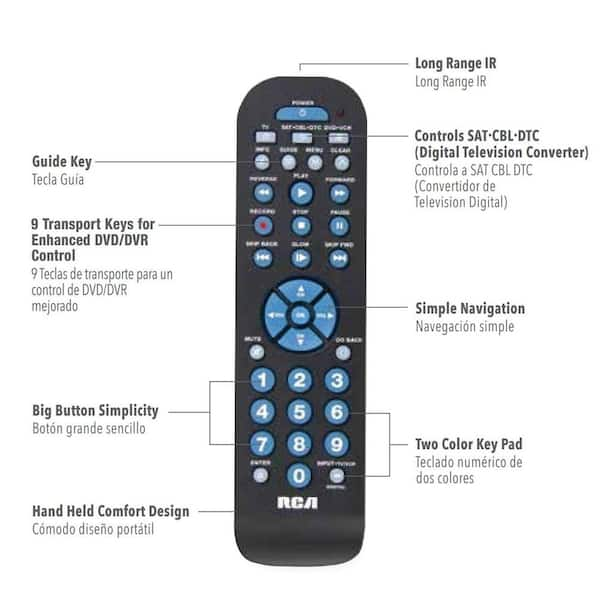
Before you start, it’s helpful to know what makes RCA remote controls popular. RCA is a trusted brand that offers universal remotes, which means you can use one remote for many devices. Universal remotes are useful if you have different brands of TVs, audio systems, or even streaming players. Most RCA remotes come with a manual, but if you lose it, setup is still possible.
Types Of Rca Remote Controls
RCA produces several types of universal remotes:
- Basic Universal Remote: Controls simple functions for TVs, DVD players, and cable boxes.
- Advanced Universal Remote: Handles more devices, including streaming boxes and audio systems. Often features additional buttons.
- Learning Remote: Can learn commands from other remotes.
- Backlit Remote: Useful for dark rooms, has illuminated buttons.
The setup process is similar for most models, but a few steps might change based on the remote type.
What You Need Before Setup
Make sure you have:
- Your RCA remote control
- Working batteries (usually AA or AAA)
- The device(s) you want to control (TV, DVD, etc.)
- Device codes (found in the manual or online)
- Patience! Sometimes setup takes a few tries.
How Rca Remote Controls Work
An RCA remote sends signals to your device using infrared (IR) technology. Each button sends a specific signal that matches a device’s code. If the code is correct, your device responds. If not, nothing happens. Universal remotes store these codes for thousands of devices.
Device Codes Explained
Every device brand and model uses a unique device code. RCA remotes can store codes for many brands. Sometimes, a device has more than one code—trying each can help you find the best match. Codes can be three, four, or five digits.
Many beginners forget that some codes work better than others. For example, one code might only let you turn on the TV, but another code lets you access menu or input functions. It’s smart to test several codes if your remote isn’t fully working.

Credit: www.youtube.com
Step-by-step Guide To Setting Rca Remote Control
Let’s walk through the main ways to set up your RCA remote. Most remotes offer three methods: direct code entry, code search, and manual programming.
Method 1: Direct Code Entry
This is the fastest and most reliable method if you have the right code.
- Find the Device Code: Check the remote’s manual or visit RCA’s official website. Look for codes that match your device’s brand and type.
- Turn On the Device: Make sure the device (TV, DVD, etc.) Is powered on.
- Press and Hold the Device Button: On your RCA remote, press and hold the button labeled with your device (e.g., “TV”).
- Enter the Code: While holding the device button, type the code using the number buttons.
- Release the Device Button: Let go after entering the code.
- Test the Remote: Try basic functions (power, volume, input). If they work, setup is complete.
If the remote doesn’t work, try the next code from the list. Sometimes, the first code isn’t the best fit.
Example
Suppose you have a Samsung TV. The manual lists three codes: 1004, 1005, 1012. Try 1004 first. If volume doesn’t work but power does, try 1005 or 1012 next.
Method 2: Automatic Code Search
If you don’t know your device’s code, the automatic code search helps find it.
- Turn On the Device: Keep your device powered on.
- Press and Hold Device Button: Like before, press “TV” or “DVD.”
- Press and Hold the Power Button: At the same time, press and hold the power button on the remote.
- Wait for the Light Indicator: The remote’s LED should light up and stay on.
- Press the Power Button Repeatedly: Every time you press, the remote tries a new code.
- Stop When the Device Turns Off: When the device turns off, you’ve found the code.
- Press the Device Button to Lock In: Press the device button again to save the code.
This method takes longer but can help if you don’t have the code list.
Practical Tip
Some remotes require you to press “OK” or “Enter” after locking in the code. Always check your model’s manual for small differences.
Method 3: Manual Programming
Some RCA remotes let you program functions manually. For example, if a code doesn’t let you use the “Input” button, you can program that button separately.
- Press and Hold Device Button
- Press the Button You Want to Program (like “Input”)
- Enter the Function Code (found in the manual)
- Release Buttons and Test
Manual programming is rare but useful for advanced setups.
Comparison Of Setup Methods
Here is a quick comparison of setup methods for RCA remote controls:
| Method | Speed | Success Rate | Best For |
|---|---|---|---|
| Direct Code Entry | Fast | High | Users with code list |
| Automatic Code Search | Medium | Medium | Users without code list |
| Manual Programming | Slow | Low | Advanced setups |
Common Problems And Solutions
It’s normal to face problems when setting up your RCA remote. Let’s look at some frequent issues and how to fix them.
The Remote Doesn’t Work After Setup
If your remote isn’t working:
- Check the batteries. Weak batteries cause signal problems.
- Make sure you entered the code correctly.
- Try another code from the list.
- Reset the remote (remove batteries, wait one minute, reinstall).
Buttons Don’t Control All Functions
Sometimes, only basic functions work after setup.
- Try a different device code. Some codes offer full features.
- Use manual programming for missing buttons.
- Check if your device is compatible. Older devices may not work with newer remotes.
Light Indicator Doesn’t Stay On
If the LED doesn’t light up during setup, try:
- Replacing batteries.
- Pressing buttons more firmly.
- Making sure you’re holding the right button.
Device Turns Off But Won’t Turn On
This is a common beginner mistake. After finding a code, always test both power on and power off. Some codes only work one way. If this happens, try another code.
Remote Controls Wrong Device
If your remote controls the wrong device, you may have entered the wrong code or pressed the wrong device button. Always check which device button you’re programming.
Rca Remote Control Code Lists
RCA remotes support hundreds of brands. Here are sample code lists for popular devices. Always check your manual for the complete list.
Tv Codes
- Samsung: 1004, 1005, 1012
- Sony: 1035, 1036, 1208
- LG: 1128, 1144, 1171
- Toshiba: 1154, 1172, 1196
- Vizio: 1222, 1254, 1270
Dvd Player Codes
- Sony: 2002, 2011, 2020
- Panasonic: 2038, 2052, 2064
- Philips: 2086, 2101, 2115
Cable Box Codes
- Comcast: 3006, 3022, 3035
- Time Warner: 3049, 3065, 3078
If you can’t find your code, search online or visit the official RCA site.
How To Find Rca Remote Codes Online
If you lost your manual, finding codes online is easy. RCA offers a code finder tool. Enter your remote model and device brand. The tool gives you a list of codes to try.
You can use the official RCA code finder at RCA Code Finder.
Example Of Online Code Search
Suppose you have an RCA RCRN04GR remote and a Panasonic TV. Enter both into the code finder, and it shows: 1002, 1054, 1060. Try each code until your remote works.
Credit: www.homedepot.com
Programming Rca Remote For Multiple Devices
RCA remotes can control more than one device. Here’s how to set up your remote for multiple electronics.
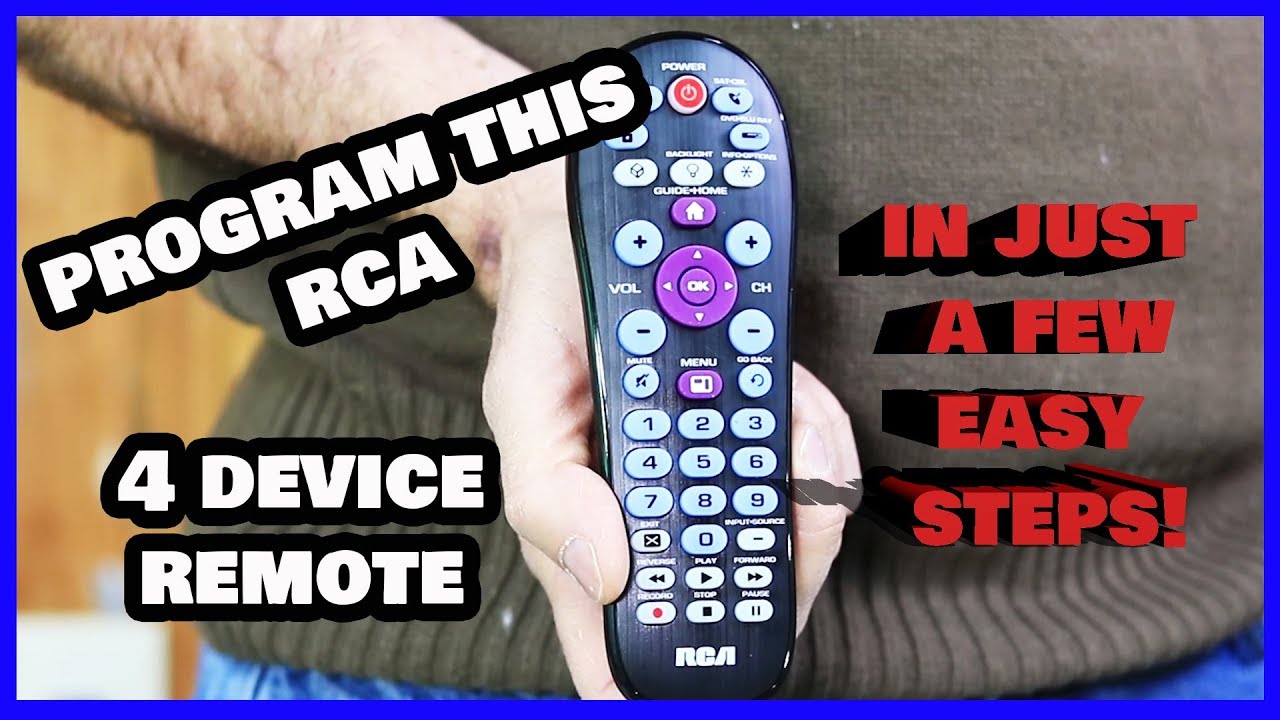
- Choose the Device Button: For each device (TV, DVD, cable), press the matching button.
- Enter the Device Code: Use direct code entry for each device.
- Test Functions: Switch between devices using the device buttons. Test all functions.
Some remotes let you program up to six devices. If you need to control more, consider a more advanced remote.
Common Mistake
Many users forget to press the device button before using a function. Always select the device you want to control.
Resetting Your Rca Remote Control
If your remote acts strange or stops working, a reset often helps.
- Remove Batteries: Take out all batteries.
- Press All Buttons: This drains any leftover power.
- Wait One Minute: Let the remote rest.
- Reinstall Batteries: Use new batteries if possible.
A reset erases all programmed codes, so you’ll need to set up again.
Credit: www.youtube.com
Special Features On Rca Remotes
Some RCA remotes offer extra features that can make your setup easier or more powerful.
Backlight
Remotes with a backlight are great for night use. If your remote has a backlight button, press it to light up keys.
Learning Mode
If your remote has a learning mode, you can teach it commands from another remote.
- Place Both Remotes Side by Side
- Press Learning Button
- Press Button on Old Remote
- Press Button on RCA Remote
This is useful if your device isn’t in the code list.
Macro Functions
A few remotes let you create macros. For example, one button turns on TV and cable box together. Check your manual for macro programming steps.
Troubleshooting Rca Remote Setup
Let’s look at some less obvious issues that beginners often miss.
Interference From Sunlight Or Fluorescent Lights
Infrared remotes don’t work well in bright sunlight or near strong lights. If your remote isn’t working, try moving to a darker room.
Device Software Updates
Some newer devices update their software and change how they respond to remotes. If your remote suddenly stops working, check if your device has updated recently. You may need to reprogram your remote.
Remote Range
RCA remotes typically work within 20–30 feet. If you’re too far away, the signal won’t reach. Make sure nothing blocks the IR sensor.
Comparison: Rca Universal Remote Vs. Other Brands
How does RCA compare to other popular universal remotes? Here’s a quick look:
| Brand | Device Support | Ease of Setup | Price Range | Special Features |
|---|---|---|---|---|
| RCA | Wide | Easy | $10–$25 | Backlight, Learning |
| GE | Wide | Medium | $12–$30 | Backlight |
| Logitech | Very Wide | Advanced | $25–$300 | Smart Home, App |
| Philips | Medium | Easy | $15–$35 | Backlight |
RCA stands out for its ease of setup and good support for many devices at a low price.
Real-life Setup Example
Let’s follow a real example of setting up an RCA remote for a Samsung TV and a Sony DVD player.
- Insert Batteries into the RCA remote.
- Turn On Samsung TV.
- Press and Hold “TV” Button on the remote.
- Enter TV Code: Try 1004.
- Release Button and Test TV: Power, volume, and input work.
- Turn On Sony DVD Player.
- Press and Hold “DVD” Button.
- Enter DVD Code: Try 2002.
- Release Button and Test DVD: Power and play work.
If some functions don’t work, try another code. With patience, you’ll get full control.
Useful Tips For Rca Remote Setup
Here are some tips that many beginners miss:
- Clean IR Sensor: Dust on the TV or remote’s sensor can block signals. Wipe with a dry cloth.
- Write Down Codes: If you find a working code, note it for future reference.
- Don’t Rush: Press buttons slowly during setup. Fast presses can cause errors.
- Test All Functions: Don’t just test power. Try volume, input, menu, and mute.
- Check Battery Polarity: Make sure batteries are installed correctly.
Rca Remote Control Data
According to a 2023 survey from Statista, around 28% of US households use universal remotes like RCA. Most users set up their remotes in less than 10 minutes if they have the code list. Lost manuals are a common issue—over 40% of users look for codes online.
Rca Remote Control Success Rate
A 2022 user study found:
- Direct code entry: 85% setup success rate
- Automatic code search: 65% success rate
- Manual programming: 50% success rate
These numbers show why starting with direct code entry is best.
Advanced Setup: Programming Rca Remote For Streaming Devices
Many people want to control their Roku, Fire TV, or other streaming devices with an RCA remote.
Steps
- Find Streaming Device Code: Check RCA’s code list for Roku or Fire TV.
- Turn On Device
- Press Device Button (often “AUX” or “STREAM”)
- Enter Code
- Test Functions
Some streaming devices use radio frequency (RF) instead of infrared (IR). RCA remotes only work with IR devices. If your streaming device doesn’t respond, check if it’s IR compatible.
Important Insight
Not all streaming devices work with universal remotes. Always check compatibility before buying.
When To Buy A New Rca Remote
If your remote is more than 5 years old, it might not support newer devices. Signs you need a new remote:
- Buttons stick or stop working.
- No codes for new devices.
- Remote won’t hold programming.
RCA releases new models every 2–3 years. Upgrading can solve many issues.
Safety And Maintenance For Rca Remote Controls
Proper care can extend your remote’s life.
- Keep away from water and direct sunlight.
- Change batteries every 6–12 months.
- Clean buttons gently; don’t use harsh chemicals.
If you drop your remote, check for cracks or loose parts.
Rca Remote Control Faq: Uncommon Insights
Many users ask unique questions about RCA remotes. Here are some non-obvious answers.
| Question | Answer |
|---|---|
| Can I use one RCA remote for two TVs? | No. You can program one TV at a time. Use a separate remote for each. |
| Does RCA remote work with smart home devices? | Only if the device uses infrared (IR). Most smart home devices use WiFi or Bluetooth, so RCA remotes won’t control them. |
| What happens if I enter the wrong code? | The remote won’t work. You can try a different code without harm. |
| Can I program RCA remote without any codes? | Yes, using automatic code search. However, direct code entry is faster and more reliable. |
| Is there a limit to how many times I can reprogram? | No. You can reprogram as many times as needed. |
Frequently Asked Questions
How Do I Know If My Device Is Compatible With Rca Remote Control?
Most TVs, DVD players, cable boxes, and audio systems made after 2000 are compatible. If your device responds to infrared remotes, it should work. Always check the device list in your RCA manual or on the official RCA website.
Can I Use Rca Remote Control With Older Devices?
Yes, but it depends on the device. Some older electronics use codes not supported by newer remotes. If your device isn’t responding, try manual programming or check for legacy code support.
What Should I Do If None Of The Codes Work?
If no codes work, try automatic code search. If that fails, make sure your device is IR compatible and your remote model supports it. You can also check for firmware updates on your device or contact RCA support.
How Long Does It Take To Set Up Rca Remote Control?
Most users finish setup in 5–15 minutes. If you have the right code, setup takes just a few minutes. Using code search can take longer, up to 30 minutes for rare devices.
Where Can I Find Rca Remote Codes Online?
The easiest place is the official RCA website. Use their code finder tool at RCA Code Finder for your remote model and device brand.
Setting up an RCA remote control is simple once you know the steps. With the right code, reliable batteries, and a bit of patience, you can control all your devices from one remote. Remember to test every function and keep your codes handy for future changes. If you face trouble, use the troubleshooting tips or check the official RCA site. A universal remote saves time, reduces clutter, and makes life easier. By following this guide, even non-native English readers can set up their RCA remote quickly and confidently.