
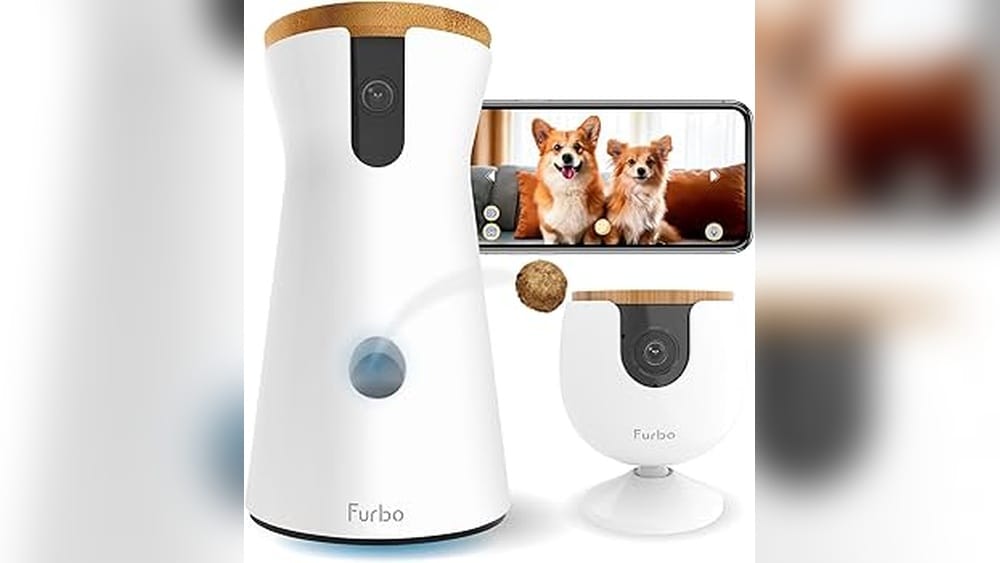
A pet cam is more than just a gadget; it’s a window into your pet’s world when you’re away. Many pet owners feel anxious about leaving their furry friends alone, especially for long hours. With a well-set-up pet cam, you get peace of mind, instant alerts, and sometimes even a way to talk to your pet or dispense treats.
If you’re thinking about getting one, or you’ve just purchased your first device, this guide will help you set up your pet cam step by step. You’ll discover what features matter, how to install and position your camera, how to connect it to your phone, and tips for privacy and troubleshooting.
Whether you’re a tech beginner or someone who wants a smarter home, setting up a pet cam can be simple and rewarding.
Why Set Up A Pet Cam?
Pet cams have become popular for many reasons. If you work long hours or travel, you probably worry about your pet’s well-being. With a camera, you can check if your dog is barking too much, if your cat is bored, or if your new puppy is safe. In fact, a 2022 survey by the American Pet Products Association found that over 38% of pet owners use some type of monitoring device at home.
Benefits You Might Not Expect
- Behavior tracking: Notice patterns, such as when your dog gets anxious or your cat becomes playful.
- Training support: Some pet cams let you talk to your pet, helping with commands or comfort.
- Home security: Many pet cams double as security cameras, alerting you to unexpected visitors.
- Health monitoring: Spot early signs of illness, like changes in movement or eating habits.
What most beginners don’t realize is that a pet cam can also help you bond more with your pet, even when you’re not at home. You can share funny clips or moments with family or social media.
What To Look For In A Pet Cam
Choosing a pet cam can feel overwhelming. There are so many brands and features. Here’s what really matters when picking the right camera for your needs:
Key Features To Consider
- Video Quality: Look for HD resolution (at least 1080p). Clear video helps you see details, like if your pet is chewing something dangerous.
- Two-Way Audio: Lets you hear your pet and talk to them. Useful for calming anxiety or giving commands.
- Motion and Sound Alerts: The camera sends notifications if it detects movement or barking. This is helpful for catching problems early.
- Night Vision: See your pet clearly in low light or at night. Essential if you work night shifts or leave lights off.
- Treat Dispenser: Some cams let you toss treats remotely. Fun for pets and owners!
- Wide-Angle Lens or Pan/Tilt: Covers more of the room. Avoids blind spots where your pet might hide.
- Cloud Storage or Local Storage: Choose based on your privacy needs and budget.
- App Compatibility: Make sure the camera works with your smartphone (iOS/Android) and is easy to use.
Comparing Popular Pet Cam Brands
Let’s look at how some leading pet cams compare on important features:
| Brand | Resolution | Two-Way Audio | Treat Dispenser | Price Range |
|---|---|---|---|---|
| Furbo | 1080p | Yes | Yes | $150-$200 |
| Petcube Bites 2 | 1080p | Yes | Yes | $170-$250 |
| Wyze Cam v3 | 1080p | Yes | No | $35-$50 |
| Arlo Essential Indoor | 1080p | Yes | No | $80-$100 |
| Pawbo Life | 720p | Yes | Yes | $120-$160 |
What Most People Miss
Many first-time buyers forget to check the app experience. If the app is slow or crashes, you won’t enjoy using your camera. Also, some cameras require a monthly subscription for full features (like cloud storage or advanced alerts). Always check what’s included in the price.

Credit: www.youtube.com
Preparing For Setup: What You Need
Before you start, gather everything you’ll need. A smooth setup saves time and avoids frustration.
- Pet cam device (with all included parts)
- Smartphone or tablet
- Wi-Fi network (2.4 GHz is most common; some cams don’t support 5 GHz)
- Charging cable and power adapter
- Mounting hardware (if you want to attach the camera to a wall or ceiling)
- User manual (keep it nearby for reference)
Make sure your Wi-Fi is reliable where you plan to place the camera. If your home has dead zones, consider moving your router or getting a Wi-Fi extender.
Step-by-step Guide: Setting Up Your Pet Cam
Let’s walk through the setup process. Most cameras are designed for easy DIY installation, but small details can make a big difference.
Step 1: Unboxing And Checking Components
Open your pet cam package and lay out all parts. Confirm you have:
- Camera unit
- Power cable and adapter
- Mounting kit (if included)
- Quick start guide or manual
Check for any visible damage. It’s better to spot issues before you start.
Step 2: Choosing The Best Location
Placement is critical. The right spot gives you a clear view and keeps the camera safe from playful paws or accidents.
Tips for Ideal Placement:
- Eye level with your pet: About 2-4 feet off the ground for most dogs and cats.
- Near power outlet: Avoid using extension cords if possible.
- Wide view: Place in a corner or on a shelf to cover the largest area.
- Avoid direct sunlight: Sunlight can cause glare and trigger false alerts.
- Safe from chewing or water: Don’t put cameras near pet bowls or places your pet might chew cables.
If you have a treat-dispensing camera, make sure there’s space in front for treats to land.
Step 3: Powering Up The Camera
Plug the camera into a power outlet. Some models use batteries, but most need to be plugged in all the time. Wait for the camera’s indicator light (usually blinking) to show it’s ready for setup.
Step 4: Downloading The App And Creating An Account
Find the camera’s official app in the Apple App Store or Google Play Store. Download and install it. Open the app and follow prompts to create an account. Use a secure password to protect your privacy.
Step 5: Connecting To Wi-fi
Open the app and choose “Add Device” or similar. The app will guide you to connect the camera to your Wi-Fi network:
- Select your home Wi-Fi (usually 2.4 GHz).
- Enter your Wi-Fi password.
- Wait while the camera connects (may take 1–2 minutes).
Most cameras flash a blue or green light when connected. Some use a QR code on your phone screen for the camera to scan.
Troubleshooting tip: If setup fails, check if your phone is connected to the right Wi-Fi, and that your router isn’t blocking new devices.
Step 6: Adjusting Camera Settings
Once connected, use the app to:
- Name your camera (e.g., “Living Room Cam”)
- Set up motion and sound alerts
- Adjust sensitivity (to avoid too many false alarms)
- Turn on night vision if needed
- Set up privacy zones (areas you don’t want recorded)
Some apps let you create schedules, so the camera only records at certain times.
Step 7: Testing Video And Audio
Check the live video feed on your phone. Walk in front of the camera to see if it sends a motion alert. Test two-way audio by speaking into your phone. Make sure you can hear your pet and that your pet can hear you.
If video or sound quality is poor, try moving the camera closer to the router or adjusting the angle.
Step 8: Mounting Or Securing The Camera
If you want to wall-mount the camera:
- Use the included bracket and screws.
- Make sure the camera is stable and secure.
- Adjust the angle for the best view.
If using on a shelf or table, check that it can’t be knocked over easily.
Step 9: Setting Up Cloud Or Local Storage
Decide if you want to save recordings:
- Cloud storage: Often requires a subscription. Pros: view footage from anywhere, backup if camera is stolen.
- Local storage: Some cameras have SD card slots. Pros: no extra fees, more privacy, but footage is lost if the camera is damaged or stolen.
Set up storage in the app settings. Test by recording a short clip and checking if it saves.
Step 10: Sharing Access With Family
Most apps let you invite other people (like family or roommates) to view the camera. Add their email addresses or phone numbers in the app. Control what they can see or do (for example, only view live video, not talk to your pet).
Positioning Tips For Different Pets
Not all pets behave the same. Where you place your camera depends on your pet’s habits and your main goals.
For Dogs
- Place the camera facing their favorite resting spot.
- If your dog has separation anxiety, put the camera where they usually wait for you.
- For puppies, avoid low positions where they might chew the camera.
For Cats
- Cats love high places. Aim the camera at cat trees, window perches, or shelves.
- Use a wide-angle lens to track more movement, since cats roam around.
- Avoid pointing directly at sunny windows, as cats often nap there and glare can affect video.
For Small Animals (rabbits, Birds, Etc.)
- Use a camera with zoom or high resolution for small enclosures.
- Make sure there are no wires inside the cage that pets can chew.
- If you have multiple animals, consider two cameras for better coverage.
Privacy, Security, And Data Protection
A pet cam is connected to the internet, so privacy matters. Here’s how to keep your home and data safe:
- Use strong, unique passwords for your camera and app account.
- Update firmware regularly. Manufacturers fix bugs and security issues with updates.
- Turn on two-factor authentication if the app offers it.
- Set up privacy zones in rooms you don’t want recorded (like bedrooms).
- Disable remote viewing when you’re at home, unless you want to check footage.
Many people don’t realize that some cheaper cameras may not encrypt video. Always check for end-to-end encryption in the product details.

Credit: www.amazon.com
Integrating With Smart Home Systems
Many pet cams can connect to smart home devices like Amazon Alexa or Google Assistant. This lets you view video on smart displays or use voice commands.
How To Connect
- In your camera’s app, look for “Works with Alexa/Google.”
- Follow prompts to link your accounts.
- Use commands like “Show living room camera” on your smart display.
Some advanced cameras integrate with home automation, such as turning on lights when motion is detected.
Using Advanced Features
Today’s pet cams are more than just basic video recorders. Explore these features to get more value:
Motion And Sound Detection
- Set up custom alerts for barking, meowing, or unusual movement.
- Adjust sensitivity so normal pet activity doesn’t flood your phone with alerts.
Two-way Communication
- Talk to your pet when they’re anxious or misbehaving.
- Some cameras let you record custom messages.
Treat Tossing And Play
- Schedule treat tossing at regular times, or toss treats manually when you see your pet.
- Some cameras have built-in laser pointers for interactive play with cats.
Recording And Sharing Clips
- Save funny or important moments directly to your phone.
- Share short video clips with friends or on social media.
Smart Notifications
Some pet cams use AI to tell the difference between pets, people, and objects. You’ll only get alerts that matter to you. For example, the Furbo camera can even warn you if your dog is facing the camera and about to bark.
Comparing Cloud Vs Local Storage For Pet Cams
Choosing where to save your videos is a big decision. Here’s a quick comparison:
| Storage Type | Pros | Cons |
|---|---|---|
| Cloud Storage |
|
|
| Local Storage (SD card) |
|
|
For most pet owners, cloud storage is easier but costs more over time. Local storage works if you’re mainly checking live video and don’t need long-term recordings.
Troubleshooting Common Pet Cam Problems
Even the best devices sometimes have issues. Here’s how to solve the most common ones:
Camera Won’t Connect To Wi-fi
- Double-check that your Wi-Fi is 2.4 GHz (not 5 GHz).
- Restart your router and the camera.
- Move the camera closer to the router for setup.
- Make sure your Wi-Fi password is correct.
- Check if your router has MAC address filtering (disable it for setup).
Poor Video Or Audio Quality
- Move the camera closer to your router.
- Reduce the number of devices using Wi-Fi.
- Clean the camera lens with a microfiber cloth.
- Check if other apps are using too much internet bandwidth.
False Alerts
- Lower motion sensitivity in the app.
- Adjust the camera angle to avoid windows or moving shadows.
- Set up privacy zones to ignore busy areas.
Treat Dispenser Not Working
- Make sure treats are the right size and shape (follow manufacturer’s instructions).
- Clean the dispenser regularly.
- Check for jams or stuck treats.
App Not Sending Notifications
- Check app permissions in your phone settings.
- Make sure notifications are enabled in the app.
- Update the app and your phone’s operating system.

Credit: blog.camcloud.com
Practical Tips For Daily Use
Once your pet cam is set up, a few smart habits can make life easier:
- Charge or check power regularly if your camera is battery-powered.
- Update the app and firmware whenever new versions are available.
- Clean the camera lens every few weeks for clear video.
- Rotate the camera view occasionally to check different areas.
- Check treat supply if using a treat-tossing cam.
- Review alert settings after a week to reduce unnecessary notifications.
- Respect privacy by telling guests or roommates about the camera.
Real-world Examples: How Pet Cams Help
Many pet owners have real stories of how pet cams made a difference. For example, one cat owner noticed her cat limping through the live feed. She called a neighbor who found a minor injury and took the cat to the vet.
Another dog owner used the two-way audio to calm her dog during thunderstorms, reducing anxiety.
A surprising insight: Some people use pet cams to monitor elderly or disabled pets who might need extra help. With video alerts, you can respond quickly if your pet has a fall or medical emergency.
According to a 2023 report by Statista, the global pet tech market (which includes cameras) is expected to grow by over 20% per year through 2028, showing that these devices are becoming more common and trusted.
Budgeting For A Pet Cam Setup
Setting up a pet cam doesn’t have to be expensive. Here’s a breakdown of typical costs:
| Item | Low-End | Mid-Range | High-End |
|---|---|---|---|
| Pet Cam Device | $30-$60 | $80-$150 | $180-$300 |
| Cloud Storage (per year) | Free-$20 | $36-$60 | $100+ |
| Mounting Accessories | $0 (included) | $10-$20 | $20-$40 |
| Wi-Fi Extender (if needed) | $20 | $40 | $80+ |
Most people spend between $100 and $250 for a complete setup, including one camera and a basic subscription. Prices can go higher for more advanced features or multiple cameras.
Safety And Legal Considerations
When using cameras at home, especially those with recording features, it’s important to respect local laws and the privacy of others. In the US, it is legal to record video in your own home, but audio recording may have restrictions, especially if people are present who have not given consent.
If you have roommates, cleaners, or guests, let them know about the camera. Some states require “two-party consent” for audio recording, so always check your local laws.
It’s also smart to position cameras away from bathrooms, bedrooms, or other private areas. This protects you and your visitors.
For more details on privacy and legal guidelines, visit the Federal Trade Commission.
Pet Cam Maintenance
A pet cam is an investment. Like any tech, it needs some care:
- Wipe the lens with a soft cloth every month.
- Check cables and mounts for wear or damage.
- Update software to keep security up to date.
- Review storage: Delete old or unneeded footage to save space.
- Test alerts and audio features every few months to ensure they work.
Frequently Asked Questions
How Many Pet Cams Do I Need In My Home?
It depends on your home’s size and your pet’s habits. For most apartments, one camera covers the main area. In larger homes, consider one for each major room where your pet spends time.
Can I Use A Regular Security Camera As A Pet Cam?
Yes, many security cameras work as pet cams. However, pet-specific cameras often have features like treat tossing or pet-focused alerts that standard cameras don’t have.
Will My Pet Get Scared Of The Camera Or Audio?
Most pets get used to the camera quickly. Some dogs or cats may be curious at first. If your pet is nervous, introduce the camera slowly and use treats to create a positive association.
What Happens If My Wi-fi Goes Down?
If your Wi-Fi goes out, live streaming and alerts won’t work. Some cameras still record to an SD card even if the internet is down, but you won’t be able to check remotely until Wi-Fi is restored.
Are Pet Cams Safe From Hacking?
Most modern pet cams are safe if you use strong passwords and update software regularly. Buy from reputable brands that offer encryption and security updates.
Setting up a pet cam gives you more than just video—it gives you peace of mind and a closer connection to your pet. With careful setup and good habits, you’ll enjoy all the benefits technology can offer you and your furry friend.