
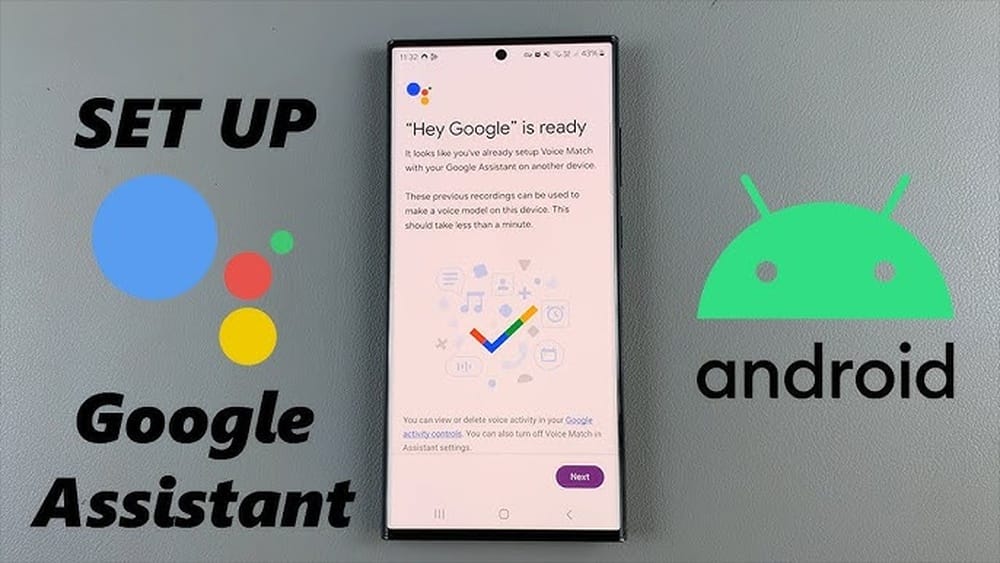
Setting up Google Voice Assistant can change the way you use your phone, smart devices, and even your home. Imagine talking to your phone and getting instant answers, reminders, or control over your lights with just your voice. Many people have heard about Google Voice Assistant but do not know how to set it up correctly, or how to get the most from it.
This guide walks you through every step, from basic setup to advanced features, using clear language and helpful tips. Whether you are new to voice assistants or want to unlock more functions, you will find everything you need here.
What Is Google Voice Assistant?
Google Voice Assistant is a virtual assistant developed by Google. It uses artificial intelligence to understand your voice commands and help you perform tasks. For example, you can say, “Hey Google, what’s the weather today?” and it will tell you the forecast. You can use Google Voice Assistant on Android phones, tablets, smart speakers (like Google Nest), and even some smart TVs.
There are over 500 million monthly users of Google Assistant worldwide. This shows how popular and useful it is. It can answer questions, play music, set alarms, send texts, control smart devices, and much more. If you use Google services like Gmail, Calendar, or Maps, Google Voice Assistant connects with them for a seamless experience.
Devices Compatible With Google Voice Assistant
Before you start, you need to know if your device supports Google Voice Assistant. Most modern Android devices and Google smart speakers have built-in support. Some iPhones and smart TVs also work with Google Assistant, but there are differences.
| Device Type | Compatible Models | Special Notes |
|---|---|---|
| Android Phones/Tablets | Android 5.0 (Lollipop) or higher | Must have Google App installed |
| iPhones | iOS 10.0 or higher | Requires Google Assistant app from App Store |
| Smart Speakers | Google Nest, Google Home | Wi-Fi connection needed |
| Smart TVs | Android TV, Chromecast | Limited commands |
| Wearables | Wear OS watches | Voice commands for fitness, reminders |
Non-obvious insight: Some older Android devices can still use Google Assistant by updating the Google app, even if the phone’s main software is out of date.

Credit: support.google.com
Preparing Your Device For Setup
To set up Google Voice Assistant, you need to make sure your device is ready. Here are the steps to prepare:
- Check software version: Make sure your device has the minimum required version of Android or iOS.
- Update Google App: Go to the Play Store or App Store and update the Google app. This app is essential for Google Assistant to work.
- Enable Internet connection: Google Assistant needs Wi-Fi or mobile data to work properly.
- Google Account: Sign in to a Google account. This is necessary for personalized results and syncing.
Common Mistake
Many users forget to update the Google app. If your app is old, some features will not work, or the setup may fail.
Setting Up Google Voice Assistant On Android Devices
Most Android phones and tablets come with Google Assistant installed. However, you may need to enable it or adjust settings for full functionality.
Step-by-step Guide
- Open the Google App: Find the Google app icon (usually a colorful ‘G’) and tap it.
- Tap on Profile Picture: In the top right corner, tap your profile photo or initial.
- Select Settings: Tap “Settings,” then choose “Google Assistant.”
- Activate Assistant: Tap “Assistant,” then scroll down to “Phone” and toggle the switch to turn it on.
- Enable Voice Match: For hands-free use, tap “Voice Match” and follow the prompts to record your voice.
- Customize Preferences: Set your preferred language, add shortcuts, and link services like Spotify or smart home devices.
Practical tip: If you want to trigger Google Assistant without touching your phone, enable “Hey Google” detection. This lets you activate the assistant by saying “Hey Google” or “OK Google.”
Example
Suppose you want to set reminders by voice. After setup, say “Hey Google, remind me to call John at 5 PM. ” The assistant creates a reminder and notifies you at the right time.
Setting Up Google Voice Assistant On Iphones
Google Assistant is not built into iPhones, but you can download the Google Assistant app from the App Store. The setup process is slightly different.
How To Set Up
- Download Google Assistant App: Open the App Store, search for “Google Assistant,” and install the app.
- Open the App: Tap the app icon to launch Google Assistant.
- Sign In: Enter your Google account details.
- Grant Permissions: Allow access to microphone, contacts, and location. These permissions are needed for full functionality.
- Customize Settings: Inside the app, tap your profile picture, then go to “Settings” to adjust preferences.
Data point: While Siri is the default assistant on iPhones, Google Assistant is popular for people who use Google services. Over 25% of iPhone users in the US have installed Google Assistant for extra features.
Non-obvious insight: On iPhones, you cannot activate Google Assistant with “Hey Google” unless the app is open. However, you can use Siri Shortcuts to launch Google Assistant by voice.
Setting Up Google Voice Assistant On Smart Speakers
Google smart speakers like Nest or Home make voice control easy. Here is how to set them up:
Step-by-step Setup
- Plug in the Speaker: Connect your device to power.
- Download Google Home App: Install the Google Home app on your phone (Android or iOS).
- Open Google Home App: Tap the ‘+’ icon to add a new device.
- Choose Device: Select your smart speaker from the list.
- Connect to Wi-Fi: Follow instructions to connect the speaker to your Wi-Fi network.
- Sign In: Enter your Google account details.
- Set Up Voice Match: Record your voice for personalized responses.
- Choose Rooms and Preferences: Assign the speaker to a room, set up routines, and link services (music, calendar).
Example: After setup, you can say, “Hey Google, play jazz music,” and your speaker streams music from your linked service.
Common mistake: Some users skip the Voice Match step. This means the speaker cannot give personalized answers, like calendar events or reminders.
Setting Up Google Voice Assistant On Smart Tvs And Other Devices
Smart TVs (with Android TV or Chromecast) and other devices like Wear OS watches also support Google Assistant.
Setup Steps For Smart Tvs
- Turn on TV: Make sure your TV is connected to the internet.
- Find Google Assistant Settings: Go to the settings menu and look for “Google Assistant.”
- Sign In: Enter your Google account.
- Enable Voice Control: Set up the microphone and voice activation.
- Customize Preferences: Link streaming services for voice control.
Setup Steps For Wear Os Watches
- Turn on Watch: Connect to Wi-Fi or Bluetooth.
- Open Google Assistant Settings: Usually found in the main menu.
- Sign In to Google Account: Follow prompts to enter your details.
- Enable Voice Activation: Turn on “Hey Google” detection.
- Set Up Shortcuts: Choose quick actions like texting or setting alarms.
Data point: Over 40 million smart TVs worldwide have Google Assistant built in, making voice control of entertainment common.
Customizing Google Voice Assistant
Once set up, you can personalize Google Assistant to fit your needs. Customization is key for getting the most value.
Language And Accent
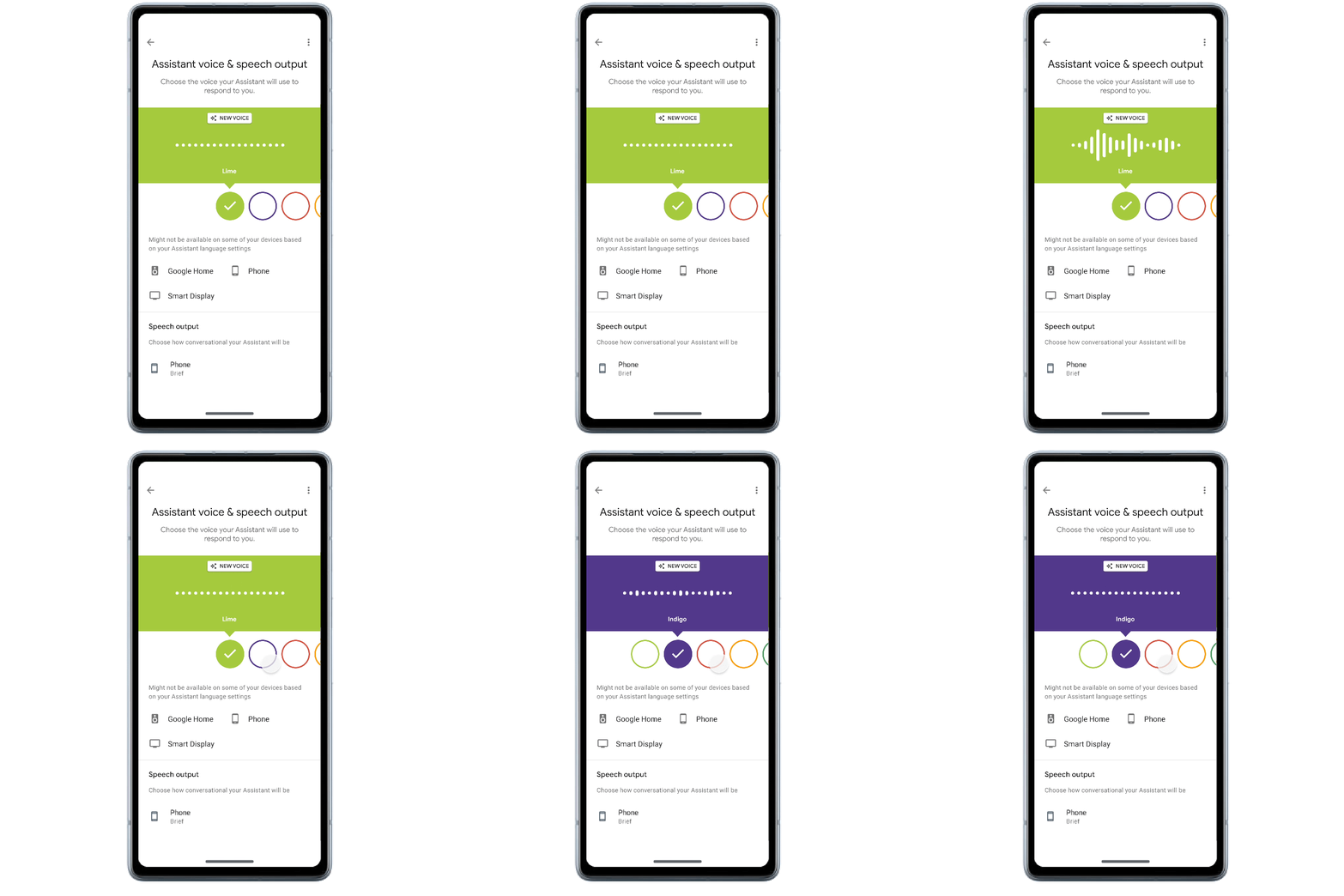
Google Assistant supports over 40 languages and multiple accents. You can change the language in settings. This is useful for non-native English speakers.
Routines
Routines let you automate multiple actions with one command. For example, saying “Good morning” can turn on lights, read the weather, and tell you your calendar events.
Linking Services
You can connect services like Spotify, Netflix, Philips Hue, and Google Calendar. This makes your assistant smarter and more useful.
Personal Results
Enable personal results to get answers about your email, calendar, and reminders. This is only possible if you have Voice Match enabled.
Non-obvious insight: You can set up different routines for each family member. Google Assistant recognizes voices and gives personalized responses.
Troubleshooting Common Problems
Sometimes Google Voice Assistant does not work as expected. Here are common issues and solutions.
Assistant Not Responding
- Check microphone access: Make sure Google Assistant has permission to use the microphone.
- Update Google App: An outdated app causes problems.
- Restart device: Sometimes restarting solves many issues.
Voice Match Not Working
- Re-record voice: Go to settings and redo the Voice Match process.
- Quiet environment: Record your voice in a quiet place for better accuracy.
Wrong Answers Or Misunderstandings
- Speak clearly: Use simple language and avoid background noise.
- Check language setting: Sometimes the wrong language is selected.
Connectivity Issues
- Wi-Fi connection: Make sure your device is connected to the internet.
- Google account sync: Check if your account is properly synced.
Practical tip: If the assistant keeps misunderstanding you, try changing the accent or language to match your speaking style.
Advanced Features Of Google Voice Assistant
After basic setup, explore advanced features that can save time and make life easier.
Smart Home Integration
Google Assistant can control smart devices like lights, thermostats, and security cameras. Just link your devices in the Google Home app.
Broadcast Messages
Send messages to all Google speakers in your home by saying “Hey Google, broadcast: Dinner is ready.” This is useful for families.
Shopping Lists
Create and manage shopping lists by voice. Say, “Hey Google, add milk to my shopping list,” and it saves your item.
Voice Calls And Messaging
Make calls or send texts hands-free. For example, “Hey Google, call Mom,” or “Send a message to John. ”
Calendar And Reminders
Google Assistant can read your calendar, create new events, and set reminders. This keeps you organized.
Navigation
Ask for directions and traffic information using Google Maps integration. “Hey Google, how’s the traffic to downtown? ”
Privacy And Security Settings
Privacy is important when using voice assistants. Google offers several controls to protect your information.
Manage Voice Data
You can review and delete your voice recordings in Google Account settings. This keeps your information private.
Limit Personal Results
Turn off personal results if you share your device with others. This prevents others from hearing your reminders or emails.
Secure Smart Devices
Set up guest mode on smart speakers to limit access for visitors. Always use strong Wi-Fi passwords.
| Privacy Feature | How to Use | Benefit |
|---|---|---|
| Voice Data Review | Google Account > Data & Privacy | Delete old voice recordings |
| Personal Results Control | Assistant Settings > Personal Results | Protect private info |
| Guest Mode | Google Home App > Devices > Guest Mode | Safe for visitors |
Non-obvious insight: You can set up Google Assistant to respond only to your voice, not others in your home. This prevents accidental commands.
Comparing Google Voice Assistant With Other Assistants
Many people wonder how Google Assistant compares to Siri (Apple) and Alexa (Amazon). Here is a quick comparison.
| Feature | Google Assistant | Siri | Alexa |
|---|---|---|---|
| Supported Devices | Android, iOS, smart speakers, TVs | Apple devices only | Amazon devices, some third-party |
| Language Support | 40+ | 20+ | 15+ |
| Smart Home Integration | Excellent | Good | Excellent |
| Search Accuracy | High (Google Search) | Medium | Medium |
| Routine Customization | Advanced | Basic | Advanced |
Practical tip: If you already use Google services, Google Assistant is usually the best choice. It integrates smoothly and supports more languages.
Using Google Voice Assistant Effectively
To make Google Assistant work best for you, follow these tips:
- Speak naturally: Use clear and simple language.
- Set up routines: Automate daily tasks like turning off lights or getting news.
- Link important services: Connect your favorite apps and smart devices.
- Check privacy settings: Protect your information by reviewing permissions.
- Update regularly: Keep the Google app and your device’s software up to date.
Non-obvious insight: Google Assistant can handle multiple commands in one sentence. For example, “Hey Google, turn off the lights and set an alarm for 7 AM.”
Accessibility Features
Google Assistant helps people with disabilities use technology more easily. It offers voice control for almost all functions, including navigation, texting, and smart home control.
Examples
- Voice typing: Compose texts or emails by speaking.
- Voice navigation: Move through apps or menus without touching the device.
- Read aloud: Google Assistant can read articles, emails, or messages out loud.
Data point: In the US, over 61 million adults have a disability. Voice assistants like Google Assistant help many of them access technology.
Credit: blog.google
Keeping Google Voice Assistant Updated
Updates are important for security and new features. Google releases regular updates for the Assistant.
How To Update
- Google App: Open Play Store or App Store and check for updates.
- Device Software: Update your phone or smart speaker’s operating system.
- Google Home App: Make sure the app is always up to date.
Practical tip: Set your apps to update automatically to avoid missing important improvements.
Integrating Google Voice Assistant With Daily Life
Google Assistant can improve your daily routine in many ways. Here are some examples:
- Morning routine: Get weather, news, and reminders with one command.
- Cooking: Set timers, read recipes, and add items to your shopping list.
- Travel: Get traffic updates, directions, and flight information.
- Entertainment: Play music, podcasts, or videos by voice.
- Learning: Ask questions and get instant answers for study.
Non-obvious insight: You can use Google Assistant to control multiple homes or offices by setting up different locations in the Google Home app.

Credit: reolink.com
Real-life Examples Of Google Voice Assistant Use
Here are some practical situations where Google Assistant makes life easier:
At Home
- “Hey Google, turn off the living room lights.”
- “Hey Google, play relaxing music.”
- “Hey Google, what’s on my calendar today?”
At Work
- “Hey Google, send an email to my boss.”
- “Hey Google, schedule a meeting for tomorrow at 2 PM.”
- “Hey Google, remind me to finish the report at 4 PM.”
On The Go
- “Hey Google, navigate to the nearest gas station.”
- “Hey Google, how’s the weather in Miami?”
- “Hey Google, text Anna that I’ll be late.”
Data point: A survey by Statista showed 38% of US adults use voice assistants while driving, making hands-free control important for safety.
Future Trends And Innovations
Google is working on making Assistant even smarter. New features include better natural language understanding, improved smart home integration, and support for more languages.
Example: Google recently launched features that help Assistant understand context better. This means you can have conversations, not just ask simple questions.
External reference: For more on the latest updates, visit Wikipedia.
Frequently Asked Questions
How Do I Activate Google Voice Assistant On My Phone?
Simply say “Hey Google” or “OK Google” if your phone is set up for voice activation. You can also press and hold the home button or open the Google app and tap the microphone icon.
Is Google Voice Assistant Available In My Language?
Google Assistant supports over 40 languages. To change the language, go to Assistant settings and select your preferred language.
Can Google Assistant Control My Smart Home Devices?
Yes. You can link smart devices like lights, thermostats, and cameras in the Google Home app. Once linked, use voice commands to control them.
How Safe Is Google Voice Assistant?
Google offers privacy controls, including the ability to review and delete your voice data. You can also limit personal results and use guest mode on shared devices.
What Should I Do If Google Assistant Is Not Working?
Check your internet connection, update the Google app, and make sure microphone permissions are enabled. Restart your device and re-record Voice Match if needed.
Setting up Google Voice Assistant is easy if you follow the right steps. From checking compatibility to customizing routines and privacy settings, you can make your technology work for you. With clear instructions and practical tips, you are ready to start using Google Assistant for daily tasks, smart home control, and more.
Remember to update your apps, check privacy settings, and explore advanced features. Google Voice Assistant can save time, help you stay organized, and make technology more accessible for everyone.