
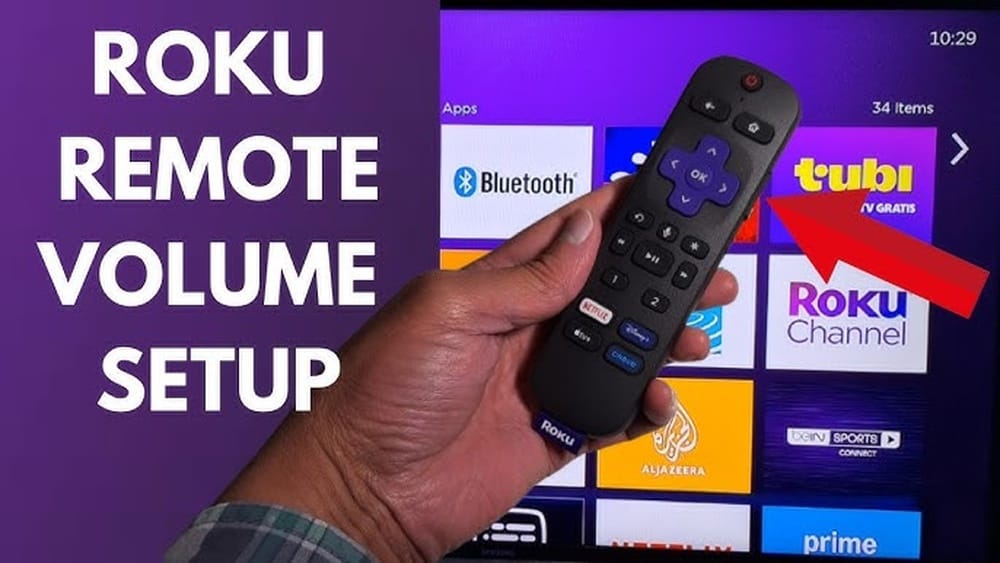
Setting up a Roku remote to control your TV can make your entertainment system much easier to use. Many people find themselves juggling multiple remotes—one for the TV, another for the Roku, sometimes even more for sound systems or Blu-ray players. With the right setup, the Roku remote can handle both your streaming needs and basic TV functions like power and volume. This means less searching for remotes and more time enjoying your favorite shows.
But for beginners, the process can feel confusing. There are different Roku remote types, various TV brands, and steps that sometimes don’t work as expected. This guide walks you through everything you need to know—from understanding which Roku remote you have, to programming it for your TV, and what to do if things go wrong.
You’ll learn practical steps, discover tips that most guides skip, and understand how to solve common problems. Whether you’re setting up a new device or fixing an old one, this article will help you get your Roku remote working smoothly with your TV.
Understanding Roku Remotes
Before you start, it’s important to know there are two main types of Roku remotes: Simple remotes and Enhanced (Voice) remotes. Each works a little differently, and only certain models can control your TV’s power and volume.
Simple Roku Remotes
These remotes use infrared (IR) signals, which require a direct line of sight to your Roku device. They are basic and usually can’t control your TV’s power or volume. If your remote does not have a microphone button or pairing button, it’s likely a simple remote.
Enhanced (voice) Roku Remotes
These use wireless (RF or Wi-Fi Direct) signals. Enhanced remotes usually have a microphone or voice search button. Many also include TV power and volume controls. These can work even if the Roku device is hidden behind your TV.
Key insight: Only Enhanced remotes with dedicated volume and power buttons can control your TV. If your remote doesn’t have these buttons, you won’t be able to set it up for TV control.
How To Identify Your Remote
- Check for a pairing button inside the battery compartment. Enhanced remotes have this.
- Look for TV power, mute, and volume buttons on the side or front.
- Find a microphone button for voice search features.
- Try pointing the remote at the Roku device from another room. If it works, it’s probably Enhanced.
Knowing your remote type is the first and most important step before you continue.
Requirements For Tv Control
Not every setup will allow Roku remotes to control a TV. Here are the requirements:
- Your Roku device must support Enhanced remotes. Most streaming sticks, Roku Ultra, and recent Roku TVs do.
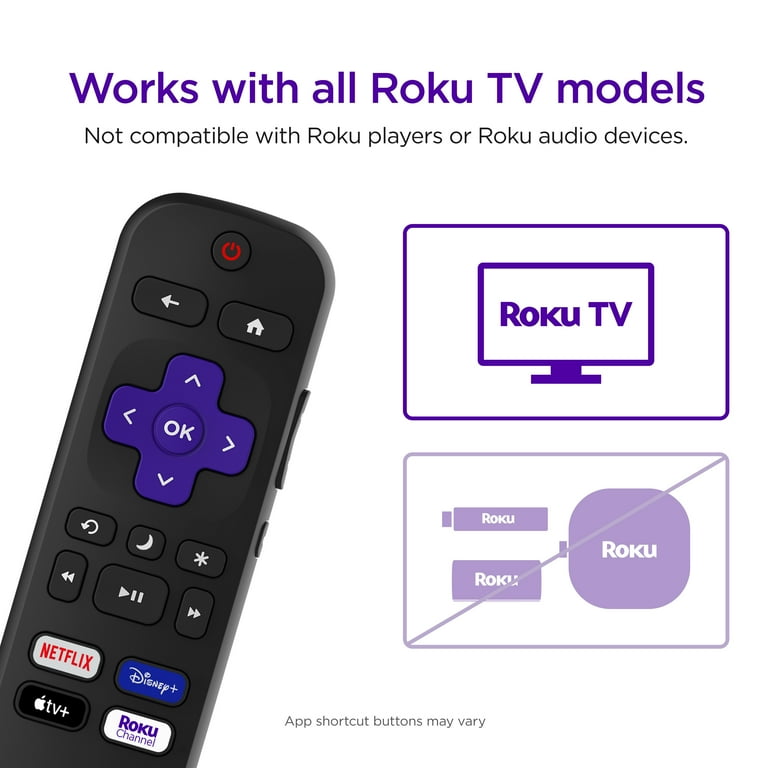
- The remote itself must have TV control buttons.
- The TV must support HDMI-CEC or be compatible with Roku’s IR codes.
- You need working batteries in your remote.
Important detail: Some older TVs or off-brand models may not support all remote features, especially mute or input switching. In rare cases, you may only get volume and power control.
Preparing For Setup
Before you begin programming your remote, take these steps to avoid common mistakes:
- Insert fresh batteries into your Roku remote. Weak batteries can cause setup failures.
- Connect your Roku device to your TV’s HDMI port and power it on.
- Make sure your TV’s volume is not muted and set to a normal level.
- Turn on HDMI-CEC (if available) in your TV settings. This allows devices to control each other.
To enable HDMI-CEC, look for settings like “CEC,” “Anynet+” (Samsung), “Bravia Sync” (Sony), or “Simplink” (LG) in your TV’s menu. Turn it on and restart both the TV and Roku.
Pro tip: If you have a soundbar or AV receiver between your Roku and TV, connect the Roku directly to the TV during setup. You can reconnect your sound system after the remote is programmed.
How To Set Up Roku Remote To Control Tv
The process is simple if you follow the right steps. Here’s how to set up your Roku remote to control your TV.
Step 1: Pair The Remote (if Needed)
Some Enhanced remotes need to be paired before programming TV controls. If your Roku remote isn’t working with your Roku device:
- Open the battery compartment.
- Find the pairing button.
- Press and hold the pairing button for about 5 seconds, or until you see a light start to flash.
- Wait for the on-screen message confirming the remote is paired.
If you already use your remote to navigate Roku menus, you can skip this step.
Step 2: Go To Roku Settings
- Press the Home button on your Roku remote.
- Scroll down and select Settings.
- Choose Remotes & devices.
- Select Remotes.
- Pick your remote from the list (usually called “Voice Remote” or “Enhanced Remote”).
- Select Set up remote for TV control.
Step 3: Begin The Tv Setup Wizard
The setup wizard will guide you through programming your remote:
- Select Set up remote for TV control.
- Roku will ask you to confirm your TV brand. If it detects the brand, check it’s correct. If not, select your brand manually.
- Follow on-screen instructions. Roku will play music or ask you if you can hear the sound.
Step 4: Test The Volume And Power
The setup process will:
- Play music or sound.
- Ask you to press the volume up and down buttons.
- Confirm if you hear the music or if the volume changes.
If your TV responds, you’re done. If not, Roku will try another set of codes. Repeat until it works or until Roku says it can’t detect your TV.
Tip: Some brands use multiple IR codes. Be patient and try all suggestions before giving up.
Step 5: Test All Controls
After setup, use your Roku remote to:
- Turn the TV on and off.
- Adjust the volume.
- Mute the sound (if your remote has a mute button).
Test these controls to make sure everything works. Sometimes, one function (like mute) may not work even if power and volume do.
Non-obvious insight: If you use a soundbar with HDMI-CEC enabled, your Roku remote may control the soundbar’s volume instead of the TV. This can be a benefit if you usually listen through the soundbar.
Troubleshooting Roku Remote Tv Control
Even with careful setup, problems can happen. Here’s how to solve the most common issues.
Remote Won’t Control Tv Power Or Volume
If your remote works with Roku but not your TV:
- Double-check you have an Enhanced remote with TV control buttons.
- Make sure your TV is compatible with IR codes or HDMI-CEC.
- Try the setup process again, choosing a different brand if possible (some TVs are rebranded versions).
- Check for obstructions blocking the IR sensor on your TV.
Tv Brand Not Detected
If Roku doesn’t recognize your TV brand:
- Choose “I don’t know” during setup and try all suggested codes.
- Search online for IR code compatibility with Roku and your TV brand.
- Some off-brand or older TVs may not be supported.
Soundbar Or Av Receiver Issues
If you use a soundbar or AV receiver:
- Make sure the Roku remote is pointed at the device you want to control.
- Set up the remote while the soundbar is connected, if possible.
- Try connecting Roku directly to the TV first, then add the soundbar later.
Remote Still Doesn’t Work
- Replace the batteries, even if they’re new.
- Restart your Roku device (Settings > System > System restart).
- Unplug the TV and Roku from power, wait 30 seconds, and plug back in.
- Factory reset the remote by holding the pairing button for 20 seconds.
Bonus tip: Try the Roku mobile app as a backup remote if your hardware remote fails. The app can also control TV power and volume if your phone supports IR blasters or your TV supports HDMI-CEC.
Table: Roku Device And Remote Compatibility
Below is a comparison of popular Roku devices and their remote capabilities.
| Roku Device | Simple Remote | Enhanced Remote | TV Control Supported |
|---|---|---|---|
| Roku Express | Yes | No | No |
| Roku Streaming Stick+ | No | Yes | Yes |
| Roku Ultra | No | Yes | Yes |
| Roku TV (built-in) | Yes | Yes | Yes |
| Roku Premiere | Yes | Limited | Some models |
Quick insight: The cheapest Roku models often come with simple remotes that can’t control TV power or volume. Upgrading to a Streaming Stick+ or Ultra gives you more features.
Credit: www.walmart.com
Advanced Setup: Using Hdmi-cec
HDMI-CEC (Consumer Electronics Control) is a feature in many modern TVs that lets devices control each other through the HDMI connection.
How Hdmi-cec Works
When HDMI-CEC is enabled, your Roku remote can send commands to your TV (and sometimes other devices) through the HDMI cable. This can include:
- Power on/off
- Volume up/down
- Switching inputs
Enabling Hdmi-cec On Popular Tv Brands
Different brands use their own names for CEC:
- Samsung: Anynet+
- LG: Simplink
- Sony: Bravia Sync
- Panasonic: VIERA Link
- Sharp: Aquos Link
Turn on this setting from your TV’s menu (usually under Settings > System > HDMI or External Inputs).
Pro tip: Restart all devices after enabling HDMI-CEC for the changes to take effect.
Table: Common Tv Brands And Roku Remote Compatibility
This chart shows how well Roku remotes usually work with popular TV brands.
| TV Brand | Power Control | Volume Control | Mute | Notes |
|---|---|---|---|---|
| Samsung | Yes | Yes | Yes | Works best with HDMI-CEC enabled |
| LG | Yes | Yes | Yes | Simplink must be on |
| Sony | Yes | Yes | Yes | Bravia Sync required |
| TCL/Hisense (Roku TV) | Yes | Yes | Yes | Full support |
| Vizio | Yes | Yes | Some models | Mixed results with older TVs |
| Philips | Yes | Yes | No | Mute may not work |
Hidden detail: Even among the same brand, different TV models may respond differently. Firmware updates can also affect compatibility.

Credit: www.youtube.com
Customizing Remote Buttons
Some Enhanced Roku remotes let you customize shortcut buttons for favorite apps or features.
Setting Up Personal Shortcuts
- Press and hold a shortcut button while using a streaming app.
- The remote will ask if you want to set a shortcut for that app.
- Confirm on-screen.
Not all remotes support this feature, but it can speed up your navigation and reduce the number of button presses.
Using Voice Commands
If your remote has a microphone button, you can control your TV and Roku by voice:
- Say “Turn TV off” or “Turn TV on.”
- Adjust volume by saying “Volume up” or “Volume down.”
- Open apps, search for shows, or switch inputs.
Voice features may require a Roku account and internet connection.
Table: Simple Remote Vs Enhanced Remote Features
Here’s a quick overview comparing the two main types of Roku remotes.
| Feature | Simple Remote | Enhanced Remote |
|---|---|---|
| Works through walls | No | Yes |
| TV power control | No | Yes |
| Volume control | No | Yes |
| Voice search | No | Yes |
| Private listening (headphones) | No | Some models |
| Programmable shortcuts | No | Some models |
Non-obvious insight: Enhanced remotes are more likely to get new features through software updates, while simple remotes rarely change.

Credit: www.amazon.com
Tips For A Reliable Roku Remote Experience
Making your Roku remote work with your TV is only the first step. Here are some extra tips to keep your setup running smoothly:
- Keep the remote’s firmware updated. Roku updates often fix bugs or add TV compatibility.
- Replace batteries regularly. Low batteries cause lag and missed button presses.
- Avoid direct sunlight on the TV’s IR sensor. Bright light can block signals.
- Clean the remote and TV sensor area. Dust and dirt can interfere with IR.
- If you lose your remote, try the Roku mobile app as a temporary solution.
Pro insight: Some TVs have poorly placed IR sensors (sometimes at the bottom edge or side of the screen). If your remote works sometimes but not always, check for objects blocking the sensor area.
When To Replace Or Upgrade Your Roku Remote
If your remote is lost, broken, or just doesn’t support TV control, you have options.
Buying A Replacement Remote
- Make sure to buy a genuine Roku Enhanced remote for your model.
- Check compatibility with your Roku device and TV.
- Avoid universal remotes unless they clearly state Roku support.
Upgrading To A New Roku Device
- Newer Roku models often include improved remotes with more TV control features.
- Consider whether you want voice search, private listening, or programmable shortcuts.
Using The Roku Mobile App
- Free for iOS and Android devices.
- Offers voice control, keyboard input, and sometimes TV power/volume (if compatible).
- Great as a backup if your physical remote fails.
Real-world example: A user with a lost remote can order a replacement from the Roku website or use the mobile app instantly to control their device until the new remote arrives.
For more details on official Roku remotes and features, visit the Roku Support site.
Frequently Asked Questions
Can Any Roku Remote Control My Tv?
No, only Enhanced Roku remotes with TV control buttons can control your TV’s power and volume. Simple remotes do not support these functions.
What If My Tv Brand Is Not Listed During Setup?
Choose “I don’t know” or “Try all codes” during the setup process. Roku will test multiple codes to find one that works. If nothing works, your TV may not be supported.
Why Does The Volume Control My Soundbar Instead Of My Tv?
If your soundbar is connected through HDMI-CEC or controls the TV’s audio, the Roku remote may adjust the soundbar’s volume instead. This is normal and can be helpful if you always use the soundbar.
Can I Use The Roku Mobile App To Control My Tv’s Power And Volume?
The Roku mobile app can control your Roku device. It can control TV power and volume only if your phone has an IR blaster or your TV supports HDMI-CEC. Otherwise, it’s limited to Roku features.
What Should I Do If My Roku Remote Stops Working?
First, replace the batteries and restart your Roku device. If it still doesn’t work, try re-pairing the remote or resetting it by holding the pairing button for 20 seconds. As a backup, use the Roku mobile app.
Getting your Roku remote to control your TV can make watching shows and movies much simpler. By following these steps and tips, you’ll have a setup that’s reliable and easy to use. With just one remote, you can power on your TV, control the volume, and enjoy all your favorite streaming content without hassle. And if you ever run into problems, you now know how to troubleshoot and fix them quickly. Enjoy your improved home entertainment experience!