
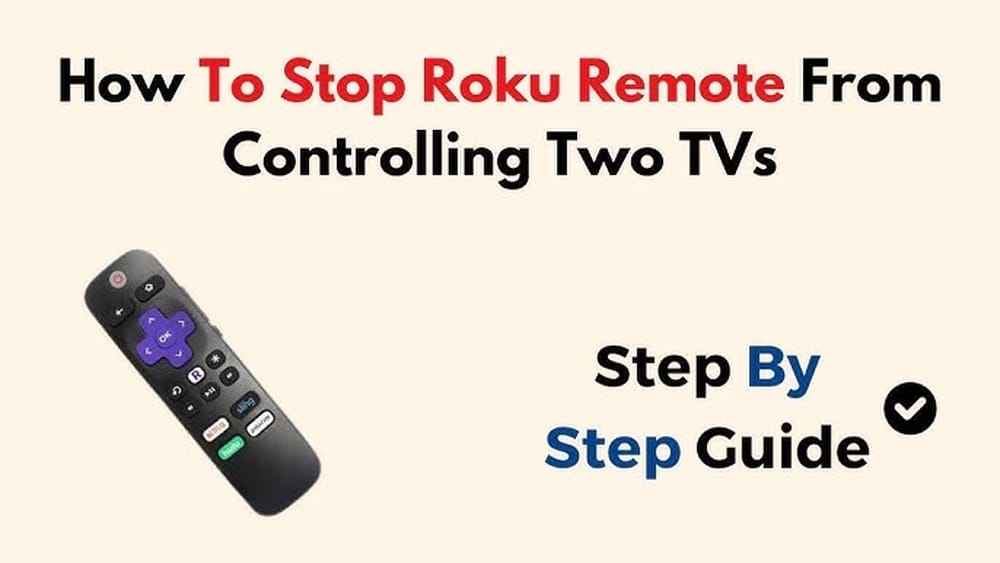
If you use Roku devices in your home, you may have faced a strange problem: your Roku remote starts controlling more than one TV. Maybe you wanted to watch a movie in your living room, but the bedroom TV turned on as well. Or perhaps you pressed the volume button, and both TVs responded. This issue is frustrating and confusing, especially if you want each TV to work separately with its own remote.
Why does this happen? Roku remotes are designed to be easy, but sometimes, their signals overlap or pair incorrectly. Sharing the same room or wall, using similar TV brands, or setting up a new Roku can cause this situation. The good news is you don’t have to live with this annoyance.
With the right steps and understanding, you can stop your Roku remote from controlling two TVs at once.
This guide will show you why this happens, how the remotes work, and simple but effective ways to fix the problem. Whether you are a tech beginner or have tried solutions before, you’ll find clear explanations and practical tips here.
Let’s help you get back to enjoying your shows—on the TV you choose.
Understanding Why Roku Remotes Control Multiple Tvs
Before you can fix the problem, it helps to know how Roku remotes work. There are two main types:
- Infrared (IR) remotes
- Enhanced (wireless) remotes
Each type behaves differently, and the cause of your problem depends on which one you have.
Infrared (ir) Remotes
IR remotes send signals as light beams. These beams can bounce off walls and objects. If you have two Roku TVs in the same space, both may pick up the IR signal. Also, many TVs use similar IR codes, so a Roku IR remote could accidentally control multiple devices from the same brand.
Enhanced (wireless) Remotes
Wireless Roku remotes use Wi-Fi Direct or Bluetooth. They pair with one device at a time. However, during setup or after resetting, a remote might connect to the wrong Roku or not disconnect from an old one. If two Rokus are close together, pairing confusion can happen.
When Will This Happen Most Often?
- Two TVs in the same room or next to each other
- Using the same Roku device model on both TVs
- Recent setup, factory reset, or remote re-pairing
- Some universal remotes or HDMI CEC features enabled
Understanding which remote you have is the first step. Look for a pairing button inside the battery compartment—if you see one, it’s an enhanced remote. If not, it’s usually IR.
Quick Ways To Identify Your Roku Remote
If you are not sure which remote you have, try these simple steps:
- Check the battery compartment: Is there a small button? That’s a pairing button for enhanced remotes.
- Test with obstacles: IR remotes need a clear line of sight. Try blocking the remote’s path with your hand. If it stops working, it’s IR.
- Look for voice search or headphone jack: Enhanced remotes often have these features.
- Model numbers: Check the Roku website for your remote’s model number for more details.
This information will help you follow the right steps to solve your problem.

Credit: www.youtube.com
Why Roku Remotes Get Confused: Technical Reasons
Sometimes, the reason for the problem is not obvious. Here are a few technical causes:
- IR overlap: IR signals are not unique for each device. Two TVs from the same brand may use similar codes.
- Wireless pairing errors: If you have more than one Roku device and reset a remote, it can pair with the wrong device.
- HDMI CEC conflicts: Some TVs support HDMI Consumer Electronics Control (CEC). This allows devices to control each other through the HDMI cable, which may cause cross-control.
- Universal remote confusion: If you use a universal remote, it might control both TVs if the code is not set up correctly.
These issues are common in homes with several Roku devices or smart TVs.
How To Stop Roku Remote From Controlling Two Tvs
Now, let’s get practical. Here’s what you can do to solve this problem. The right solution depends on your setup and remote type.
For Ir Roku Remotes
If your IR remote is controlling two TVs, try these steps:
- Physically separate the TVs: If possible, move the TVs further apart so the IR signal does not reach both at once.
- Block the IR receiver: Place a small object in front of the TV’s IR sensor when you do not want it to respond.
- Change angle and position: Point the remote more directly at the TV you want to control.
- Use IR blaster covers: These are small covers that limit the IR signal to one device.
- Upgrade to enhanced remote: If possible, switch to a Roku device that uses a wireless remote, which can be paired individually.
Practical Tip
Many users do not realize that sunlight and mirrors can reflect IR signals. If you have mirrors or shiny surfaces near your TVs, try covering them or changing the TV position.
For Enhanced Wireless Roku Remotes
For wireless remotes, the issue is usually pairing. Here’s how you can make sure your remote only controls one Roku device:
- Unpair the remote:
- Remove the batteries from your remote.
- Unplug your Roku device(s) for at least 30 seconds.
- Plug in only the Roku device you want to pair.
- Insert the batteries back into the remote.
- Pair with the correct device:
- Hold the pairing button (inside the battery compartment) for 3-5 seconds until the LED starts blinking.
- Wait for the on-screen pairing message.
- If you have two Rokus, keep the other one unplugged during this step.
- Test the remote: Try using the remote. If it only controls one device, you’ve fixed the issue.
- Repeat for other devices: Plug in the second Roku and pair its own remote using the same steps.
Non-obvious Insight
Many people forget to unplug the second Roku device while pairing. If both are on, the remote may pair with the wrong device. Always leave only one device powered during pairing.
Dealing With Hdmi Cec Problems
Some TVs and Rokus support HDMI CEC. This feature lets you control multiple devices with one remote, but it can cause unwanted cross-control.
How To Turn Off Hdmi Cec
- On your TV: Go to the settings menu. Look for HDMI CEC (brand names differ: Anynet+ for Samsung, Bravia Sync for Sony, etc. ).
- Turn off CEC: Disable this feature on both TVs.
- Restart all devices: Unplug and plug back in the Rokus and TVs.
Example
If your Samsung TV is responding to both the Roku remote and the TV remote, disabling Anynet+ (HDMI CEC) usually solves the problem.
Using Universal Remotes Correctly
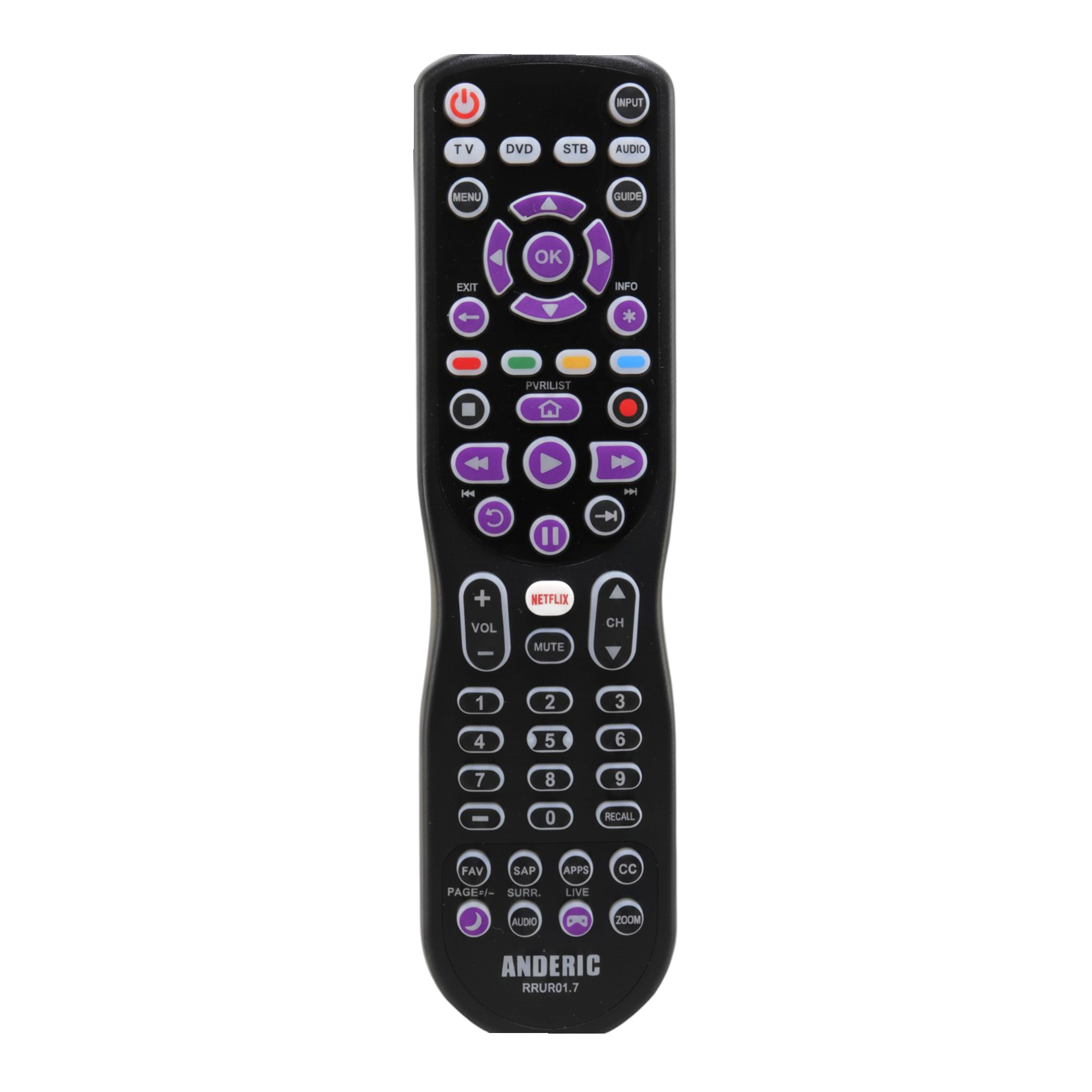
If you use a universal remote, make sure each TV is programmed with a unique code. If the same code is used for both, they will both respond.
- Find your TV’s unique code: Check the universal remote’s manual or website.
- Program each TV separately: Follow the instructions for code entry.
- Test each remote: Make sure only the intended TV responds.
Resetting Everything For A Fresh Start
If all else fails, resetting your devices and remotes can help:
- Factory reset the Roku device: Go to Settings > System > Advanced system settings > Factory reset.
- Remove batteries from the remote.
- Unplug both TVs and Rokus.
- Plug in and set up one device at a time: Pair each remote only with its intended Roku.
- Double-check HDMI CEC settings: Make sure they are off if you want separate control.
Practical Example
A family in Texas had three Roku TVs. After a power outage, all remotes started controlling all TVs. They solved it by unplugging all devices, resetting and pairing one by one, and disabling HDMI CEC on each TV.
Common Mistakes And How To Avoid Them
Even careful users can make simple mistakes that keep the problem going. Here are the most common ones:
- Pairing with both devices powered: Always unplug other Roku devices during pairing.
- Forgetting to disable CEC: Check all HDMI CEC settings, not just on one TV.
- Not blocking IR signals: Even a small opening can let IR through.
- Using old remote codes: Universal remotes sometimes use outdated codes—update them if possible.
- Overlooking reflections: IR can bounce off walls, glass, or metal. Try changing the room setup if you keep having problems.
Advanced Tips For Difficult Cases
Sometimes, you may have a unique setup or a stubborn problem. Here are advanced tips:
Assigning Unique Device Names
On your Roku, you can assign a unique name to each device in the Roku account online. This helps you keep track when pairing or using the Roku mobile app as a remote.
Using The Roku Mobile App As A Remote
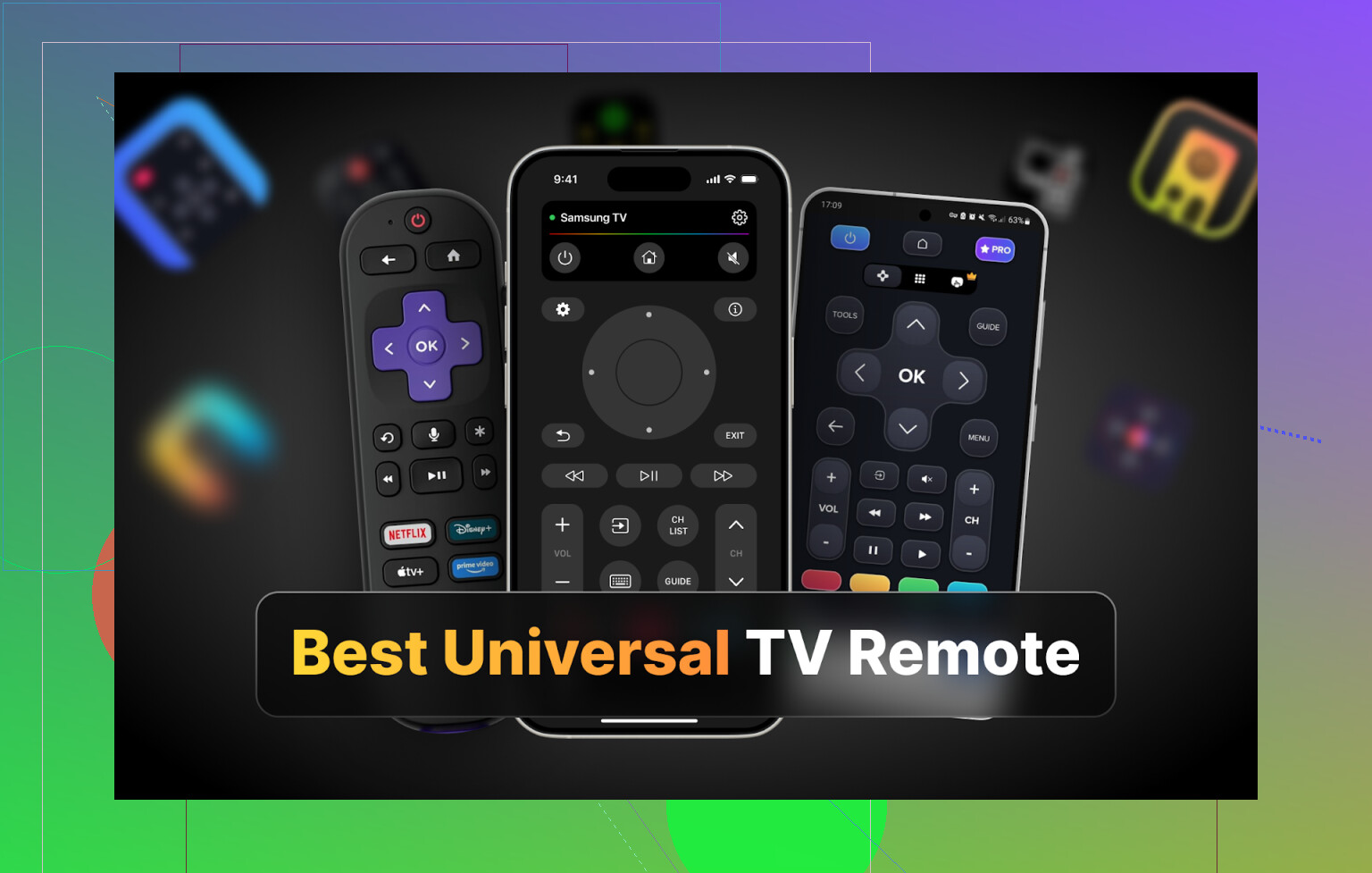
The Roku mobile app (available for iOS and Android) lets you control each Roku device separately. It finds devices by Wi-Fi network, so you can always pick the right one. This is a good backup if your physical remotes keep causing trouble.
Using Rf Shields Or Ir Extenders
Some users build small boxes or shields to block IR signals to one TV. This is useful if you cannot move your TVs further apart. IR extenders can help target one TV without affecting another.
Upgrading Devices
Older Roku models or remotes are more likely to have these problems. Newer enhanced remotes and Roku devices have better pairing and less IR overlap. If you keep having issues, consider upgrading to a newer model.
Credit: beginrescueend.com
Real-world Examples: How People Solved This Issue
Let’s look at some real-life cases to see how these tips work.
Example 1: Studio Apartment With Two Tvs
Jenna lives in a studio with a Roku TV in her living area and one in her sleeping space. Both were Samsung models. Her IR remote turned on both TVs every time. She solved it by:
- Placing a small book in front of the second TV’s IR sensor when not in use
- Pointing the remote directly at the TV she wanted to control
- Eventually, she switched to a Roku streaming stick with an enhanced remote for one TV
Example 2: Two Rokus, Same Room
A college student had two Roku Streaming Sticks on two TVs in the same room. Both were paired to the same remote after a factory reset.
- He unplugged both devices
- Plugged in and paired one at a time, leaving the other unplugged
- Made sure to assign unique device names in his Roku account
Example 3: Hdmi Cec Headache
A family had LG and Sony TVs with Roku devices. The remotes would turn on both TVs even when only one was used. They found Simplink (LG’s CEC feature) was causing the problem. Turning it off fixed the issue.
Data Table: Types Of Roku Remotes And Their Control Range
Understanding which remote you have makes troubleshooting easier. Here’s a quick comparison:
| Remote Type | Control Method | Range | Chance of Interference |
|---|---|---|---|
| IR Remote | Infrared Light | 10-20 ft (line of sight) | High (if TVs are close) |
| Enhanced Remote | Wi-Fi Direct/Bluetooth | 20-30 ft (through walls) | Low (if paired correctly) |
| Universal Remote | Multiple (IR, RF, etc.) | Varies | Medium (depends on programming) |
Table: Troubleshooting Steps And Their Effectiveness
Here’s a summary of solutions and how effective they are for different remote types:
| Solution | IR Remotes | Enhanced Remotes | Universal Remotes |
|---|---|---|---|
| Physical separation | High | Low | Medium |
| Pairing correctly | Low | High | Medium |
| Disabling HDMI CEC | Medium | High | Medium |
| Blocking IR sensor | High | Low | Medium |
| Using mobile app | Low | High | High |
Table: Hdmi Cec Feature Names By Tv Brand
Many users are confused by the different names for HDMI CEC. Here’s a quick reference:
| TV Brand | HDMI CEC Name |
|---|---|
| Samsung | Anynet+ |
| Sony | Bravia Sync |
| LG | Simplink |
| Panasonic | Viera Link |
| Philips | EasyLink |
| Toshiba | Regza Link |
| Sharp | AQUOS Link |
| Roku TV | 1-Touch Play |
Preventing The Problem In The Future
Once you solve the problem, you want to keep it from coming back. Here are some tips for prevention:
- Always pair remotes one device at a time: Unplug other Rokus during pairing.
- Label your remotes: Use stickers or tape to mark which remote belongs to which TV.
- Keep TVs apart if possible: Even a few feet can reduce IR overlap.
- Regularly check HDMI CEC settings: Software updates may turn CEC back on.
- Update Roku and TV software: New updates often improve remote handling and pairing.
- Use the mobile app as a backup: It never suffers from IR or pairing confusion.
What If Nothing Works?
If you have tried all steps and the problem continues, consider these options:
- Contact Roku support: They can help with advanced troubleshooting.
- Replace the remote or device: Sometimes, hardware faults cause cross-control.
- Use physical barriers: Place a divider between TVs if you must keep them close.
- Switch to another streaming platform: If cross-control keeps happening, other brands may have stronger pairing features.
Credit: www.anderic.com
Frequently Asked Questions
Why Does My Roku Remote Control Two Tvs At The Same Time?
This usually happens because of IR signal overlap or because your remote is paired with more than one device. If your TVs use the same IR codes or are set up close together, one remote can control both. Wireless remotes sometimes pair with the wrong Roku if both are powered during setup.
How Can I Tell If My Roku Remote Is Ir Or Wireless?
Check inside the battery compartment. If there’s a pairing button, it’s a wireless remote. Also, IR remotes need a direct line of sight, while wireless remotes can work through walls. Enhanced remotes also often have voice search or a headphone jack.
What Is Hdmi Cec And How Can It Cause This Problem?
HDMI CEC (Consumer Electronics Control) lets your TV and devices control each other using the HDMI cable. If it’s enabled on multiple TVs, one remote command can affect all connected devices. Each TV brand has its own name for CEC, like Anynet+ or Simplink.
Can I Use The Roku Mobile App Instead Of A Remote?
Yes. The Roku mobile app works over Wi-Fi and lets you choose which Roku device to control. This avoids IR or pairing issues. It’s available for both iOS and Android and is a good backup if your physical remotes overlap.
Where Can I Find More Help If My Remote Keeps Controlling Two Tvs?
The official Roku Support site has troubleshooting guides and a customer service team. They can help with advanced problems or if you need a replacement remote.
Getting control of your Roku remotes takes a little work, but once you follow these steps, you’ll enjoy your shows on the TV you want—without confusion or interruption. For most people, careful pairing, disabling HDMI CEC, and using the mobile app solve the problem for good.