
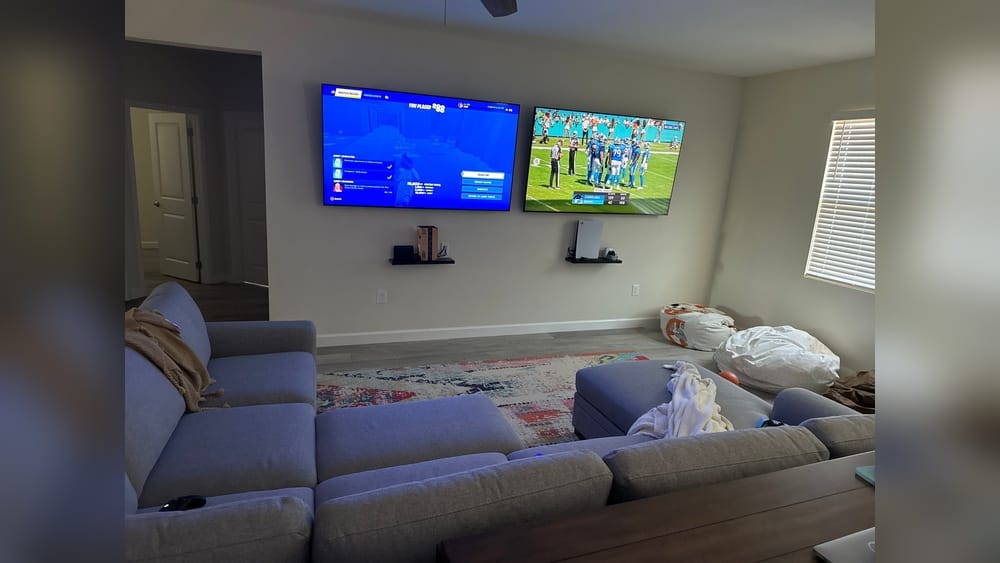
When you sit down to watch your favorite show, the last thing you want is for your Samsung TV remote to control two TVs at once. This problem is more common than you think—especially in homes with multiple Samsung TVs, or in offices, schools, and shops where several TVs may be in close range. You press a button, and suddenly, both TVs turn on, or their volumes change together. It’s frustrating, confusing, and can lead to endless back-and-forth with remotes.
Many people believe there’s no solution, or that they need to buy expensive equipment. That’s not true. With the right knowledge, you can stop your Samsung remote from controlling two TVs. This guide will walk you through every proven method, explain why the problem happens, and give you practical solutions for both old and new Samsung models.
You’ll also learn non-obvious tips that most users miss, plus a few advanced tricks for tricky situations.
Let’s break the chain of remote chaos and bring back control—one TV at a time.
Why Does One Samsung Remote Control Two Tvs?
To fix the problem, it helps to understand why one remote controls two TVs. Samsung uses a technology called infrared (IR) for most remotes. IR sends signals in a straight line, and any device that “hears” the signal can respond. If you have two Samsung TVs in the same room, both will likely react to the same remote.
Many newer Samsung TVs also use Bluetooth or RF (radio frequency) remotes, sometimes called Smart Remotes. These pair with one TV at a time, but if unpaired or reset, they can sometimes control multiple TVs—especially if they’re the same brand and model.
Key reasons for this problem:
- Similar IR code sets: Most Samsung TVs use the same IR codes.
- Line of sight: If both TVs are in view, both get the signal.
- Factory pairing: Some Bluetooth remotes may not be paired yet, so they try to connect to any nearby TV.
Understanding these basics is the first step to solving the issue.
Quick Solutions For Everyday Users
If you want a fast fix and don’t care about technical details, start here.
1. Move One Tv Out Of Sight
The IR signal is a light beam. If you block the remote’s view to one TV, only the other will receive commands. Try:
- Placing a small object (like a book) in front of the IR sensor of the TV you don’t want to control.
- Turning one TV slightly away from the main viewing area.
- Using furniture as a barrier.
While this sounds simple, it’s effective for many homes and offices.
2. Use Physical Barriers
You can use opaque tape (like black electrical tape) to cover the IR receiver on one TV. When you want to use that TV, remove the tape. It’s not elegant, but it works for guest rooms, meeting spaces, or shared apartments.
3. Turn Off One Tv While Using The Other
If both TVs are rarely used together, keep one off (unplugged or in standby) while watching the other. This prevents accidental control.
4. Use The Tv’s Own Buttons
Every Samsung TV has manual buttons (usually on the back or side). You can adjust volume, change inputs, or power on/off directly. This is handy if only one TV needs frequent remote use.
5. Try A Universal Remote With Device Selection
Some universal remotes let you switch between devices. For example, you can program “TV1” and “TV2” and select which one to control. Make sure the universal remote supports Samsung codes and device switching.

Credit: www.youtube.com
Advanced Fixes: Pairing, Settings, And Separation
If the quick fixes aren’t enough, or you want a permanent solution, try these more advanced options.
Pairing Bluetooth Or Smart Remotes
Most newer Samsung TVs (2016 and later) come with Smart Remotes that use Bluetooth instead of IR. These remotes usually control only one TV at a time if properly paired.
How To Pair A Samsung Smart Remote
- Turn on the TV you want to pair.
- Hold the Return and Play/Pause buttons together on the remote for 3-5 seconds.
- Wait for a pairing message on the TV screen.
- Test the remote. It should now control only the paired TV.
If the remote still controls both TVs, repeat the process with each TV separately, making sure only one TV is powered on each time.
Common Pairing Mistakes
- Pairing with both TVs powered on. This can cause the remote to connect to both.
- Not standing close enough to the TV during pairing (Bluetooth range is limited).
- Using the wrong button combination (check your model’s manual).
Change Tv Settings To Limit Remote Response
Samsung TVs have service menus and settings that can sometimes adjust how the remote works. However, these menus are hidden and should be used with caution.
Accessing The Service Menu
- Turn the TV off.
- On the remote, press: Mute, 1, 8, 2, Power (in sequence).
- The service menu will appear after the TV turns on.
Warning: Do not change settings unless you know what they do. Look for options like “Remote Control” or “IR Settings” that might let you disable IR temporarily.
Use A Device That Blocks Ir
You can buy small IR blockers or filters that stick on the TV’s IR receiver. These are available online and can be removed when needed. Some users create DIY blockers using dark plastic or film.
Assign Different Universal Remotes
Instead of using the original Samsung remote, buy two universal remotes and program each to control only one TV. Some universal remotes support unique device codes or “learning mode,” so they won’t interfere with each other.
Change The Remote’s Ir Code (if Possible)
A few advanced universal remotes allow you to change the IR code set. This means you can program one remote for “Samsung code A” and the other for “Samsung code B. ” Most Samsung remotes do not support this, but some third-party models do.
Relocate Or Reorient Tvs
If your setup allows, move the TVs to different rooms or angles. Even a slight change in position can reduce IR overlap. Consider mounting one TV higher or lower, or using a swivel bracket.
Detailed Comparison: Ir Vs Bluetooth Remotes
Understanding the difference between IR and Bluetooth remotes can help you choose the best solution.
| Feature | IR Remote | Bluetooth Remote |
|---|---|---|
| Technology | Infrared light | Wireless radio (Bluetooth) |
| Range | Line-of-sight only (up to 30 ft) | Up to 30-50 ft, no line-of-sight needed |
| Controls Multiple TVs? | Yes, if in view | No, if paired correctly |
| Interference | High (controls all TVs in view) | Low (pairs with one TV) |
| Setup Needed | None (just use) | Pairing required |
| Common in Models | Older and budget models | Newer models (2016+) |
For most users, switching to a Bluetooth remote and pairing it with one TV is the most reliable way to avoid cross-control.

Credit: pointerclicker.com
Using Mobile Apps As A Remote
Samsung’s SmartThings app and some third-party apps can control your TV via Wi-Fi. When set up properly, these apps let you select which TV to control, even if you have several in your home.
How To Use Smartthings App
- Download and install the SmartThings app on your smartphone.
- Connect your phone and TVs to the same Wi-Fi network.
- Open the app and tap Add Device.
- Select your Samsung TV from the list.
- You can now switch between TVs and control each one separately.
Tip: Rename each TV in the app (e.g., “Living Room TV,” “Bedroom TV”) for easy switching.
Ir Repeater Systems: Are They Worth It?
If your TVs are in cabinets or hidden places, you might use an IR repeater to send the remote’s signal where you want. However, repeaters often make the problem worse by broadcasting the IR signal to multiple TVs. Unless you need to control TVs in different rooms, avoid IR repeaters if you have multiple Samsung TVs nearby.
Real-world Example: Solving The Problem In A Sports Bar
Imagine a sports bar with five Samsung TVs lined up. Every time the staff tries to change the channel on one, all five respond. Here’s how they solved it:
- Switched to Bluetooth Smart Remotes for each TV.
- Paired each remote with only one TV, turning off all others during pairing.
- Placed small pieces of black tape over the IR sensors, just in case an IR remote was used.
- Staff now uses only the paired Smart Remotes, and each TV responds independently.
This combination of pairing and physical blocking works in busy environments.
Common Myths And Mistakes
Many users fall for advice that doesn’t work—or worse, makes things more confusing. Let’s clear up a few common myths.
Myth 1: Changing The Batteries Will Fix It
Changing batteries only affects remote power, not signal codes. It won’t stop one remote from controlling two TVs.
Myth 2: You Need A Special “samsung Only” Remote
Most Samsung remotes use the same IR codes. Buying another Samsung remote usually won’t help unless it’s a Bluetooth model and paired correctly.
Myth 3: You Have To Buy Expensive Equipment
Most fixes are free or very cheap—tape, app downloads, or a universal remote. Expensive “custom” solutions are rarely necessary.
Mistake: Pairing With Both Tvs On
When pairing Bluetooth remotes, always power on only one TV at a time. Otherwise, the remote might pair with both, or keep switching between them.
How To Identify Your Samsung Remote Type
Before you start fixing, check which type of remote you have.
Ways To Tell
- Look for a microphone button: If your remote has this, it’s likely a Smart Remote (Bluetooth).
- Check the model number: Search the remote’s model number online.
- Try hiding the remote behind your hand: If the TV still responds, it’s probably Bluetooth.
If you’re unsure, visit the official Samsung website for remote identification tools.
Dealing With Third-party Devices
Sometimes, you may have devices like soundbars, set-top boxes, or game consoles that use their own remotes. These can also send IR signals that affect your TVs.
Solution
- Make sure each device remote is set to control only one TV (follow device-specific instructions).
- Use HDMI-CEC (Anynet+) settings to turn off device-to-TV control if needed.
Best Practices For Multi-tv Homes
If you often use two or more Samsung TVs in the same area, follow these best practices to avoid problems:
- Label each remote: Use a sticker or marker (e.g., “Living Room,” “Bedroom”).
- Keep remotes apart: Store each near its TV.
- Educate family members or coworkers: Explain which remote to use for each TV.
- Regularly check pairing: If a remote starts controlling both TVs, redo the pairing process.
Table: Quick Fixes And Their Effectiveness
Let’s compare each solution for how well it works, how easy it is, and cost.
| Solution | Effectiveness | Difficulty | Cost |
|---|---|---|---|
| Move TV out of sight | Medium | Easy | Free |
| Physical barrier (tape) | High | Easy | Low |
| Bluetooth remote pairing | Very High | Medium | Low (if you already have Smart Remote) |
| Universal remote with device selection | High | Medium | Medium |
| Mobile app remote | High | Medium | Free |

Credit: www.reddit.com
What To Do If Nothing Works
If you’ve tried everything above and your Samsung remote still controls two TVs, it’s time to get creative.
Contact Samsung Support
Samsung customer service can help with unique cases, especially if you have special models or business setups. They may offer software updates or advanced settings not in the user manual.
Use An Ir Extender With Targeted Placement
Some IR extenders come with “emitters” that stick directly onto the TV’s IR sensor. Place the emitter only on the TV you want to control, so the other TV won’t receive the signal.
Separate Power Circuits Or Outlets
Rarely, power surges or shared outlets can cause TVs to “wake up” together. Plug each TV into a different outlet or power strip.
Non-obvious Insights And Pro Tips
Here are two insights most beginners miss:
- Ambient Light Can Affect IR Remotes: Bright sunlight or strong fluorescent lights can bounce IR signals around a room, making control even less predictable. Try controlling your TVs in lower light or changing the position of lamps.
- Some TVs Remember Last Remote: Certain Samsung TVs “remember” the last paired remote and may ignore a new one until reset. Unpair all remotes and start fresh if you run into trouble.
And a bonus: If you’re using a universal remote, always delete old device codes before programming new ones. Otherwise, the remote may send commands to multiple TVs at once.
When To Upgrade Your Equipment
If you’ve struggled for months, sometimes the best solution is to upgrade.
Signs It’s Time To Upgrade:
- Your TVs are over 10 years old and only support IR.
- You need a remote with voice control, smart features, or app compatibility.
- You want to use advanced functions like SmartThings or Alexa.
Newer Samsung TVs and remotes have better pairing technology and more options for avoiding cross-control. Check out the latest models on the official Samsung website or at a trusted retailer.
For more on universal remote technologies and compatibility, see this Wikipedia guide.
Frequently Asked Questions
Why Does My Samsung Tv Remote Control Two Tvs At Once?
This usually happens because both TVs use the same IR codes, and the remote’s signal reaches both TVs. It can also happen with unpaired Bluetooth remotes. Keeping both TVs in the same room or line of sight is the main cause.
Can I Change My Samsung Remote’s Signal So It Only Works With One Tv?
With IR remotes, you can’t change the signal. But with Bluetooth Smart Remotes, you can pair each remote to a single TV. Universal remotes with device selection can also help.
Will Buying A New Samsung Remote Solve The Problem?
Not always. If it’s another IR remote, it will have the same issue. If you buy a newer Bluetooth remote and pair it, then yes, it should only control one TV.
What If I Want To Use One Remote To Control Multiple Tvs On Purpose?
You can do this with IR remotes, as long as the TVs are in view. But if you want to control each TV separately, use the mobile app or a universal remote with device selection.
Is There A Way To Block Ir Signals Without Damaging The Tv?
Yes, use opaque tape (like black electrical tape) over the IR sensor. This blocks the signal but doesn’t harm the TV. Remove the tape when you want to use the remote again.
—
Nobody wants the headache of two TVs reacting to one remote. With these solutions, you can finally reclaim control and enjoy your Samsung TVs—one at a time. Whether you use simple tape, smart remote pairing, or a mobile app, the right method is within reach.
If nothing else works, remember that technology moves fast, and newer options keep making life easier. Happy viewing!