
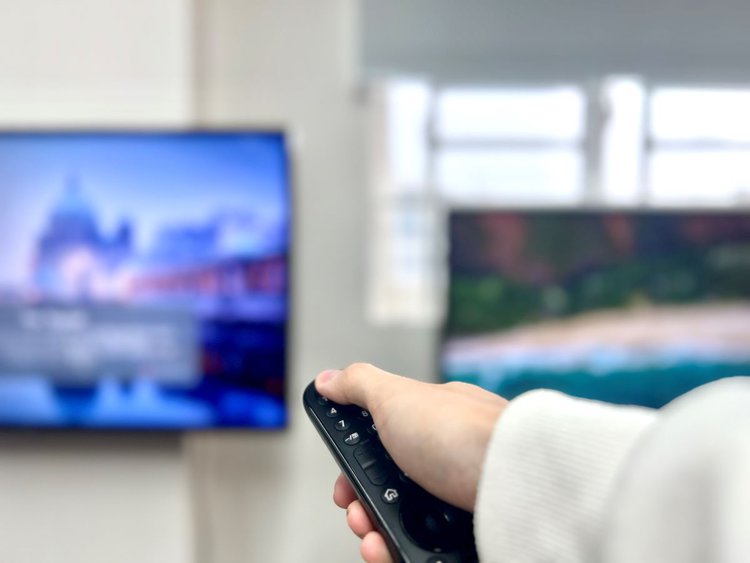
When two TVs are close to each other, a single remote can sometimes control both. This is a common problem in homes, stores, waiting rooms, and even classrooms. Many people find it annoying when changing the channel or adjusting the volume on one TV affects another.
It often happens with popular TV brands and universal remotes. If you have ever wondered why this happens and how to fix it, you are not alone. Let’s explore practical ways to stop your TV remote from controlling two TVs, step by step, with simple explanations and examples.
Why One Remote Controls Two Tvs
Most TV remotes use infrared (IR) light to send signals. IR light is invisible to the human eye, but TVs can detect it. If two TVs are in the same room and use similar IR codes, the remote sends a command that both TVs understand. As a result, one remote can turn on, change channels, or adjust volume for both TVs at the same time.
This happens more often with:
- TVs from the same brand
- Universal remotes
- TVs with similar model numbers
For example, two Samsung TVs in one room will likely react to the same remote. This problem can also affect Sony, LG, Panasonic, and other popular brands.
Even if you try pointing the remote at one TV, the wide angle of IR signals can make both TVs react. Sometimes, the IR signal bounces off walls or furniture, reaching both TVs even if you do not aim directly at them.
Universal remotes are especially prone to this because they are designed to work with many brands and models.
A less obvious reason is that some remotes have stronger IR emitters, which can cover a bigger area. If your remote is newer or uses fresh batteries, the signal may be powerful enough to reach multiple TVs in the room.
Also, certain TV models use IR sensors that are more sensitive, so they pick up even weak signals from farther away.
Understanding Remote Technology
Before you try solutions, it helps to know the basics. Remotes use different methods to communicate:
- Infrared (IR): Sends invisible light signals in a straight line. Most remotes use IR.
- Radio Frequency (RF): Sends signals through walls and obstacles, used in some newer remotes.
- Bluetooth: Wireless connection, usually paired with one device.
Most standard TV remotes use IR, so they affect any TV within range and line of sight. RF and Bluetooth remotes usually pair with one TV and do not have this problem unless paired with multiple devices.
Infrared Signals: How They Work
IR remotes send pulses of light. Each button on the remote sends a unique pattern. If two TVs are set to recognize the same pattern, both respond. The signal is not encrypted or unique per device, so nearby TVs can receive the same command.
IR signals can travel several meters, sometimes even farther in large open spaces. If you have glass, mirrors, or shiny surfaces in the room, IR can reflect and reach TVs you did not expect. This is why sometimes TVs in different corners still react to the same remote.
Remote Codes
TVs and remotes use remote codes—numbers that define which device the remote controls. Universal remotes often have a list of codes for each brand. If two TVs share the same code, the remote will control both.
Some universal remotes let you program them for more than one device. However, if both TVs use the same code, they both respond. You can sometimes change the code for one device, but not all TVs or remotes allow this.
For example, Sony and Panasonic may have several code options, while some Samsung and LG models are limited.
One insight beginners often miss: remote codes are not always unique to one TV. Brands reuse codes across models, especially in the same product line. Even older and newer TVs from the same brand may react to the same remote.
Credit: pointerclicker.com
Common Situations Where This Happens
You might see this issue in:
- Living rooms with two TVs (for gaming and regular viewing)
- Shops displaying several TVs at once
- Waiting rooms or offices with multiple TVs for customers
- Classrooms using TVs for presentations
In all these cases, one remote can accidentally change settings on both TVs.
There are also less obvious situations. For example, in a hotel lobby, staff may try to change the channel on a waiting area TV and end up changing the channel on TVs in nearby rooms. In electronics stores, salespeople often need to adjust one TV but find all TVs in the same section respond.
In classrooms, teachers may want to turn off only the main TV, but the remote turns off the backup TV as well.
Sometimes, families use two TVs side by side to watch different shows. If both TVs react to one remote, it becomes difficult to enjoy separate programs. This can also happen during events or parties, where multiple TVs are used to display sports or presentations.
Quick Fixes You Can Try Today
Solving the problem depends on your setup and TV models. Here are the most effective solutions:
1. Move The Tvs Further Apart
Infrared signals travel in straight lines. By placing TVs farther apart, you reduce the chance that both will receive the remote signal. Try to separate the TVs by at least 10 feet (3 meters). Place them so that you must point directly at one TV to control it.
If you cannot move the TVs far apart, try changing their angle. Position the TVs so their IR sensors do not face the same direction. Even a small change in position can help reduce unwanted remote control.
A practical tip: use furniture or shelves to block the IR path. For instance, place a tall bookshelf or cabinet between the TVs. This simple barrier can absorb IR signals and prevent overlap.
2. Block The Ir Sensor On One Tv
Every TV has an IR sensor—usually a small, dark window on the front. By covering the sensor on one TV, you prevent it from receiving signals. Use these materials:
- A piece of black electrical tape
- Thick paper or cardboard
- A commercial IR blocker
Make sure the cover blocks all light but can be removed easily. This is a quick fix but may not be convenient if you want to use both TVs.
If you need to use both TVs at different times, keep the tape handy and remove it when needed. For a more polished look, some companies sell IR blocker stickers designed for TVs. These can be easily attached and removed without leaving residue.
One insight people often miss: regular tape or transparent materials will not block IR. You need something opaque and dark, like black electrical tape or special IR blockers. Even a small gap can let IR signals through.
3. Use A Different Remote Or Change Remote Codes
If you use a universal remote, you can set it to a different code. Each TV brand and model may have several codes. Try programming your remote with a code that controls only one TV. Check your remote’s manual or the brand’s website for instructions.
Some remotes have a “learning” mode, which lets you customize which device they control. If you have two universal remotes, try programming each with a unique code for each TV. This method works best if your TVs support different codes.
A practical example: if you have two Sony TVs, try setting one to a secondary code (if available) and the other to the default code. This can help separate control between the two.
4. Switch To Rf Or Bluetooth Remotes
Some newer TVs offer RF or Bluetooth remotes. These remotes pair with one TV and do not use IR. If your TV supports this, switch to an RF or Bluetooth remote. This solution is more permanent and reliable.
When pairing, make sure each remote is connected to only one TV. Most smart TVs show pairing instructions in the settings menu. RF and Bluetooth signals do not affect nearby TVs unless paired, so this fix is ideal for rooms with many TVs.
If your TV does not support Bluetooth remotes, check if an upgrade is possible. Some brands sell Bluetooth remote kits that work with newer models.
5. Shield The Signal
You can create a shield to block the IR signal from reaching one TV. Use a small piece of cardboard or plastic to block the line of sight between the remote and the unwanted TV. For example, place a book or box between the TVs when using the remote.
This method works best for temporary setups. If you only need to control one TV for a short time, shielding can help. For classrooms or shops, placing display stands or promotional materials in front of the IR sensor is a simple and effective solution.
6. Use A Smartphone App
Many modern TVs support remote control apps on smartphones. These apps connect via Wi-Fi or Bluetooth and can be paired with only one TV. Download the app for your TV brand and pair it with the TV you want to control.
Some apps let you control multiple TVs, but you must select the TV before sending a command. This way, you avoid controlling unwanted TVs. Popular brands like Samsung, LG, Sony, and TCL all offer official remote apps.
Keep in mind, your phone and TV must be on the same Wi-Fi network for the app to work. This solution is convenient and works well in homes or offices with smart TVs.
7. Change Tv Settings
Some TVs allow you to change the remote control address or remote code in the settings menu. This feature is common in commercial TVs or smart TVs. Check your TV’s menu under “Remote Settings” or “System Settings.” Set each TV to a unique code if possible.
This is especially useful for Sony and Panasonic models, which sometimes let you set a “remote address” from the menu. For other brands, check the manual or support website.
If your TV supports this feature, changing the code can prevent interference from other remotes nearby.
8. Use Ir Extenders Or Repeaters
IR extenders help direct the signal to only one TV. Place the extender near the TV you want to control, and point your remote at it. This method helps if TVs are close together and you want to control only one at a time.
Some IR extenders come with a small “eye” that sticks to your TV’s IR sensor, making sure only that TV receives commands. This is popular in shops and offices with multiple TVs lined up.
A tip: IR repeaters can also be used to hide TVs in cabinets or behind glass. The repeater takes the remote signal and sends it directly to the TV’s sensor, avoiding overlap.
Comparing Remote Control Solutions
Let’s look at a comparison of the most popular solutions:
| Solution | Ease of Use | Cost | Effectiveness |
|---|---|---|---|
| Move TVs Apart | Easy | Free | Moderate |
| Block IR Sensor | Easy | Free/Low | High |
| Change Remote Code | Medium | Free | High (if available) |
| RF/Bluetooth Remote | Medium | Medium/High | Very High |
| Shield Signal | Easy | Free | Low |
| Smartphone App | Medium | Free | High |
| IR Extender | Medium | Low/Medium | High |
Each solution fits different needs. If you only use two TVs occasionally, simple fixes like blocking sensors or moving TVs work well. For permanent setups or business use, investing in Bluetooth remotes or IR extenders makes more sense.
Step-by-step Solution Guide
Here is a practical guide to solving the remote control problem:
Step 1: Identify Your Tv And Remote Types
Check your TV brand and model. Look at the remote—does it use IR, RF, or Bluetooth? Most remotes have an IR LED at the front. Universal remotes often list supported brands on the back.
If you are not sure, try looking up your TV model online. Most brands list the remote type in the specifications. You can also search for your remote model number.
Step 2: Test Which Tvs React
Point your remote at each TV. Try turning them on, changing channels, and adjusting volume. Note which TVs respond.
This test helps you see which TVs use the same remote code. Write down your results, so you know which TVs need changes.
Step 3: Try Blocking The Ir Sensor
Use a small piece of tape to cover the IR sensor on one TV. Test to see if only one TV responds. Remove the tape if you need to control both TVs separately.
If you want to block the sensor more permanently, consider using a commercial IR blocker. These are designed for easy removal and do not damage the TV.
Step 4: Try Different Remote Codes
If you use a universal remote, program it with different codes for each TV. Check your manual for instructions. Some remotes have a “learning” mode—program them to control only one TV.
If your TV supports changing remote address, set each TV to a unique address. This prevents one remote from controlling both TVs.
Step 5: Switch To Bluetooth Or Rf Remotes
If your TV supports Bluetooth or RF remotes, buy one and pair it with your TV. This stops the remote from affecting other TVs nearby.
Bluetooth pairing steps are usually found in the TV menu under “Remote Settings. ” Follow the instructions to connect your remote.
Step 6: Use Smartphone Apps
Install the official app for your TV brand. Pair it with only one TV. Use your phone as a remote, avoiding IR interference.
Some apps let you name each TV, making it easy to select which one to control. This is helpful in homes with multiple smart TVs.
Step 7: Adjust Tv Settings
Check your TV’s menu for remote control settings. If available, set each TV to a unique code or address.
If you do not see this option, check the manual or brand website. Some settings may be hidden under “Advanced” or “System” menus.
Step 8: Test Your Solution
Try using your remote. Confirm that only one TV responds. Repeat steps if needed.
If your fix does not work, try combining solutions. For example, block the sensor and use a different remote code. Sometimes, a mix of methods is the most reliable.
Real-world Example
In a shop with five LG TVs, workers found that the remote changed all TVs at once. They tried moving the TVs, but space was limited. Next, they covered four IR sensors with tape, leaving one uncovered. The remote controlled only the uncovered TV. To control another TV, they moved the tape. Later, they bought Bluetooth remotes for each TV, solving the problem permanently.
Another example: In a classroom, the teacher wanted to use two TVs for different lessons. Both TVs responded to the same remote. The teacher used thick black tape to block one TV’s sensor. This worked, but was inconvenient. She later installed an IR extender on the main TV and used a smartphone app for the second TV. This allowed easy control without interference.
Tv Brands And Model Differences
Different brands and models have unique features. Here is a comparison of remote control options for popular brands:
| Brand | Default Remote Type | Can Change Remote Code? | Bluetooth Option? |
|---|---|---|---|
| Samsung | IR | No | Yes (smart TVs) |
| Sony | IR | Yes (some models) | Yes (smart TVs) |
| LG | IR | No | Yes (smart TVs) |
| Panasonic | IR | No | No |
| TCL | IR | No | Yes (Roku models) |
Some Sony TVs let you set a unique remote address in the menu. Samsung and LG often require Bluetooth remotes for unique pairing.
If you have a TCL Roku TV, you can use the Roku app to control each TV separately. Panasonic TVs rarely offer Bluetooth remotes, so blocking the IR sensor is usually necessary.

Credit: www.youtube.com
Advanced Solutions For Businesses
If you manage multiple TVs in a store, office, or school, you may need more advanced solutions:
1. Commercial Ir Control Systems
These systems allow you to control each TV separately using custom IR codes or network commands. They are expensive but offer precise control.
Commercial systems often use “matrix switchers” or network controllers that send commands to each TV individually. These are common in sports bars, hotels, and conference centers.
2. Network-based Tv Control
Smart TVs can connect to a local network. You can control each TV using software on a computer or tablet. This is common in hotels and conference centers.
For example, staff can use a central control panel to select which TV to turn on or off, change channels, or adjust volume. This prevents remote interference and saves time.
3. Custom Ir Programming
Some companies offer custom programming for remotes. They can create unique codes for each TV, preventing overlap.
This solution is best for businesses with many TVs of the same brand. Custom remotes can be expensive, but they provide reliable, long-term control.
Mistakes To Avoid
Many beginners try solutions that do not work well. Avoid these mistakes:
- Using the same universal remote for both TVs without changing codes
- Only moving TVs a small distance (less than 3 feet)
- Covering the IR sensor with thin or clear material
- Not checking if the TV supports Bluetooth or RF remotes
- Ignoring TV settings that allow changing remote codes
Another common mistake is forgetting to test the solution after making changes. Always check if your fix works before relying on it. If you use tape or blockers, make sure they cover the sensor fully.

Credit: www.reddit.com
Data: How Common Is This Problem?
According to a 2023 consumer electronics survey, about 27% of households with multiple TVs report remote interference problems. In commercial settings like shops and offices, the rate is higher—up to 45%.
This means millions of people deal with this issue every year. The problem is more common in places with multiple TVs of the same brand or model.
How Long Does It Take To Fix?
Most fixes can be done in 5–10 minutes. Installing new remotes or apps may take up to 30 minutes. Advanced solutions for businesses may require professional installation and several hours.
If you use a smartphone app or Bluetooth remote, setup usually takes less than 15 minutes. Blocking IR sensors or moving TVs can be done in minutes. Custom commercial solutions may take a day or more.
Pros And Cons Of Each Solution
Here is a quick summary:
- Move TVs Apart: Simple, no cost, but may not be possible in small rooms.
- Block IR Sensor: Cheap and easy, but limits access to one TV at a time.
- Change Remote Codes: Effective if available, but not all TVs support it.
- Bluetooth/RF Remotes: Reliable, but may require new equipment.
- Smartphone Apps: Convenient, but needs Wi-Fi or Bluetooth and a compatible TV.
- IR Extenders: Useful in shops, but requires installation.
If you want a permanent solution for home or business, Bluetooth remotes or network-based control are best. For temporary fixes, blocking sensors or using shields works well.
Frequently Asked Questions
Can I Use Two Remotes For Two Tvs Of The Same Brand?
Yes, but if both remotes use the same IR code, they will control both TVs at once. Try changing the remote code or using a Bluetooth remote for one TV.
What Is The Easiest Way To Stop My Remote From Controlling Both Tvs?
Cover the IR sensor on one TV with black tape. This blocks the signal and lets you control only one TV at a time. Remove the tape when you want to use both TVs.
Will Moving Tvs To Different Rooms Solve The Problem?
Yes. If TVs are in separate rooms, the remote’s IR signal cannot reach both. This is the most reliable solution if possible.
Can Universal Remotes Fix This Issue?
Universal remotes can help if you program each with a unique code for each TV. However, not all TVs support different codes. Check your TV’s manual for details.
Are There Professional Solutions For Shops With Many Tvs?
Yes. Commercial IR control systems and network-based TV control offer precise management. These solutions are expensive but effective for business settings. You can learn more about professional AV control systems on Wikipedia.
Solving the problem of one remote controlling two TVs is often simple and quick. With the right method, you can enjoy watching TV without unwanted interference. Try the solutions above, and choose the one that fits your situation best. Most fixes are easy and cost little, but advanced options are available for bigger setups.
If you follow these steps, you will soon have full control over each TV in your home or office.