
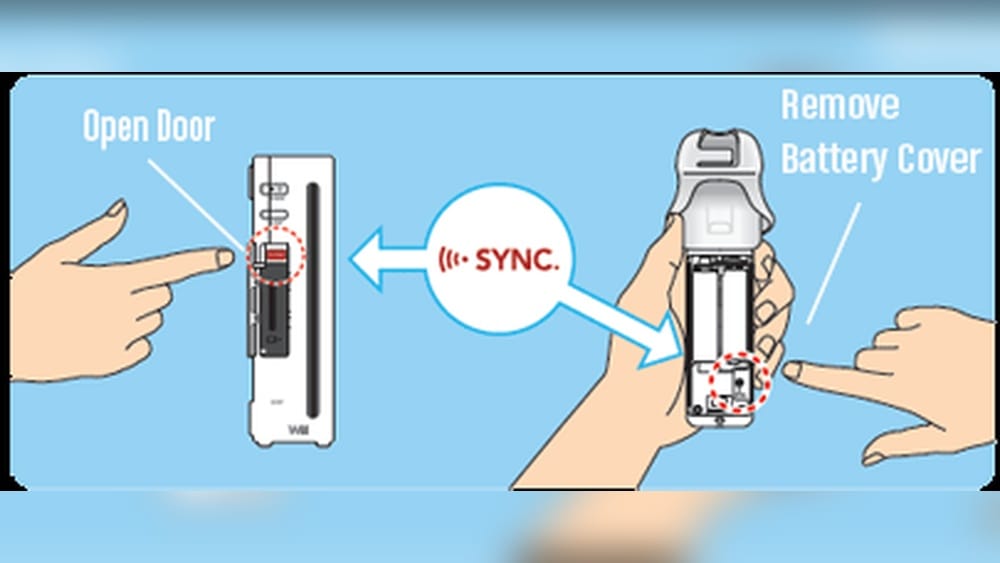
Syncing a Wii Remote control may seem simple, but many users run into problems that make their gaming experience frustrating. Whether you’re setting up your Nintendo Wii for the first time, trying to add extra remotes for multiplayer games, or troubleshooting connection issues, knowing exactly how to sync a Wii Remote is essential.
If you follow the right steps, you can avoid common mistakes and get back to playing your favorite games quickly. This guide explains every part of syncing a Wii Remote, covers the reasons why syncing fails, and shares expert tips you won’t find in the basic instructions.
Understanding Wii Remote Syncing
Before you start syncing, it helps to understand what “syncing” means for the Wii Remote. Syncing is the process that connects your remote to your Wii console. The Wii uses Bluetooth to communicate with its remotes. Syncing tells the console which remote to listen to, so your button presses are registered during games.
There are two main ways to sync a Wii Remote:
- Standard Sync: Used when you want to permanently connect the remote to the console. After this, the remote will always connect to that console unless you re-sync it elsewhere.
- Temporary Sync: Used for quick connections, like when visiting a friend’s house or using a remote just once.
Most problems happen because people mix up these two methods, or forget to clear old connections.
Preparing To Sync Your Wii Remote
To ensure a smooth syncing process, you need to prepare your equipment and check for potential issues.
- Check Batteries: Low batteries are the #1 cause of syncing failures. Use fresh AA batteries or a fully charged rechargeable pack.
- Clean the Remote: Dust and dirt can interfere with button presses. Wipe the remote with a dry cloth, especially around the SYNC button.
- Check Console Settings: Make sure your Wii is powered on and not in standby mode. If using Wii U, syncing steps are similar, but menus look different.
What You Need
- Wii console (or Wii U)
- Wii Remote (original or Wii Remote Plus)
- Working batteries
- Sensor bar plugged in (for gameplay, not for syncing)
- TV on and set to the correct input

Credit: www.youtube.com
How To Perform A Standard Sync
When you want your remote to always connect to one console, use the standard sync method.
Step-by-step Instructions
- Turn on the Wii Console: Press the power button. Wait for the main menu to appear.
- Open the SD Card Slot: On the front of the Wii, you’ll find a small door. Open it to access the SYNC button (red).
- Remove Battery Cover: On the back of the Wii Remote, open the battery cover. Look for another small SYNC button.
- Press SYNC on Console: Press and release the SYNC button inside the SD card slot.
- Press SYNC on Remote: Within 10 seconds, press and release the SYNC button on the remote. The blue lights on the remote will flash.
- Wait for Connection: The remote’s lights will stop flashing and one light will stay on. This shows which player number the remote is (1-4).
If the lights keep flashing and don’t settle, try again or check the batteries.
Common Mistakes
- Pressing both SYNC buttons at the same time (only one should be pressed, then the other)
- Holding the SYNC button too long (just a quick press)
- Forgetting to insert batteries or using weak batteries
Practical Example
Suppose you want to add a second remote for multiplayer. Repeat the steps above with the new remote. Each will show a different player number.
Temporary Sync (one-time Connection)
Temporary sync is useful for guests or when you visit someone else’s house. This method is sometimes called “One-Time Sync. ”
Steps For Temporary Sync
- Turn on Console: Start the Wii and reach the main menu.
- Press Home Button on Remote: On your already synced remote, press HOME to open the menu.
- Select Wii Remote Settings: Use the pointer to choose “Wii Remote Settings.”
- Choose ‘Reconnect’: Click on “Reconnect.” All remotes will disconnect.
- Press 1 and 2 Simultaneously: On each remote you want to connect, press and hold the 1 and 2 buttons at the same time. The lights will flash.
- Wait for Assignment: Once connected, the remote will show a player number.
Temporary sync lasts until the console is powered off. When you restart, remotes will revert to their original synced console.
When To Use Temporary Sync
- Playing at a friend’s house
- Testing a remote before permanent sync
- Using borrowed remotes

Credit: www.blockbusterink.id
Syncing Wii Remotes To A Wii U Console
The Wii U can use Wii Remotes for its Wii mode. The syncing process is nearly identical, but the menu looks different.
- Power on Wii U: Go to the Wii Menu.
- Access SYNC Button: The SYNC button is under the front flap.
- Press SYNC on Console: Tap the SYNC button.
- Press SYNC on Remote: Within 10 seconds, press SYNC on the remote.
Wait for the lights to stop flashing. You can sync up to four remotes at once.
Troubleshooting Sync Issues
Even when you follow the steps, syncing sometimes fails. Here are expert tips to solve common problems.
Most Frequent Problems
- Remote Not Connecting
- Try new batteries
- Move closer to the console
- Remove objects blocking the signal
- Flashing Lights Won’t Settle
- Restart the console
- Remove batteries, wait 30 seconds, then reinsert
- Remote Works for One Game, Not Others
- Some games only support certain remotes (e.g., Wii MotionPlus needed)
- Check game manual
Advanced Solutions
- Reset All Syncs: On the console, hold down the SYNC button for 15 seconds. This erases all connections. Start syncing from scratch.
- Update Wii Firmware: Rarely, outdated software causes problems. Update from the Wii settings menu.
- Try Another Remote: If one remote won’t sync, test with another. If both fail, the console may have a hardware issue.
Non-obvious Insight
Many beginners don’t realize that Bluetooth interference from other devices (phones, laptops, wireless speakers) can affect syncing. Turn off or move away from these devices during syncing.
Another tip: Battery contacts inside the remote can get dirty or corroded. Scrape gently with a dry, non-metal tool if needed.
Comparing Wii Remote Models
Not all Wii Remotes are the same. There are several versions, each with small differences.
| Remote Model | Features | Sync Process |
|---|---|---|
| Wii Remote (Original) | Basic motion sensing, no built-in MotionPlus | Standard SYNC method |
| Wii Remote Plus | Built-in MotionPlus, better accuracy | Same SYNC method |
| Third-Party Remote | Varies, sometimes lower quality | May need extra steps, not always compatible |
If you have a Wii Remote Plus, syncing is the same, but some games require this model for full features.
Wii Remote Syncing For Multiplayer
You can sync up to four Wii Remotes to one console for multiplayer games. Each remote gets a player number (1-4), shown by the lights at the bottom.
Steps For Multiplayer Setup
- Sync each remote using the standard method.
- Make sure each remote shows a different number.
- Start a multiplayer game and assign players as needed.
If a remote does not show up in the game, check if it is synced and assigned to the correct player number.
Data Table: Player Assignment
| Remote Number | Light Indicator | Player Assignment |
|---|---|---|
| 1 | First light | Player 1 |
| 2 | Second light | Player 2 |
| 3 | Third light | Player 3 |
| 4 | Fourth light | Player 4 |
Special Cases: Using Wii Remotes With Non-nintendo Devices
Some users want to connect Wii Remotes to computers or other devices. While possible, syncing is more complicated.
Connecting To Pc
- Use Bluetooth adapter
- Install software (like Dolphin emulator or BlueSoleil)
- Press SYNC on remote, search for device in PC Bluetooth settings
Most PCs recognize the remote as an input device, but you need extra drivers for gaming.
Using Remotes With Wii Mini
The Wii Mini has no SD card slot, but the SYNC button is still accessible. Follow the same syncing steps, but you’ll find the SYNC button next to the power button.
Wii Remote Syncing Vs. Pairing
Some people use “syncing” and “pairing” interchangeably, but there is a difference.
- Syncing: Specific to Nintendo consoles, uses the SYNC button.
- Pairing: Generic Bluetooth process, used for computers and phones.
For Wii remotes, syncing is always done with the SYNC button. Pairing is for non-Nintendo devices.
Clearing All Synced Remotes
If your console won’t accept new remotes, or you want to start fresh, you can erase all synced remotes.
- Power on the console.
- Hold the SYNC button for 15 seconds.
- Release and restart the console.
- Sync remotes again using the standard method.
This solves issues caused by too many old remotes being synced, which can block new ones.
Expert Tips For Reliable Syncing
Here are some insights that most beginners miss:
- Avoid Low-Quality Third-Party Remotes: Many cheap remotes do not sync reliably. Stick to official Nintendo products for best results.
- Sync Remotes One at a Time: Syncing multiple remotes together often causes confusion. Sync each remote in sequence.
- Keep Console Updated: Firmware updates often fix syncing bugs. Check Nintendo’s official site for update instructions.
- Don’t Mix Remote Types: Some games require all remotes to be the same model, especially for motion-based games.
Wii Remote Syncing Statistics
As of 2023, over 100 million Wii Remotes have been sold worldwide. About 15% of Wii owners report syncing issues at least once, usually due to battery problems or interference. Nintendo’s support site receives thousands of sync-related questions every month.
Quick Reference: Syncing Steps
For easy access, here’s a summary of the syncing process:
- Power on Wii console
- Open SD card slot
- Press SYNC button on console
- Press SYNC button on remote
- Wait for light to show player number
For temporary sync, use the HOME menu, select “Reconnect,” then press 1 and 2 together.
Comparing Syncing Methods
Here’s a comparison of standard vs. temporary sync methods:
| Sync Method | Use Case | Duration | Steps |
|---|---|---|---|
| Standard Sync | Permanent connection | Until erased | SYNC button on console and remote |
| Temporary Sync | Guest or quick play | Until power off | Home menu, press 1+2 |
Syncing Multiple Remotes Efficiently
If you want to sync several remotes quickly, follow these tips:
- Prepare all remotes with fresh batteries.
- Sync one remote at a time, waiting for the player number to show before moving to the next.
- If a remote fails to sync, remove batteries and try again.
Avoid syncing remotes simultaneously, as this can confuse the console and cause errors.

Credit: www.youtube.com
What To Do If Remote Still Won’t Sync
If you’ve tried all the steps and your remote still won’t sync:
- Check for Physical Damage: Broken SYNC button or battery contacts can prevent syncing.
- Try Another Console: If possible, test the remote on a different Wii.
- Contact Nintendo Support: Persistent issues may need professional help. Visit Nintendo Support for more help.
Important Differences Between Wii And Wii U Syncing
While syncing is similar on both consoles, there are small differences:
- Wii U has a touchscreen menu for syncing, while Wii uses physical buttons.
- Wii U can use Wii Remotes for Wii mode only, not for all Wii U games.
- Wii U supports up to four remotes in Wii mode, but some games limit the number.
Practical Troubleshooting Checklist
If syncing fails:
- Check batteries (replace if needed)
- Move closer to console
- Remove wireless interference
- Restart console
- Clean SYNC buttons
- Reset all syncs if needed
Most issues are fixed by following this list. If not, hardware may be faulty.
Frequently Asked Questions
Why Does My Wii Remote Not Sync Even With New Batteries?
If your Wii Remote still won’t sync after changing batteries, check for Bluetooth interference. Move away from other wireless devices. Clean the SYNC button area. If the problem continues, your remote may be damaged or need resetting.
Can I Sync More Than Four Wii Remotes To One Console?
No, the Wii and Wii U only support up to four remotes at the same time. If you try to sync a fifth remote, it won’t connect. For multiplayer games, stick to four players.
Do I Need To Sync Every Time I Use The Remote?
Once you do a standard sync, the remote stays connected to that console until you erase syncs or sync it elsewhere. Temporary sync is only for one play session. If you use the same remote on the same console, you don’t need to sync again.
How Do I Know Which Player Number My Remote Is?
Look at the lights at the bottom of the remote. One light will stay on after syncing, showing your player number (1-4). Player 1 is the first light, player 2 is the second, and so on.
Is It Possible To Use Wii Remotes On A Pc Or Smartphone?
Yes, but it’s more complicated. You need a Bluetooth adapter and special software to connect the Wii Remote to a PC. Not all games or programs support it. For smartphones, most won’t recognize the remote unless you use custom apps.
Getting your Wii Remote synced correctly is the first step to enjoying fun games and multiplayer action. With the tips and step-by-step guidance above, you can avoid common mistakes and solve problems quickly. Remember to check batteries, follow the syncing order, and keep your console updated.
If you ever run into trouble, use the troubleshooting checklist or reach out to Nintendo support. Syncing your Wii Remote should be easy, and now you know how to do it like an expert.