
Synchronizing a Wii Remote Controller may seem simple, but many users—especially those new to the Nintendo Wii—find it confusing. Whether you just bought a used Wii, are trying to set up a new controller, or want to troubleshoot connection problems, understanding the process can save you time and frustration.
This guide will walk you through every step, offer tips for common issues, and explain the differences between various sync methods. You’ll also learn about syncing with different models and devices, so you can enjoy your games without interruptions.
Why Synchronization Matters
Before diving into the steps, it’s important to know why synchronization is needed. The Wii Remote, also called the Wiimote, connects wirelessly to the Wii console using Bluetooth. Without proper syncing, the console won’t recognize your controller. If you have multiple controllers, each one must be paired with the console to work.
Synchronization is also key for features like motion controls and pointer accuracy. A controller that’s not synced correctly can cause lag, missed button presses, or even stop working mid-game. Keeping your remotes in sync ensures smooth gameplay and can prevent many technical problems.
Different Ways To Synchronize Wii Remotes
There are two main ways to sync a Wii Remote:
- Standard Sync (Permanent Pairing): This method is used when you want the controller to always connect to the same Wii console. It’s best for home setups.
- One-Time Sync (Temporary Pairing): This is useful when you’re playing at a friend’s house or using the controller with a different console temporarily.
Understanding these methods helps you choose the right one for your situation.
Standard Sync Vs. One-time Sync: Quick Comparison
Here’s a simple comparison to help you decide which method to use:
| Feature | Standard Sync | One-Time Sync |
|---|---|---|
| Duration | Permanent (until reset) | Temporary (lost after power off) |
| Use Case | Home console setup | Visiting/friend’s console |
| Number of Remotes | Up to 4 | Up to 4 |
| Needs Repeating? | No (unless reset) | Yes (every session) |
Step-by-step: Standard Sync (permanent Pairing)
This method pairs your Wii Remote to a console so it automatically reconnects every time. It’s the most common method for home use.
What You Need
- A working Wii console
- At least one Wii Remote (with batteries)
- Access to the Wii console’s SD Card Slot
How To Do A Standard Sync
- Turn on your Wii console. Wait until the main menu appears.
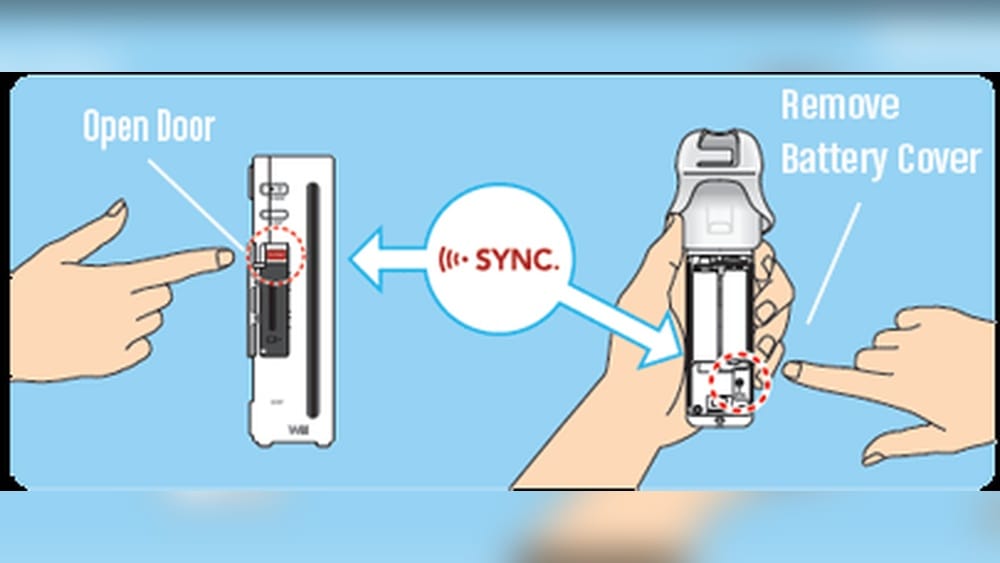
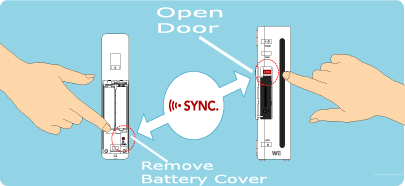
- Open the SD Card cover on the front of the Wii. You’ll see a small red SYNC button next to the SD card slot.
- Remove the battery cover from the back of your Wii Remote. You’ll find another red SYNC button inside.
- Press the SYNC button on the Wii console. The Player LEDs on the front of the console will start blinking.
- Press the SYNC button on the Wii Remote. The lights on the controller will blink, then one will stay lit to show the player number (1–4).
- Wait a few seconds. When the blinking stops, the remote is synced.
You can repeat this process for up to four controllers. Each one will be assigned a player number.
Important Details
- If you sync a fifth controller, the first one will be dropped.
- The controller will stay synced until you either sync it to another console or reset the Wii’s syncs.
Common Mistakes During Standard Sync
- Forgetting to open the SD Card cover (the console SYNC button is hidden there).
- Pressing the SYNC buttons too quickly or not holding them long enough. Hold each for about one second.
- Using depleted or low batteries. Weak batteries can cause failed syncing.
Step-by-step: One-time Sync (temporary Pairing)
This method lets you use a Wii Remote with any Wii console for a single play session. It’s convenient for parties or gaming nights at a friend’s house.
How To Do A One-time Sync
- Turn on the Wii console. Wait for the menu.
- On the Wii Remote, press and hold the 1 and 2 buttons at the same time.
- Keep holding both buttons while the controller attempts to sync.
- The player LEDs will blink. When one stays lit, you’re connected.
Key Differences To Remember
- This pairing is not saved. When the console is turned off, you’ll need to repeat the process next time.
- If you use multiple remotes, press 1 and 2 on each at the same time.
When To Use One-time Sync
- Playing at someone else’s home
- Borrowing or lending controllers
- Avoiding permanent pairing on a shared console
Troubleshooting: Wii Remote Won’t Sync
Sync issues are common, but usually easy to fix. Here are some practical solutions if your Wii Remote won’t sync:
1. Check Battery Power
Low or dead batteries are the most frequent reason remotes won’t connect. Replace with fresh AA batteries or use a fully charged battery pack.
2. Remove All Old Syncs
If you have many remotes that have been synced to different consoles, clear all syncs:
- Turn off the Wii.
- Hold down the SYNC button on the console for 15 seconds. This erases all paired remotes.
- Then, perform the Standard Sync again.
3. Avoid Interference
Other wireless devices (phones, routers, microwaves) can sometimes cause interference. Try turning off nearby electronics or moving the Wii console to a different spot.
4. Reset The Wii Remote
Sometimes, the controller itself needs a reset:
- Remove the batteries from the remote.
- Wait 10 seconds.
- Reinsert the batteries and try syncing again.
5. Check For Hardware Damage
Physical damage or liquid spills can break internal parts. If your remote won’t sync after all troubleshooting, test another remote to see if the problem is with the controller or the console.
Example: Interference Can Be Subtle
Many users don’t realize that a wireless speaker or even a nearby baby monitor can disrupt the Wii Remote’s Bluetooth signal. If you have random disconnects, try moving those devices and see if the problem improves.
How To Synchronize Additional Remotes
The Wii supports up to four remotes at once. Here’s how to add more controllers:
- Sync each new remote using the Standard Sync steps.
- After syncing, the new controller will be assigned the next available player number (2, 3, or 4).
- The order you sync them determines their player number.
Changing Player Order
If you want a different controller to be Player 1, you’ll need to:
- Turn off the console.
- Sync the desired controller first.
- Sync the others in the order you want (Player 2, 3, 4).
Data Table: Syncing Multiple Remotes
Here’s how the Wii assigns player numbers during sync:
| Order Synced | Player Number | LED Indicator |
|---|---|---|
| First | 1 | Leftmost LED |
| Second | 2 | Second LED |
| Third | 3 | Third LED |
| Fourth | 4 | Rightmost LED |
Credit: www.youtube.com
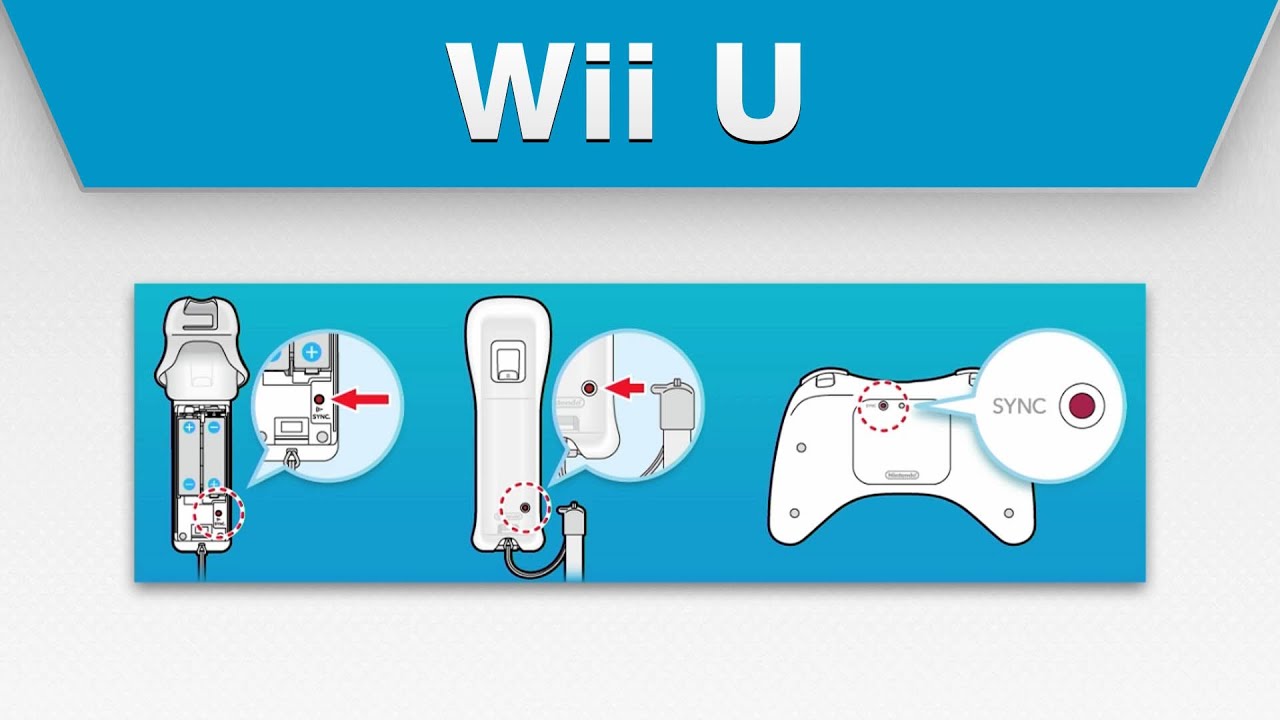
Syncing Wii Remotes With Wii U
The Wii U is backward compatible with Wii Remotes (except for some third-party models). The process is nearly identical, but here are some tips:
- On the Wii U, access the Wii Menu before syncing.
- Use the SYNC buttons in the same way (console and remote).
- Some newer Wii Remotes (with MotionPlus built-in) sync faster, but are still compatible.
Differences Between Wii And Wii U Syncing
- The Wii U can remember more controllers, but only four can be active in Wii Mode.
- Wii U Pro Controllers have a different syncing method; don’t confuse them with Wii Remotes.
Syncing Wii Remotes To A Pc Or Bluetooth Device
Some advanced users want to use a Wii Remote with a computer or emulator. Here’s how:
- Make sure your PC or device has Bluetooth capability.
- Put the Wii Remote into discoverable mode (hold 1 and 2).
- Use your computer’s Bluetooth settings to search for new devices.
- Select the device named “Nintendo RVL-CNT-01.”
- No PIN is needed in most cases, but sometimes you may need to enter “0000.”
Note: Not all games or programs support the Wii Remote natively. You may need special drivers or software like Dolphin Emulator.
Data Table: Wii Remote Compatibility
| Device | Supports Wii Remote | Requires Additional Software? |
|---|---|---|
| Wii Console | Yes | No |
| Wii U Console | Yes | No |
| Windows PC | Yes | Often (drivers/emulator) |
| Mac | Partial | Often (drivers/emulator) |
| Android Phone | Partial | Yes (app needed) |
Syncing Third-party Or Aftermarket Wii Remotes
Not all Wii Remotes are official. Some are made by third-party brands. Here’s what you need to know:
- Many third-party remotes work, but some have compatibility issues.
- If syncing fails, try updating your Wii console’s firmware.
- Beware of remotes that don’t have the “Wii” logo. These may not support motion controls or may lose sync often.
How To Tell If A Remote Is Official
- Official remotes have the Nintendo logo and high build quality.
- The battery cover fits tightly.
- Buttons respond quickly and feel solid.
If you have trouble, always test with an official remote to see if the issue is with the controller or the console.
Advanced Sync Tips Most Beginners Miss
1. Sync Order Affects Player Number
Many new users don’t realize that the order you sync remotes decides who is Player 1, 2, 3, or 4. If you want a specific controller to always be Player 1 (for example, your favorite color or the one with a special grip), sync it first.
2. Syncs Are Stored In Console Memory
The Wii console keeps a record of synced remotes in its memory. If the memory gets corrupted (from power cuts or hardware problems), syncing may fail. In rare cases, a full reset of the console’s settings can solve persistent issues.
3. Remote Firmware Can Matter
Some official Wii Remotes have firmware updates. If your remote isn’t syncing well, and you have access to another Wii console, try syncing it there to see if it behaves differently. Sometimes, a newer console can “update” the remote’s Bluetooth connection.
Safety Tips For Syncing And Using Wii Remotes
- Use wrist straps to prevent the remote from flying during games.
- Always check the batteries before syncing.
- Keep the Wii console in a well-ventilated area; heat can affect Bluetooth performance.
- Clean the sensor bar regularly for accurate pointer control.
Examples: Common Sync Problems And Real Solutions
- Problem: Remote syncs, but pointer doesn’t move.
- Solution: Check the sensor bar connection and make sure nothing is blocking it.
- Problem: Remote disconnects during play.
- Solution: Replace batteries and remove possible wireless interference.
- Problem: Only one remote works at a time.
- Solution: Clear all syncs and re-sync each controller in order.
When To Replace Or Repair A Wii Remote
If you’ve tried all troubleshooting steps and your Wii Remote still won’t sync, it may be time for a replacement. Signs include:
- No lights when pressing buttons (even with new batteries)
- Buttons sticking or not responding
- Visible damage or corrosion in the battery compartment
In some cases, a professional repair shop can fix these issues, but for most users, buying a new or refurbished remote is easier and safer.
Extra Features: Syncing Attachments And Accessories
Some Wii Remotes come with extra accessories, like the Wii MotionPlus or Nunchuk. These don’t require separate syncing but must be plugged in after the remote is synced.
- Always sync the main remote first, then connect the accessory.
- Some games require MotionPlus for full functionality.
Example: Using Wii Remote Plus
The Wii Remote Plus has MotionPlus built in. It syncs exactly like a regular remote. If your game says “MotionPlus required,” make sure your remote is the Plus model or has the attachment connected.
Credit: www.nintendo.com
Best Practices: Keeping Your Wii Remotes Synced And Ready
- Store remotes with batteries removed if you won’t use them for a long time.
- Label your remotes if you have several (stickers or colored silicone sleeves work well).
- Periodically check syncs, especially after moving your Wii or updating firmware.
Comparing Wii Remote Models For Syncing
There are several types of Wii Remotes:
- Original Wii Remote: Requires MotionPlus attachment for some games.
- Wii Remote Plus: Built-in MotionPlus.
- Third-Party Remotes: Vary in compatibility.
All official models sync the same way, but newer remotes tend to sync faster and hold connections better.
Linking Your Wii Remote To Other Devices: Pros And Cons
Using the Wii Remote with PCs or smart TVs is possible, but comes with trade-offs:
- Pros: Unique motion controls, can be used as a mouse in some cases.
- Cons: May require extra software, not all buttons are supported, and no rumble or speaker support on non-Wii devices.
Where To Get More Help
If you’re still having trouble syncing your Wii Remote, visit the Nintendo Support website or check forums dedicated to retro gaming. You’ll find step-by-step guides, video tutorials, and community support.
A good resource for advanced users is the Wikipedia page on the Wii Remote, which covers technical details and history.

Credit: antillespr.edu
Frequently Asked Questions
How Many Wii Remotes Can Be Synced To One Wii Console?
You can sync up to four Wii Remotes to a single Wii console at the same time. If you try to sync a fifth, the oldest connection will be replaced.
Do I Need To Sync My Wii Remote Every Time I Play?
No, if you use the Standard Sync method, your controller will stay paired until you sync it with another console or clear the syncs. If you use the One-Time Sync, you’ll need to repeat the process each session.
Why Does My Wii Remote Only Work When Close To The Console?
This is usually a sign of low battery power or wireless interference. Try replacing the batteries and moving other electronic devices away from the Wii.
Can I Use A Wii Remote With A Wii U Or Pc?
Yes, most Wii Remotes work with the Wii U in Wii Mode. Many PCs can connect with the remote via Bluetooth, but you’ll often need special software for full functionality.
What Should I Do If My Wii Remote Won’t Sync At All?
Start by checking the batteries and making sure both SYNC buttons are pressed in the correct order. If it still doesn’t work, try clearing all syncs on the console, removing interference, or testing with another remote. Persistent problems may mean your controller is damaged and needs replacement.
Synchronizing your Wii Remote is a simple task once you know the steps. With the right method and a little patience, you’ll enjoy smooth, responsive gameplay and avoid the common headaches many new users face. Whether you’re setting up for solo play or a multiplayer party, a properly synced remote is your key to fun on the Nintendo Wii.