
If you own a Roku device, you might have heard a robotic voice reading out menu items, button presses, or on-screen text. This feature, called Roku Voice Assist, is designed to help users with visual impairments. However, sometimes it gets activated by mistake, or maybe you just find it distracting. Many Roku owners wonder how to turn it off quickly and keep it off for good.
The good news is, turning off Roku Voice Assist is simple once you understand the right steps. But, there are some common pitfalls and differences based on your Roku model and software version. In this guide, you’ll learn exactly how to disable the voice feature, why it sometimes turns itself on, and how to prevent it in the future.
Whether you’re new to streaming or an experienced Roku user, you’ll find practical tips, troubleshooting steps, and expert advice to make your streaming experience smoother and more enjoyable.
Understanding Roku Voice Assist
Before jumping into the steps, it helps to know what Roku Voice Assist actually is. On Roku, this feature is officially called Audio Guide or Screen Reader, depending on your model and software version. Its main purpose is to read aloud on-screen text, menu options, and even button names. This is crucial for visually impaired users, making Roku’s interface accessible to everyone.
However, for the average user, it can be annoying—especially if you turn it on accidentally by pressing the wrong button combination. The voice can seem loud, repetitive, and makes browsing slow. Sometimes, it even persists after a system restart or software update.
Key points about Roku Voice Assist:
- Helps users with limited vision navigate menus
- Reads text, buttons, and other interface elements out loud
- Can be activated or deactivated via remote shortcuts or the settings menu
- Known as Audio Guide on older Roku systems, and Screen Reader on newer ones
Understanding this helps you know what to look for in your device’s menu and why the feature exists. This also explains why it’s easy to activate by mistake.
Common Reasons Roku Voice Assist Turns On
Many users are surprised when the voice assist starts suddenly. It’s not always a bug—usually, it’s triggered by specific actions. Here are the top reasons:
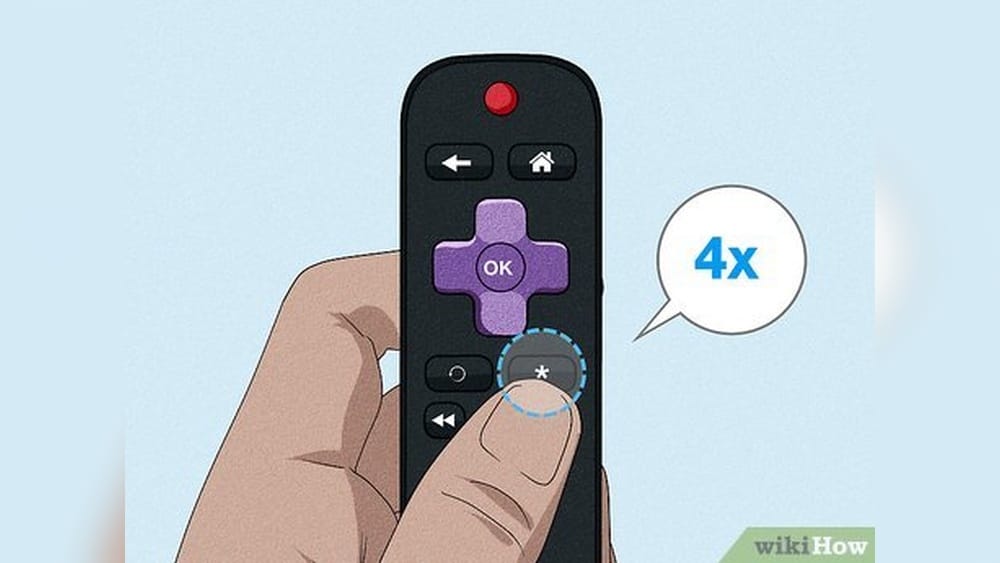
- Remote Shortcut Activation: The most common way is by pressing the *Star* (*) button on the Roku remote four times in a row. This is a shortcut for people who need to turn the feature on quickly.
- System or Firmware Update: After a software update, Roku sometimes resets settings, which can activate the voice guide automatically.
- Family or Guest Use: Children or visitors might press buttons randomly and activate the voice assist by accident.
- Factory Reset: After resetting your Roku to factory settings, Audio Guide/Screen Reader is sometimes enabled by default.
Knowing these triggers helps you avoid unwanted voice activation in the future.

Credit: www.youtube.com
How To Turn Off Roku Voice Assist (audio Guide Or Screen Reader)
You have two main ways to disable Roku Voice Assist: using the remote shortcut, or through the on-screen settings menu. Which option you use may depend on your Roku model and what’s currently working.
Turning Off With Remote Shortcut
For most Roku models, the fastest method is the remote shortcut:
- Grab your Roku remote.
- Press the Star () button four times quickly. *
This should immediately turn off the voice. If it doesn’t work, try again, making sure each press is clear and quick. Some remotes require a firm press on each button.
Note: If you have a newer Roku, the shortcut might be disabled in settings. If so, try the menu method below.
Turning Off From Settings Menu
If the remote shortcut doesn’t work, or if you prefer a visual method, use the on-screen menu:
- Press the Home button on your Roku remote to go to the main screen.
- Use the arrow buttons to scroll to Settings.
- Go to Accessibility (older devices may call this Audio Guide).
- Select Screen Reader or Audio Guide.
- Choose Off.
The voice should stop immediately. If you don’t see the Accessibility option, look for System > Accessibility.
Example With Steps
Let’s walk through the process with a typical Roku device:
- On your home screen, go to Settings.
- Scroll down and select Accessibility.
- Under Accessibility, choose Screen Reader.
- Set this to Off.
If you see Audio Guide instead of Screen Reader, select Audio Guide and turn it Off.
Audio Guide Vs. Screen Reader: What’s The Difference?
Some Roku devices use the term Audio Guide, while others call it Screen Reader. The function is almost identical—the main difference is the name, based on your device’s generation and software version.
Here’s a quick comparison:
| Term | Roku Models/Software | Function |
|---|---|---|
| Audio Guide | Older Roku devices | Reads menus, text, and button names aloud |
| Screen Reader | Newer Roku devices (OS 10.5+) | Reads menus, text, and button names aloud |
If you’re unsure which you have, check your Roku’s System > About for software version details.
Disabling Roku Voice Assist On Different Roku Devices
Roku makes several types of streaming devices and TVs. While the method to turn off Voice Assist is similar, menu names and remote functions can vary. Here’s how it works on the most common models.
Roku Streaming Stick And Roku Express
Both use the standard Roku remote and interface.
- Press the Star () button four times, or
- Go to Settings > Accessibility > Screen Reader/Audio Guide > Off
Roku Ultra
Ultra models have more advanced remotes, but the process is the same:
- Use the remote shortcut, or
- Go to Settings > Accessibility > Screen Reader > Off
Roku Tvs (tcl, Hisense, Sharp, Etc.)
Roku TVs often have different menu layouts:
- Press Home, scroll to Settings
- Select Accessibility
- Choose Screen Reader or Audio Guide
- Turn it Off
If you don’t see Accessibility, look under System.
Roku Smart Soundbar
The menu is nearly identical to other streaming devices:
- Use Settings > Accessibility
- Set Screen Reader to Off
Table: Where To Find Voice Assist Settings By Device
Here’s a helpful comparison for locating the right menu:
| Device Type | Menu Path | Remote Shortcut |
|---|---|---|
| Streaming Stick/Express | Settings > Accessibility > Screen Reader | Yes |
| Ultra | Settings > Accessibility > Screen Reader | Yes |
| Roku TV | Settings > Accessibility > Screen Reader | Yes |
| Smart Soundbar | Settings > Accessibility > Screen Reader | Yes |

Credit: www.youtube.com
Preventing Roku Voice Assist From Turning On Accidentally
It’s common to turn Voice Assist off, only to have it return later. Here’s how to stop it from coming back unexpectedly.
Disable The Remote Shortcut
If you never want the *Star* (*) button shortcut to turn on Voice Assist, you can disable it:
- Go to Settings > Accessibility.
- Select Shortcut.
- Choose Disabled.
Now, even if someone presses the shortcut, the feature won’t activate.
Lock Accessibility Settings
Some newer Roku models let you set a PIN for device settings:
- Go to Settings > System > Parental Controls
- Set a PIN and restrict changes to accessibility features
This is useful if kids or guests use your Roku.
Keep Your Software Updated
Firmware bugs can sometimes turn Voice Assist on by mistake. Make sure your Roku is running the latest software:
- Go to Settings > System > System Update
- Select Check Now and install any available updates
Avoid Factory Reset Unless Needed
Factory resets often restore default settings, including Voice Assist being on. Only reset your device if you must.
Troubleshooting: Voice Assist Won’t Turn Off
Sometimes, even after following the steps, the voice feature refuses to turn off. Here are advanced tips to fix stubborn cases.
Restart Your Roku Device
After turning off Voice Assist, restart your device to make sure settings are saved:
- Go to Settings > System > System Restart
Check For Multiple User Profiles
Some streaming apps (like Netflix) have their own accessibility settings. If you hear a voice only in one app, check the app’s menu.
Reset Accessibility Settings
If nothing works:
- Go to Settings > System > Advanced System Settings
- Choose Factory Reset (Warning: This erases all your settings and apps)
This is a last resort. Back up your login info before resetting.
Use The Roku Mobile App
If your physical remote is broken, you can use the Roku Mobile App (available on Android and iOS) as a remote. This app gives full access to settings, including Accessibility.
Voice Guide Vs. Other Roku Voice Features
It’s easy to confuse Voice Assist with other voice-related features on Roku. Let’s clear up the differences.
Voice Guide/screen Reader
- Reads menus and settings aloud
- Activated with the Star () button or in Accessibility settings
Voice Search And Voice Control
- Lets you search movies, shows, or launch apps by speaking into your remote or mobile app
- Activated by pressing the microphone button on select remotes
- Does not read menus aloud
Table: Roku Voice Features Compared
| Feature | Purpose | How to Activate | Can Be Turned Off? |
|---|---|---|---|
| Screen Reader/Audio Guide | Reads on-screen text aloud | *Star* button shortcut or settings menu | Yes |
| Voice Search | Voice-based content search | Microphone button on remote or mobile app | No need (only listens when pressed) |
| Voice Control | Controls playback by voice | Microphone button on remote or app | No need (only listens when pressed) |
Advanced Tips For Managing Roku Accessibility
If you want more control over accessibility, Roku offers extra settings. These may help you customize your experience or help a family member who needs accessibility features.
Adjust Speech Rate
You can set how fast or slow the voice talks:
- Go to Settings > Accessibility > Speech Rate
- Choose from Slow, Normal, Fast, or Very Fast
This is useful if you want to use the feature but find the default speed too fast or too slow.
Turn On Closed Captions Instead
If you want help understanding what’s happening on screen without audio narration, use closed captions:
- Go to Settings > Accessibility > Captions Mode
- Choose On Always or On Replay
Use High Contrast Mode
For users with vision difficulties, High Contrast Mode changes menu colors to make text easier to read:
- Go to Settings > Accessibility > High Contrast Mode
- Set to On
This doesn’t affect Voice Assist, but can help people who don’t need narration but want a clearer screen.
Example: Helping A Family Member
If you set up a Roku for an elderly parent who needs the screen reader, you might want to:
- Set the speech rate to Slow
- Enable closed captions for all shows
- Disable the remote shortcut so Voice Assist isn’t turned off by accident
These steps ensure accessibility features work consistently.
Real-world Scenarios: When You Might Need Voice Assist
While many users want to turn off Voice Assist, it’s worth knowing when it can be valuable:
- For visually impaired users: Makes Roku menus and streaming options accessible.
- For elderly users: Helps those who struggle to read small text.
- For kids learning to use Roku: The voice can guide children through menus until they become familiar.
If you help set up Roku for someone with limited vision, consider adjusting the voice rate and making sure the feature stays on. But for most users, knowing how to turn it off ensures a smoother experience.
What To Do If Voice Assist Won’t Go Away
In rare cases, Voice Assist persists even after every step. This could mean:
- There’s a system bug
- You have a defective remote
- Another accessibility feature is interfering
Here’s what to try:
- Unplug your Roku for 30 seconds. This performs a “hard” reset, which can clear glitches.
- Replace remote batteries or try another remote.
- Contact Roku support if nothing works. Sometimes, a firmware bug needs a patch.
For more, you can visit the official Roku support page at Roku Support.

Credit: www.businessinsider.com
How To Turn Off Voice Assist On Roku Mobile App
If you use the Roku Mobile App instead of a physical remote, you can still turn off Voice Assist:
- Open the app and connect to your Roku device.
- Tap the Remote icon.
- Go to Settings in the app.
- Navigate to Accessibility.
- Turn Screen Reader or Audio Guide to Off.
The process is almost identical to using a hardware remote, with the main difference being touch controls instead of physical buttons.
Why Some People Keep Voice Assist On
While many users find Voice Assist distracting, some people keep it enabled for good reasons:
- Accessibility needs: Essential for visually impaired or low-vision users.
- Reading small text: Useful if your TV is far away or has a small screen.
- Learning English: Helps non-native speakers understand menu options by hearing them spoken.
If you have visitors or family members who need it, consider showing them how to turn it on and off as needed.
Misconceptions About Roku Voice Assist
Many beginners make assumptions about the feature:
- It’s not a bug: Voice Assist is not a virus or a malfunction—it’s a built-in accessibility tool.
- It doesn’t record you: The feature only reads what’s on the screen; it doesn’t listen to your conversations.
- It’s not the same as Alexa/Google: Roku’s Voice Assist only reads menu items; it doesn’t handle smart home commands or answer questions.
Understanding this can help you explain the feature to less tech-savvy family members.
Quick Summary: How To Turn Off Roku Voice Assist
If you want a fast recap:
- Press the Star () button four times on your Roku remote, or
- Go to Settings > Accessibility > Screen Reader or Audio Guide > Off
- Disable the remote shortcut in Accessibility settings to prevent accidental activation
- Restart your Roku if the voice doesn’t turn off immediately
- Use the Roku Mobile App if your remote is missing or broken
These steps should solve the problem for almost every user.
Frequently Asked Questions
How Do I Turn Off Roku Voice Assist If I Lost My Remote?
If you lost your remote, download the Roku Mobile App for Android or iOS. Use the app as a remote, navigate to Settings > Accessibility, and turn off Screen Reader or Audio Guide.
Why Does My Roku Keep Turning On Voice Assist?
This usually happens if someone presses the *Star* (*) button on the remote four times, or if your Roku updates or resets. You can prevent this by disabling the shortcut in Accessibility settings.
Is Roku Voice Assist The Same As Voice Search?
No. Roku Voice Assist (Screen Reader/Audio Guide) reads menus aloud for accessibility. Voice search lets you speak into your remote to find movies or shows, but does not read menus.
Can I Change The Voice Or Language Of Roku Voice Assist?
Currently, Roku only offers a single voice for the Screen Reader/Audio Guide, and the language is set by your device’s overall language settings. There are no custom voices as of 2024.
Does Turning Off Voice Assist Affect Closed Captions Or Subtitles?
No. Turning off Voice Assist only stops menus and options from being read aloud. Closed captions and subtitles are separate and can be managed in Accessibility settings.
With these tips, you’re ready to control Roku Voice Assist confidently—whether you want to turn it off, customize it, or help someone who needs it. Remember, accessibility features are there to help everyone enjoy streaming, but you should always have control over your device experience.