
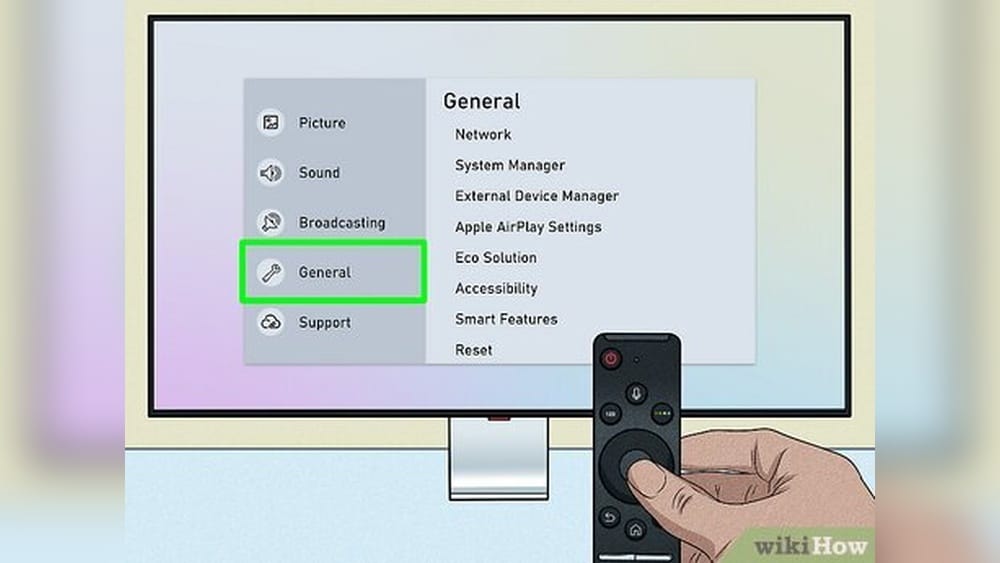
If you own a Samsung TV, you may have noticed a feature called Voice Assistant. This function is designed to help people with visual impairments by reading text aloud and describing what is happening on the screen. While it can be very helpful for some, many users find it distracting or unnecessary for daily use.
If you have ever wondered why your Samsung TV suddenly starts talking or how to turn off this feature, you are not alone. Many users activate Voice Assistant by mistake, often after a software update or by pressing the wrong button on their remote.
This article will guide you step-by-step on how to turn off Samsung Voice Assistant on TV. We’ll cover different Samsung models, various ways to disable the feature, and tips for troubleshooting common problems. Whether you’re a beginner or a more advanced user, you’ll find clear instructions to regain control of your TV’s audio experience.
What Is Samsung Voice Assistant?
Samsung Voice Assistant is an accessibility feature built into Samsung Smart TVs. It reads out menu options, volume changes, channels, and even describes what’s happening on the screen. While mainly aimed at users with vision difficulties, it is easy to turn on accidentally, especially if you’re not familiar with the settings.
On Samsung TVs, Voice Assistant may also be called Voice Guide, Audio Description, or Screen Reader, depending on your TV’s model and software version. Understanding these different names helps you find the correct setting to adjust.
Key Features Of Voice Assistant
- Reads menus and text aloud: Helps users navigate the TV interface
- Describes on-screen actions: Announces when you change volume, switch channels, or select apps
- Audio cues: Provides sounds for selecting and highlighting menu items
Why Does Voice Assistant Turn On?
There are a few common reasons:
- Accidental button presses: Holding certain buttons on the remote can enable Voice Assistant.
- Software updates: Some updates reset accessibility features to default settings.
- Factory reset: If you reset your TV, it may activate accessibility features like Voice Assistant.
Knowing why it turns on can help you prevent it in the future.
Identifying If Voice Assistant Is Active
Sometimes, people confuse Voice Assistant with other audio features. Here’s how to know if it’s turned on:
- The TV reads out every menu item or button you select
- Volume changes and channel numbers are announced
- Navigating apps or settings triggers spoken feedback
If you’re hearing these prompts, Voice Assistant (or Voice Guide) is likely activated.
Common Mistakes
Many users think the TV is “malfunctioning” or has a bug. In reality, it’s just an accessibility setting. Also, some confuse Voice Assistant with Audio Description, which describes scenes in movies or shows for the visually impaired. The steps to turn off each can be different.

Credit: www.afvt.org
How To Turn Off Samsung Voice Assistant (2020 And Newer Tvs)
Samsung TVs have changed their menu layout over the years. For most models released from 2020 onwards, the process is similar.
Step-by-step Instructions
- Press the Home button on your Samsung remote. This opens the main menu.
- Use the arrow keys to navigate to Settings.
- Select General.
- Go to Accessibility.
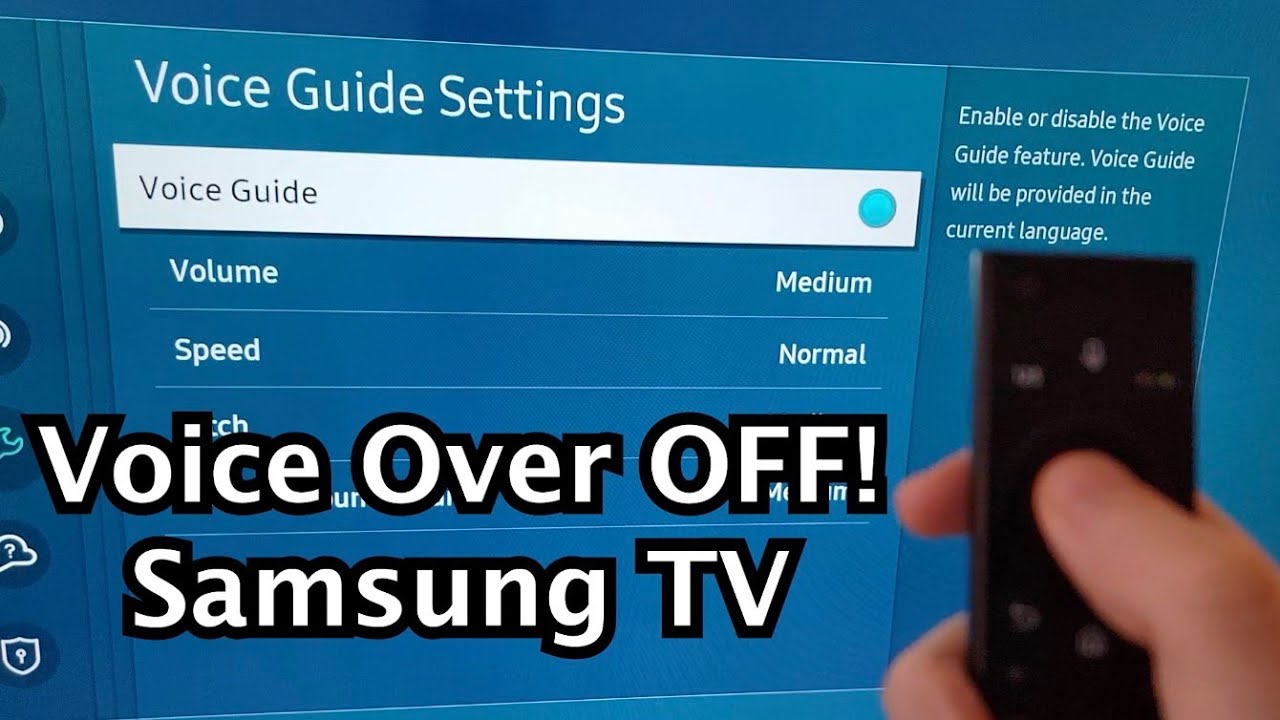
- Choose Voice Guide Settings.
- Toggle the Voice Guide option to Off.
Once you turn it off, the TV should stop reading menu items and other actions.
Example
Imagine you’re using a Samsung QLED TV from 2021. You notice the TV announces, “Volume 10,” every time you adjust the sound. Following the steps above will silence the Voice Guide instantly.
Practical Tip
If you’re not sure about the menu layout, use the search function on your TV’s settings page and type “Voice Guide.” This will take you directly to the right setting.
How To Turn Off Voice Assistant On Older Samsung Tvs (2014–2019)
Older Samsung TVs use a slightly different menu structure. If your TV’s menu doesn’t look like the newer models, try these steps:
- Press the Menu or Home button on your remote.
- Navigate to Settings or System.
- Find Accessibility.
- Select Voice Guide.
- Set Voice Guide to Off.
If your model uses a different wording, look for Audio Guidance, Screen Reader, or Text-to-Speech.
Real-life Example
Suppose you have a Samsung UHD TV from 2017. The settings menu may look older, but the Voice Guide option is usually found under Accessibility. Turning it off will stop the voice prompts.
Non-obvious Insight
Some older models require you to press and hold the Menu button to access the Accessibility shortcut. If you don’t see Accessibility in your regular menu, try this shortcut.
Turning Off Voice Assistant Using The Remote Shortcut
Many Samsung remotes have a shortcut to enable or disable Voice Assistant quickly. This is useful if you can’t see the TV screen or are having trouble navigating menus.
How To Use The Shortcut
- Press and hold the Volume button on your Samsung remote (usually labeled “VOL”).
- A menu will pop up on your TV screen with Accessibility Shortcuts.
- Select Voice Guide (or Voice Assistant) and toggle it Off.
This method works on most Samsung Smart Remotes made after 2017.
When To Use The Shortcut
If the screen is hard to read or the settings menu is confusing, this shortcut can save time. It’s especially helpful for users with limited vision or mobility.
Turning Off Audio Description (not Voice Assistant)
Sometimes, you might be hearing descriptions during movies or TV shows, not just in menus. This is often caused by the Audio Description feature, not Voice Assistant.
How To Disable Audio Description
- Go to Settings on your Samsung TV.
- Navigate to General.
- Select Accessibility.
- Choose Audio Description.
- Turn it Off.
If you’re watching content from a streaming app (like Netflix or Prime Video), check the app’s audio settings. Sometimes Audio Description must be turned off in the app, not the TV.
Extra Tip
Audio Description may re-enable after some updates or channel changes. If you notice it returns, repeat the steps above.
:max_bytes(150000):strip_icc()/samsung-voice-guide-settings-b6d650b942df40b28c2f3267a03b1710.png)
Credit: www.lifewire.com
Comparison: Voice Guide Vs. Audio Description
To clarify the difference, here’s a simple comparison:
| Feature | What It Does | When It’s Active | How to Turn Off |
|---|---|---|---|
| Voice Guide | Reads menus, changes, and settings aloud | Any time you use the TV interface | Settings > Accessibility > Voice Guide |
| Audio Description | Describes scenes and actions in shows/movies | During certain programs or apps | Settings > Accessibility > Audio Description |
Understanding the difference helps you know which setting to adjust.
Troubleshooting: Voice Assistant Won’t Turn Off
Sometimes, users follow the steps but still hear the voice prompts. Here’s what to do if Voice Assistant won’t turn off:
1. Check For Software Updates
Outdated software can cause issues with settings. To update:
- Go to Settings
- Select Support
- Choose Software Update
- Click Update Now
After updating, try turning Voice Assistant off again.
2. Restart Your Tv
Unplug your TV from the power outlet for 1–2 minutes, then plug it back in. This resets temporary glitches.
3. Factory Reset (last Resort)
If nothing else works, you can reset your TV:
- Go to Settings
- Select General
- Choose Reset
- Enter your PIN (default is usually 0000)
- Confirm reset
Warning: This will erase all your TV settings and apps. Use only as a last option.
4. Remote Malfunction
If your remote is damaged or has stuck buttons, it can keep enabling Voice Assistant. Try using the TV’s manual buttons or a replacement remote.
5. Accessibility Shortcuts
Check if the Accessibility Shortcuts menu is enabled. Sometimes, this menu can override your settings.
Table: Common Samsung Tv Models And Voice Assistant Options
Here’s a quick guide showing where to find Voice Assistant settings on popular Samsung TV models:
| Model/Series | Year | Menu Path | Shortcut Available? |
|---|---|---|---|
| QLED Q90T | 2020 | Settings > General > Accessibility > Voice Guide | Yes |
| Crystal UHD TU8000 | 2020 | Settings > General > Accessibility > Voice Guide | Yes |
| Series 7 (NU7100) | 2018 | Settings > Accessibility > Voice Guide | No |
| Smart TV (UN55) | 2016 | System > Accessibility > Voice Guide | No |
| Plasma F8500 | 2014 | Accessibility > Voice Guide | No |
If you’re unsure about your model, check the back of your TV or the user manual.
Using The Samsung Smartthings App To Turn Off Voice Assistant
If you prefer using your smartphone, the Samsung SmartThings app lets you control TV settings, including Voice Assistant.
How To Use Smartthings
- Download SmartThings from the App Store or Google Play.
- Connect your Samsung TV to the app (make sure both devices are on the same Wi-Fi).
- Open the app, select your TV, and go to Settings.
- Find Accessibility and turn Voice Guide off.
This is a great option if your remote is lost or not working.
Non-obvious Tip
Some SmartThings app versions allow you to use voice commands to control the TV. Try saying, “Turn off Voice Guide” if your app and TV support it.
Voice Assistant And Accessibility: Why The Feature Exists
While some users find Voice Assistant annoying, it is a vital tool for people with low vision or other disabilities. Samsung, like other TV makers, includes these features to meet accessibility standards.
How It Helps
- Independence: Users who can’t see well can navigate menus and settings on their own.
- Safety: Prevents accidental purchases or changes by announcing every selection.
Important Insight
If you share your TV with someone who relies on accessibility features, be careful before turning Voice Assistant off. Always ask first, or save your settings so you can easily switch back.
Table: Samsung Voice Assistant Vs. Other Brands
Here’s how Samsung’s Voice Assistant compares to similar features from other popular TV brands:
| Brand | Feature Name | How to Turn Off | Shortcut |
|---|---|---|---|
| Samsung | Voice Guide | Settings > Accessibility > Voice Guide | Hold Volume button |
| LG | Audio Guidance | Settings > Accessibility > Audio Guidance | Hold Settings button |
| Sony | TalkBack | Settings > Accessibility > TalkBack | No |
| Vizio | Talk Back | Settings > Accessibility > Talk Back | No |
If you switch brands, knowing the feature names will save you time.
Preventing Voice Assistant From Turning On Accidentally
Many people want to know how to prevent Voice Assistant from activating by mistake. Here are some tips:
- Learn your remote: Know which buttons enable shortcuts (usually by holding Volume or Menu).
- Update your TV: Newer software often prevents accidental activation.
- Set a PIN for Accessibility: Some models let you protect accessibility features with a PIN code.
- Inform family members: Teach everyone in the house about the shortcut keys.
Hidden Setting
On some models, you can disable Accessibility Shortcuts completely. This prevents Voice Guide from being turned on with a long button press.
When Should You Leave Voice Assistant On?
While most people turn it off for convenience, there are scenarios where you might want to keep it enabled:
- For elderly family members who have trouble reading the screen
- If you have guests who need extra help navigating the TV
- During setup: Voice prompts can guide you through initial installation
If you only want Voice Assistant sometimes, remember how to enable or disable it quickly.
Credit: www.youtube.com
Advanced: Using Samsung’s Bixby Voice Assistant
Some newer Samsung TVs come with Bixby, Samsung’s voice AI. This is different from the accessibility Voice Guide, but some users confuse the two.
How To Disable Bixby
- Press the Mic button on your remote.
- Say, “Turn off Bixby.”
- Or, go to Settings > General > Voice > Bixby Voice Settings and turn it off.
Note: Disabling Bixby won’t affect the Voice Guide, and vice versa.
Voice Control Vs. Voice Guide
- Bixby: Lets you control the TV with spoken commands (e.g., “Open YouTube”).
- Voice Guide: Reads menus and actions aloud for accessibility.
Knowing the difference helps you adjust the right feature.
If Voice Assistant Still Won’t Turn Off: Contacting Support
If you’ve tried everything and Voice Assistant is still active, contact Samsung Support. You can:
- Visit the Samsung support site
- Use live chat or phone help
- Ask for remote assistance (a technician can access your TV remotely with your permission)
Don’t worry—this is a common issue, and support staff are trained to help.
For official details, check the Samsung Official Support Page.
Frequently Asked Questions
How Do I Quickly Turn Off Voice Assistant On My Samsung Tv?
The fastest way is to press and hold the Volume button on your remote. An accessibility menu will pop up. Use the arrows to select Voice Guide and toggle it off. This method works on most Samsung remotes made after 2017.
Why Does My Samsung Tv Keep Talking Even After I Turn Off Voice Guide?
You may have Audio Description enabled, or your TV may need a restart. Check both the Voice Guide and Audio Description settings in the Accessibility menu. If the problem continues, update your TV’s software and restart the device.
Can I Use My Phone To Turn Off Samsung Voice Assistant?
Yes! Download the SmartThings app on your smartphone, connect your TV, and navigate to Settings > Accessibility > Voice Guide. From there, you can turn it off. This is helpful if your remote is lost or not working.
Is Voice Assistant The Same As Bixby On Samsung Tvs?
No. Voice Assistant (Voice Guide) is an accessibility feature that reads menus aloud. Bixby is Samsung’s voice AI that lets you control the TV with voice commands. You can turn off one without affecting the other.
Will Turning Off Voice Assistant Affect Subtitles Or Closed Captions?
No. Subtitles and closed captions are different features. Turning off Voice Assistant will not affect your ability to display subtitles for movies or shows.
If you follow these steps, you should be able to control when and how your Samsung TV speaks. Remember, these features are made to help everyone enjoy their TV, but you are always in control of your home viewing experience.
If you run into any trouble, don’t hesitate to reach out to Samsung’s support or check your user manual for model-specific tips.