
Smart Lock is a convenient feature on Android devices that lets you keep your phone unlocked in trusted situations. It works with locations, devices, and even your own face or voice. But sometimes, Smart Lock can cause problems. Maybe your phone stays unlocked when you don’t want it to. Or you worry about privacy because anyone can access your device. If you want more control or better security, it’s important to know how to turn off Smart Lock.
This guide will help you understand Smart Lock, why people turn it off, and how to disable it step by step. You’ll learn the full process for all types of Smart Lock, including Trusted Places, Trusted Devices, and On-body Detection.
You’ll also see what happens after turning off Smart Lock, get tips for stronger security, and find solutions for common issues. Even if you’re not tech-savvy, you’ll be able to follow along easily.
What Is Smart Lock?
Smart Lock is a security feature built into Android devices. It makes unlocking your phone easier in trusted situations. For example, your phone can stay unlocked at your home, when connected to your car’s Bluetooth, or when it recognizes your face.
Smart Lock was introduced to help people avoid entering passwords or patterns every time. Instead, your device decides when it’s safe to stay unlocked.
There are three main types of Smart Lock:
- Trusted Places: Your phone stays unlocked in certain locations, like your home or work.
- Trusted Devices: If your phone is connected to a Bluetooth device (like a watch or car), it stays unlocked.
- On-body Detection: Your phone remains unlocked as long as it detects you’re carrying it.
Some phones also offer Trusted Face or Trusted Voice, but these are less common and less secure.
Smart Lock is useful, but sometimes it leads to unexpected behavior. For example, your phone might stay unlocked longer than you want, or unlock in places that are not safe. That’s why many people decide to turn it off.
Why Turn Off Smart Lock?
Disabling Smart Lock is a personal choice. There are several reasons why you might want to do this:
- Better security: If you turn off Smart Lock, your phone always asks for your password, PIN, or fingerprint. This prevents strangers from accessing your data.
- Privacy concerns: In public places, Smart Lock can keep your phone unlocked when you don’t want it to. Turning it off protects your personal information.
- Unexpected unlocks: Sometimes, Smart Lock stays active due to GPS errors or connected devices. This can lead to mistakes.
- Battery saving: Features like On-body Detection use sensors and GPS, which can drain your battery. Turning off Smart Lock can help your phone last longer.
- Consistent behavior: Without Smart Lock, your phone always locks and unlocks the same way. This makes it easier to control.
Many users overlook the risks of Smart Lock. For example, if you add your home as a Trusted Place, anyone in your house can unlock your phone. If you connect to Bluetooth in a coffee shop, Smart Lock might keep your phone unlocked even after you leave.
These are problems you can avoid by turning Smart Lock off.

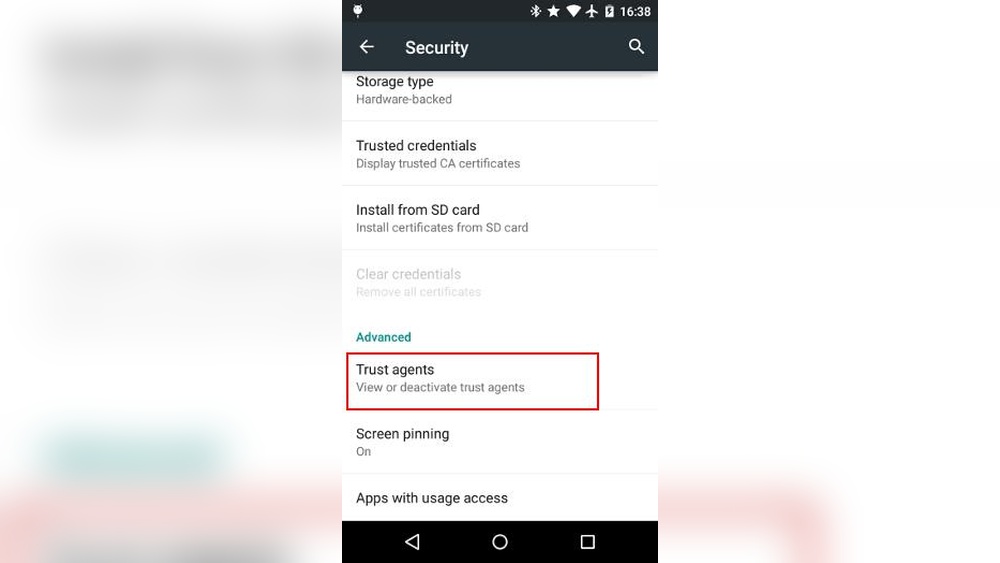
Credit: www.guidingtech.com
How To Turn Off Smart Lock (step-by-step)
Turning off Smart Lock is simple, but you need to understand the steps for each type. The process can vary slightly depending on your phone’s brand and Android version.
Preparation: Check Your Android Version
Before you start, check your Android version. Some menus and steps are different for Android 8, 9, 10, 11, 12, or 13.
- Go to Settings
- Scroll down and tap About phone
- Look for Android version
If your phone is running Android 8 or above, the steps below will work for you.
Step 1: Open Security Settings
- Unlock your phone.
- Go to Settings.
- Scroll down and tap Security or Security & Location. On some phones, this is under Lock Screen or Biometrics and Security.
Step 2: Find Smart Lock
- In the Security menu, tap Smart Lock.
- Enter your PIN, password, or pattern if prompted.
You’ll see several options: Trusted Places, Trusted Devices, and On-body Detection.
Step 3: Turn Off Trusted Places
Trusted Places uses your location to keep your device unlocked. To turn it off:
- Tap Trusted Places.
- You’ll see a list of places you’ve added (e.g., home, work).
- Tap each place.
- Tap Remove or Delete.
Your phone will no longer stay unlocked in those locations.
Step 4: Turn Off Trusted Devices
Trusted Devices keeps your phone unlocked when connected to certain Bluetooth devices.
- Tap Trusted Devices.
- You’ll see a list of devices (e.g., car, headphones).
- Tap each device.
- Tap Remove or Forget.
Your phone will lock even when connected to these devices.
Step 5: Turn Off On-body Detection
On-body Detection uses sensors to know if you’re carrying the phone.
- Tap On-body Detection.
- Toggle the switch to Off.
Your phone will lock when not in use, even if you’re carrying it.
Step 6: Disable Trusted Face Or Trusted Voice (if Available)
Some phones have Trusted Face or Trusted Voice. These are less common and not recommended for security.
- Tap Trusted Face or Trusted Voice.
- Tap Remove or Turn off.
Your phone will no longer unlock with face or voice recognition.
Step 7: Confirm Smart Lock Is Off
Go back to the main Smart Lock menu. All Trusted Places, Devices, and On-body Detection should be off. You can check by locking your phone and seeing if it asks for your password or fingerprint every time.
How To Turn Off Smart Lock On Samsung Devices
Samsung phones have slightly different menus. Here’s how to turn off Smart Lock on Samsung:
- Open Settings.
- Tap Lock Screen.
- Tap Smart Lock.
- Enter your PIN or password.
- Remove Trusted Places and Trusted Devices as described above.
- Toggle On-body Detection off if available.
Samsung sometimes uses its own security features, but Smart Lock works the same way.
How To Turn Off Smart Lock On Google Pixel Devices
Google Pixel phones usually have the latest Android updates. The process is almost identical:
- Open Settings.
- Tap Security.
- Tap Smart Lock.
- Enter your PIN or password.
- Remove all Trusted Places, Devices, and turn off On-body Detection.
Pixel devices sometimes get new Smart Lock features first, but the steps to turn them off remain consistent.
How To Turn Off Smart Lock On Xiaomi, Oppo, Vivo, And Other Brands
Most brands use Android’s default Smart Lock settings. If you have a Xiaomi, Oppo, Vivo, or similar phone:
- Go to Settings.
- Tap Passwords & Security or Security.
- Tap Smart Lock.
- Enter your PIN or password.
- Remove Trusted Places, Devices, and turn off On-body Detection.
Some phones may hide Smart Lock under Additional settings or Advanced settings. If you can’t find it, use the search bar in Settings.
What Happens After Turning Off Smart Lock?
Once Smart Lock is off, your phone will lock every time you press the power button or the screen turns off. You’ll always need to enter your PIN, password, pattern, or use fingerprint/face unlock.
This is a good thing for security. If you lose your phone or someone else picks it up, they won’t be able to access your data.
You may notice:
- More frequent unlocking: You have to unlock your phone every time.
- Better privacy: No one can get into your phone without your permission.
- Longer battery life: Sensors and GPS are not used for Smart Lock.
- Consistent behavior: Your phone locks and unlocks the same way everywhere.
One non-obvious insight: If you rely on Bluetooth devices (like a smartwatch), you may need to unlock your phone more often. But this is safer, especially in public places. Another tip: Removing Trusted Places can help if you move homes or travel often, as Smart Lock could keep your phone unlocked in wrong locations due to GPS errors.
Smart Lock Vs Other Security Features
Many people confuse Smart Lock with other unlocking methods. Here’s a quick comparison:
| Feature | How it works | Security level | Common issues |
|---|---|---|---|
| Smart Lock | Unlocks phone in trusted places/devices | Medium | Stays unlocked unexpectedly |
| Fingerprint | Uses your fingerprint | High | Sensor not working |
| Face Unlock | Uses your face | Medium | Can be fooled by photos |
| PIN/Password/Pattern | Manual entry | High | Forgot code |
Smart Lock is about convenience, not maximum security. If you want your phone to be safer, use fingerprint or PIN/password.
Common Problems When Turning Off Smart Lock
Some users run into issues when disabling Smart Lock. Here’s how to handle them:
- Smart Lock menu not found: Use the Settings search bar. Type “Smart Lock”. If your phone doesn’t support it, you won’t see this menu.
- Trusted Places won’t delete: Check your Google account location permissions. If your phone uses old addresses, update them or clear location history.
- Trusted Devices don’t remove: Turn Bluetooth off and on. Try restarting your phone.
- On-body Detection won’t turn off: Sometimes, restarting your phone helps. Also, update your Android system for bug fixes.
- Device still stays unlocked: Double-check all Smart Lock settings. Remove every Trusted Place and Device. Make sure On-body Detection is off.
If you continue to have problems, clear cache for Google Play Services. Go to Settings > Apps > Google Play Services > Storage > Clear cache.
How To Make Your Phone More Secure After Turning Off Smart Lock
After disabling Smart Lock, you can make your phone even safer. Here are some practical steps:
- Set a strong PIN or password: Use at least 6 digits or letters. Avoid simple patterns.
- Enable fingerprint or face unlock: These are quick and safer than Smart Lock.
- Turn on screen lock timeout: Set your phone to lock after 10 or 30 seconds of inactivity.
- Don’t share your PIN or password: Keep your code private.
- Update your phone regularly: New updates fix bugs and improve security.
- Use two-factor authentication: If your phone offers this, turn it on.
- Install trusted apps only: Avoid unknown apps that might steal your data.
- Backup your data: In case you lose your phone, you won’t lose important files.
A useful insight: Many people forget to set a short screen timeout. If your phone stays unlocked for 5 minutes, someone could access it. Go to Settings and set the timeout to 30 seconds or less.
Smart Lock And Google Account Sync
Smart Lock is linked with your Google account. If you use multiple devices, turning off Smart Lock on one device does not affect others. You need to disable Smart Lock individually on each device.
Also, some settings (like Trusted Places) use your Google Maps location. If you change your home address in Google Maps, Smart Lock may keep your phone unlocked in the new place. Always update addresses and check permissions.
Smart Lock Alternatives
If you want convenience without Smart Lock, try these alternatives:
- Fingerprint unlock: Fast and secure. Most modern phones have a fingerprint sensor.
- Face unlock: Quick, but not as safe as fingerprint.
- Pattern unlock: Choose a complex pattern.
- PIN unlock: Use a strong PIN.
You can combine fingerprint or face unlock with PIN for backup. This way, you get speed and security.
Some apps offer their own lock screens. For example, banking apps require PIN or fingerprint even if your phone is unlocked. This adds another layer of security.
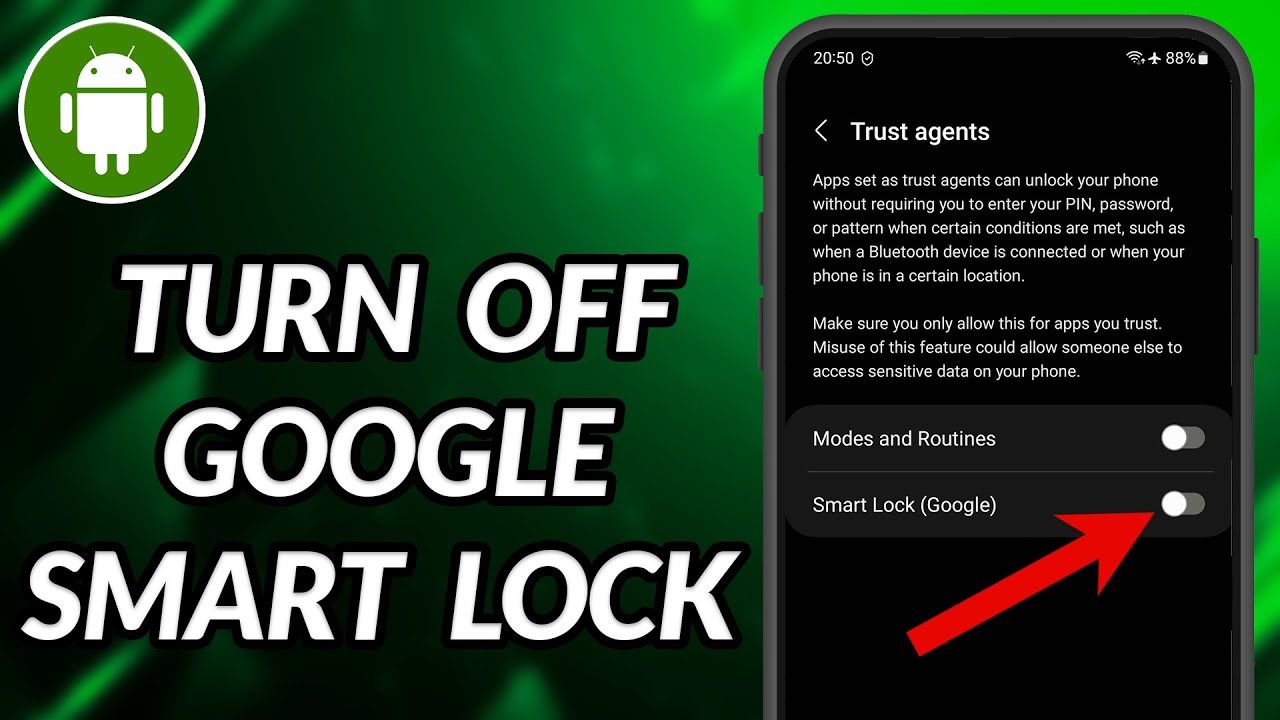
Credit: www.youtube.com
Smart Lock And Work Phones
If you use a work phone, Smart Lock may be disabled by your company. IT administrators want to protect sensitive data. If you can’t find Smart Lock settings, your phone may have security policies in place.
If you need to turn off Smart Lock for work, contact your IT department. They may guide you or do it remotely.
Data And Statistics: Smart Lock Usage And Risks
Let’s look at some numbers to understand Smart Lock better.
- According to a 2022 survey, over 60% of Android users have used Smart Lock at least once.
- Of those, 40% reported that their phone stayed unlocked in places they didn’t expect.
- 27% of users said they felt their privacy was at risk because of Smart Lock.
Another study found that phones with Smart Lock enabled are twice as likely to be accessed by someone other than the owner. This is especially true with Trusted Places and Trusted Devices.
These numbers show that while Smart Lock is popular, many people experience problems or security concerns. Turning it off is a smart move for those who value privacy.
Smart Lock On Android Vs Ios
Smart Lock is an Android feature. iPhones do not have a direct equivalent. Here’s a comparison:
| Feature | Android | iOS |
|---|---|---|
| Smart Lock | Yes, built-in | No |
| Trusted Places | Yes | No |
| Trusted Devices | Yes | No |
| On-body Detection | Yes | No |
| Face/Touch ID | Yes | Yes |
| PIN/Password | Yes | Yes |
IPhones focus on Face ID and Touch ID for security. Android offers more options, but Smart Lock is unique to Android.
Troubleshooting: Smart Lock Won’t Turn Off
If you try to turn off Smart Lock and it doesn’t work, here are advanced steps:
- Update Google Play Services: Smart Lock relies on Google Play Services. Update it from the Play Store.
- Clear cache and data: Go to Settings > Apps > Google Play Services > Storage > Clear cache and data.
- Restart your phone: Sometimes, changes take effect only after rebooting.
- Remove Google account and re-add: In rare cases, removing and adding your Google account resets Smart Lock settings.
- Factory reset: If nothing works, backup your data and reset your phone. This erases everything, so use as a last resort.
A practical tip: If Smart Lock is disabled but your phone stays unlocked, check if you’ve enabled other unlocking features like fingerprint or face unlock. These are separate from Smart Lock.
How To Check If Smart Lock Is Still Active
After you turn off Smart Lock, test your phone:
- Lock your device.
- Wait for a minute.
- Try to unlock. It should ask for your PIN, password, or fingerprint every time.
- Go to a previously Trusted Place or connect to a Trusted Device. Your phone should remain locked.
If your device unlocks automatically, Smart Lock is still active. Go back and double-check all settings.
Smart Lock And Children’s Phones
If you set up a phone for your child, turning off Smart Lock is important. Kids may not understand privacy risks. With Smart Lock enabled, their phone can stay unlocked in places like school or playgrounds.
Disable Smart Lock and use a simple PIN or fingerprint. Teach your child about keeping their phone secure.
Extra Tip: Temporarily Disable Smart Lock
If you want to keep Smart Lock but disable it for a short time (for example, when traveling), you can:
- Remove Trusted Places and Devices temporarily.
- Turn off On-body Detection for a few days.
- Add them back when you return.
This gives you flexibility without sacrificing long-term convenience.
Frequently Asked Questions
How Do I Know If Smart Lock Is Enabled On My Phone?
Go to Settings > Security > Smart Lock. If you see Trusted Places, Trusted Devices, or On-body Detection enabled, Smart Lock is active.
Does Turning Off Smart Lock Affect Other Security Features?
No. Turning off Smart Lock does not disable fingerprint, face unlock, PIN, or password. These features remain active.
Can Smart Lock Be Turned Off Remotely?
No. You must turn off Smart Lock on the device itself. However, work phones managed by IT may have Smart Lock disabled remotely.
What Should I Do If Smart Lock Doesn’t Turn Off?
Try updating Google Play Services, clearing cache, and restarting your phone. If the problem continues, remove your Google account and re-add it. Factory reset as a last resort.
Is Smart Lock Safe To Use?
Smart Lock is convenient but less secure than fingerprint, PIN, or password. It can keep your phone unlocked in unsafe places. For better security, turn it off and use stronger unlocking methods.
Turning off Smart Lock is a smart way to protect your phone and your privacy. Whether you’re worried about data, battery life, or just want consistent unlocking, the steps are easy to follow. With Smart Lock disabled, your phone is safer and you are in full control. For more details, you can visit the official Android support page: Android Help. Take a few minutes to check your Smart Lock settings today and enjoy better security every time you unlock your phone.
Credit: www.youtube.com