
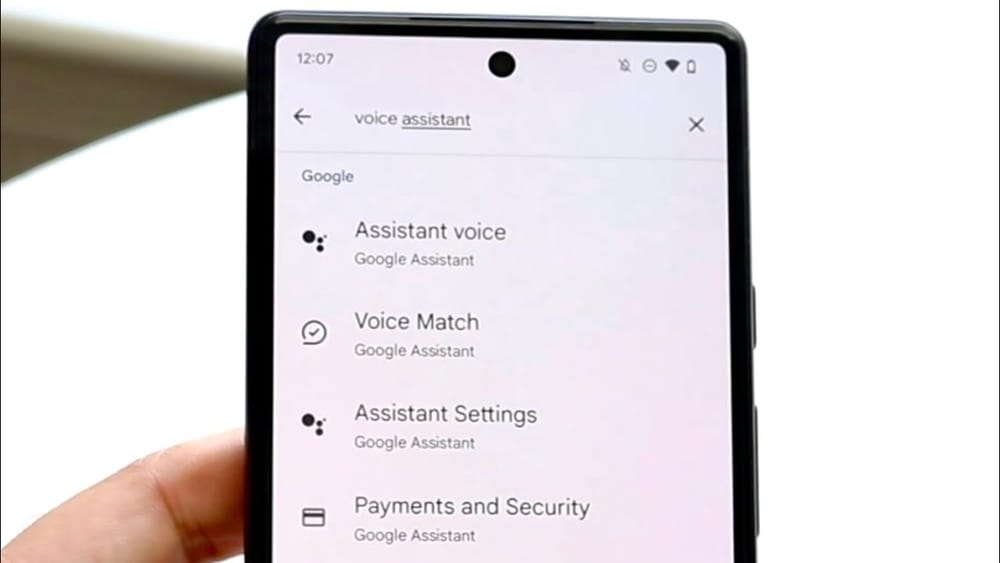
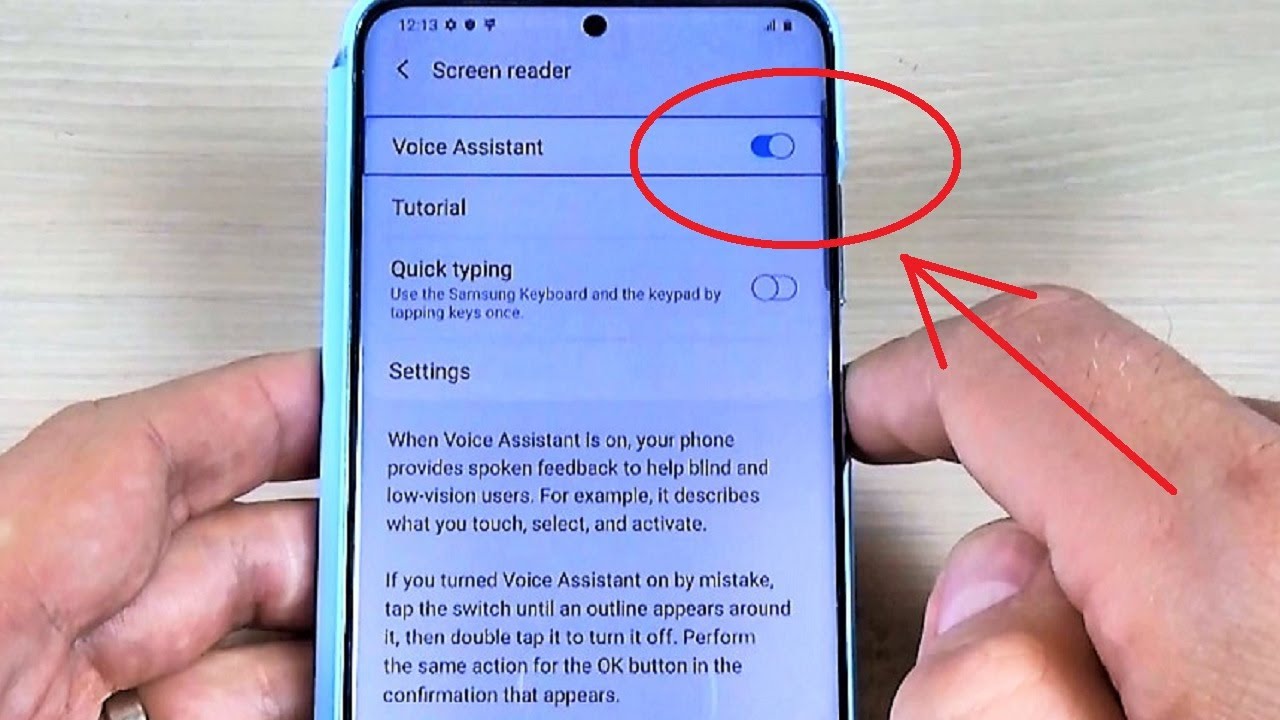
Many Android users discover that the voice assistant, often called Google Assistant or a device-specific voice helper, is active on their phone by default. This tool is designed to make tasks easier—like setting reminders, searching the web, or sending messages using voice. However, not everyone finds it helpful. Some people accidentally trigger the assistant, feel it invades privacy, or simply prefer to use their phone without voice commands. If you want to turn off the voice assistant on your Android device, you are not alone.
Disabling the voice assistant is not always as simple as flipping a single switch. Each device brand—such as Samsung, Xiaomi, or Google Pixel—may have its own setup. Android versions also change how you access and control voice features. Some people only want to stop the assistant from launching with the home button, while others want to remove voice functionality completely.
This guide will walk you step by step through all common methods to turn off the voice assistant, no matter what Android device you have. You’ll also learn about privacy, troubleshooting, and what to expect after disabling the assistant.
Understanding Voice Assistant On Android
Before turning off the voice assistant, it’s helpful to know exactly what it is and what it controls. The most common voice assistant for Android is Google Assistant, but some devices also use Bixby (Samsung), Alexa (Amazon), or other custom assistants.
What Does The Voice Assistant Do?
A voice assistant listens for a wake word (like “Hey Google” or “Hi Bixby”) and waits for your command. It can:
- Answer questions (weather, math, trivia)
- Control smart home devices
- Open apps and send messages
- Set alarms and reminders
- Call or text contacts
The assistant often has microphone access, and sometimes it runs in the background. This is why some users worry about privacy or accidental activation.
Why Do People Want To Turn It Off?
There are many reasons you might want to disable voice assistant features:
- Privacy concerns: Some users dislike the idea of their microphone always listening.
- Accidental activation: The assistant can pop up while typing or holding the home button.
- Battery usage: Voice assistants may use more battery if always listening.
- Speed: Some people prefer manual input and find voice commands slow or unnecessary.
- Preference: Not everyone likes talking to their phone in public or at work.
Types Of Voice Assistants On Android
Not all Android phones use the same assistant. Here’s a quick comparison:
| Brand | Default Assistant | Disable Method |
|---|---|---|
| Google Pixel, Motorola, Nokia | Google Assistant | Settings > Apps > Google > Assistant |
| Samsung | Bixby / Google Assistant | Settings > Bixby settings or Google Assistant |
| Amazon (Fire Devices) | Alexa | Alexa App > Settings |
| Xiaomi, Oppo, Vivo | Google Assistant / Custom | Settings > Apps > Assistant |
How To Turn Off Google Assistant
Most Android phones use Google Assistant. Here’s how to disable it.
Step-by-step Guide
- Open the Google App
- Find and tap the Google app on your device.
- Access Settings
- Tap your profile picture or initial (top right corner).
- Choose Settings.
- Go to Google Assistant Settings
- Tap Google Assistant.
- Select General Settings
- Scroll down and tap General.
- Turn Off Google Assistant
- You will see a switch for Google Assistant. Toggle it off.
- Confirm if a popup appears.
Once you do this, the assistant will stop responding to the home button, voice commands, and other triggers.
Disable “hey Google” Voice Detection
If you don’t want to turn off the assistant completely, you can just stop it from listening for the wake word.
- Open the Google app.
- Tap your profile icon > Settings > Google Assistant.
- Tap Hey Google & Voice Match.
- Toggle off Hey Google.
This will stop the assistant from launching with your voice, but you can still use it manually if needed.
Remove Google Assistant From The Home Button
Some Android phones launch Google Assistant when you long-press the home button. To change this:
- Go to Settings > Apps or Apps & Notifications.
- Tap Default Apps.
- Look for Assist & voice input.
- Tap Assist app and choose None.
Now, nothing will launch when you hold the home button.
What Happens After You Turn It Off?
- The microphone stops listening for the trigger word.
- The assistant will not open from the home button or gestures.
- You can still use the Google app for searches, but not voice commands.
- No more pop-ups from accidental activation.
Non-obvious insight: If you use features like Google Lens or voice typing, those may still be available, as they are separate from the Assistant.
Turning Off Bixby On Samsung Devices
Samsung phones often come with Bixby, Samsung’s own voice assistant, alongside Google Assistant. Disabling Bixby can be tricky because Samsung wants you to use its services.
Disable Bixby Voice
- Open the Bixby App
- Swipe right from your home screen or press the Bixby button (if available).
- Access Bixby Settings
- Tap the three-dot menu or the gear icon (top right).
- Turn Off Voice Wake-Up
- Tap Voice Wake-Up.
- Toggle the switch off.
Now, Bixby Will Not Respond To “hi, Bixby.”
Remove Bixby From The Side Key
Many Samsung phones launch Bixby with the side button (below the volume keys).
- Go to Settings > Advanced Features > Side Key.
- Under Press and hold, choose Power off menu instead of Bixby.
Disable Bixby Completely
Samsung doesn’t let you uninstall Bixby, but you can stop most of its functions:
- Remove Bixby Home from the left of your home screen:
- Long press on the home screen, swipe to the left panel, and toggle off Bixby Home.
- Log out of your Samsung account (not recommended if you use other Samsung services).
Practical tip: Even after disabling, Bixby may update with system updates. Check settings after major updates to make sure it stays off.
Turning Off Alexa On Android
Some devices—especially tablets or Amazon-branded phones—come with Alexa.
Steps To Disable Alexa
- Open the Alexa app.
- Tap More > Settings.
- Choose Device Settings.
- Select your device from the list.
- Tap Wake Word and turn it off.
Alexa will not respond to voice triggers, but the app will still work if you open it manually.
Disabling Other Voice Assistants
Some Android brands offer their own assistants, such as Xiaomi’s XiaoAI, Vivo’s Jovi, or Oppo’s Breeno. The general process is similar:
- Go to Settings > Apps > Assistant.
- Turn off wake word and assistant features.
- Uninstall updates if possible.
Non-obvious insight: On some Chinese brands, disabling the assistant may require setting your phone’s language to English or using a custom launcher.
Stopping Voice Typing And Dictation
Sometimes, you may not want to turn off the whole voice assistant but only stop voice typing.
How To Turn Off Voice Typing
- Go to Settings > System > Languages & Input.
- Tap On-screen keyboard or Virtual keyboard.
- Tap Google Voice Typing.
- Toggle off Use voice typing.
Now, your keyboard won’t launch the microphone for dictation.
Data note: Voice typing is part of the keyboard, not the assistant. Disabling one does not always disable the other.

Credit: www.afvt.org
What To Do If The Assistant Keeps Coming Back
Sometimes, even after turning off the assistant, it may reactivate after updates or resets.
Why Does This Happen?
- System updates may turn features back on.
- Google app updates can reset preferences.
- Samsung updates may re-enable Bixby.
How To Prevent Reactivation
- After each system update, check your assistant settings.
- Disable automatic updates for the Google or Bixby apps.
- Sign out of assistant services if possible.
Privacy And Security When Disabling Voice Assistant
Turning off the voice assistant can improve privacy but may also affect convenience.
What Privacy Risks Exist?
- Always-listening microphones can capture conversations if misused.
- Voice history is often stored in your Google or Samsung account.
Turning off the assistant stops the microphone from always listening for the trigger word. However, other apps may still have microphone access.
How To Check Microphone Permissions
- Go to Settings > Apps & Notifications > App Permissions.
- Tap Microphone.
- Review which apps have access. Turn off for apps you don’t trust.
Fact: According to a 2023 Pew Research Center survey, 41% of Americans worry about smart device privacy, especially always-listening microphones.
What Features Will You Lose?
Disabling the voice assistant means giving up some features. Here’s a comparison:
| Feature | Available with Assistant | Without Assistant |
|---|---|---|
| Voice search | Yes | No |
| Smart home voice control | Yes | No |
| Text dictation | Yes | Possible (with keyboard microphone) |
| Routine automation | Yes | No |
| Manual Google searches | Yes | Yes |
If you rarely use these voice features, you won’t notice much difference.
Troubleshooting Common Problems
Turning off the voice assistant usually works smoothly, but some issues can occur.
Assistant Still Launches Unexpectedly
- Check accessibility settings. Some features for visually impaired users may trigger the assistant.
- Remove assistant as the default app for assist actions.
Assistant Icon Still On Home Screen
- Long-press the icon and tap Remove or Uninstall.
- If not possible, it may be part of a system app.
Microphone Still Activates In Other Apps
- Check which app is using the microphone (see privacy steps above).
- Some apps (like WhatsApp, Facebook) have their own voice features.
Notifications From Assistant
- Go to the assistant app settings and turn off notifications.
- Block notifications in App Info.
Practical tip: On some phones, “Digital Assistant” is listed under Device Assistance App in settings. Make sure it’s set to None.
Alternatives To Voice Assistant
If you’re turning off the voice assistant but still want to use your phone hands-free, there are alternatives:
- Accessibility features: Use Android’s accessibility menu for people with disabilities.
- Text shortcuts: Set up keyboard shortcuts for common phrases.
- Task automation: Apps like Tasker or IFTTT automate tasks without voice.
- Physical buttons: Customize side or volume buttons for quick actions.
Experience-based tip: For those who just want to avoid accidental activation but still want hands-free help, consider disabling only the wake word or changing the default assistant instead of turning it off completely.
Will Turning Off Voice Assistant Affect Other Devices?
If you use Google Assistant or Alexa on smart speakers, turning it off on your phone will not disable it on other devices. Each device must be set up separately.
- Google Home: Still works unless you disable the assistant in your Google account.
- Wear OS Watches: Voice features are separate from the phone.
- Car Android Auto: May be affected if the phone’s assistant is off.
Important: If you use routines or device groups, you may lose the ability to control them from your phone.
How To Re-enable The Voice Assistant
If you change your mind and want the assistant back:
- Open the Google app or the device’s assistant settings.
- Toggle Google Assistant or the relevant assistant on.
- Set up Hey Google voice match if needed.
For Samsung, re-enable Bixby Voice in settings and set the side key to launch Bixby.
Should You Turn Off The Voice Assistant?
There’s no single answer. Here are some pros and cons:
Pros:
- Improved privacy
- Fewer accidental activations
- Slight battery savings
Cons:
- Lose hands-free features
- Can’t use voice for texting, searching, or controlling smart devices
If you rarely use the assistant, turning it off makes sense. If you rely on voice commands, consider disabling only specific triggers or tightening privacy settings.
How Android Versions Change The Process
Android updates can move settings and change how assistants work.
- Android 12 and above: Assistant settings are under Settings > Apps > Assistant.
- Older versions: Use the Google app for most settings.
- Custom UIs: Samsung One UI, Xiaomi MIUI, and others may hide assistant settings in different places.
Pro tip: If you can’t find the setting, use your phone’s search bar and type “Assistant” or “Bixby.”
What If The Settings Are Missing?
Some work phones, school devices, or carrier-locked phones may hide assistant controls.
- Check for Device Policy or Admin App restrictions.
- Contact your IT department if you can’t access assistant settings.
- Sometimes, a factory reset is needed (back up your data first).
:max_bytes(150000):strip_icc()/002-turn-off-ok-google-4163404-c4c7c668be884979a4db3af945b66079.jpg)
Credit: www.lifewire.com
Voice Assistant And Accessibility
Some users with disabilities rely on voice assistants. If you need accessibility features, consider turning off only specific triggers, not the entire assistant.
- Switch Access, TalkBack, and other tools can help without the assistant.
- Test your needs before making changes.
Real-world Examples
Example 1: Maria, a Samsung user, kept launching Bixby by mistake. After disabling Bixby Voice and changing the side key to “Power off menu,” she stopped accidental activations and still uses Google Assistant when needed.
Example 2: John, a privacy-focused Pixel user, turned off Google Assistant completely. Now, he searches and texts manually. He noticed slightly better battery life and less background data use.
Example 3: Ayush uses voice typing but not the assistant. He disabled “Hey Google” and left voice typing on, so he can dictate texts without the assistant listening for commands.
Resources For Further Learning
If you want to learn more about voice assistants, privacy, and Android features, visit the official Google Assistant Help Center.
Frequently Asked Questions
How Do I Turn Off The Voice Assistant On My Android If I Can’t Find The Setting?
If the assistant setting is missing, try searching for “Assistant” in your settings app. On some devices, assistant controls are under “Apps & Notifications” or “Default Apps. ” If you still can’t find it, your phone may have restrictions set by your employer or carrier.
In these cases, check with your IT support or try updating your device software.
Will Turning Off Google Assistant Affect My Google Home Speakers?
No, turning off Google Assistant on your phone does not disable it on other devices like Google Home speakers or smart displays. Each device is controlled separately. To remove the assistant from all devices, you must adjust settings in your Google account.
Can I Still Use Voice Typing After Turning Off The Assistant?
Yes, voice typing (microphone on the keyboard) is a separate feature. Disabling Google Assistant or Bixby does not affect voice typing. To turn off voice typing, go to keyboard settings and disable “Google Voice Typing. ”
Does Turning Off The Assistant Save Battery?
There may be a small battery improvement, especially if “always listening” for the wake word is off. However, most modern assistants are optimized and do not use much battery unless activated frequently.
Can I Turn The Assistant Back On Later?
Yes, you can re-enable the assistant anytime by going back to the assistant settings and toggling it on. You may need to set up voice match or permissions again.
Turning off the voice assistant on Android is a personal choice. Whether you want more privacy, fewer interruptions, or just a simpler experience, following these steps will help you take control. If you ever change your mind, it’s easy to turn the features back on.
Credit: www.youtube.com