
Many Chromebook users find the built-in Voice Assistant helpful for reading text aloud, controlling their device, or navigating hands-free. But for others, it can be distracting or unnecessary—especially if it turns on by mistake. If you’re looking to turn off the Voice Assistant on your Chromebook, you’re not alone. Many people want a quieter, more focused experience or simply don’t want their device talking back.
Maybe you activated the feature by accident, or perhaps you share your Chromebook with someone who finds the voice output confusing. Whatever the reason, turning off the Voice Assistant is straightforward once you know where to look. This guide will walk you through every step, explain what happens when you disable it, and offer solutions for common issues.
You’ll also find practical tips, real-world examples, and answers to the most common questions users have about this feature.
What Is Voice Assistant On Chromebook?
Before you turn off the Voice Assistant, it helps to know what it actually does. On Chromebooks, the main voice assistant feature is called ChromeVox. This is a screen reader that reads out text, interface elements, and notifications. ChromeVox is designed for people with visual impairments, but anyone can enable it—sometimes by accident.
There’s also a separate voice input feature, Google Assistant, which lets you control your device or search the web using your voice. In this article, we’ll focus mainly on ChromeVox, but we’ll cover how to turn off Google Assistant as well.
How Voice Assistant Gets Turned On
Many users activate ChromeVox by mistake. This often happens when you press Ctrl + Alt + Z—a keyboard shortcut that toggles ChromeVox on and off. Sometimes, updates or accessibility settings can also enable it.
Why Turn Off Voice Assistant?
You might want to turn off the Voice Assistant for several reasons:
- The voice feedback is distracting during work or study.
- You don’t need spoken instructions.
- It activates accidentally and interrupts your workflow.
- Other users on the device find it confusing.
- You want to save battery life (audio output can use extra power).
Turning off ChromeVox or Google Assistant helps make your Chromebook quieter and more personal.
Understanding Voice Assistant Features
Let’s quickly look at what you’re disabling, so you know what to expect.
| Feature | What It Does | How It’s Used |
|---|---|---|
| ChromeVox | Reads out text and describes screen content | Navigation, accessibility for visually impaired |
| Google Assistant | Responds to voice commands, searches web, controls device | Voice search, smart home, hands-free |
| Dictation | Types spoken words into text fields | Speech-to-text |
ChromeVox is the main feature that talks to you on most Chromebooks, but you may have other accessibility tools enabled. Disabling Voice Assistant features can be different depending on which one is turned on.
How To Turn Off Chromevox (voice Assistant) On Chromebook
Turning off ChromeVox can be done in a few ways. Here’s how to do it step-by-step.
Method 1: Using Keyboard Shortcut
This is the fastest method.
- Hold down Ctrl + Alt together.
- While holding, press the Z key.
- You’ll hear a confirmation: “ChromeVox spoken feedback is off.”
Tip: If ChromeVox turns back on later, you may have pressed the shortcut by accident. To avoid this, be mindful of the keys you press—especially if you often use keyboard shortcuts.
Method 2: Through Chromebook Settings
If the keyboard shortcut doesn’t work or you prefer using menus:
- Click the time in the bottom right corner of your screen (the system tray).
- Click the gear icon to open Settings.
- On the left, select Accessibility.
- Under the “Text-to-Speech” section, find Enable ChromeVox (spoken feedback).
- Toggle the switch off.
This will immediately stop the voice from reading out your screen.
Method 3: Using Search
If you have trouble finding Accessibility:
- Open Settings.
- At the top, in the search bar, type ChromeVox.
- Click the matching result.
- Turn off the feature.
Insight: Sometimes, ChromeVox can only be disabled from the user account that turned it on. If you’re using a managed Chromebook (like in a school), you may need to ask your administrator.
How To Turn Off Google Assistant On Chromebook
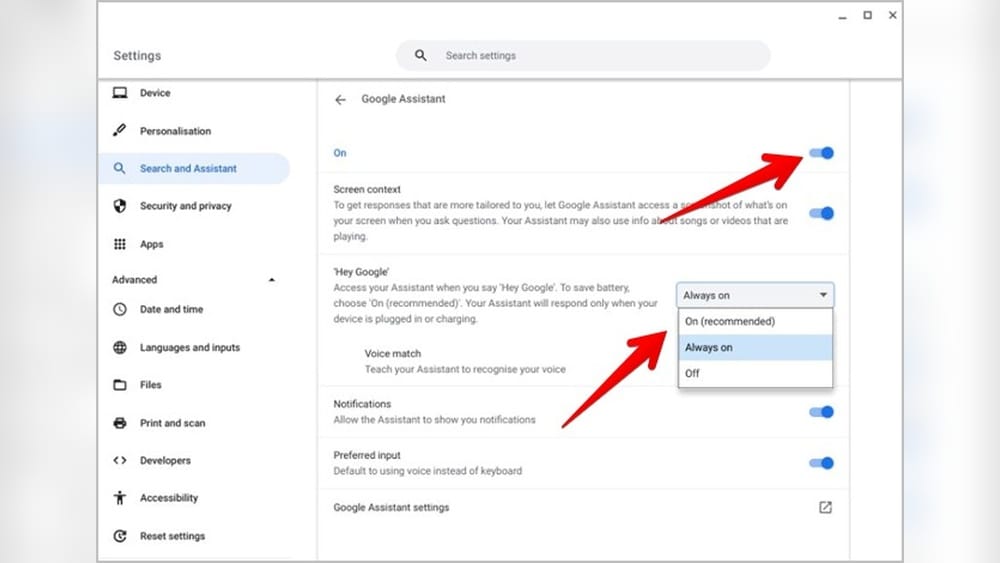
If your Chromebook keeps responding to “Hey Google” or pops up with voice search, Google Assistant might be enabled. Disabling it is simple:
- Open Settings.
- Scroll down and click on Search and Assistant.
- Click Google Assistant.
- Switch the setting to Off.
This stops the device from listening for the activation phrase or responding to voice commands.
Common mistake: Some users confuse ChromeVox (screen reader) with Google Assistant (voice commands). If you still hear your Chromebook talking, double-check which one is active.
How To Turn Off Dictation (speech-to-text)
If your Chromebook types what you say, the Dictation feature is on.
- Go to Settings.
- Select Accessibility.
- Find Keyboard and text input.
- Toggle Enable Dictation off.
Now, your device won’t convert speech to text unless you turn it back on.

Credit: www.youtube.com
What Happens After You Turn Off Voice Assistant?
When you disable Voice Assistant features:
- Your Chromebook will stop reading out text and screen elements.
- Keyboard shortcuts for ChromeVox will no longer give voice feedback.
- Google Assistant will not respond to voice commands.
- Dictation will not type words you say.
Important: Turning off these features does not affect other accessibility settings, like high contrast or screen magnifier. You can still use visual tools without the voice features.
Troubleshooting: When Voice Assistant Won’t Turn Off
Sometimes, turning off the Voice Assistant doesn’t work as expected. Here’s what you can do.
The Voice Keeps Talking
- Make sure you’ve turned off the right feature (ChromeVox, not Dictation or Assistant).
- Restart your Chromebook to make sure the setting is applied.
- If you use multiple accounts, check that ChromeVox is off for each one.
Settings Are Locked
On school or work Chromebooks, the administrator might lock accessibility features. You’ll need to contact your IT department to change these settings.
The Shortcut Doesn’t Work
If Ctrl + Alt + Z does nothing, try turning off ChromeVox from the Settings menu. If the problem continues, check if your keyboard is working correctly or try plugging in an external keyboard.
Chromevox Turns Back On Automatically
- Some extensions or apps can re-enable accessibility features.
- If you use a guest account, changes may not save after you log out.
- Double-check that you’re not pressing the shortcut by accident.
Non-obvious insight: On rare occasions, system updates can re-enable accessibility features. Review your settings after every major update.
How To Prevent Voice Assistant From Turning On Accidentally
Here are practical steps to reduce accidental activation:
- Be careful with shortcuts: If you share your Chromebook, explain to others what Ctrl + Alt + Z does.
- Remove accessibility extensions: Sometimes, Chrome extensions can enable voice features. Uninstall any you don’t need.
- Check account settings: Set up different profiles for users who need accessibility tools and those who don’t.
- Review after updates: Always check your accessibility settings after system updates.
Comparing Accessibility Features On Chromebook
To better understand how ChromeVox compares with other Chromebook accessibility tools, see the overview below.
| Feature | Main Purpose | Voice Output | Best For |
|---|---|---|---|
| ChromeVox | Screen reader | Yes | Visually impaired users |
| Dictation | Speech-to-text | No | Anyone needing hands-free typing |
| Google Assistant | Voice commands | Yes | General users, smart home |
| Magnifier | Zooms screen | No | Low vision |
| High Contrast | Improves readability | No | Low vision, dyslexia |
Non-obvious insight: Disabling voice output doesn’t remove other accessibility tools. You can have high contrast or magnifier without hearing the Chromebook talk.
Real-world Examples: Why Users Turn Off Voice Assistant
To put things in perspective, here are some real situations where people turn off the Chromebook Voice Assistant:
- Students in classrooms: Teachers often ask students to turn off ChromeVox during tests to avoid distractions.
- Shared devices: Families may share a Chromebook, but only one person needs the screen reader. Others turn it off for smoother browsing.
- Workplace environments: In meetings, unexpected voice feedback can be embarrassing or disruptive.
- Video creators: People recording their screen don’t want voice output in their videos.
These examples show that turning off the Voice Assistant is a common need for many Chromebook users.
Advanced Tips: Managing Voice Assistant For Multiple Users
Chromebooks are often shared devices. If you have several users, here’s how to manage accessibility features for everyone.
Create Separate User Profiles
Each user can have their own profile and settings. If one person needs ChromeVox but others don’t, set up a dedicated profile for them.
- Click the user icon in the bottom right.
- Select Add person.
- Set up the account and customize accessibility settings as needed.
Use Guest Mode For Visitors
If you let guests use your Chromebook, have them use Guest Mode. Accessibility settings in Guest Mode reset after logout, so your main preferences stay intact.
Lock Accessibility Settings (admins)
For schools or organizations, admins can lock accessibility features using the Google Admin Console. This prevents accidental changes by students or staff.
Insight: Some Chromebooks allow parental controls for accessibility. These can help you keep ChromeVox off for children if needed.

Credit: techwiser.com
Chromevox Shortcuts: What To Know (and Avoid)
While Ctrl + Alt + Z is the main shortcut, ChromeVox has many other keyboard commands. If you want to avoid accidentally activating features, it helps to know the main shortcuts:
- Ctrl + Alt + Z: Toggle ChromeVox on/off
- Ctrl + Alt + Arrow keys: Move between items
- Ctrl + Alt + / (slash): Open ChromeVox keyboard shortcuts
If you don’t need ChromeVox, avoid these combinations to reduce surprises.
How To Re-enable Voice Assistant If Needed
If you ever want to turn ChromeVox or Google Assistant back on:
- Open Settings.
- Go to Accessibility.
- Turn on ChromeVox (spoken feedback) or Dictation as needed.
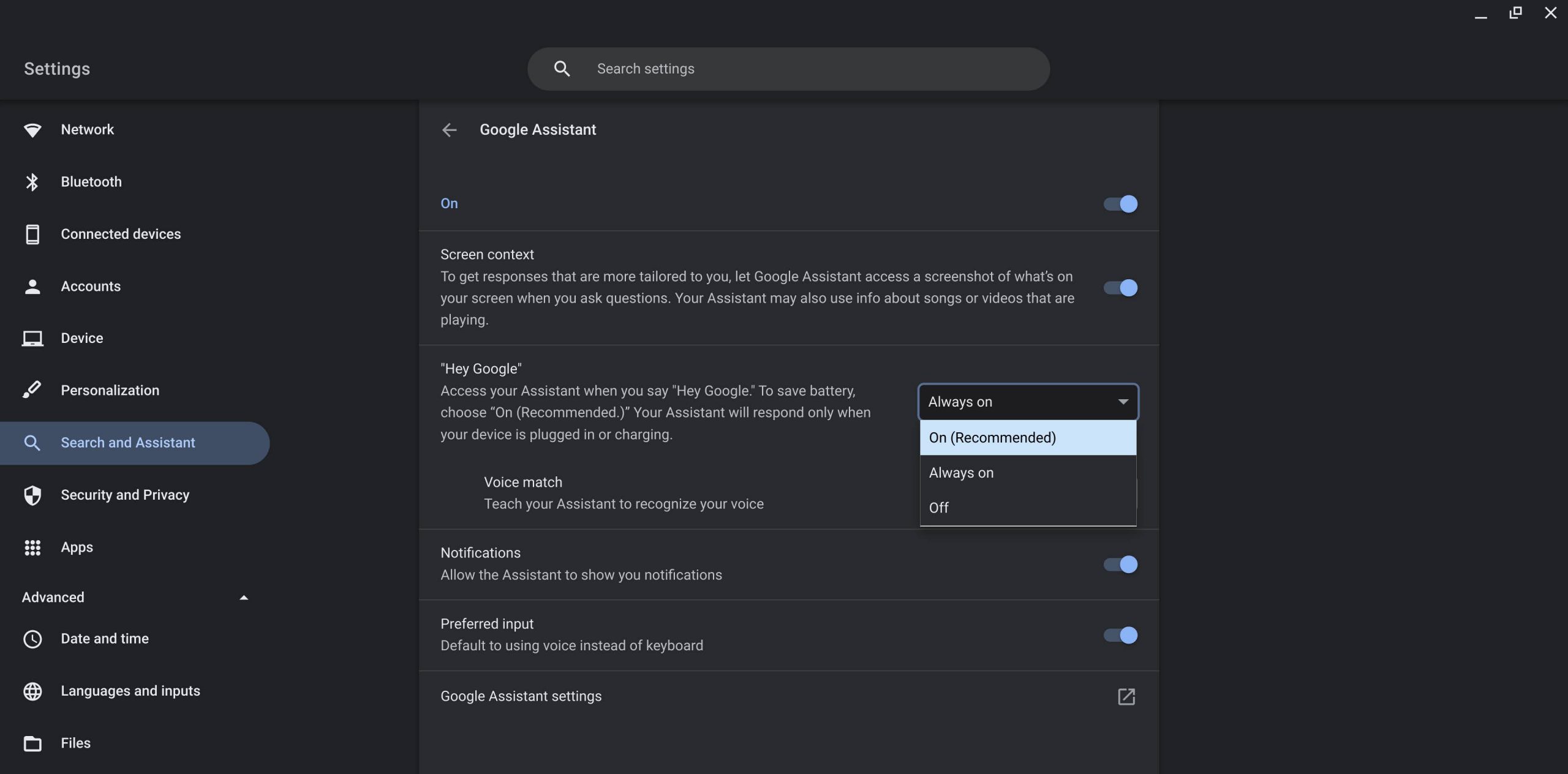
- For Google Assistant, enable it under Search and Assistant.
You can also use the shortcut Ctrl + Alt + Z for ChromeVox.
Tip: You can turn these features on or off as often as you like—nothing is permanent.
Credit: chromeunboxed.com
Voice Assistant And Privacy: What You Should Know
Some users worry that voice features might affect their privacy. Here’s what you should consider:
- ChromeVox does not record your voice; it only reads out screen content.
- Google Assistant listens for the “Hey Google” trigger and may send audio to Google’s servers for processing if activated.
- Dictation uses speech-to-text, which might involve sending snippets to Google for better accuracy.
If privacy is a concern, disabling Google Assistant and Dictation is a good idea.
External resource: For more on privacy and accessibility features, see the official Google Chromebook Help.
Data: How Many Chromebook Users Use Voice Assistant?
Exact numbers are hard to find, but accessibility features are growing in use. A 2022 report found that about 15% of Chromebook users use some accessibility tool, with ChromeVox being one of the most popular. Among students, usage is even higher—especially in schools that support inclusive learning.
But many people turn on ChromeVox by mistake, which is why guides like this are in high demand.
Comparison: Chromebook Vs. Other Devices
How does turning off Voice Assistant on a Chromebook compare to other devices?
| Device | Voice Assistant | How to Turn Off | Shortcut |
|---|---|---|---|
| Chromebook | ChromeVox, Google Assistant | Settings or Ctrl + Alt + Z | Yes |
| Windows Laptop | Narrator, Cortana | Settings or Win + Ctrl + Enter | Yes |
| MacBook | VoiceOver, Siri | Settings or Cmd + F5 | Yes |
| iPad/Android Tablet | VoiceOver, TalkBack, Google Assistant | Settings | No |
Insight: Chromebooks make it easy to toggle voice features with keyboard shortcuts, but this also means more accidental activation compared to tablets.
Accessibility Without Voice: Other Tools You Can Use
If you want accessibility help but don’t need voice, Chromebooks offer other features:
- Magnifier: Zoom in on parts of the screen.
- High contrast mode: Makes text easier to read.
- On-screen keyboard: Type using the mouse or touch.
- Large mouse cursor: Easier to see and use.
- Sticky keys: Helps users who have trouble pressing multiple keys.
You can find all these under Settings > Accessibility.
Tip: Try out different tools to find the right mix for your needs. You don’t have to use voice output to get accessibility benefits.
How To Reset Accessibility Settings
If things get confusing, you can reset accessibility settings to default:
- Open Settings.
- Go to Accessibility.
- Manually turn off all features you don’t need.
There’s no “reset all” button yet, so you’ll need to check each setting.
Advice: Take a screenshot of your preferred settings, so you can restore them if needed.
Voice Assistant For Language Learners
Some users find Voice Assistant helpful for practicing English pronunciation or learning new words. If you’re an English learner, try using ChromeVox for reading practice. But if it becomes a distraction, it’s easy to turn off and back on as needed.
Summary: Key Steps To Turn Off Voice Assistant On Chromebook
- Use Ctrl + Alt + Z to quickly toggle ChromeVox off.
- Go to Settings > Accessibility to turn off ChromeVox, Dictation, or other voice features.
- For Google Assistant, use Settings > Search and Assistant.
- Restart your device or check for multiple accounts if problems continue.
- Use other accessibility tools if you want help without voice output.
Turning off Chromebook Voice Assistant gives you a quieter, more focused device. You’re always in control—voice features are easy to turn on or off whenever you want.
Frequently Asked Questions
How Do I Quickly Turn Off Chromevox Using The Keyboard?
Press Ctrl + Alt + Z at the same time. This toggles ChromeVox (the main Voice Assistant) on and off instantly. If it doesn’t work, try turning it off in the Settings menu.
Why Does My Chromebook Keep Talking Even After I Turn Off Chromevox?
You might have other voice features enabled, like Dictation or Google Assistant. Check Settings > Accessibility and Settings > Search and Assistant to turn off all voice-related tools.
Can I Remove Chromevox Completely From My Chromebook?
No, ChromeVox is a built-in accessibility feature and cannot be uninstalled. However, you can turn it off and it will stay off unless reactivated.
Is There A Way To Stop Other Users From Turning On Voice Assistant By Accident?
Set up separate user profiles for people who need accessibility tools and those who don’t. On managed Chromebooks, administrators can lock accessibility settings to prevent changes.
Does Turning Off Voice Assistant Affect Other Accessibility Settings?
No, turning off ChromeVox or Google Assistant only disables voice features. Other tools like Magnifier, high contrast, or large mouse cursor will continue to work as set.
With these steps and tips, you can easily control the Voice Assistant on your Chromebook and enjoy a more comfortable experience.