
If you have ever been surprised by your iPhone suddenly talking to you, you are not alone. The Voice Assistant feature, known as Siri, is a helpful tool for many. But for some, it can be distracting or even intrusive. Maybe you find Siri turning on accidentally, or you just do not use voice commands much. In these cases, turning off the voice assistant on your iPhone can make your device feel more personal and less disruptive. This guide will help you understand why Siri activates, how to turn it off completely (or partly), and how to solve common problems that come up along the way. Even if you are not very familiar with iPhone settings or you are worried about making mistakes, do not worry—each step here is explained simply and clearly.
What Is The Voice Assistant On Iphone?
The main voice assistant on the iPhone is Siri. Siri was first introduced by Apple in 2011. It lets you use your voice to make calls, send texts, set reminders, search the internet, and more. Siri can be activated in a few ways:
- Saying “Hey Siri”
- Pressing and holding the Side or Home button
- Using CarPlay or AirPods
Some iPhone users also use Voice Control or VoiceOver, which are accessibility features. These are different from Siri and are made for people with vision or mobility challenges.
Siri, Voice Control, And Voiceover: What’s The Difference?
It is important to know the difference before you try to turn anything off:
- Siri: The main smart voice assistant that answers questions and helps with tasks.
- Voice Control: Lets you control your iPhone entirely by voice, without Siri.
- VoiceOver: Reads everything on your screen for people with low vision.
Each has a different purpose. This article will mainly focus on Siri, but will explain how to turn off Voice Control and VoiceOver too, just in case.
Why Turn Off Voice Assistant On Iphone?
Most iPhone users keep Siri turned on because it can be useful. But there are several reasons why you might want to turn it off:
- Accidental Activation: Siri can turn on by mistake, especially when you press the Side or Home button by accident or if your phone misunderstands background noise as “Hey Siri.”
- Privacy Concerns: Voice commands are sometimes sent to Apple’s servers for processing. Some people do not want their voice or data shared, even if Apple says it is secure.
- Battery Life: “Hey Siri” uses extra battery because it listens for your voice in the background.
- Distraction: Siri can sometimes interrupt meetings, classes, or quiet moments if activated by mistake.
- Personal Preference: Not everyone likes voice assistants or finds them useful.
What Happens When You Turn Off Siri?
Before you turn off Siri, it is good to know what changes:
- You will not be able to use “Hey Siri” or press the button for Siri commands.
- Some shortcuts or features that depend on Siri will not work.
- You can still use other iPhone features—nothing else is lost.
Turning off Siri does not affect your ability to use the iPhone in other ways. It simply removes the voice assistant’s ability to listen and respond.
How To Turn Off Siri Completely
If you want to fully disable Siri, here is the step-by-step process. This is the most common request and the best way to stop accidental activations.
- Open the Settings app on your iPhone.
- Scroll down and tap Siri & Search.
- You will see several options:
- Listen for “Hey Siri”
- Press Side Button for Siri (or Press Home for Siri on older phones)
- Allow Siri When Locked
- Turn off all three options by tapping the green switches. They will turn gray when off.
- When you turn off both “Hey Siri” and “Press Side Button for Siri,” you will get a pop-up message: “Are you sure you want to turn off Siri?” Tap Turn Off Siri to confirm.
After this, Siri is completely off. It will not activate by voice or button.
Extra Step: Remove Siri Data From Apple Servers
Turning off Siri on your device stops it from listening or responding. But you might also want to delete the data Apple has stored about your Siri usage. To do this:
- Go back to Settings > Siri & Search.
- Tap Siri & Dictation History.
- Tap Delete Siri & Dictation History.
This deletes your voice interactions from Apple’s servers and increases your privacy.
How To Turn Off “hey Siri” Only
Some people want to keep Siri available by button, but not have it listen for “Hey Siri” all the time. Here is how:
- Go to Settings > Siri & Search.
- Turn off Listen for “Hey Siri” only.
- Leave Press Side Button for Siri (or Home) ON if you want to use Siri by button.
This saves a bit of battery and stops accidental voice activations, but you can still use Siri when you choose.
How To Turn Off Siri On The Lock Screen
Sometimes you only want to stop Siri from working when your phone is locked. This is good for extra privacy—someone else cannot use Siri to send messages or get information from your phone.
- Go to Settings > Siri & Search.
- Find Allow Siri When Locked and turn it off.
Now, Siri will only work when your phone is unlocked.

Credit: www.businessinsider.com
How To Turn Off Voice Control
Voice Control is not Siri, but sometimes people confuse the two. Voice Control lets you control your iPhone by speaking commands, even if Siri is off. If you want to stop this too:
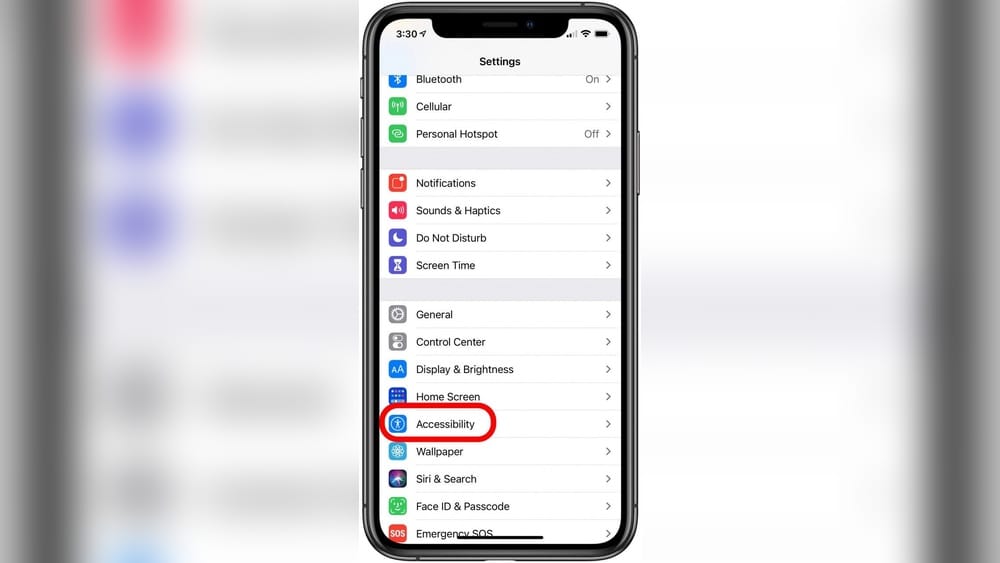
- Go to Settings > Accessibility.
- Tap Voice Control.
- Turn off the switch at the top.
On older iPhones, you may see Settings > General > Accessibility > Home Button. From there, choose Off under “Press and Hold to Speak.”
How To Turn Off Voiceover
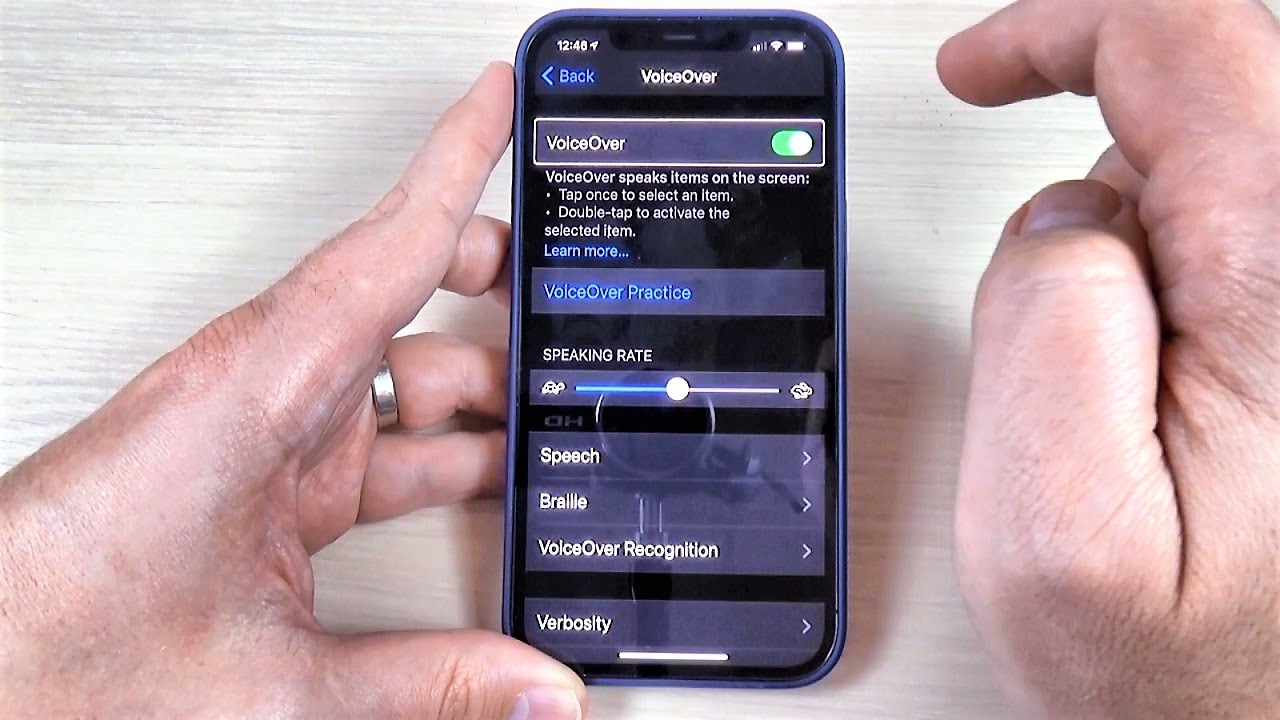
VoiceOver is an accessibility feature for people with low vision. If your iPhone is reading everything aloud and you want to turn it off:
- Go to Settings > Accessibility.
- Tap VoiceOver.
- Turn off the switch at the top.
If you are stuck on the lock screen, quickly press the Side Button or Home Button three times to toggle VoiceOver off.
How To Stop Siri From Activating With Headphones Or Carplay
Siri can activate when you press and hold the button on your headphones or CarPlay system. To stop this:
- Go to Settings > Siri & Search.
- Turn off Press Side Button for Siri.
After this, pressing your headphone or CarPlay buttons will not activate Siri.
Turning Off Siri Suggestions
Siri offers suggestions in Search, on the Lock Screen, and in other apps. If you want to stop these suggestions:
- Go to Settings > Siri & Search.
- Scroll down to Siri Suggestions.
- Turn off the switches for:
- Suggestions in Search
- Suggestions in Look Up
- Suggestions on Lock Screen
This keeps your iPhone from showing Siri-powered suggestions.
How To Turn Off Siri For Specific Apps
Maybe you like Siri for some things, but do not want it to access certain apps (like Messages or WhatsApp). You can turn off Siri for specific apps:
- Go to Settings > Siri & Search.
- Scroll down to the app list.
- Tap the app you want.
- Turn off Learn from this App, Show App in Search, or Show Siri Suggestions as you prefer.
This keeps Siri from using data from those apps for suggestions or voice commands.
How To Turn Off Dictation (voice-to-text)
If you want to stop the microphone button from appearing on your iPhone keyboard (so you cannot use voice-to-text):
- Go to Settings > General > Keyboard.
- Scroll to Enable Dictation.
- Turn it off.
This removes the microphone from your keyboard and stops voice typing.
Table: Siri Features And How To Turn Them Off
Here is a quick comparison of the main Siri features and the steps to disable each one:
| Feature | Where to Find | How to Turn Off |
|---|---|---|
| Hey Siri | Settings > Siri & Search | Turn off “Listen for ‘Hey Siri'” |
| Siri by Button | Settings > Siri & Search | Turn off “Press Side/Home Button for Siri” |
| Siri on Lock Screen | Settings > Siri & Search | Turn off “Allow Siri When Locked” |
| Siri Suggestions | Settings > Siri & Search | Turn off all “Suggestions” options |
| Siri for Apps | Settings > Siri & Search > [App] | Turn off suggestions for the app |
| Dictation | Settings > General > Keyboard | Turn off “Enable Dictation” |
How To Turn Off Siri On Different Iphone Models
The steps above work for most iPhones, but older and newer models have small differences.
Iphone X And Later (no Home Button)
- Use the Side Button to activate Siri.
- All Siri settings are in Settings > Siri & Search.
Iphone 8 And Earlier (with Home Button)
- Use the Home Button to activate Siri.
- Settings are the same, but you will see “Press Home for Siri” instead of “Side Button.”
Iphone Se
- Uses the Home Button for Siri.
- Settings and options are the same as iPhone 8.
Ios Version Differences
Apple sometimes changes where settings are in iOS updates. The steps given here are for iOS 15 and later. If you have an older iOS version, the names and locations might be a little different, but the process is similar.
Table: Iphone Models And Siri Button
Understanding which button activates Siri on your device helps you know what to turn off.
| iPhone Model | Button for Siri | How to Disable |
|---|---|---|
| iPhone X, 11, 12, 13, 14 | Side Button | Turn off “Press Side Button for Siri” |
| iPhone 6, 7, 8, SE | Home Button | Turn off “Press Home for Siri” |
| iPhone SE (2nd/3rd Gen) | Home Button | Turn off “Press Home for Siri” |
What To Do If Siri Still Turns On After Disabling
Sometimes, even after turning off all the switches, Siri or Voice Control still activates. This can happen for a few reasons:
- Settings Did Not Save: Go back to check if all switches are gray and off.
- IOS Bug: Restart your iPhone after making changes. Updates can also fix bugs, so check for the latest iOS.
- Accessibility Shortcuts: Triple-clicking the Side or Home button can activate Voice Control or VoiceOver. Check your accessibility shortcuts:
- Go to Settings > Accessibility > Accessibility Shortcut
- Make sure neither Voice Control nor VoiceOver is selected
- Headphones/CarPlay: Some headphones or cars have their own Siri buttons. Disabling Siri in settings should stop this, but check the accessory’s manual if problems continue.
If Siri is still activating, try resetting all settings (not erasing your data):
- Go to Settings > General > Transfer or Reset iPhone > Reset > Reset All Settings.
- This resets system settings but keeps your photos and apps.
How To Turn Off Siri On Apple Watch, Ipad, Or Mac
If you have other Apple devices, Siri is usually on by default there too. Here’s how to turn it off:
Apple Watch
- Open the Settings app on your Watch.
- Tap Siri.
- Turn off Listen for “Hey Siri” and Raise to Speak.
Ipad
- Go to Settings > Siri & Search.
- Turn off Listen for “Hey Siri” and Press Top Button for Siri.
Mac
- Go to Apple Menu > System Preferences > Siri.
- Uncheck Enable Ask Siri.
This way, you can have Siri off on all your Apple devices for a consistent experience.
Table: Siri Availability On Apple Devices
Here is how you turn off Siri on different Apple products:
| Device | Setting Location | Disable Option |
|---|---|---|
| iPhone | Settings > Siri & Search | Turn off all Siri options |
| iPad | Settings > Siri & Search | Turn off all Siri options |
| Apple Watch | Settings > Siri | Turn off “Hey Siri” & “Raise to Speak” |
| Mac | System Preferences > Siri | Uncheck “Enable Ask Siri” |
Common Problems And Solutions
Turning off voice assistant features should be simple, but sometimes things do not work as expected. Here are some common issues and fixes:
Siri Turns On Even After Disabling
- Double-check all switches in Siri & Search
- Restart your iPhone
- Update to the latest iOS
- Check Accessibility Shortcuts
Cannot Turn Off “hey Siri”
- Sometimes the switch is grayed out. This can happen if you have Screen Time restrictions or certain profiles installed (like for work or school).
- Go to Settings > Screen Time > Content & Privacy Restrictions and check for any restrictions.
- If your phone is managed by your company or school, ask the IT department.
Iphone Still Reads Text Out Loud
- This is likely VoiceOver, not Siri. Turn it off in Settings > Accessibility > VoiceOver.
Microphone Button Still On Keyboard
- Turn off dictation in Settings > General > Keyboard > Enable Dictation.
Siri Suggestions Keep Appearing
- Go to Settings > Siri & Search and turn off all suggestion switches.
Siri Activates With Accessories
- Some accessories have their own Siri buttons. If you cannot stop it, check the accessory’s manual or support page.
Two Non-obvious Insights Most Beginners Miss
- Turning off “Hey Siri” does NOT stop Siri from activating by button. Many people turn off only “Hey Siri” and are surprised when Siri still activates by holding the Side or Home button. To completely disable Siri, you must turn off both options in Settings.
- Siri is different from Voice Control and VoiceOver. Some users turn off Siri but still get voice feedback or control. That is because Voice Control and VoiceOver are separate features. Make sure to check Accessibility settings if you want all voice features off.

Credit: www.youtube.com
Should You Turn Off Siri? Weighing Pros And Cons
Turning off Siri is a personal choice. Here are some reasons to keep it on and some reasons to turn it off:
Benefits of Keeping Siri On
- Fast, hands-free use for calls, texts, and reminders
- Useful for driving or when your hands are full
- Can help people with mobility or vision issues
Benefits of Turning Siri Off
- Fewer interruptions and surprises
- More privacy—less voice data sent to Apple
- Slightly better battery life
- Less risk of accidental calls or messages
If you rarely use Siri, turning it off can make your iPhone feel simpler and less distracting. If you use Siri for accessibility, it is better to keep it on and adjust settings for better control.
When Turning Off Siri Is Not Enough
Sometimes, you want to remove voice features for privacy, but that is not enough. Apple keeps some data for a short time, even after you turn Siri off. To increase privacy:
- Delete Siri & Dictation History in Settings > Siri & Search
- Use Screen Time or Restrictions to stop others from changing Siri settings
- If privacy is critical, consider using a phone without smart assistants
For more on Apple’s privacy policies, see their official page: Apple Support.
Credit: www.youtube.com
Tips For Managing Voice Features On Shared Or Family Devices
If you share your iPhone with children or family, you might want different settings for each person. While iPhones do not support multiple user profiles like a computer, you can still:
- Use Screen Time to restrict Siri access for children
- Turn off Siri and Voice Control if the phone is for an older person who may trigger them by accident
- Teach family members how to use or disable voice features as needed
This makes your iPhone safer and less confusing for everyone.
How To Turn Siri Back On
If you turn off Siri but decide later that you miss it, it is easy to turn it back on:
- Go to Settings > Siri & Search.
- Turn on Listen for “Hey Siri” and/or Press Side/Home Button for Siri.
- Follow the on-screen instructions to set up “Hey Siri” if needed.
You can adjust which features you want, depending on your needs.
Frequently Asked Questions
How Do I Know If Siri Is Fully Turned Off On My Iphone?
Go to Settings > Siri & Search. If both “Listen for ‘Hey Siri’” and “Press Side/Home Button for Siri” switches are gray and off, Siri is disabled. Try holding the Side or Home button—if nothing happens, Siri is off.
Can Siri Still Collect My Data After I Turn It Off?
No, Siri stops listening and sending data to Apple once you turn it off. For extra privacy, delete your Siri & Dictation History in Settings > Siri & Search.
Why Does Voice Control Turn On After I Disable Siri?
When Siri is off, holding the Side or Home button sometimes activates Voice Control, not Siri. To stop this, go to Settings > Accessibility > Side Button (or Home Button) and choose “Off” under “Press and Hold to Speak.”
Does Turning Off Siri Affect Other Iphone Features?
No, turning off Siri only disables the voice assistant. All other iPhone functions—calls, texts, apps—work as usual. Only features that depend on Siri, like voice commands and some shortcuts, are affected.
How Do I Turn Off Siri On My Airpods Or Carplay?
Turning off Siri in your iPhone’s settings also disables it for AirPods and CarPlay. If your accessory still activates Siri, check its manual for extra steps or contact support.
Turning off the voice assistant on your iPhone can make your device quieter, more private, and less likely to surprise you. Whether you want to disable Siri for peace, privacy, or simplicity, the steps above will help. Remember, you can always turn Siri back on if you change your mind. For most users, controlling voice features is about making your iPhone work the way you want. If you need more help or want detailed information about Apple’s policies, Apple’s official support page is a trusted source: Apple Support.