
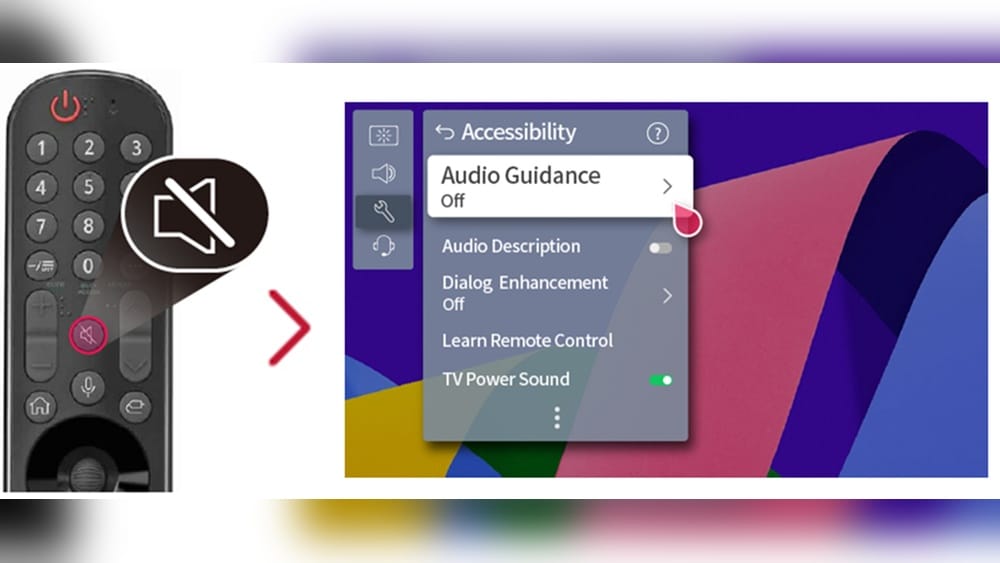
Is your LG TV’s voice assistant speaking up when you don’t want it to? It can be frustrating when your TV responds to commands you didn’t give or interrupts your viewing experience.
Luckily, turning off the voice assistant is easier than you might think. In this guide, you’ll learn simple steps to regain full control over your TV and enjoy your favorite shows without unexpected interruptions. Keep reading—you’re just moments away from a quieter, smoother TV experience.

Credit: www.lg.com
Locate Voice Assistant Settings
Finding the voice assistant settings on your LG TV is the first step to turn it off. These settings control how your TV listens and responds to voice commands. Knowing their location helps you manage your TV’s features easily.
LG TVs have different menus depending on the model and software version. Still, the voice assistant options are usually inside the main settings menu. Accessing this area lets you adjust or disable voice control quickly.
Open The Main Settings Menu
Press the Home button on your LG remote. This action shows the main menu on your TV screen. Look for the gear icon or “Settings” label and select it. This step takes you to the core settings of your TV.
Navigate To Accessibility Or General Settings
Scroll through the settings menu until you find “Accessibility” or “General.” Voice assistant controls often hide here. These sections contain tools to help users customize their TV experience.
Find The Voice Assistant Option
Inside Accessibility or General, search for “Voice Assistant” or “Voice Control.” This option lets you turn the voice assistant on or off. Select it to see the current status and make changes.
Disable Voice Recognition Feature
The voice recognition feature on LG TVs allows control through spoken commands. Some users prefer to turn this feature off to avoid accidental activations. Disabling voice recognition can help improve privacy and reduce interruptions.
Turning off this feature is simple and quick. It stops the TV from listening for voice commands but keeps other functions active. Follow the steps below to disable voice recognition on your LG TV.
Access The Settings Menu
Start by pressing the Home button on your remote control. Navigate to the Settings icon, usually represented by a gear symbol. Select the Settings menu to open the options.
Find The Voice Recognition Settings
Within the Settings menu, scroll to the “All Settings” option. Look for “General” or “Accessibility,” depending on your TV model. Select “Voice Recognition” or “Voice Control” from the list.
Turn Off Voice Recognition
Inside the Voice Recognition settings, locate the toggle switch or checkbox. Switch it off to disable the feature. Confirm your choice if the TV asks for confirmation.
Test The Voice Recognition Status
After disabling, try using the voice command button on the remote. The TV should no longer respond to voice commands. This confirms the voice recognition is turned off successfully.
Turn Off Voice Control Via Remote
Turning off voice control on your LG TV using the remote is quick and easy. This method helps you stop accidental voice commands. It also saves battery on your remote. You do not need to dive into complex menus or settings.
Follow a few simple steps to disable the voice assistant directly from your remote. This way, you can enjoy watching TV without interruptions from voice features.
Locate The Voice Control Button On Your Remote
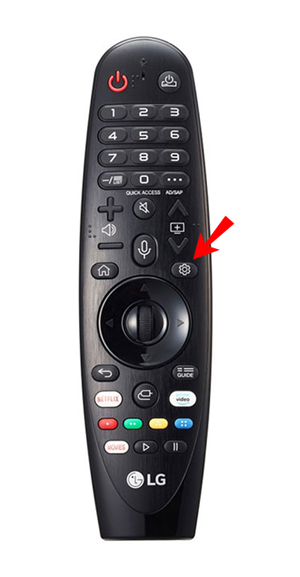
Find the button with a microphone icon on your LG remote. This is the voice control button. It is often near the center or top of the remote. Pressing this button activates the voice assistant.
Press And Hold The Voice Control Button
Press and hold the microphone button for a few seconds. A menu or message appears on your TV screen. This menu lets you turn off voice control. Keep holding until you see the option to disable voice commands.
Confirm Voice Control Deactivation
Use the arrow keys on your remote to select the option to turn off voice control. Press the OK or Enter button to confirm. Your LG TV will then disable the voice assistant feature. You can now use the remote without voice interruptions.
Credit: kdfoundation.org
Adjust Accessibility Options
Adjusting accessibility options on your LG TV helps control the voice assistant feature. These settings let you turn off voice guidance and other spoken feedback. It improves your watching experience by removing unwanted voice prompts.
Accessing the accessibility menu is simple. It offers tools to customize your TV’s audio and visual aids. You can disable voice assistant easily through these settings.
Open The Settings Menu
Press the Home button on your LG remote. Navigate to the Settings icon. Select it to open the main menu. This step brings you to all the TV’s options.
Find Accessibility Settings
Scroll down to the Accessibility section. It contains all features for users who need extra help. Select Accessibility to see voice assistant controls and other aids.
Turn Off Voice Guidance
Inside Accessibility, locate the Voice Guidance option. This feature reads out menu items aloud. Switch it off to stop the TV from speaking to you.
Check Other Audio Assistance
Look for options like Audio Description or Spoken Menus. Disable them if you do not want any spoken content. These settings reduce unnecessary audio prompts.
Save And Exit
After turning off voice options, exit the menu. Your changes save automatically. The TV will no longer use the voice assistant during use.
Troubleshoot Voice Assistant Issues
Voice assistant features on LG TVs can sometimes cause problems. These issues may stop the assistant from working properly. Troubleshooting helps fix these issues quickly. It also improves your TV experience.
Try some simple steps to resolve voice assistant problems. These tips can make your TV respond better. Follow the guides below to troubleshoot effectively.
Check Microphone Settings
Make sure the microphone is turned on. Go to your TV settings and find the voice or microphone option. Ensure it is enabled. If it is off, the voice assistant will not hear commands.
Restart Your Lg Tv
Turn off the TV and unplug it from the power source. Wait for about one minute. Plug the TV back in and turn it on. Restarting can clear temporary glitches affecting voice control.
Update Tv Software
Open the settings menu and select ‘All Settings’. Find the ‘General’ section and then ‘About This TV’. Check for available software updates. Installing updates can fix bugs and improve voice assistant functions.
Reset Voice Assistant Settings
Go to the voice assistant section in settings. Look for an option to reset or clear voice data. Resetting can solve errors caused by corrupted settings or data.
Test The Remote Control Microphone
Speak clearly into the remote’s microphone. If the voice assistant does not respond, the remote may have issues. Try using a different remote or check the batteries to fix this.
Prevent Accidental Activation
Preventing accidental activation of the voice assistant on your LG TV helps avoid unwanted interruptions. Voice commands can start unexpectedly from background noise or random words. Disabling or managing this feature ensures better control over your TV experience.
Turn Off Voice Activation In Settings
Access the TV’s settings menu using the remote. Find the “Voice” or “AI” section. Switch off the voice assistant option to stop it from activating. This simple step reduces accidental triggers significantly.
Mute The Microphone On The Remote
Most LG remotes have a microphone mute button. Press it to disable the mic temporarily. This prevents the TV from listening to any voice input until you unmute. It’s a quick way to stop accidental activation without changing settings.
Limit Voice Assistant Activation Words
Some LG TVs allow changing the activation phrase or turning it off. Check your model’s options to select fewer triggers or none at all. This lowers the chance of the assistant starting by mistake.
Use Manual Controls Instead
Rely on buttons or the touchscreen to control your TV. Avoid using voice commands if accidental activation bothers you. Manual controls are reliable and prevent unexpected voice assistant responses.

Credit: www.youtube.com
Frequently Asked Questions
How Do I Disable Voice Assistant On Lg Tv?
To disable the voice assistant, go to Settings > Accessibility > Voice Guide. Turn off the Voice Guide option to stop voice assistance on your LG TV.
Can I Turn Off Voice Control On Lg Smart Tv?
Yes, you can turn off voice control by accessing the Settings menu. Navigate to General > AI Service or Voice Recognition and disable the voice control feature.
Why Is My Lg Tv Voice Assistant Always Active?
The voice assistant may be set to activate by default. Check Accessibility and AI features settings to disable automatic voice assistant activation.
Does Turning Off Voice Assistant Affect Lg Tv Functions?
No, turning off the voice assistant does not affect other TV functions. You can still use the remote and other features normally.
Conclusion
Turning off the voice assistant on your LG TV is quick and simple. You just need to follow a few clear steps in the settings menu. Doing this stops unwanted voice commands and helps protect your privacy. It also makes your TV experience more comfortable if you do not want voice control.
Keep this guide handy for easy reference anytime. Enjoy your LG TV the way you prefer, without distractions.