
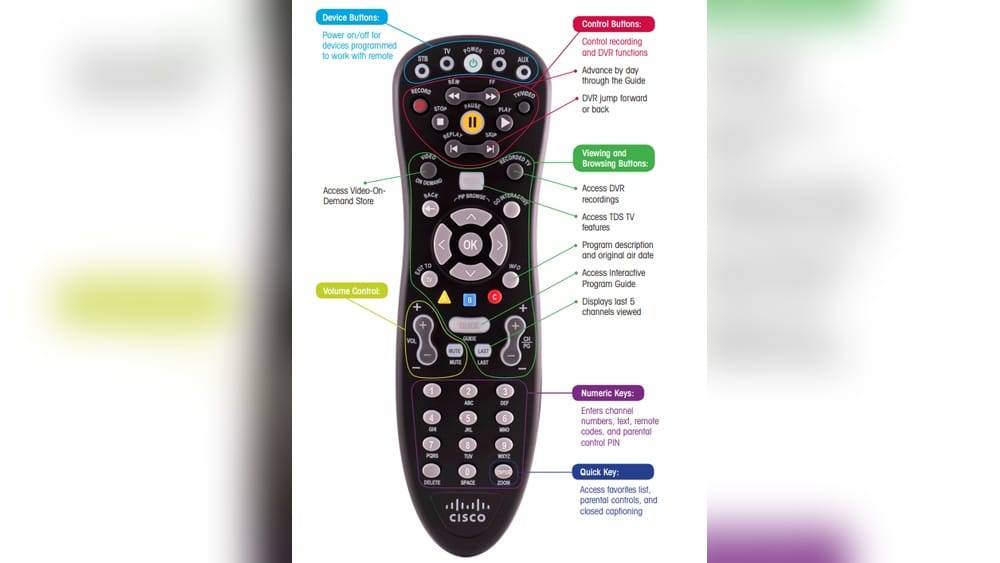
When your TV remote control stops working or doesn’t respond to your commands, life gets inconvenient fast. Maybe you bought a new TV, changed cable providers, or lost the original remote. The good news is, most remotes can be reprogrammed—even universal ones—so they work with your device again.
Reprogramming a TV remote is a practical skill that saves time, money, and frustration. This guide will show you how to do it step by step, explain common mistakes, and answer questions you might have. Whether you have a standard remote, a universal remote, or a smart remote, you’ll find everything you need to get your remote working perfectly.
Understanding Tv Remote Control Types
Before starting, it’s important to know which type of remote you have. The reprogramming method depends on this. Here are the main types:
- Standard TV Remote: Comes with your TV. Usually works only with that brand and model.
- Universal Remote: Can be programmed to control multiple devices. Useful if you have several electronics.
- Smart Remote: Often connects via Bluetooth or Wi-Fi. Used for smart TVs and streaming devices.
Some remotes have extra features, like voice control or touchpads. But the basic programming process stays similar. Knowing your remote type helps you choose the correct method and avoid wasting time.
Standard Tv Remote
These remotes are simple. They usually work with the original TV only. If you need to reprogram, it often means resetting the remote or pairing it again.
Universal Remote
Universal remotes are popular. They let you control TV, DVD, audio systems, and sometimes even air conditioners. They use codes to pair with devices. Programming takes a few steps, but once done, you can control many gadgets with one remote.
Smart Remote
Smart remotes are often paired with smart TVs or streaming devices like Roku, Fire TV, or Apple TV. These remotes may require app setup or Bluetooth pairing. Reprogramming can involve both hardware and software steps.
Why Reprogram A Tv Remote Control?
People reprogram remotes for different reasons. Here are the most common:
- Lost original remote: You buy a replacement and need it to work with your TV.
- Changed TV model: The old remote doesn’t work with the new TV.
- Multiple devices: Want one remote for TV, sound system, and streaming device.
- Remote stopped working: Sometimes, the remote loses pairing after a power outage or battery change.
Reprogramming fixes these problems and lets you use your devices again without buying expensive replacements.
Essential Tools And Preparation
Getting ready saves time and prevents mistakes. Here’s what you need:
- TV remote control
- TV (or other device you want to control)
- Fresh batteries
- Device manual or model number
- Programming codes list (for universal remotes)
- Internet access (to find codes or download apps for smart remotes)
Put fresh batteries in your remote before starting. Weak batteries cause many programming failures. Also, find your TV model number—it’s usually on the back or in the manual. This helps you find the correct programming code.
Step-by-step Guide: How To Reprogram A Tv Remote Control
Let’s break down the steps by remote type. Follow the process that matches your remote.
Reprogramming A Standard Tv Remote
Most standard remotes don’t need much programming. But if yours isn’t working, try these steps:
- Remove batteries from the remote. Wait 30 seconds.
- Insert fresh batteries. Weak batteries cause many issues.
- Reset the remote by holding the power button for 10 seconds.
- Point the remote at the TV and press the power button. If the TV turns on/off, the remote is working.
- If not, check for pairing instructions in the TV manual. Some brands (like Samsung or LG) require you to press specific buttons to pair.
If you still have trouble, try unplugging the TV for 30 seconds, then plug it back in and repeat the steps.
Programming A Universal Remote
Universal remotes need codes to control different brands. Here’s how to do it:
- Find the remote code for your TV brand. This is usually in the manual or online.
- Turn on the TV you want to control.
- Press and hold the “Setup” button on the remote. Hold until the indicator light turns on.
- Enter the code for your TV. Use the number buttons.
- Press the power button. If the TV turns off, the code works.
- If not, repeat with another code from the list.
Some remotes have auto-search features. You press “Setup,” then “TV,” and the remote cycles through codes. When the TV responds, stop the process.
Example: Programming A Universal Remote For Samsung Tv
Let’s say your TV is Samsung. The code could be 1004, 1005, or 1012.
- Press and hold “Setup.”
- Press “TV.”
- Enter “1004.”
- Press “Power.” If the TV responds, you’re done. If not, try “1005,” then “1012.”
Pairing A Smart Remote
Smart remotes may use Bluetooth, Wi-Fi, or apps. Here’s how to pair them:
- Turn on the TV and remote.
- Open the TV settings menu.
- Go to “Remote and Accessories” or similar.
- Select “Pair new remote” or “Add device.”
- Follow on-screen instructions. You may need to hold certain buttons on the remote to start pairing.
- If required, download the manufacturer’s app (e.g., Samsung SmartThings, LG ThinQ) and follow app instructions.
Smart remotes sometimes update themselves. Make sure your TV firmware is current. If pairing fails, restart both the TV and remote.

Credit: www.youtube.com
Programming Codes: Where To Find Them And How They Work
Programming codes are essential for universal remotes. Each code is a set of numbers that tells the remote how to talk to your TV or device. These codes are unique for each brand and sometimes for each model.
Where To Find Programming Codes
- Remote manual: Most remotes come with a list of codes.
- TV manual: Sometimes, the TV manual includes codes for compatible remotes.
- Manufacturer’s website: Search “[brand] remote codes.”
- Online databases: Many websites list codes for popular brands. For example, Wikipedia has lists for major TV brands.
How Codes Work
When you enter the code, the remote sends signals your TV understands. Some brands have multiple codes, so you may need to try several. If your remote supports auto-search, it will cycle through codes for you.
Example Remote Code List
Here’s a sample code list for popular TV brands:
| Brand | Code 1 | Code 2 | Code 3 |
|---|---|---|---|
| Samsung | 1004 | 1005 | 1012 |
| Sony | 1001 | 1036 | 1062 |
| LG | 1002 | 1018 | 1043 |
| Toshiba | 1025 | 1057 | 1063 |
Try each code until your TV responds.
Auto-search Vs. Manual Code Entry
Universal remotes often have two ways to program:
- Manual code entry: You enter the code yourself.
- Auto-search: The remote cycles through all codes for a device type.
Manual entry is faster if you have the code. Auto-search is useful when you don’t know the code or your TV is a rare model.
Auto-search Programming Steps
- Hold “Setup” until light turns on.
- Press “TV.”
- Press “Power” repeatedly. The remote cycles through codes.
- When the TV turns off, stop pressing.
Auto-search can take several minutes, but it helps if you can’t find the code.
Troubleshooting Common Remote Reprogramming Problems
Reprogramming isn’t always easy. Here are frequent issues and solutions:
Remote Doesn’t Respond
- Check batteries. Low power is the most common cause.
- Clean the remote’s IR sensor with a dry cloth.
- Unplug the TV for 30 seconds and try again.
Tv Doesn’t Respond After Programming
- Try another code. Not all codes work for every TV model.
- Move closer to the TV. IR signals can be blocked by objects.
- Check for firmware updates on smart TVs.
Remote Works Only Partially
- Some buttons work, others don’t: This often means the wrong code was used. Try other codes for your brand.
- Volume or input buttons fail: These features might need separate programming on some remotes.
Smart Remote Won’t Pair
- Restart TV and remote.
- Check Bluetooth settings and ensure both devices are discoverable.
- Update remote firmware via app or TV settings.
Non-obvious Insight: Hidden Reset Functions
Many remotes have hidden reset functions. For example, holding “Setup” and “Power” together for 10 seconds resets some universal remotes. This is rarely mentioned in manuals but solves stubborn pairing problems.
Practical Tips For Successful Remote Reprogramming
Some practical advice makes the process smoother:
- Write down codes you try: This prevents repeating failed attempts.
- Clear the room of obstacles: IR signals need a straight path.
- Check for interference: Fluorescent lights, sunlight, and other electronics can block signals.
- Use correct device mode: If programming for TV, select “TV.” For DVD, select “DVD.”
- Update smart remote apps: Apps often fix bugs and improve pairing.
Non-obvious Insight: Multiple Device Codes
Universal remotes can store codes for several devices. For example, you can program TV, DVD, and soundbar together. Use “Mode” buttons to switch between devices.
Comparing Universal Remote Brands
Choosing the right universal remote makes programming easier. Here’s a comparison of popular brands:
| Brand | Supported Devices | Programming Methods | Price Range |
|---|---|---|---|
| Logitech Harmony | TV, DVD, streaming, smart home | App, manual, auto-search | $50–$250 |
| GE Universal | TV, DVD, audio | Manual, auto-search | $10–$30 |
| Philips Universal | TV, DVD | Manual, auto-search | $10–$25 |
| Sony Universal | TV, DVD, audio | Manual, auto-search | $15–$40 |
Logitech Harmony is more expensive but supports more devices and uses an app for easier setup. GE and Philips are affordable and cover basic needs.
Reprogramming Remotes For Streaming Devices
Streaming devices like Roku, Fire TV, and Apple TV have unique remotes. If you need to reprogram, follow these steps:
Roku Remote
- Remove batteries. Wait 30 seconds.
- Insert fresh batteries.
- Press pairing button inside battery compartment.
- Wait for blinking light. The remote will pair with your Roku device.
Fire Tv Remote
- Unplug Fire TV device. Wait 60 seconds.
- Plug in and wait for home screen.
- Press and hold “Home” button for 10 seconds.
- Remote should pair automatically.
Apple Tv Remote
- Place remote near Apple TV.
- Press and hold “Menu” and “Volume Up” for 5 seconds.
- Wait for pairing message on screen.
If pairing fails, restart the streaming device and repeat the process.
Safety And Care Tips For Tv Remotes
Proper care extends remote life and keeps programming successful.
- Avoid dropping the remote: Internal circuits are sensitive.
- Keep remote clean: Dust and dirt block buttons and sensors.
- Store remote away from heat and moisture: Batteries can leak if exposed.
- Replace batteries every 6–12 months: Even if the remote is working, weak batteries cause programming issues.
Advanced Remote Features And Reprogramming
Some remotes have advanced features like macro buttons, backlighting, or voice commands. Programming these can be more complex.
- Macro buttons: Let you program several actions with one press. For example, “Turn on TV and switch to HDMI.”
- Backlighting: Often needs no programming but check the manual.
- Voice commands: Usually require pairing with a smart device and enabling voice assistant features.
Refer to the manufacturer’s instructions for these features. Not all universal remotes support advanced functions.
What To Do When Remote Programming Fails
If nothing works, try these steps:
- Check if the remote is compatible with your TV. Some remotes don’t support every brand.
- Look for firmware updates for smart TVs and remotes.
- Contact customer support. Some brands offer live chat or phone support.
- Buy a replacement remote. If your remote is too old or damaged, getting a new one may be the best option.
Real-world Example: Reprogramming A Universal Remote For Multiple Devices
Let’s say you have a GE Universal remote and want to control your TV, DVD, and soundbar.
- TV: Find code for your brand. Enter using “Setup” and “TV.”
- DVD: Find code. Enter using “Setup” and “DVD.”
- Soundbar: Find code. Enter using “Setup” and “AUX.”
Now, switch modes using the buttons (“TV,” “DVD,” “AUX”) to control each device. This saves space and reduces clutter.
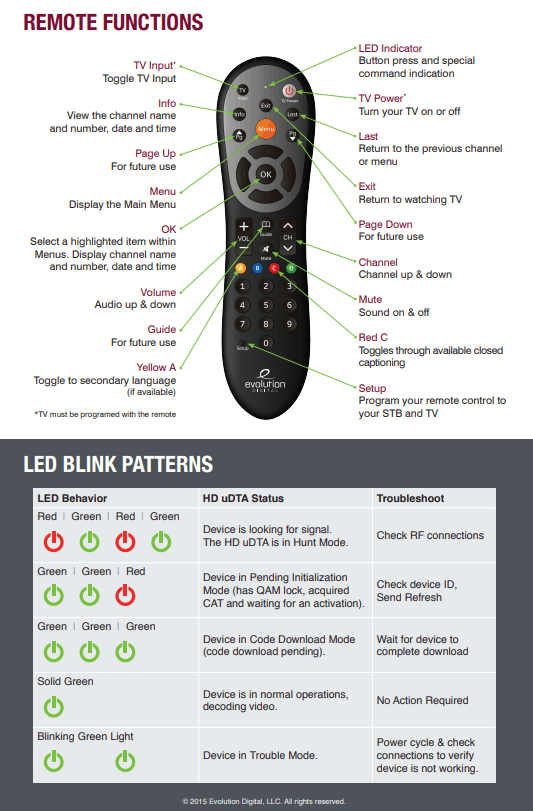
Credit: www.hbci.com
Comparing Remote Programming Methods
Different remotes use different programming methods. Here’s a comparison:
| Method | Ease of Use | Success Rate | Time Needed |
|---|---|---|---|
| Manual Code Entry | Medium | High (if code is correct) | 2–5 minutes |
| Auto-Search | Easy | Medium | 5–15 minutes |
| App-Based Setup | Easy | High | 3–10 minutes |
Manual entry is faster if you know the code. Auto-search is useful for rare brands. App-based setup is easiest for smart remotes.
Common Mistakes To Avoid
Avoid these errors to save time and prevent frustration:
- Using old batteries: Always use fresh ones.
- Not pointing remote at TV: IR remotes need direct line of sight.
- Entering wrong code: Double-check code lists.
- Skipping mode selection: Always select “TV,” “DVD,” or “AUX” before programming.
- Ignoring firmware updates: For smart remotes and TVs, updates fix bugs.
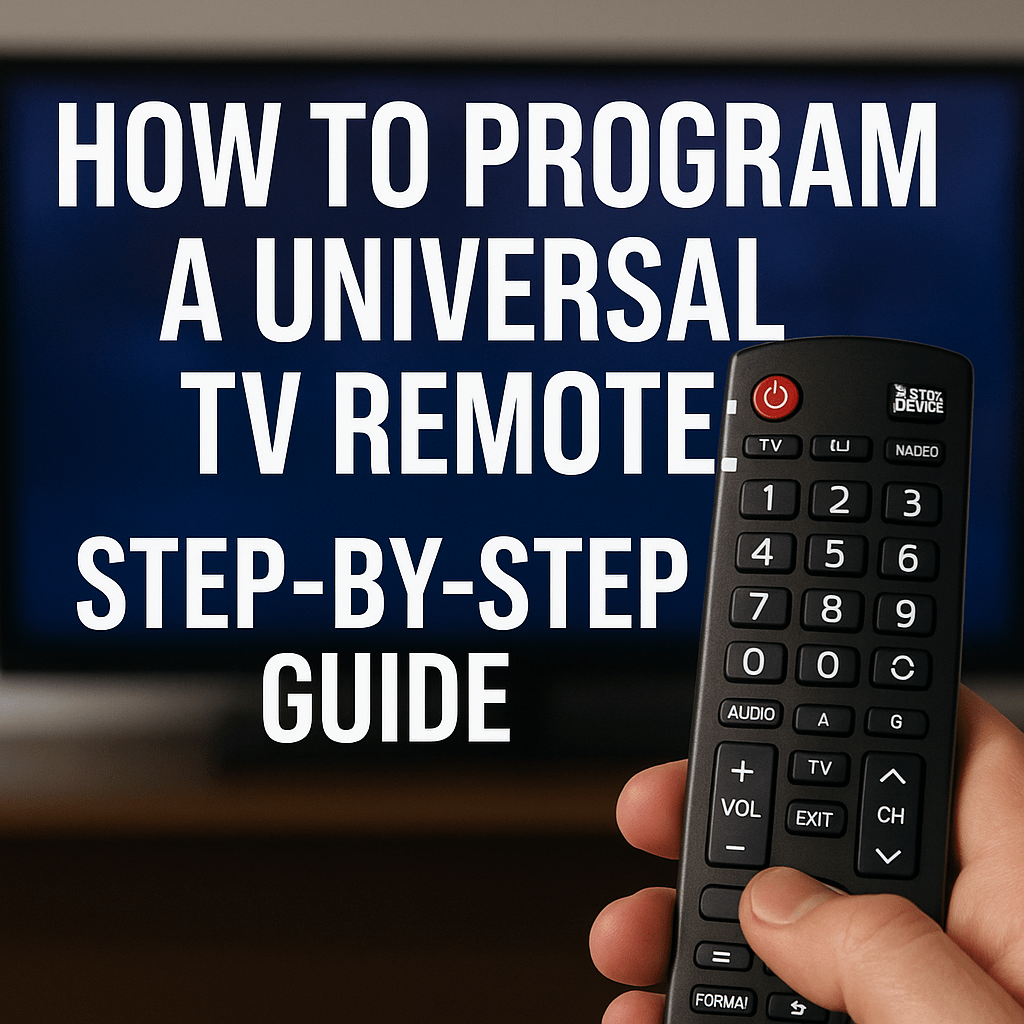
Credit: www.officecatch.com.au
Frequently Asked Questions
How Do I Know If My Remote Is Universal?
Look for labels like “Universal Remote” or multiple device buttons (“TV,” “DVD,” “AUX”). Universal remotes can control more than one device and often come with a code list.
What If My Tv Brand Isn’t Listed In The Code List?
Try the auto-search method. Universal remotes can scan through codes for unknown brands. If your TV is very new or rare, check the manufacturer’s website for updated codes.
Can I Use One Remote For All My Devices?
Yes, if you have a universal remote. You can program it for TV, DVD, audio, and sometimes streaming devices. Just select the correct mode before using.
Why Does My Remote Work For Some Buttons But Not Others?
This usually means the wrong code was used. Try other codes for your brand. Some features (like input or volume) may need special programming.
Is It Safe To Buy Third-party Remotes?
Most third-party remotes are safe if they are from reputable brands. Look for compatibility with your devices. Avoid very cheap remotes—they may lack quality and support.
Reprogramming your TV remote can seem tricky, but it’s usually simple with the right steps. By understanding your remote type, gathering codes, and following clear instructions, you can fix most problems yourself. Fresh batteries and a clear line of sight are key.
If you still have trouble, don’t hesitate to ask for help or contact support. With these practical tips and step-by-step guides, your remote will soon be back in control—saving you time, money, and hassle.