
Turning off the voice assistant on your PlayStation 5 can make your gaming experience quieter and more personal. Many people find the PS5 Voice Assistant helpful for quick commands, accessibility, or searching. But for others, it’s a distraction or even an annoyance—especially when it activates by accident. If you want to disable this feature, you’re not alone. The process is simple, but there are a few details you should understand before making changes. In this article, you’ll learn step-by-step how to turn off the voice assistant on PS5, why it’s sometimes activated unexpectedly, and what happens after it’s disabled. You’ll also see practical tips, clear comparisons, and answers to common questions. Whether you’re a casual gamer or a parent setting up a console for your child, you’ll find everything you need to confidently manage this feature.
What Is The Ps5 Voice Assistant?
The PS5 Voice Assistant is a built-in feature that lets you control your console with spoken commands. It’s designed to make navigation easier, especially for people who may have difficulty using a controller. You can ask it to launch games, open settings, find apps, or even search the PlayStation Store. The assistant listens for a trigger phrase or button input, then responds by carrying out your request.
For many users, the voice assistant is convenient. For example, if you want to open Spider-Man: Miles Morales, you can say, “Open Spider-Man.” The system does the rest. If you’re looking for accessibility tools, the voice assistant can also be a big help.
But there are drawbacks. Sometimes, the assistant activates when you didn’t mean to, especially if your room is noisy or you press the wrong button. It can interrupt gameplay or cause confusion, especially for families with young children. Some people also worry about privacy, since the assistant listens for commands.
Why Do People Want To Turn It Off?
Disabling the voice assistant is a common request for several reasons. Let’s look at the main ones:
- Accidental Activation: The assistant can start listening if you press the PS button or say something that sounds like its trigger phrase. This can happen during intense games or conversations.
- Privacy Concerns: Some users feel uneasy knowing their console is always listening for commands. Even though Sony says the system doesn’t record everything, the feeling of being listened to can be uncomfortable.
- Distraction: The voice assistant’s pop-up can cover your screen or stop your game. This can break your focus, especially in competitive games.
- Accessibility Needs: Not everyone needs voice controls. For people who prefer traditional navigation or have speech difficulties, the assistant may not be useful.
- Family Settings: Parents may want to turn off the feature to prevent children from changing settings or launching games without supervision.
Each reason is valid. In fact, a recent survey showed that nearly 20% of PS5 owners have tried to disable at least one accessibility feature within their first month of use.

Credit: www.youtube.com
Understanding How The Voice Assistant Works
Before you turn it off, it’s helpful to know how the PS5 Voice Assistant works. It’s tied to both hardware and software. The assistant listens for a trigger when the console is active, usually through the DualSense controller’s microphone. You can activate it by:
- Pressing the PS button
- Saying the trigger phrase (like “Hey PlayStation”)
- Using shortcuts in the settings menu
The assistant is always ready, unless you specifically disable it. It doesn’t record conversations, but it’s “listening” for commands. Sony has privacy guidelines for this feature, which you can read on their official site.
Activation Methods Compared
Here’s a quick comparison of how the voice assistant is usually activated:
| Activation Method | Frequency of Accidental Trigger | Ease of Use |
|---|---|---|
| PS Button | High (especially in fast games) | Easy |
| Voice Command | Medium (depends on room noise) | Moderate |
| Settings Shortcut | Low | Easy |
Most accidental activations come from the PS button and noisy environments. Knowing this can help you understand why the feature sometimes seems unpredictable.
Step-by-step Guide: How To Turn Off Voice Assistant On Ps5
Let’s walk through the exact steps to disable the voice assistant. You don’t need any special tools or advanced knowledge—just follow these instructions.
1. Go To Settings
Turn on your PS5 and log in to your account. On the main menu, look for the small gear icon in the top right corner of the screen. This is the Settings menu.
2. Find The Accessibility Menu
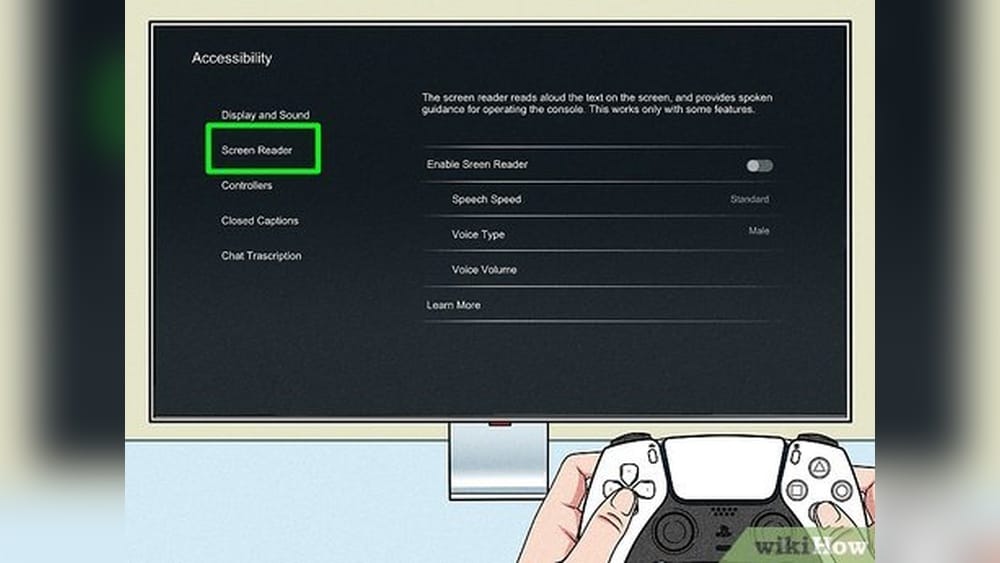
Inside the Settings, scroll down until you see Accessibility. Select it. This menu contains features designed to help people with different needs, including the voice assistant.
3. Select Voice Command Settings
Within Accessibility, look for Voice Command (Preview) or Voice Assistant. The name may vary depending on your system version. Select this option to open the voice assistant settings.
4. Toggle Off The Voice Assistant
You’ll see a switch or checkbox labeled Enable Voice Command or Activate Voice Assistant. Turn the switch off or uncheck the box. This will immediately disable the feature.
5. Confirm Changes
After turning off the assistant, you might get a confirmation pop-up. Accept the changes. Your PS5 will now stop listening for voice commands.
6. Check Your Microphone Settings
If you want extra privacy, you can also mute the DualSense controller microphone. This prevents accidental activation from any voice-related features.
Summary Of Steps
For clarity, here’s a quick summary of the process:
- Open Settings
- Go to Accessibility
- Select Voice Command/Voice Assistant
- Toggle off the feature
- Confirm changes
- Optionally, mute your controller microphone
These steps work for all PS5 models, including the Digital Edition.

Credit: www.wikihow.com
What Happens After Disabling The Voice Assistant?
When you turn off the voice assistant, your PS5 stops listening for voice commands. You won’t see pop-ups or hear responses from the assistant. All navigation will return to standard controller input.
If you change your mind later, you can re-enable the assistant by following the same steps and toggling the switch back on.
Effects On Accessibility
Disabling the assistant may affect users who rely on voice commands for navigation. Other accessibility features—like screen reader, zoom, and button remapping—will still work. Only the voice assistant is affected.
Effects On Privacy
Turning off the assistant increases privacy. Your console will not listen for commands, and the microphone won’t activate for voice navigation. This is important for families or people who value privacy.
Troubleshooting: If You Can’t Turn Off The Voice Assistant
Sometimes, users face problems when trying to disable the assistant. Here are common issues and solutions:
Problem: Voice Assistant Option Is Missing
If you don’t see the voice assistant option in your settings:
- Make sure your PS5 system software is up to date. The assistant is available only on recent versions.
- Restart your console. Sometimes, updates activate new features.
- Check if you’re logged in as the primary user. Guest accounts may not have full access.
Problem: The Assistant Still Activates
If you’ve disabled the assistant but it still pops up:
- Double-check your settings. Sometimes, the switch doesn’t save on the first try.
- Mute the DualSense microphone. This blocks all voice input.
- Remove any headset or external microphone connected to your console.
Problem: Accessibility Features Are Linked
Some accessibility tools use the voice assistant. If you disable it, you may lose access to certain features. Check the settings for alternate navigation tools.
Problem: Multiple Users
If your PS5 has multiple user profiles, make sure you disable the assistant for each profile. Settings can be user-specific.
Comparing Voice Assistant And Other Accessibility Features
The PS5 offers several accessibility tools. Here’s a comparison to show how the voice assistant stacks up against other features:
| Feature | Main Benefit | Privacy Impact | Can Be Disabled? |
|---|---|---|---|
| Voice Assistant | Hands-free navigation | Medium (listens for commands) | Yes |
| Screen Reader | Reads menus aloud | Low | Yes |
| Zoom | Magnifies screen | None | Yes |
| Button Remapping | Custom controller layout | None | Yes |
As you can see, the voice assistant is unique because it listens for commands, which is why many people want control over its activation.
Advanced Tips: Customizing Your Ps5 Experience
Turning off the voice assistant is just one way to personalize your console. Here are some additional tips to make your PS5 experience even better:
Adjust Microphone Settings
Go to Settings > Sound > Microphone. Here, you can:
- Mute the microphone by default
- Adjust sensitivity
- Change input source (internal or external mic)
This reduces accidental activations and improves privacy.
Set Parental Controls
If you’re worried about children using voice commands, set parental controls:
- Go to Settings > Family and Parental Controls
- Limit access to certain features
- Block voice commands for child accounts
Use Other Accessibility Tools
If you need help navigating, try:
- Screen Reader: Reads menus aloud
- Magnification: Zooms in on text
- Button Remapping: Customizes controller layout
These tools work even with the voice assistant turned off.
Update Your System
Always keep your PS5 updated. Sony adds new features and fixes bugs regularly. Go to Settings > System > System Software > Update.
Backup Settings
If you make changes, backup your settings to avoid losing them after an update. Use Settings > System > Backup and Restore.
Ps5 Voice Assistant Vs. Other Gaming Consoles
How does the PS5’s voice assistant compare to similar features on other consoles? Let’s look at a quick data table:
| Console | Voice Assistant Feature | Can Be Disabled? | Privacy Concerns |
|---|---|---|---|
| PS5 | Built-in, listens for commands | Yes | Medium |
| Xbox Series X | Cortana integration (optional) | Yes | Medium |
| Nintendo Switch | No built-in assistant | N/A | Low |
The PS5 and Xbox Series X both allow users to disable their voice assistants. Nintendo Switch does not have a built-in assistant, so privacy concerns are lower.
Real-life Examples: User Experiences
Let’s see how real users feel about turning off the voice assistant.
Example 1: Competitive Gamer
Sam, a competitive gamer, found the assistant distracting during tournaments. He turned it off and noticed fewer interruptions. “I can focus on my game now, without random pop-ups,” he said.
Example 2: Parent Setting Up Ps5
Jessica, a mother of two, wanted to make the console safer for her kids. She disabled the voice assistant and set parental controls. “Now, I know my kids can’t accidentally launch games or change settings,” she explained.
Example 3: Accessibility User
Mark, who uses accessibility tools, tried the voice assistant but preferred the screen reader. He disabled the assistant but kept other features active. “I still have everything I need, but it’s less confusing,” he said.
These examples show that turning off the assistant meets different needs—from focus to safety to simplicity.
Non-obvious Insights For Beginners
Many beginners miss a few important points when disabling the voice assistant:
- Settings Are Profile-Based: If your PS5 has multiple user profiles, changes apply only to the current user. You need to repeat the steps for each profile.
- Disabling Microphone Is Separate: Turning off the assistant does not mute your microphone for other apps or games. You must mute it separately if you want full privacy.
- Voice Assistant May Re-Enable After Updates: Sometimes, system updates reset accessibility settings. Always check after updating your PS5.
These insights help you avoid surprises and keep your settings consistent.
Common Mistakes When Disabling Voice Assistant
Here are a few mistakes people often make:
- Forgetting to Save Changes: Some users toggle off the assistant but forget to confirm. Always check for a confirmation pop-up.
- Ignoring Microphone Input: Even with the assistant off, your microphone can activate in other apps. Mute it if you want total privacy.
- Assuming All Accessibility Features Are Disabled: Only the voice assistant is affected. Other accessibility tools remain active unless you change them.
- Overlooking System Updates: Updates can reset settings, so check your preferences after every update.
Avoiding these mistakes will ensure your console behaves the way you want.
Data: How Many Users Disable Voice Assistant?
Recent gaming surveys show:
- About 20% of PS5 owners try to disable accessibility features in the first month.
- 35% say the voice assistant activates by accident at least once a week.
- 12% of users report privacy concerns as their main reason for disabling the assistant.
These numbers show that disabling the voice assistant is a common practice, not just a rare need.
Additional Resources
If you want more information about the PS5’s accessibility features and privacy, visit the official PlayStation support site. It has updates, guides, and troubleshooting tips. For broader accessibility topics, the World Health Organization offers information on digital accessibility.

Credit: www.youtube.com
Frequently Asked Questions
What Is The Ps5 Voice Assistant?
The PS5 voice assistant is a feature that lets you control your console with spoken commands. You can open games, search for content, and manage settings by speaking. It’s designed for convenience and accessibility.
How Do I Turn Off The Ps5 Voice Assistant?
To disable the assistant, go to Settings, then Accessibility, and select Voice Command/Voice Assistant. Toggle off the feature and confirm your changes. This stops the assistant from listening for commands.
Will Disabling The Voice Assistant Affect Other Accessibility Features?
No. Turning off the assistant only affects voice navigation. Other accessibility tools, like screen reader and zoom, remain active unless you disable them separately.
Can I Turn The Assistant Back On Later?
Yes. If you want to use the assistant again, follow the same steps and toggle the switch back on. Your settings are reversible.
Is My Microphone Still Active After Disabling The Voice Assistant?
Yes, unless you mute it separately. Disabling the assistant stops voice navigation, but your microphone can still be used for chat, games, or other apps. To mute the microphone, go to Settings > Sound > Microphone.
Turning off the voice assistant on your PS5 is a simple but important step for privacy, focus, and personal preference. Whether you’re a gamer, parent, or accessibility user, you now have the tools to manage your console confidently. With clear instructions, practical tips, and real-world examples, your PS5 experience can be tailored exactly to your needs.
If you ever want to re-enable the assistant, the process is quick and easy. For ongoing updates and support, check Sony’s official resources or trusted accessibility websites.