
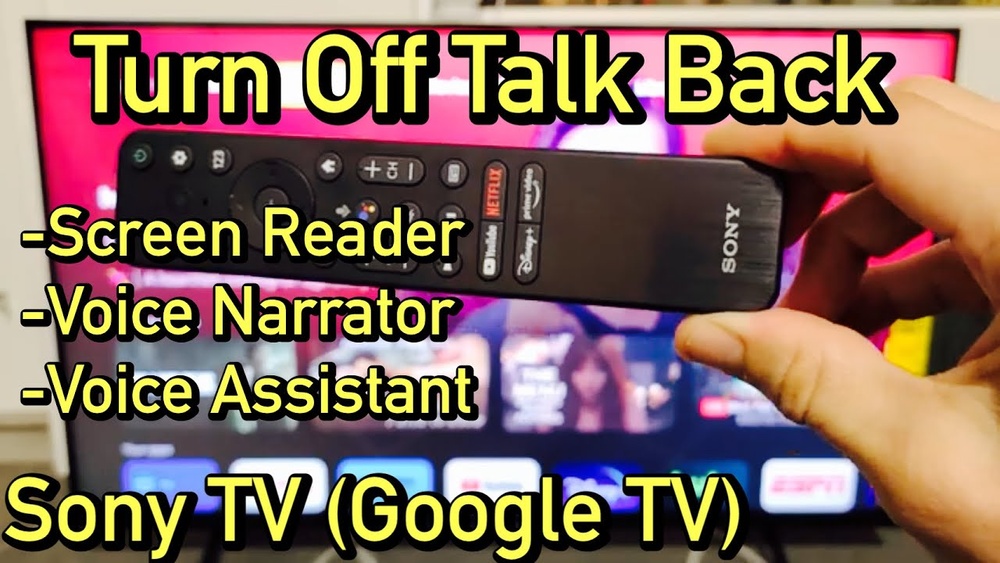
Most Sony TV owners enjoy the convenience of a built-in voice assistant. With just a simple command, you can change channels, adjust volume, or search for your favorite show. But sometimes, the voice assistant gets in the way—maybe it activates by accident, or you find it distracting. Turning it off isn’t always obvious, especially with so many Sony TV models and software versions. If you’re frustrated by random pop-ups or just want a quieter viewing experience, this guide explains how to turn off the voice assistant on your Sony TV step by step.
Understanding The Voice Assistant On Sony Tvs
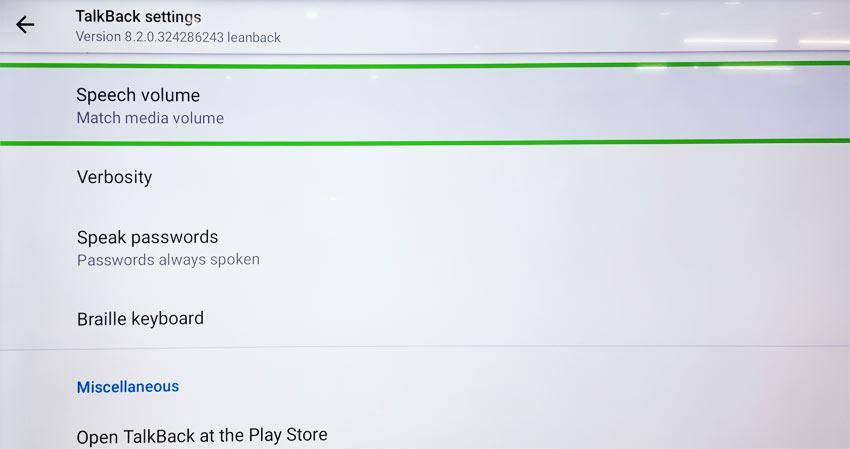
Sony TVs use different voice assistants depending on the model and region. The most common are the Google Assistant, Amazon Alexa, and Sony’s own Voice Guide (sometimes called TalkBack or Screen Reader). These features are designed to help you control your TV hands-free, but the controls to turn them off are not always in the same place.
Some TVs have a microphone built into the remote or the TV itself. Others require you to hold a button to activate voice commands. Knowing which assistant you have is the first step to turning it off.
Why Turn Off The Voice Assistant?
- Privacy concerns: Some users worry about microphones always listening.
- Accidental activation: Voice assistant turns on when you don’t want it.
- Preference: Some people simply prefer using regular buttons.
- Performance: Turning off extra features can sometimes make your TV run smoother.
Whatever your reason, you should know it’s safe to turn off the voice assistant. You can always turn it back on later if you change your mind.
Identifying Your Sony Tv Model And Software
Before you start, find your Sony TV model number. You’ll usually find this on a sticker on the back of the TV, or in the TV’s Settings under About > Device Name. The model number helps you identify which software your TV uses:
- Android TV (2015–2020)
- Google TV (2020 and later)
- Older Sony smart TVs (before 2015)
- Bravia models (a name for Sony’s smart TVs)
Knowing your model helps you follow the correct instructions. If you’re not sure, Sony’s official support site has a guide to identify your TV model.
Credit: technastic.com
Turning Off Google Assistant On Sony Android Tv
If your Sony TV uses Android TV (most Bravia models from 2015–2020), Google Assistant is built in. Here’s how to turn it off:
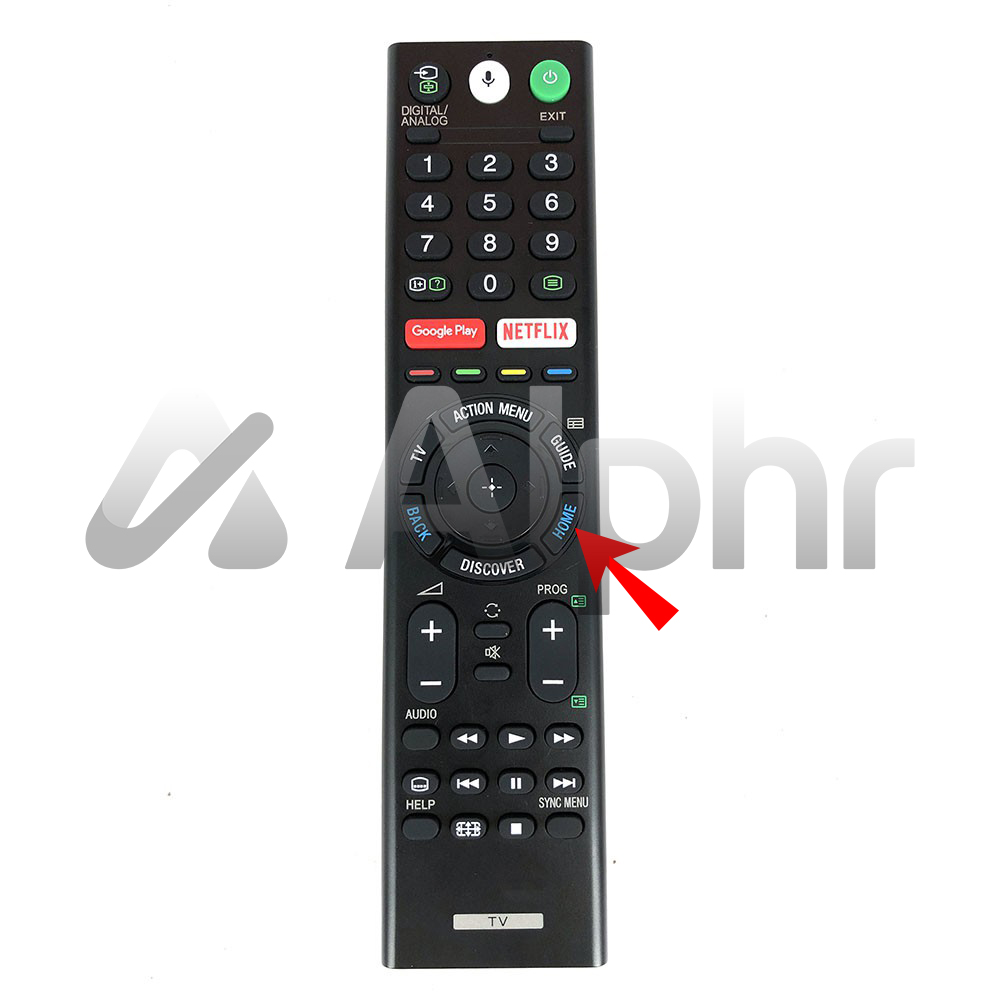
- Press the Home button on your remote.
- Scroll down and select Settings.
- Go to Accounts & Sign In.
- Select Google.
- Choose Google Assistant.
- Toggle off or disable Google Assistant.
Some TVs may show the option under Apps > See all apps > Google Assistant. If you don’t see the option, try searching for “Assistant” in the Settings menu.
Disabling The Microphone
If your TV has a physical mic switch (usually under the Sony logo or on the side), slide it to the off position. This will turn off the hands-free voice control, but you can still use the remote for voice commands if needed.
Example
On the Sony Bravia X900H (2020 model):
- Go to Settings > Device Preferences > Google Assistant.
- Switch “OK Google detection” to Off.
This will stop the TV from listening for “OK Google” wake words.
Turning Off Voice Guide (talkback Or Screen Reader)
If your TV reads out text or describes what’s on the screen, you have Voice Guide, TalkBack, or Screen Reader enabled. These are accessibility features meant for users who are visually impaired.
How To Turn Off Voice Guide
- Press Home on your remote.
- Go to Settings.
- Find Accessibility.
- Select Screen Reader, TalkBack, or Voice Guide (the name depends on your TV).
- Set it to Off.
On some models, you can also turn it off quickly:
- Hold the Mute button on your remote for 3 seconds. (This shortcut works on many Bravia TVs.)
Common Mistake
Many users look for “Voice Guide” in the wrong menu. It’s always under Accessibility, not under Sound or Audio settings.
Turning Off Amazon Alexa On Sony Tv
Some Sony TVs support Amazon Alexa. You may have set it up through a Sony TV Alexa app or paired it with an Echo device.
Disable Alexa From Tv Settings
- Press Home.
- Go to Apps.
- Find the Amazon Alexa app.
- Open the app, go to Settings, and unlink your account or disable Alexa.
Remove Alexa Skills
If you connected your TV through the Alexa app on your phone:
- Open the Alexa app.
- Go to Devices.
- Find your TV and remove it from your devices.
This disconnects the TV from Alexa voice control.
Turning Off Voice Search/voice Remote Function
If your Sony TV remote has a mic button (often labeled with a microphone icon), voice control might still be active from the remote even after disabling Google Assistant. Here’s how to stop the remote from listening:
- Remove batteries from the remote if you never use voice search.
- In Settings, go to Remotes & Accessories, then select your remote and unpair it. Re-pair without enabling voice.
This is rarely needed, but it gives you full control if you want all microphones off.
How To Turn Off Voice Assistant On Google Tv (2020 And Later)
Sony TVs with Google TV have a slightly different interface. Disabling the voice assistant is similar but menus look different.
- Press Settings (gear icon) on your remote.
- Scroll to Accounts & Sign In.
- Select your Google account.
- Find Google Assistant and turn it off.
If you can’t find the option, go to Apps, find Google Assistant, and choose Disable.
Hands-free Microphone
Some Google TVs have a physical switch for the built-in mic. Slide the switch to off to disable all voice commands.
Quick Comparison: Android Tv Vs Google Tv
Here’s a table to help you quickly spot the differences in turning off the voice assistant on each platform:
| Feature | Android TV | Google TV |
|---|---|---|
| Settings Location | Settings > Accounts & Sign In | Settings (gear icon) > Accounts & Sign In |
| Assistant App | Google Assistant under Apps | Google Assistant under Apps |
| Physical Mic Switch | On some models | On more recent models |
Turning Off Voice Assistant On Older Sony Smart Tvs
Sony’s smart TVs before 2015 may not have Google Assistant. Instead, they may use a basic voice search or the Voice Guide feature.
- Go to Settings from the Home menu.
- Choose Accessibility.
- Find Voice Guide or Screen Reader and turn it off.
If you don’t see these options, your TV may not have a voice assistant. Check your user manual for details.

Credit: www.youtube.com
Disabling Voice Assistant On Sony Tvs With Physical Microphone Switch
Some Sony TVs (especially premium models) have a physical microphone switch on the TV’s frame. It’s often labeled with a small mic icon.
- Locate the switch (usually under the Sony logo or on the side).
- Slide the switch to the off position.
This instantly disables hands-free voice controls, even if the software settings are still on.
Tip
If you use the remote’s voice button, the physical switch won’t affect it. The switch only controls the TV’s built-in microphone.
How To Check If Voice Assistant Is Off
After you turn off the voice assistant, you should check to make sure it’s really disabled.
- Try saying “OK Google” or “Alexa.” If the TV does not respond, it’s off.
- Press the mic button on the remote. You should see a message like “Voice assistant is off” or nothing at all.
- Navigate through menus. If you don’t hear the TV reading text aloud, Voice Guide is off.
If the assistant still responds, repeat the steps or restart your TV.
Troubleshooting: Voice Assistant Won’t Turn Off
Sometimes, the voice assistant stays on even after you change the settings. Here’s what you can do:
- Restart your TV. Sometimes changes don’t take effect until a reboot.
- Update your TV software. Go to Settings > Device Preferences > About > System Update.
- Factory reset as a last resort. This erases all settings and apps.
If you still have problems, contact Sony support or visit the Sony Support Center for help.
How Disabling Voice Assistant Affects Your Sony Tv
Turning off the voice assistant changes how your TV works:
- No voice commands: You must use the remote for everything.
- No hands-free features: “OK Google” or “Alexa” wake words won’t work.
- No voice search: You’ll have to type with the on-screen keyboard.
Some apps, like YouTube or Netflix, may still show a microphone icon. However, it won’t work if the assistant is off.
What Remains Unchanged
- TV picture and sound quality
- All apps and smart features
- Remote control buttons
Disabling the assistant does not affect updates or other smart TV functions.
Credit: umfg.is
Data And Privacy: Is Your Sony Tv Still Listening?
One reason many users turn off the voice assistant is privacy. With microphones built in, some people worry their conversations might be recorded.
- When off, mics do not send data: Turning off the assistant (and the hardware switch) means the TV is not listening for commands.
- Software updates: Always update your TV to the latest firmware. Sony improves privacy controls over time.
If you’re very concerned, unplug the TV when not in use. For most users, turning off the assistant is enough.
Voice Assistant Vs. Accessibility Features
It’s easy to confuse the voice assistant with accessibility features like TalkBack or Screen Reader. Here’s a quick comparison to help you tell the difference:
| Feature | Voice Assistant | Accessibility (Voice Guide/TalkBack) |
|---|---|---|
| Main Purpose | Control TV with voice commands | Read on-screen text aloud for visually impaired |
| Activation | “OK Google”/“Alexa” or mic button | TV reads menus and text automatically |
| How to Disable | Settings > Google Assistant/Alexa | Settings > Accessibility > Voice Guide/TalkBack |
| Common Mistake | Thinking mic button is off disables all audio | Looking for Voice Guide under Sound settings |
Step-by-step: Turning Off Voice Assistant For Common Sony Tv Models
Let’s look at specific instructions for some of the most popular Sony TV lines.
Sony Bravia Xr (google Tv, 2021–2023)
- Press Settings (gear icon).
- Go to Accounts & Sign In.
- Select your Google account.
- Turn off Google Assistant.
If your model has a mic switch under the Sony logo, slide it to off.
Sony X900h (android Tv, 2020)
- Press Home.
- Select Settings > Device Preferences > Google Assistant.
- Turn off “OK Google” detection.
Sony A8h Oled (android Tv, 2020)
- Press Home.
- Go to Settings > Accessibility.
- Turn off TalkBack and Screen Reader.
If you use Alexa, go to the Alexa app and unlink your TV.
Sony W800c (android Tv, 2015)
- Press Home.
- Go to Settings > Accessibility.
- Turn off Voice Guide.
Sony Smart Tv (pre-android, 2014 Or Earlier)
- Press Home.
- Go to Settings > Accessibility.
- Turn off Voice Guide or Screen Reader.
Some older remotes have a dedicated Audio Description button. Press it to cycle through voice features.
Quick Reference: How To Turn Off Each Voice Feature
Here’s a summary to help you quickly find which setting to change:
- Google Assistant: Settings > Accounts & Sign In > Google Assistant > Off
- Alexa: Apps > Alexa > Unlink/Disable
- Voice Guide/TalkBack: Settings > Accessibility > Voice Guide/TalkBack > Off
- Physical Mic Switch: Flip switch to Off on TV body
If you’re ever unsure, search “Voice” in your TV’s Settings menu.
What If The Voice Assistant Turns Back On?
Some users report that the voice assistant reactivates after a software update or power cycle. Here’s what you can do:
- Check for app updates: Apps like Google Assistant sometimes update separately. Make sure they remain disabled.
- Sign out of Google/Amazon accounts: If you don’t use voice features, you can remove your account from the TV.
- Turn off automatic updates: In rare cases, updates may reset settings. You can turn off automatic updates under Device Preferences > About > System Update.
Staying updated with the latest firmware helps prevent these issues.
The Hidden Voice Assistant: Third-party Apps
Some third-party apps, like YouTube or Netflix, have their own voice search. If you see the mic icon inside an app, but you’ve disabled the TV’s assistant, the app’s feature may still be available.
- Go to the app’s settings and turn off voice search if you want full privacy.
- On most apps, the mic won’t work if the TV’s assistant is off.
Real-world Example: User Experiences
David’s Story: David owns a Sony Bravia X950G. He found the voice assistant activating when family members said words that sounded like “OK Google.” After disabling Google Assistant in Settings and flipping the mic switch, the problem stopped.
Mina’s Story: Mina is visually impaired and relies on TalkBack. However, her family found the voice assistant confusing. By turning off Google Assistant but leaving TalkBack on, Mina kept accessibility features without voice commands interrupting.
These stories show that you can customize your Sony TV to suit your needs without losing important features.
Two Beginner Mistakes To Avoid
- Turning off only the app, not the mic: Disabling Google Assistant in software doesn’t always turn off the physical microphone. Always check for a physical switch.
- Confusing TalkBack with Voice Assistant: Some users think the TV’s voice reading menus is the assistant. Remember, this is an accessibility feature and turned off in a different menu.
Advanced Tip: Parental Controls And Voice Assistant
If you want to restrict voice assistant access for children, use parental controls.
- Go to Settings > Parental Controls.
- Block installation or activation of Google Assistant or Alexa.
- Remove Google/Amazon accounts from the TV.
This prevents accidental activation or unwanted purchases.
Should You Turn Off The Voice Assistant?
Disabling the voice assistant is a personal choice. Consider these questions:
- Do you use voice commands often?
- Is privacy a concern?
- Do you find the voice responses helpful or distracting?
If you rarely use the feature or value privacy, turning it off makes sense. You can always turn it back on if you need hands-free control later.
Keeping Your Sony Tv Up To Date
After changing settings, it’s smart to keep your TV’s software updated. Go to Settings > Device Preferences > About > System Update. Updates add new features and fix bugs, including those related to voice control.
Resources For More Help
If you’re still having trouble, visit the Sony Support Center for guides, live chat, and manuals. Sony’s support website covers most models and has step-by-step videos.
Frequently Asked Questions
How Do I Quickly Turn Off The Voice Assistant On My Sony Tv?
The fastest way is to hold the Mute button on your Sony remote for 3 seconds. This shortcut turns off Voice Guide or TalkBack on most models. For Google Assistant or Alexa, go to Settings and toggle them off.
Why Does My Sony Tv Keep Talking To Me?
This usually means Voice Guide, TalkBack, or Screen Reader is enabled under Accessibility. Turn it off in Settings > Accessibility. If the TV responds to “OK Google,” disable Google Assistant as well.
Can I Turn Off The Microphone On My Sony Tv Completely?
Yes. On many Sony TVs, there is a physical mic switch under the Sony logo or on the side. Slide it to Off. Also, turn off any voice assistant in the TV’s Settings for full privacy.
Will Turning Off The Voice Assistant Affect My Other Smart Tv Features?
No. Disabling the voice assistant only removes voice control and related functions. All apps, streaming, and picture/sound features will continue to work as usual.
How Do I Know If My Sony Tv Supports Alexa Or Google Assistant?
Check the manual or your TV’s Settings under Apps. If you see Google Assistant or Amazon Alexa listed, your TV supports these features. Most Android TV and Google TV models from 2015 onward include at least Google Assistant.
—
Turning off the voice assistant on your Sony TV is straightforward once you know where to look. Whether you want more privacy, fewer accidental activations, or just peace and quiet, these steps will help you take control. With clear menus and a few tips, your Sony TV will work exactly the way you want it to—voice or no voice.