
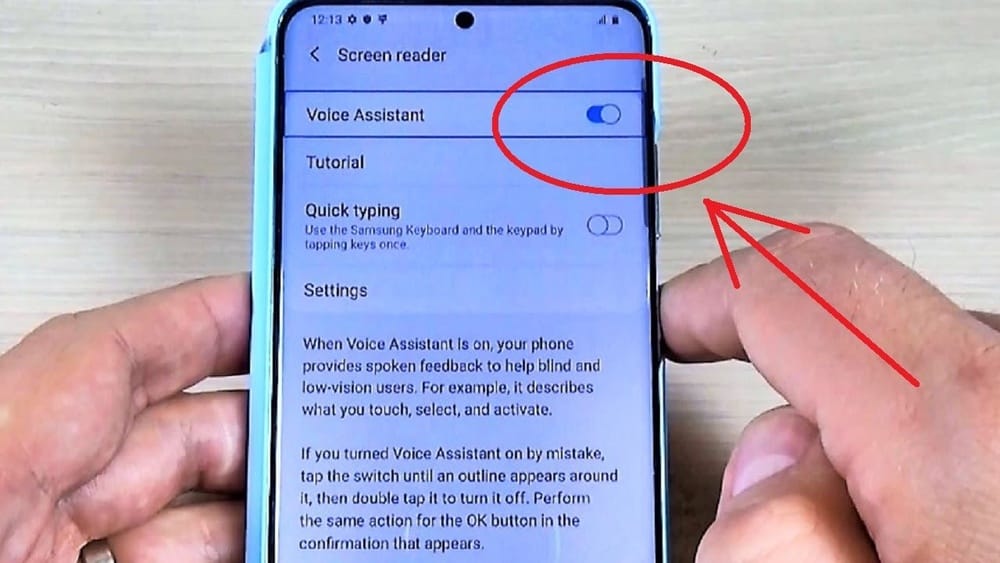
Are you tired of your voice assistant popping up at the wrong moments? Maybe it’s waking you up with unwanted responses or interrupting your conversations.
Learning how to turn off your voice assistant can give you back control over your device and your privacy. You’ll discover simple, step-by-step ways to disable voice assistants on different devices. Keep reading to find out how to stop those unexpected interruptions for good.
Disable Voice Assistant On Iphone
Disabling the voice assistant on your iPhone can improve privacy and reduce interruptions. It also helps save battery life. You can turn off different features like Siri and Voice Control. Each feature works in a unique way, so you need to disable them separately.
Follow these simple steps to turn off the voice assistant on your iPhone. The process is quick and does not require special skills.
Turn Off Siri In Settings
Open the Settings app on your iPhone. Scroll down and tap on “Siri & Search.” Find the option “Listen for ‘Hey Siri'” and toggle it off. Then, toggle off “Press Side Button for Siri.” This stops Siri from activating by voice or button.
Stop Hey Siri Activation
In the same “Siri & Search” menu, make sure “Allow Siri When Locked” is off. This prevents Siri from waking up when your phone is locked. Your iPhone will no longer respond to the “Hey Siri” command.
Disable Voice Control
Go back to the main Settings menu. Tap “Accessibility,” then “Voice Control.” Toggle off “Voice Control” to stop voice commands. This will turn off the feature that listens to your voice for commands other than Siri.

Credit: www.pcmag.com
Turn Off Voice Assistant On Android
Turning off the voice assistant on Android can help reduce distractions. It also saves battery life and prevents accidental activations. Many Android users prefer to control their phone manually. You can easily disable voice assistant features with a few simple steps.
Disable Google Assistant
Open the Google app on your phone. Tap your profile picture in the top right corner. Select “Settings” and then “Google Assistant.” Scroll to find the “General” option. Toggle off the switch next to Google Assistant. This stops the assistant from activating with your voice or buttons.
Turn Off Voice Match
Voice Match lets Google Assistant recognize your voice. Disabling it stops voice activation. Open the Google app and go to “Settings.” Choose “Google Assistant” and then “Voice Match.” Turn off the “Hey Google” option. This prevents the assistant from waking up with your voice commands.
Manage Accessibility Voice Features
Some Android phones have accessibility voice features. These help users with vision or hearing needs. Go to “Settings” and select “Accessibility.” Look for options like “TalkBack” or “Select to Speak.” Turn off any voice features you do not need. This will stop the phone from reading text aloud or responding to voice commands.
Switch Off Voice Assistant On Windows
Windows offers voice assistants to help with tasks and accessibility. Some users prefer to turn these off to reduce distractions or save battery. Switching off voice assistants is simple and takes just a few steps.
This guide explains how to disable Cortana and Narrator on Windows. These are the main voice assistant features on the platform.
Turn Off Cortana
Cortana listens for your voice commands and answers questions. To turn it off, open the Start menu and click on Settings.
Next, select “Privacy & security” and then choose “Voice activation.” Find Cortana in the list and switch it off. This stops Cortana from listening or responding.
Disable Narrator
Narrator reads text aloud and helps users with visual impairments. To disable it, press the Windows key + Ctrl + Enter at the same time.
This shortcut instantly turns Narrator off. Alternatively, open Settings, go to “Ease of Access,” then “Narrator,” and turn off the toggle. This stops the screen reader from running.
Mute Voice Assistant On Mac
Muting the voice assistant on a Mac can help reduce distractions. It also improves privacy and control over your device. You can choose to disable Siri or turn off VoiceOver, depending on your needs. Both options are easy to manage in system settings.
Disable Siri
To disable Siri on your Mac, open System Preferences. Click on “Siri” to access its settings. Uncheck the box labeled “Enable Ask Siri.” This stops Siri from listening and responding. You can also remove Siri from the menu bar for a cleaner look. Disabling Siri helps if you do not want voice commands active.
Turn Off Voiceover
VoiceOver reads screen content aloud to assist users with vision impairment. To turn off VoiceOver, go to System Preferences and select “Accessibility.” Click on “VoiceOver” in the sidebar. Uncheck the box that says “Enable VoiceOver.” Alternatively, press Command + F5 to toggle VoiceOver on or off quickly. Turning off VoiceOver silences spoken feedback and control.
Manage Voice Assistant On Smart Speakers
Smart speakers with voice assistants make life easier. They answer questions, play music, and control smart home devices. Sometimes, you may want to turn off these assistants. This can help protect privacy or stop unwanted responses.
Managing voice assistants on your smart speakers is simple. Below are easy steps to disable or mute these features on popular devices.
Disable Alexa On Echo Devices
To stop Alexa from listening, press the microphone off button on the Echo device. This button usually has a microphone icon with a slash. When off, Alexa stops responding to voice commands. The light ring will turn red, showing Alexa is disabled.
You can also disable Alexa in the Alexa app. Open the app, select your Echo device, and turn off voice recognition settings. This stops Alexa from activating by voice.
Turn Off Google Assistant On Nest
Google Nest devices have a physical switch or button to mute Google Assistant. Slide this switch to mute the microphone. The device will stop listening for “Hey Google” commands.
In the Google Home app, choose your Nest device. Go to settings and find the microphone option. Toggle it off to disable the assistant. This method is easy and quick to use.
Mute Voice Features On Other Devices
Many other smart speakers have a mute or microphone off button. Press this button to stop voice commands. The device usually shows a red light to confirm muting.
Check your device’s app for voice control options. You can turn off voice assistant features or mute the microphone from there. This keeps your device quiet without unplugging it.

Credit: www.youtube.com
Troubleshoot Common Issues
Sometimes, turning off your voice assistant does not work as expected. You might face issues that stop the assistant from turning off. Troubleshooting these problems can help you fix the issue quickly. Below are common problems and how to solve them.
Voice Assistant Still Active
The voice assistant may stay on even after trying to turn it off. First, check if you followed the correct steps in the settings. Sometimes, the assistant reactivates due to voice commands or gestures. Disable any voice activation options to prevent this. Restart your device to apply changes. If the assistant stays on, check for system updates. Updates can fix bugs that cause this problem.
Settings Not Saving
Your changes might not save properly in the settings. This can happen if the device has low memory or software glitches. Clear cache and free up space on your device. Try turning off the assistant again after this. Make sure you tap ‘Save’ or ‘Apply’ after changing settings. Sometimes, a device restart is needed to save changes. If settings reset after restarting, check for app or system updates. Reinstalling the voice assistant app may also help.

Credit: lifehacker.com
Frequently Asked Questions
How Do I Turn Off Voice Assistant On My Phone?
To disable your phone’s voice assistant, go to Settings > Accessibility > Voice Assistant. Toggle it off to stop the assistant from activating. This method works on most Android and iOS devices, ensuring you regain full control without voice commands.
Can I Disable Voice Assistant On Smart Speakers?
Yes, you can turn off voice assistants on smart speakers. Usually, pressing and holding a mute or microphone button disables the assistant. Alternatively, use the companion app to adjust settings or mute the microphone for privacy.
Why Should I Turn Off Voice Assistant?
Turning off voice assistants can prevent accidental activations and conserve battery life. It also enhances privacy by stopping constant listening. If you don’t use voice commands often, disabling the feature reduces interruptions and improves device performance.
Will Turning Off Voice Assistant Affect Other Features?
Disabling voice assistants only stops voice command functionality. Other device features like calls, messages, and apps remain unaffected. You can still use your device manually without any loss in essential functionalities or performance.
Conclusion
Turning off your voice assistant is quick and simple. You only need a few steps. This helps protect your privacy and reduce interruptions. Most devices let you change settings easily. Try it today to control your device better. Stay comfortable with your technology use.
Your phone or tablet listens less when you want. Small changes make a big difference in daily life. Keep your device working the way you prefer.