
If you’ve ever lost your Samsung TV remote, you know how frustrating it can be. Suddenly, a simple task like turning on your TV feels impossible. But don’t worry—there are several ways to turn on a Samsung TV without the remote.
Whether your remote is missing, broken, or just out of batteries, you can still enjoy your favorite shows and apps.
Many Samsung TVs have built-in controls, and new smart features let you use your phone or voice to control the TV. Some solutions are quick, while others need a bit of setup, but all are beginner-friendly. This guide will walk you through every method in detail, with clear steps and practical advice.
You’ll also see comparisons between different models and methods, so you can find what works best for your TV.
Let’s explore all the options for turning on your Samsung TV without a remote, plus helpful tips and answers to common questions.
Understanding Samsung Tv Controls
Samsung TVs have changed a lot over the years. Older models often have more physical buttons, while newer smart TVs focus on remote and app control. Still, almost every Samsung TV has a way to turn it on without a remote.
Types Of Physical Controls
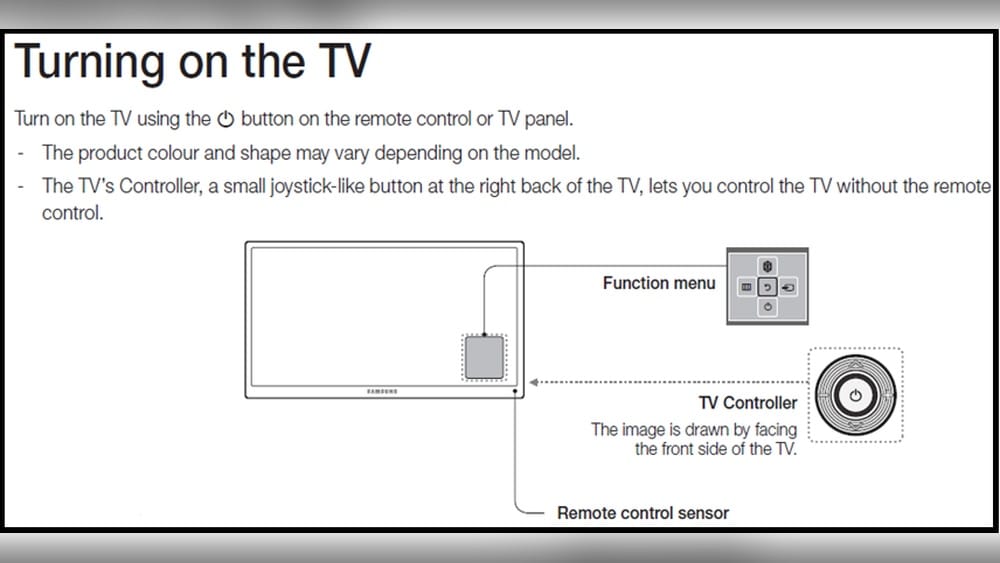
Most Samsung TVs have at least one manual power button. The location, style, and number of buttons can vary by model and year.
| Model Year | Button Location | Button Style |
|---|---|---|
| 2010-2016 | Bottom right/left or back panel | Physical, separate buttons |
| 2017-2020 | Middle bottom or rear | Joystick-style or single button |
| 2021-present | Middle under Samsung logo | Multi-directional control button |
Key insight: Many people look for the power button on the edges but miss it under the TV or behind the logo.
Method 1: Using The Tv’s Physical Buttons
The simplest way is to use the built-in button or joystick on your TV.
Finding The Button
- Check under the Samsung logo: Many recent models hide a small button here. Feel underneath the bezel at the center.
- Look at the back or side: Older models place buttons on the right or left edge, or on the back panel.
- Consult the manual: If you’re unsure, download your TV’s manual from the Samsung website.
Using The Button
- Single button: Press once to turn on the TV. Hold for 2-3 seconds if it doesn’t respond.
- Joystick control: Push the joystick inward to power on. Sometimes you need to push up or left first, then inward.
- Multiple buttons: Look for the button labeled “Power” or marked with a circle and line (⏻).
Non-obvious tip: If your TV has a joystick, it can also adjust volume and change channels by moving left/right or up/down.
Common mistake: Pressing the wrong button or holding too long can activate other menus. Always use a gentle press.
Method 2: Samsung Smartthings Mobile App
If you have a Samsung Smart TV (2016 or newer), you can use your phone as a remote.
Setting Up Smartthings
- Download the app: Search “SmartThings” on the Apple App Store or Google Play Store.
- Connect your phone and TV to the same Wi-Fi network. If your TV is off, this only works if it’s in standby mode (plugged in, but not fully powered down).
- Open the app and tap the “+” icon to add a device.
- Select your TV model from the list.
- Follow prompts to complete pairing. You may need to enter a PIN shown on your TV screen.
Turning On The Tv
- After setup, open SmartThings and tap your TV.
- Use the power button in the app to turn on/off.
Note: Some older models only support turning off, not on, via the app. This is because many TVs fully power down when off, cutting Wi-Fi.
App Vs. Physical Button: Comparison
| Feature | SmartThings App | Physical Button |
|---|---|---|
| Remote Distance | Anywhere on Wi-Fi | Must be near TV |
| Other Controls | Full remote functions | Basic controls only |
| Setup Needed | Yes (pairing) | No |
Non-obvious insight: If your TV was unplugged or the power went out, SmartThings may not work until you turn the TV on manually the first time.
Method 3: Universal Remote Control
A universal remote is a quick fix if your original remote is lost or broken. Many can be set up in minutes.
Choosing The Right Universal Remote
- IR-based remotes: Work with almost all Samsung TVs.
- Smart remotes: Offer more features, but setup is more complex.
Setting Up A Universal Remote
- Insert batteries in the universal remote.
- Find the Samsung TV code in the remote’s manual or on the manufacturer’s website.
- Press and hold “Set” or “Program” until the LED blinks.
- Enter the code using the number pad.
- Test power and volume to confirm pairing.
Practical tip: Some universal remotes have “auto search”—just press and hold the power button until the TV turns on.
Cost Vs. Benefit: Should You Buy One?
| Factor | Universal Remote | Other Methods |
|---|---|---|
| Price | $10–$30 | Free (app/buttons) |
| Setup Time | 5–10 minutes | Instant (buttons), 2–5 min (app) |
| Long-term Use | Best for frequent use | Best as backup |
Common mistake: Buying a remote without checking compatibility. Always verify the remote supports Samsung TVs.

Credit: www.wikihow.com
Method 4: Using A Streaming Device Remote
If you have a Roku, Apple TV, Fire Stick, or similar streaming device connected, their remotes can sometimes control your Samsung TV.
How It Works
Many streaming remotes use HDMI-CEC (Consumer Electronics Control). This feature lets the remote send power and volume commands to your TV.
Steps To Try
- Check HDMI-CEC is enabled on your TV. On Samsung, it’s called Anynet+. Go to Settings > General > External Device Manager > Anynet+ (HDMI-CEC).
- Reconnect your streaming device if needed.
- Use the streaming remote’s power button. Some will turn on both the device and the TV.
Non-obvious insight: Not all streaming remotes support TV power. Fire TV Stick and Apple TV Siri Remote often do; basic Roku remotes may not.
Practical tip: If you never changed the Anynet+ setting, it is often ON by default in newer Samsung TVs.
Method 5: Voice Assistants (bixby, Alexa, Google Assistant)
Many Samsung Smart TVs support voice assistants. If you set up voice control before losing your remote, you may be able to turn the TV on with a command.
Supported Assistants
- Bixby: Built into many Samsung TVs.
- Alexa/Google Assistant: Available on select 2019+ models.
How To Use Voice To Turn On Tv
- Say “Hi Bixby, turn on the TV” (if TV is off but plugged in).
- For Alexa/Google: Use a smart speaker already linked to your TV—“Alexa, turn on Samsung TV.”
Non-obvious insight: Most TVs need to be in standby, not fully powered off at the wall. If unplugged, voice commands won’t work.
Common mistake: Forgetting to link your TV with your smart speaker before losing the remote. Setup requires the TV to be on and accepting connections.
Method 6: Infrared (ir) Blaster On Your Smartphone
Some Android phones (mostly older models) have a built-in IR blaster that can control TVs.
How To Use
- Install an IR remote app from the Play Store (such as “Peel Smart Remote”).
- Select Samsung TV in the app.
- Point your phone at the TV and tap the power button in the app.
Practical tip: IR blaster phones are rare now, but if you have one, it works just like a regular remote.
Non-obvious insight: iPhones do not have IR blasters. Some third-party accessories claim to add IR, but support is limited.
Method 7: External Keyboards Or Game Controllers
Some Samsung TVs support USB keyboards or Bluetooth controllers. If the TV is already on, you can use these to control menus and apps.
How This Helps
- Power On: Most TVs won’t turn on from full off with a keyboard, but can wake from sleep.
- Navigation: Once on, you can use arrow keys and Enter to control the TV.
Example: Plug a USB keyboard into your TV’s USB port. Press any key. If the TV is in standby, it may wake up.
Limitation: Not all models support this feature, and it usually cannot power on from full off.
Method 8: Plug And Unplug Power Cord
If all else fails, disconnecting and reconnecting the power cord can sometimes force the TV to turn on.
Steps
- Unplug the TV from the wall outlet.
- Wait 30 seconds.
- Plug the TV back in.
- Some Samsung TVs will power on automatically; others will go to standby.
Warning: This is not recommended for regular use. It can wear out the power supply over time.
Non-obvious insight: If your TV turns on after plugging in, but you can’t control it further, use this only as a last resort.
Troubleshooting: When None Of The Above Works
Sometimes, nothing seems to work. Here’s how to troubleshoot:
- Check the power outlet with another device (like a lamp) to rule out electrical issues.
- Inspect the power cable for damage.
- Look for a standby light on the TV. If it’s off, the TV may not be getting power.
- Try different methods: Sometimes, a button is stuck or the app needs to be reset.
- Update the TV’s firmware once you regain control, as some issues are fixed in updates.
Practical tip: If the TV won’t turn on and no standby light shows, the internal power supply may be faulty. Contact Samsung support or a repair technician.

Credit: www.youtube.com
Comparing All Methods: Which One Is Best For You?
Every method has pros and cons, and the best choice depends on your TV’s age, your setup, and your preferences.
| Method | Works On | Setup Needed | Cost | Reliability |
|---|---|---|---|---|
| Physical Button | All TVs | None | Free | Always |
| SmartThings App | Smart TVs (2016+) | App setup | Free | High |
| Universal Remote | All TVs | Pairing | $10–$30 | Very High |
| Streaming Device Remote | HDMI-CEC TVs | HDMI-CEC enabled | Varies | Medium |
| Voice Assistant | Smart TVs (2019+) | Pre-setup | Free | Medium |
| IR Blaster App | IR phones, all TVs | App install | Free | Medium |
| Keyboard/Controller | Some Smart TVs | Plug in | Free/Varies | Low for power on |
| Plug/Unplug | All TVs | None | Free | Low (not recommended) |
Expert advice: For quick, daily use, the physical button is most reliable. The SmartThings app is the best backup if you have a compatible TV and phone. A universal remote is ideal for long-term use.
Tips For Preventing Remote Problems In The Future
Losing or breaking your remote doesn’t have to be a regular problem. Here’s how to avoid it:
- Buy a backup remote: Keep a second remote in a drawer.
- Attach a tracker: Use a Bluetooth tracker (like Tile) so you can find your remote with your phone.
- Store remotes in a fixed place: Always put it back after use.
- Use the app regularly: Get used to SmartThings as a backup.
- Check batteries often: Dead batteries are a common cause of “lost” remotes.
Non-obvious insight: Some universal remotes can control multiple devices, which reduces clutter and loss.
When To Contact Samsung Support
If none of the methods above work, or your TV shows signs of hardware failure (like no power, flickering, or unresponsive buttons), contact Samsung’s official support.
- Warranty check: If your TV is under warranty, repairs or replacements may be free.
- Repair locator: Use Samsung’s website to find authorized repair centers.
- Software help: Some problems can be fixed with a firmware update, which support can guide you through.
You can find more details and support contacts at the official Samsung Support page.
Frequently Asked Questions
How Do I Find The Power Button On My Samsung Tv?
Look under the Samsung logo in the center of the TV bezel. If you don’t see it there, check the back or sides of the TV. The location depends on your TV’s model and year. You can also check your TV’s manual online for diagrams.
Can I Turn On My Samsung Tv With My Phone If The Tv Is Completely Off?
No, your phone (using the SmartThings app) can only turn on the TV if it is in standby mode—plugged in and connected to Wi-Fi. If the TV was unplugged or lost power, you must turn it on manually the first time.
Will Unplugging My Samsung Tv Damage It?
Unplugging the TV occasionally won’t cause harm, but doing it often can wear out the power supply and electronics. Only use this as a last resort if you cannot turn the TV on any other way.
Is There A Way To Control The Tv If I Have An Older, Non-smart Samsung Model?
Yes! Older TVs almost always have physical buttons for power, volume, and channels. Universal remotes also work with almost every Samsung TV model, old or new.
What If My Tv Won’t Turn On With Any Method?
Check the power outlet and cable, look for a standby light, and try a different power socket. If there’s still no response, your TV may have a hardware issue. Contact Samsung support or a repair technician for diagnosis.
—
Losing your remote doesn’t have to mean losing your TV night. With these methods—physical buttons, SmartThings app, universal remotes, and more—you can always turn on your Samsung TV, no matter the situation. Try the simplest method first, and keep a backup plan for the future.
With a little preparation, you’ll never be stuck staring at a blank screen again.

Credit: www.youtube.com