
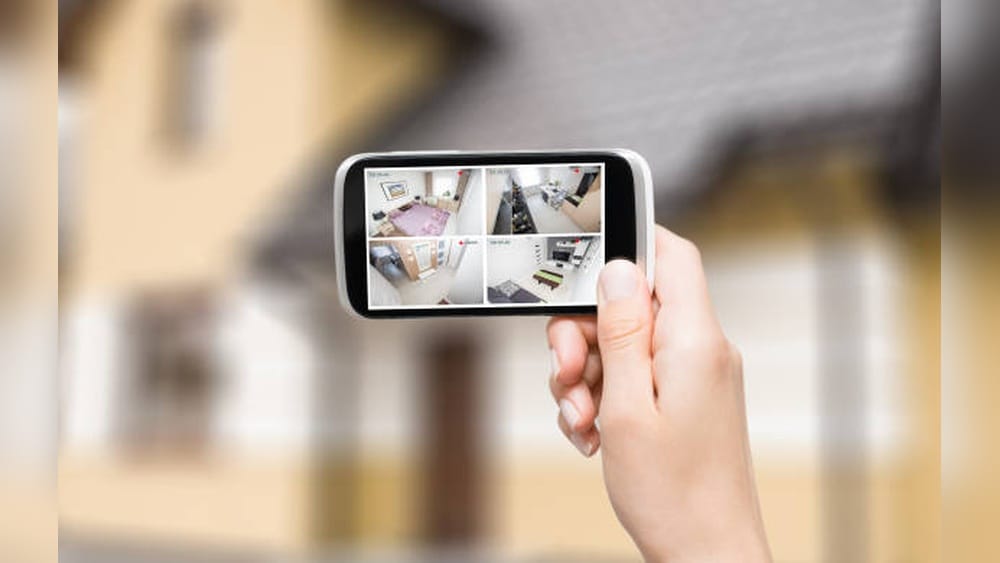
Turning an old phone into a security camera is one of the smartest ways to give your device a second life. Instead of letting it collect dust in a drawer, you can upgrade your home security without spending much money.
Modern smartphones have good cameras, Wi-Fi, and enough battery life to serve as excellent security tools. If you ever worried about your home when you’re away or want to keep an eye on pets or deliveries, using an old phone is a practical solution.
In this guide, you’ll learn how to set up an old Android or iPhone as a security camera, which apps work best, what accessories make it safer, and how to handle privacy and security. Even if you’re not a tech expert, you’ll find each step easy to follow.
Along the way, you’ll see real examples, common mistakes, and clever tips that most beginners miss.
Why Use An Old Phone As A Security Camera?
Most people upgrade their phones every 2-3 years. In 2023, about 77% of Americans owned a smartphone, and many have older devices lying around. But why turn an old phone into a security camera?
- Cost-Effective: No need to buy expensive cameras. You use what you already have.
- Good Camera Quality: Even phones from 2016 have cameras better than many basic security cameras.
- Easy Setup: You avoid complicated wiring or drilling.
- Remote Access: With the right app, you can watch the feed from anywhere.
- Environmentally Friendly: Reusing old tech reduces electronic waste.
If you want to monitor your front door, garage, baby’s room, or even your garden, an old phone can do the job with minimal fuss.
What You Need Before Starting
Before setting up, gather these basics:
- A working smartphone (Android or iPhone) with a camera, Wi-Fi, and charger.
- A stable Wi-Fi connection where you’ll place the phone.
- A charging cable and adapter to keep the phone powered.
- A mount or stand (optional, but helps with positioning).
- A security camera app (more on this soon).
Don’t forget to reset your phone to remove personal data and free up storage. A fresh start ensures smooth operation and better privacy.
Is Your Old Phone Good Enough?
Not every old phone is suitable. Here’s a quick comparison of what matters:
| Feature | Minimum Requirement | Recommended |
|---|---|---|
| Operating System | Android 6.0 / iOS 11 | Android 9.0+ / iOS 13+ |
| Camera Resolution | 720p (HD) | 1080p (Full HD) or higher |
| Battery Health | Holds charge for 1 hour | Works while plugged in |
| Wi-Fi Capability | 2.4 GHz Wi-Fi | 2.4/5 GHz Wi-Fi |
| Storage | 1 GB free | 5 GB or more |
Most phones from 2016 or later will work well. If your device is older, test the camera and Wi-Fi first.

Credit: infinmobile.com
Choosing The Right Security Camera App
The app is the heart of your security camera setup. It streams video, sends alerts, and stores recordings. Not all apps are equal—some are free, some offer cloud storage, and others support advanced features like motion detection or two-way audio.
Popular Security Camera Apps
- AlfredCamera
- Free with ads, paid for extra features.
- Easy setup for both Android and iPhone.
- Cloud storage, motion detection, two-way talk.
- Manything
- Great for iOS users.
- Offers live streaming and cloud recording.
- Some features require a subscription.
- IP Webcam
- Android-only.
- Streams video over your home network or internet.
- Can be used with third-party software.
- Presence
- IOS-focused.
- Simple setup, motion alerts, and cloud video.
- TrackView
- Cross-platform.
- Includes GPS tracking and remote audio.
Here’s a quick comparison to help you decide:
| App | Platform | Cloud Storage | Motion Detection | Two-way Audio | Free Version |
|---|---|---|---|---|---|
| AlfredCamera | iOS/Android | Yes | Yes | Yes | Yes |
| Manything | iOS | Yes | Yes | No | Yes |
| IP Webcam | Android | No | Yes | No | Yes |
| Presence | iOS | Yes | Yes | No | Yes |
| TrackView | iOS/Android | No | Yes | Yes | Yes |
What Beginners Miss
- Check compatibility: Not all apps work on older systems.
- Cloud vs. local storage: Free plans often limit cloud video history. Make sure you know where your videos are saved.
- Notifications: Some apps send too many alerts. Adjust sensitivity to avoid false alarms from pets or passing cars.
Step-by-step: Setting Up Your Old Phone As A Security Camera
Turning your phone into a camera takes just a few steps. Here’s the process, explained in detail.
1. Prepare Your Old Phone
- Factory reset (optional but recommended): This clears personal data and improves performance.
- Update operating system and apps: Install any pending updates for security.
- Charge fully and keep the phone plugged in for continuous use.
- Disable unnecessary apps: Turn off background apps to save power.
2. Install And Set Up The Security Camera App
- Open the App Store (iPhone) or Google Play (Android).
- Search for your chosen camera app (e.g., AlfredCamera).
- Download and install. Grant camera, microphone, and storage permissions.
- Sign in or create an account if needed.
Most apps use two devices: your old phone (as camera) and your main phone (as viewer). Log in with the same account on both.
3. Set Up Camera Settings
- Choose front or rear camera. Rear cameras are usually higher quality.
- Set video quality (HD is best for detail, but uses more data).
- Enable motion detection for alerts.
- Decide on audio: Enable microphone if you want to hear sound.
- Set up storage: Choose cloud or local storage (SD card/internal memory).
4. Place And Mount The Camera
Where you put the phone matters. Think about:
- Field of view: Point the camera at entry points (doors, windows).
- Height: Place at eye level for faces, higher for wider area.
- Stability: Use a tripod, stand, or wall mount to keep it steady.
- Power: Keep close to an outlet for charging.
Some people use a phone holder, suction mount, or even a cup to keep the phone upright. Avoid blocking the lens or microphone.
5. Test The Live Feed
- On your main phone or computer, open the app and view the live stream.
- Walk in front of the camera to test motion alerts.
- Check video and audio quality.
- Adjust angle or settings as needed.
6. Set Up Notifications And Privacy
- Turn on push notifications for movement or sound.
- Adjust detection sensitivity to avoid false alarms.
- Set privacy zones if your app allows (block out areas you don’t want recorded).
7. Secure Your Setup
- Change default passwords on your app account.
- Use a strong Wi-Fi password.
- Keep your phone’s software updated.
8. Save Or Share Recordings
- Choose where to store videos (cloud, SD card, or local memory).
- Learn how to download or share clips if you need to send evidence.
Example: Setting Up Alfredcamera
- Download AlfredCamera on both old and main phones.
- Sign in with the same Google or Apple ID.
- Set old phone as “Camera,” main phone as “Viewer.”
- Mount old phone in the entryway.
- Test by moving in front of the camera. Adjust as needed.
Accessories And Add-ons To Improve Your Setup
A few extras can make your security camera more reliable.
Must-have Accessories
- Flexible phone holder or tripod: For stable, adjustable placement.
- Long charging cable: Reaches far outlets.
- USB power adapter with surge protection: Protects phone from power spikes.
- MicroSD card (if supported): For extra video storage.
- Wide-angle lens clip: Increases field of view.
Useful Add-ons
- Motion sensor light: Helps the camera see at night.
- Wi-Fi range extender: Solves weak Wi-Fi signal.
- Weatherproof case: For outdoor use, but check for heat issues.
What Beginners Overlook
- Phone heat: Continuous camera use generates heat. Don’t cover the phone or leave in direct sun.
- Cable safety: Keep charging cables out of walkways to prevent tripping.
- Battery swelling: Old batteries may swell if always plugged in. Check regularly.
Comparing Old Phones To Traditional Security Cameras
How does a recycled phone stack up against a real security camera? Here’s a comparison to help you decide if it’s right for you.
| Feature | Old Phone as Camera | Traditional Security Camera |
|---|---|---|
| Cost | Free (using old phone) | $30–$200 per camera |
| Video Quality | Good (depends on phone) | Varies (dedicated sensors) |
| Night Vision | No (unless phone flash or light used) | Yes (IR LEDs built-in) |
| Motion Alerts | Yes (via app) | Yes |
| Storage | Cloud/phone storage | Cloud/SD card/NVR |
| Outdoor Use | Not recommended (unless protected) | Designed for outdoor |
| Integration | Limited | Works with smart home systems |
| Reliability | Varies | High (built for 24/7 use) |
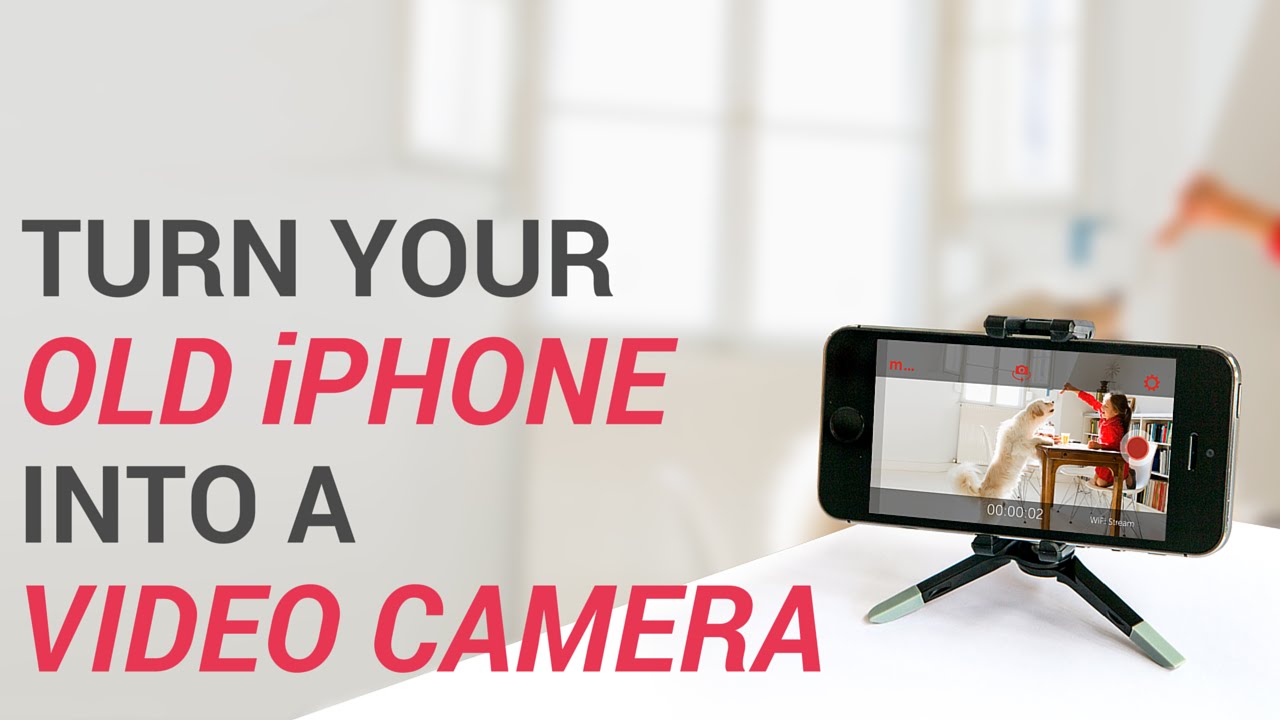
Phones make great indoor cameras for quick setups, rentals, or small spaces. If you need outdoor, all-weather, or 24/7 recording, a dedicated camera may be better.
Credit: www.paddelfestival.de
Privacy And Security: What You Need To Know
When you turn a phone into a camera, you’re streaming video over the internet. This brings some risks. Here’s how to protect your privacy and data:
1. Use Strong Passwords
Never use default or weak passwords for your camera app or Wi-Fi.
2. Limit App Permissions
Only grant permissions needed for the camera to work. Avoid unnecessary location or contact access.
3. Secure Your Wi-fi
Use WPA2 or WPA3 security. Avoid open networks.
4. Update Regularly
Install app and phone updates for the latest security patches.
5. Don’t Point At Private Spaces
Avoid placing cameras in bedrooms or bathrooms. Respect privacy laws—recording in certain areas may be illegal.
Important Tip
If you’re worried about hacking, use apps with end-to-end encryption. This keeps your video feed private, even from the app company.
Advanced Tips And Tricks
Once your camera is running, these ideas can help you get more out of it.
Use Multiple Phones For Full Coverage
Set up several old phones for different rooms or angles. Most apps let you add multiple cameras to the same account.
Schedule Recording
Some apps let you set recording times. For example, record only at night or when you’re away.
Integrate With Smart Home
If you use Google Home or Alexa, some camera apps can send alerts or show video feeds on smart displays.
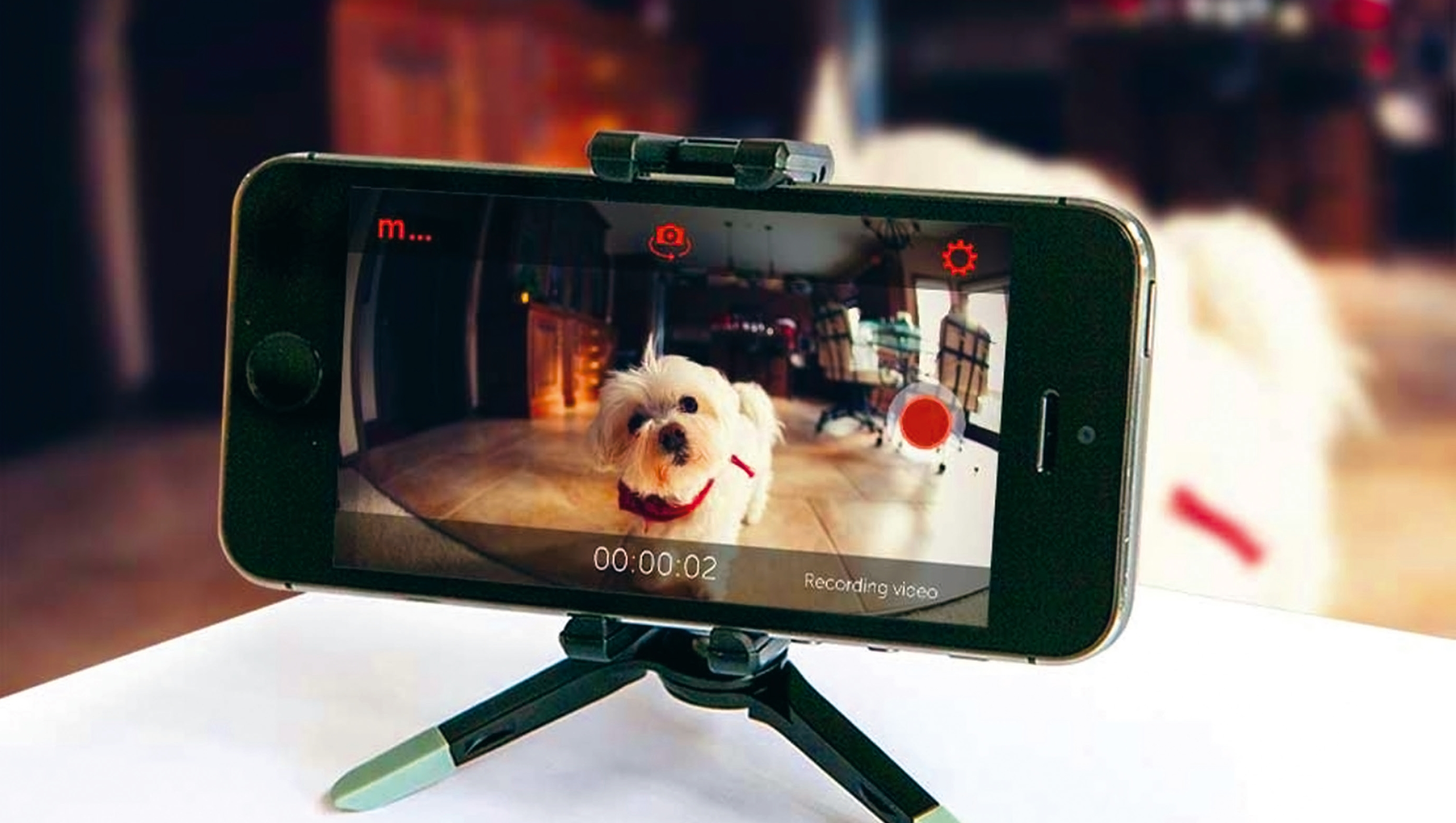
Use For Time-lapse Or Pet Watching
Change settings to capture time-lapse videos of your garden, or use two-way talk to check in on pets.
Save Data And Power
- Lower video quality if you have slow Wi-Fi.
- Turn off screen or use “battery saver” mode if supported.
- Set up alerts for specific zones to avoid constant recording.
Hidden Features Most People Miss
- Remote flash control: Some apps let you turn on the phone’s flash remotely for a better night view.
- Noise alerts: Besides motion, some apps alert you to loud sounds (great for baby monitoring).
Credit: flegenheimer.com
Real-life Examples: How People Use Old Phones As Security Cameras
Keeping An Eye On The Front Door
Maria in Texas mounted her old Galaxy S8 near her apartment door. Using AlfredCamera, she receives motion alerts every time someone walks by. She caught a package thief on video and shared the clip with her landlord.
Watching Pets While At Work
James leaves his iPhone 7 in the living room to watch his dogs. With two-way audio, he talks to them and checks if they’re chewing the furniture.
Monitoring The Garage
Priya set up a spare Android phone to monitor her garage. She uses an old phone holder and a long USB cable. The app sends her a notification if anyone opens the garage door.
Baby Monitor On A Budget
Luis and Ana turned an old iPhone into a baby monitor. They set the app to alert for both motion and noise. It saved them $100 compared to buying a fancy monitor.
Temporary Office Security
During a conference, a team used two unused phones as security cams in a temporary office. The feeds were monitored from a laptop. No expensive equipment needed.
Troubleshooting: Common Problems And Fixes
Camera Not Streaming
- Check Wi-Fi connection.
- Restart both phones.
- Update the app to the latest version.
App Crashes Or Freezes
- Free up phone storage.
- Uninstall unused apps.
- Restart the phone.
Poor Video Quality
- Clean the camera lens.
- Increase lighting in the room.
- Adjust video resolution in the app.
Missed Alerts
- Increase motion detection sensitivity.
- Check notification settings on your viewer phone.
- Make sure “Do Not Disturb” is off.
Phone Overheating
- Don’t place in direct sunlight.
- Use battery saver mode.
- Take breaks from 24/7 recording if possible.
Storage Full
- Enable cloud storage if available.
- Delete old recordings regularly.
- Add a MicroSD card if the phone supports it.
When To Upgrade To A Real Security Camera
While old phones are great for simple setups, they’re not perfect for every situation. Consider upgrading if:
- You need outdoor or all-weather cameras.
- You want night vision without leaving the flash on.
- You want integration with professional alarm systems.
- You need 24/7 recording without overheating or battery issues.
For most people, though, an old phone works surprisingly well for indoor monitoring, rentals, or short-term needs.
Frequently Asked Questions
How Long Can An Old Phone Run As A Security Camera?
Most phones can run as a camera 24/7 if plugged into power. However, old batteries may heat up or wear out over time. For safety, check battery health regularly and avoid covering the phone to let heat escape.
Is It Safe To Use My Old Phone As A Camera?
Yes, if you use strong passwords, update your apps, and secure your Wi-Fi. Don’t point the camera at private spaces, and use apps with good security features. For peace of mind, choose apps with encryption.
Can I Use My Old Phone As A Camera Without Wi-fi?
You need Wi-Fi for remote streaming and alerts. If you only want local recording (no remote view), some apps let you save videos directly to the phone. For full features, a stable Wi-Fi connection is best.
What Happens If My Old Phone Loses Power Or Wi-fi?
If the phone loses power, it stops recording and streaming. If Wi-Fi drops, live streaming and alerts won’t work, but local recording may continue (if the app supports it). Use a stable power source and check connections often.
Are There Any Legal Issues With Using An Old Phone As A Security Camera?
It depends on your location. Generally, it’s legal to record in your own home, except in private places like bathrooms. Do not record neighbors or guests without their knowledge. Check your local privacy laws for details. For more information, see the Legality of surveillance by private parties.
Using an old phone as a security camera is a smart, affordable way to improve your peace of mind. With the right setup, you can watch your home, pets, or deliveries from anywhere—without spending extra money or adding to e-waste.
Take a little time to set it up well, and you’ll have a reliable, flexible security tool right in your pocket.