
Navigating the world of streaming can feel overwhelming, but the Apple TV remote control makes it much simpler than you might think. Whether you have the classic aluminum version, the touch-sensitive Siri Remote, or the latest redesign, Apple has created a compact tool packed with features. Yet, many users only discover a fraction of what their remote can do. If you want to get the most from your Apple TV and turn your living room into an entertainment hub, understanding your remote is essential.
This article is your complete guide to mastering the Apple TV remote control. You’ll learn how to set it up, use every button and function, customize settings, troubleshoot common issues, and even compare the different remote versions. There are also practical tips and hidden tricks that most beginners miss, ensuring you get a smooth, enjoyable Apple TV experience.
By the end, you’ll handle your remote with confidence—no more confusion or wasted time searching for answers.
Understanding The Different Apple Tv Remote Versions
Over the years, Apple has released several versions of its remote. Each has unique features, but all are designed to control your Apple TV with ease. Knowing which remote you have helps you follow the right instructions.
| Remote Model | Appearance | Main Features | Release Year |
|---|---|---|---|
| Apple Remote (Aluminum) | Aluminum body, circular navigation, Menu/Play buttons | Basic navigation, IR connection | 2010 |
| Siri Remote (1st Gen) | Glass touch surface, dual microphones, Black/Silver finish | Touch navigation, Siri voice control, Lightning charging | 2015 |
| Siri Remote (2nd Gen) | Aluminum body, round clickpad, Power/Mute buttons | Clickpad + Touch, improved Siri button, USB-C charging (2022) | 2021-2022 |
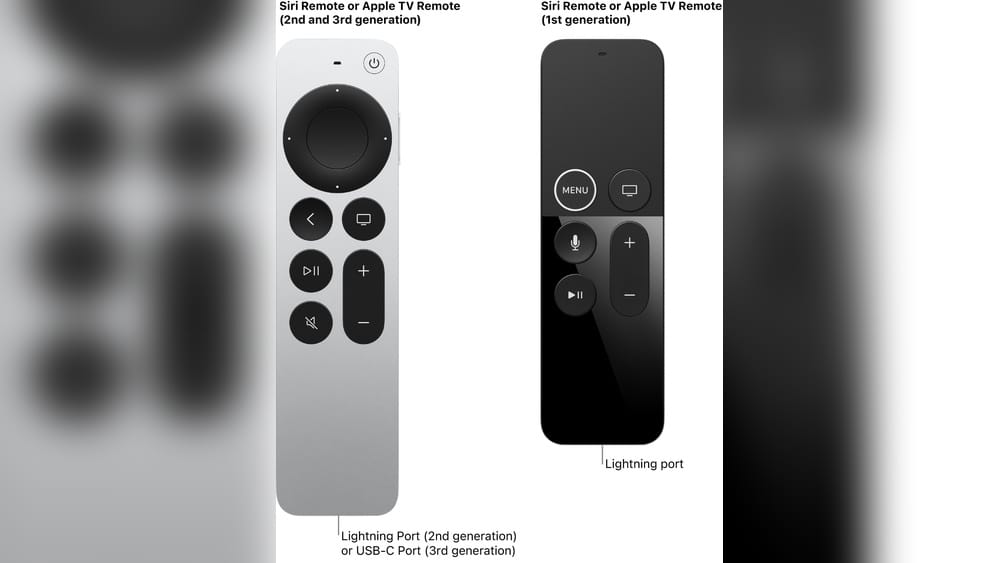
The older Apple Remote uses simple infrared signals. The newer Siri Remote models use Bluetooth and add features like voice search and touch gestures. The latest version, often called the “second-generation Siri Remote,” has a more solid feel, extra buttons, and a round clickpad.
Not sure which model you have? Check the touch surface: if it’s a large black rectangle, it’s a Siri Remote. If there’s a circular pad, it’s probably the latest version. Aluminum with a circular navigation ring means you have the classic Apple Remote.
Setting Up Your Apple Tv Remote For The First Time
Getting started is straightforward, but the steps differ slightly depending on your remote type.
For The Siri Remote (1st And 2nd Generation)
- Charge your remote: Use the supplied Lightning or USB-C cable (depending on the model) to charge your remote. A full charge takes about three hours but a few minutes is enough for setup.
- Turn on your Apple TV: Connect your Apple TV to power and your TV’s HDMI port. Switch your TV to the correct input.
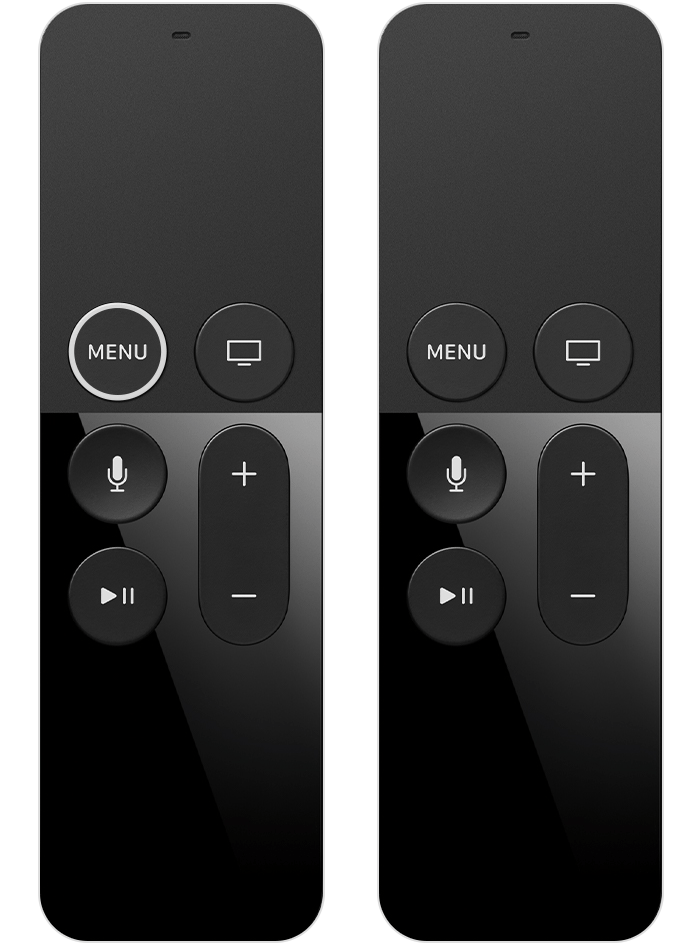
- Pair the remote: Hold the remote close to the Apple TV. If it doesn’t connect automatically, press and hold the Menu (or Back) and Volume Up (+) buttons together for five seconds. Follow on-screen instructions if pairing fails.
- Select your language and region: Use the remote to scroll and select. Confirm your Wi-Fi network and sign in with your Apple ID.
For The Classic Apple Remote
- Insert battery: The remote uses a coin cell battery (CR2032). Slide open the battery compartment and insert the battery.
- Point at Apple TV: This remote uses infrared, so point it directly at the Apple TV box.
- Pair if needed: Hold down the Menu and Right buttons for six seconds to pair.
Pro Tip: The Siri Remote can control your TV’s power and volume if your TV supports HDMI-CEC. Go to Settings > Remotes and Devices > Control TVs and Receivers to check or enable this.
Getting To Know The Buttons And Controls
Every button has a purpose, but Apple keeps things simple. Here’s a breakdown of the main controls:
Siri Remote (1st And 2nd Generation)
- Touch surface/Clickpad: Swipe or click to navigate menus.
- Siri/Voice button: Hold to ask Siri questions or control playback by voice.
- Menu/Back button: Go back one screen or to the Home screen (hold it).
- Home/TV button: Jumps to the Home screen or opens the TV app.
- Play/Pause button: Controls media playback.
- Volume up/down: Adjusts the TV or receiver volume.
- Mute (2nd Gen): Instantly mutes audio.
- Power (2nd Gen): Turns TV and Apple TV on/off.
Classic Apple Remote
- Navigation ring: Move up, down, left, right.
- Select button: Confirm choices.
- Menu button: Go back or access menus.
- Play/Pause button: Control playback.
Non-Obvious Insight: On the Siri Remote, you can swipe quickly on the touch surface for fast scrolling, or gently for precise movement. On the 2nd Gen, the outer ring acts as a jog wheel for scrubbing video—just rest your finger and circle clockwise or counterclockwise.
Navigating The Apple Tv Interface
Understanding the interface makes everything easier. Apple TV’s Home screen is organized in rows of apps, just like your phone.
- Move between apps: Use the touch surface or navigation ring to move the selection box.
- Open an app: Click the center of the touch surface or press Select.
- Return to Home: Press the Home/TV button once.
- Switch between apps: Double-click the Home/TV button to see recently used apps. Swipe to choose, then click to open.
- Rearrange apps: Highlight an app, hold down the touch surface/clickpad until the icons jiggle, then move it. Press again to drop.
- Delete an app: While the icons jiggle, press the Play/Pause button, then choose Delete.
Pro Tip: If you get lost, just hold the Menu or Back button to jump straight to the Home screen.
Using Siri And Voice Commands
Siri is one of Apple TV’s most powerful features, but it’s underused. With the Siri Remote, you can do much more than basic searches.
- Activate Siri: Hold the Siri/Voice button and speak.
- Search for shows: Say “Find comedies on Netflix.”
- Play specific content: Try “Play Ted Lasso on Apple TV Plus.”
- Control playback: Say “Skip ahead 30 seconds” or “What did he say?” (This rewinds and turns on subtitles.)
- Open apps: “Open YouTube.”
- Get info: “What’s the weather?” or “How’s the stock market?”
Non-Obvious Insight: Siri can answer questions even while you’re watching something—like “Who stars in this movie?” or “What did she say?” (which briefly rewinds and shows subtitles).
Siri is available in many languages and regions, but not all. Check availability in Settings > General > Siri.
Playing, Pausing, Fast-forwarding, And Rewinding
The Apple TV remote gives you precise control over videos and music. Here’s how to master playback:
- Play/Pause: The dedicated button starts or pauses content.
- Fast-forward/rewind: On the Siri Remote, swipe right or left on the touch surface. On the 2nd Gen, use the outer ring for finer control—circle your finger to scrub.
- Skip 10 seconds: Press the right or left edge of the clickpad.
- Jump to next/previous: Hold the right or left for a few seconds.
- Slow-motion (hidden feature): Pause playback, then advance frame-by-frame with gentle swipes on the touch surface.
- Show info: Tap the touch surface during playback to reveal time, captions, and more options.
Tip: If you want subtitles, swipe down during playback to access the subtitle menu.

Credit: support.apple.com
Adjusting Settings With The Remote
The Apple TV remote isn’t just for watching shows. You can tweak many settings without leaving your seat.
- Open Settings: Find the Settings app on the Home screen. Use the remote to select and open it.
- Change network or display: Use the remote to navigate to Wi-Fi, video, or audio settings.
- Adjust volume: Siri Remote can control your TV’s volume directly if set up.
- Pair Bluetooth devices: Go to Settings > Remotes and Devices > Bluetooth to pair headphones, speakers, or game controllers.
Practical Example: Want quieter late-night viewing? Enable “Reduce Loud Sounds” under Settings > Video and Audio > Reduce Loud Sounds using your remote.
Customizing Remote Shortcuts And Preferences
Apple TV lets you change how some buttons behave. This can speed up your common tasks.
- Change Home button: By default, this opens the Apple TV app. In Settings > Remotes and Devices, you can set it to always go Home.
- Control TV power: Set the Power button to control your TV and receiver (if supported).
- Adjust touch sensitivity: In Settings > Remotes and Devices > Touch Surface Tracking, choose Fast, Medium, or Slow.
Hidden Trick: On the Siri Remote, triple-click the Menu/Back button to quickly enable accessibility features like VoiceOver.
Using The Apple Tv Remote App On Iphone Or Ipad
If you lose your remote or want a larger touch area, your iPhone or iPad can become a remote.
- Open Control Center: Swipe down (or up, depending on your device).
- Tap the Remote icon: If it’s not there, add it in Settings > Control Center.
- Choose your Apple TV: Your device will connect over Wi-Fi.
- Use on-screen controls: The app mimics the Siri Remote, including voice and keyboard input.
Note: The app is especially helpful for entering passwords, as you can type instead of selecting letters one by one.
Troubleshooting Common Remote Issues
Remotes can sometimes misbehave. Here’s how to fix common problems:
Remote Not Responding
- Recharge or replace battery: Use a Lightning or USB-C cable for Siri Remote, or replace the coin battery for the classic remote.
- Check pairing: If the light on your Apple TV blinks but nothing happens, re-pair the remote by holding Menu/Back + Volume Up for Siri Remote, or Menu + Right for classic.
- Restart Apple TV: Unplug power for 10 seconds, then plug back in.
- Remove obstructions: For the classic remote, make sure nothing blocks the signal.
Buttons Stuck Or Not Working
- Clean the remote: Use a soft, dry cloth. Don’t use liquids.
- Reset remote: For Siri Remote, press and hold Menu/Back + Volume Up for six seconds.
Laggy Or Inaccurate Touch
- Change sensitivity: Go to Settings > Remotes and Devices > Touch Surface Tracking and adjust.
- Restart remote: Unpair and re-pair if the problem continues.
Lost Remote
- Use your iPhone/iPad: Open the Remote in Control Center.
- Buy a replacement: You can order an official remote from the Apple Store or authorized resellers.
Pro Tip: If your Siri Remote is lost in the room, try using the “Find My” feature (available on some models) to play a sound.
Comparing Apple Tv Remote Models: Which One Is Best For You?
Choosing the right remote depends on your Apple TV model, preferences, and needs.
| Feature | Classic Apple Remote | Siri Remote (1st Gen) | Siri Remote (2nd Gen) |
|---|---|---|---|
| Voice Control | No | Yes | Yes |
| Touch Navigation | No | Yes | Yes (Click + Touch) |
| TV/Receiver Control | No | Limited | Full (Power, Volume, Mute) |
| Charging | Battery (CR2032) | Lightning | Lightning/USB-C |
| Find My Support | No | No | Yes (2022 USB-C version) |
Which to choose?
If you value voice search and smart features, the latest Siri Remote is the best. For simple, reliable control, the classic remote works well (especially for older Apple TV models). The 2nd Gen Siri Remote brings the best of both worlds: precise navigation, physical buttons, and extra functions.
Accessibility Features And Shortcuts
Apple TV is designed to be accessible for everyone. The remote offers several features for users with different needs.
- VoiceOver: Reads on-screen text aloud. Triple-click the Menu/Back button to activate.
- Zoom: Magnifies parts of the screen. Enable in Settings > Accessibility > Zoom.
- Bold Text, Increase Contrast: Make text and menus easier to read.
- Closed Captions and Subtitles: Swipe down during playback to turn on.
- Reduce Motion: Less screen movement for easier viewing.
Tip: You can customize accessibility shortcut settings so a triple-click activates your favorite feature.

Credit: www.amazon.com
Hidden Tips And Tricks For Power Users
Here are some lesser-known ways to get more from your Apple TV remote:
- Quick sleep: Hold the Home/TV button to put Apple TV and your TV to sleep instantly.
- Screensaver activation: Double-tap Menu from the Home screen to start the screensaver.
- App switcher: Double-press the Home/TV button to quickly switch apps.
- Restart Apple TV: Hold both the Home/TV and Menu/Back buttons for about 6 seconds.
- Scrub precisely: On videos, pause, then use the outer ring of the 2nd Gen Siri Remote for frame-accurate scrubbing.
- Jump to top: In long lists, press the Menu/Back button to jump to the top.
- Change AirPods audio: Press and hold the Play/Pause button to switch audio output if you have AirPods connected.
Non-Obvious Insight: The Siri Remote can control smart home devices with voice commands (if you use HomeKit). For example, “Dim the living room lights” works if you have compatible bulbs.
Cleaning And Caring For Your Remote
Remotes are handled every day, so they collect dust and fingerprints.
- Wipe regularly: Use a soft, dry, lint-free cloth.
- Avoid liquids: Never use cleaners or spray directly on the remote.
- Protect the touch surface: Do not press hard; the glass can crack if dropped.
- Store safely: If not in use for a long time, keep the remote away from heat and sunlight.
Tip: Consider a silicone case or holder to reduce drops and make the remote easier to find.
Updating Your Apple Tv And Remote Firmware
Keeping software up-to-date ensures the best performance and latest features.
- Update Apple TV: Go to Settings > System > Software Updates and select “Update Software.”
- Remote firmware: Siri Remotes update automatically when connected to Apple TV and charging. No manual update is needed.
If you notice new features or fixes, they may arrive with these updates.
Using Apple Tv Remote With Other Devices
The Apple TV remote can sometimes control other devices in your setup.
- HDMI-CEC: Most modern TVs support this. With it enabled, your remote can turn your TV on/off, adjust volume, and switch inputs.
- Soundbars and receivers: If compatible, the remote’s volume buttons can control these directly.
- Universal remotes: If you prefer, you can train a universal remote to control Apple TV via infrared.
Important: HDMI-CEC names and settings vary by TV brand (like Anynet+ on Samsung). Check your TV’s settings if it’s not working.
Credit: support.apple.com
Frequently Asked Questions
How Do I Reset My Apple Tv Remote?
To reset a Siri Remote, press and hold the Menu/Back and Volume Up (+) buttons together for about six seconds. For the classic Apple Remote, hold Menu and Left for six seconds to unpair, then Menu and Right for six seconds to re-pair. If the remote still doesn’t work, restart your Apple TV by unplugging it for 10 seconds.
Can I Use My Iphone As An Apple Tv Remote?
Yes. Open the Apple TV Remote in your iPhone or iPad’s Control Center. Make sure both devices are on the same Wi-Fi network. You’ll see a touchpad, keyboard, and voice controls, making text entry much easier.
What Should I Do If My Remote Won’t Charge?
First, check the cable and port for dust or damage. Try a different charging cable or port. If the remote still won’t charge, restart your Apple TV and try again. If nothing works, the battery may need replacement, especially on older remotes. Contact Apple Support or visit the official Apple TV Support page for help.
How Do I Pair A New Remote With Apple Tv?
With your Apple TV on, hold the new remote close to the device. For Siri Remote, press and hold Menu/Back + Volume Up (+) for five seconds. For the classic remote, hold Menu + Right for six seconds. Follow any on-screen instructions.
Is The Apple Tv Remote Waterproof?
No, none of the Apple TV remote models are waterproof. Avoid getting them wet, and do not clean with liquids. If your remote gets wet, dry it thoroughly and avoid using until it’s completely dry.
Mastering the Apple TV remote control unlocks a smoother, richer streaming experience. Whether you use the classic Apple Remote or the latest Siri Remote, knowing each button, shortcut, and hidden feature helps you enjoy your Apple TV to the fullest. With voice search, touch navigation, and personalized settings, the remote is more than a simple controller—it’s your key to a smart home theater.
Remember to keep your remote clean, update your software, and use accessibility features if needed. Don’t hesitate to use your iPhone as a backup or to explore the “Find My” feature if your remote disappears. With these practical tips and deeper insights, you’re equipped to handle any Apple TV situation confidently.
Enjoy your favorite shows, music, and apps—with your remote always within easy reach and under your total control.