
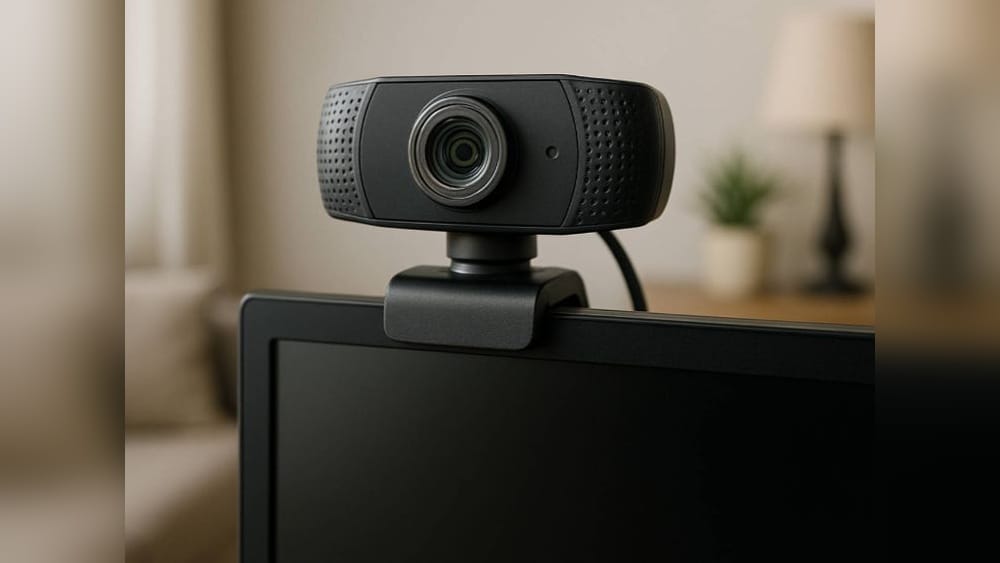
Setting up a computer camera as a security camera is a smart way to increase your home or office safety without buying expensive equipment. Many people have a laptop or webcam they rarely use, and with the right approach, you can turn this into a 24/7 surveillance system.
This method is not only budget-friendly, but it’s also flexible—you control where, when, and how you monitor your space.
In this guide, you’ll learn exactly how to use your computer camera as a security camera. You’ll get step-by-step instructions, learn about the best software choices, and discover practical tips to make the most out of your setup. Whether you want to watch your front door, check on pets, or keep an eye on your office at night, you’ll find clear advice for every situation.
You don’t need advanced tech skills to get started. With simple tools, a little setup, and the right knowledge, you can transform your webcam into a powerful security tool. Along the way, you’ll find tips that even beginners miss, and see how to avoid common mistakes.
Let’s dive in and make your computer camera work for your security.
Why Use A Computer Camera For Security?
Many people wonder why they should use a computer camera instead of buying a dedicated security camera. The answer is clear: cost, convenience, and flexibility.
First, most households already have a laptop or desktop with a built-in or USB webcam. Instead of letting that camera sit unused, you can repurpose it for security. You avoid extra spending on new hardware.
Second, installing a computer camera is usually easier than setting up a complicated security system. Most webcams are plug-and-play, and with the right software, you can start monitoring in minutes.
Third, using a computer camera is flexible. You can move your laptop or webcam to different locations. If you travel, you can take your security setup with you. You’re not tied to one fixed spot.
Finally, some free or low-cost software can give your computer camera advanced features—like motion detection, alerts, and cloud storage—that rival expensive security systems. When you combine these factors, the computer camera is a practical choice for many people.
Choosing The Right Camera
Not all webcams or computer cameras are the same. The quality of your video feed depends on your camera’s features. Here’s what to consider before you get started.
Built-in Vs. External Webcam
Built-in webcams (like those in laptops) are convenient, but they often have lower resolution and fixed positions. External webcams can be placed anywhere and often have better image quality.
If you’re serious about security, an external webcam gives you more options. You can mount it on a wall, point it at a door, or even use a USB extension cable for better placement.
Camera Resolution And Frame Rate
Look for a camera with at least 720p HD resolution. Higher is better, especially if you want to recognize faces or read small details. Frame rate matters too. Aim for at least 15 frames per second (fps) for smooth video.
Here’s a quick comparison of common webcam types:
| Type | Resolution | Placement | Price Range |
|---|---|---|---|
| Laptop Built-in | 480p–720p | Fixed | Included |
| Basic External | 720p–1080p | Flexible | $10–$30 |
| High-End Webcam | 1080p–4K | Highly Flexible | $40–$200 |
Low-light Performance
Some cameras perform poorly in low-light or at night. If you need night-time security, look for webcams with infrared or low-light enhancement features. For most home use, a basic camera with a lamp nearby is enough, but this is a common mistake—many people set up security in dark rooms and get only black screens.
Microphone And Audio
Some webcams have built-in microphones. This can be useful if you want to record sound, but for privacy, you may want to disable it unless needed.
Field Of View
A wider field of view covers more area. Standard webcams offer 60–90 degrees, but some go up to 120 degrees or more. Wider is better for monitoring a whole room, but too wide can make people look small.
Credit: reolink.com
Setting Up Your Camera For Security
Once you’ve chosen your camera, it’s time to set it up for security. Proper setup is the difference between useful video and wasted effort.
Positioning Your Camera
Pick a spot where the camera can see the area you want to monitor. Here are some tips:
- Entry Points: Place cameras near doors, windows, or gates—common spots for break-ins.
- Height: Put the camera at eye level or higher to capture faces, not just the tops of heads.
- Avoid Backlighting: Don’t point the camera directly at bright windows or lights, as this can create glare and shadows.
- Stable Surface: Use a stable surface or mount to avoid shaky video.
- Keep Cables Safe: If you use a USB webcam, make sure cables are out of the way to prevent tripping or unplugging.
Lighting
Good lighting is essential. If your camera’s image is too dark, use a lamp or leave a light on. Some people use a small nightlight to improve night vision.
Privacy And Legal Considerations
Before you start recording, check your local laws. In many places, it’s legal to record video in your own home, but recording audio or pointing cameras into neighbors’ property can break privacy laws. Always inform people if you’re recording a shared space.
Choosing Security Camera Software
The right security camera software is what turns your webcam into a full-featured surveillance system. The software handles motion detection, recording, alerts, and sometimes even remote access.
Here’s what to look for in software:
- Motion Detection: Automatically starts recording when something moves.
- Alerts: Sends you an email or notification if motion is detected.
- Recording Options: Saves video to your computer, external drive, or cloud.
- Remote Viewing: Lets you watch the camera feed from your phone or another device.
- Multi-Camera Support: Useful if you want more than one camera in the future.
Popular Free And Paid Software
Here are some of the most popular choices, with a quick comparison:
| Software | Platform | Key Features | Price |
|---|---|---|---|
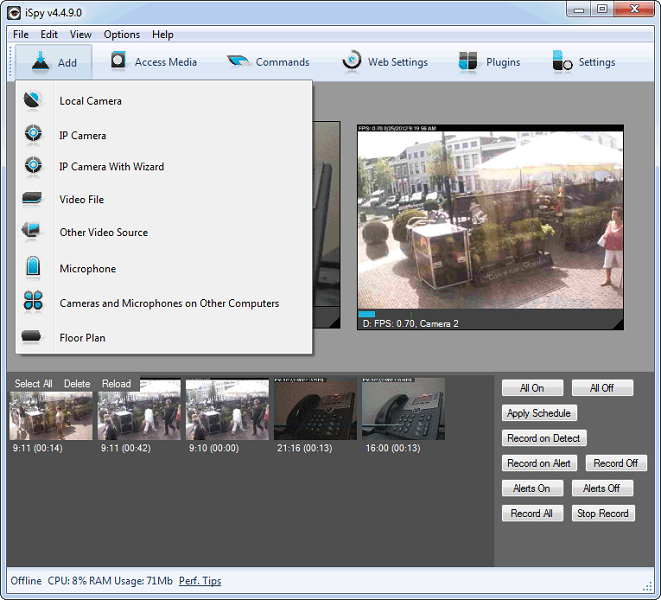
| iSpy | Windows | Motion detection, remote access | Free / Paid |
| Yawcam | Windows | Simple, easy setup | Free |
| ContaCam | Windows | Motion detection, low resource use | Free |
| SecuritySpy | macOS | Multi-camera, advanced alerts | Paid |
| ManyCam | Windows/macOS | Streaming, overlays | Free / Paid |
| ZoneMinder | Linux | Open-source, multi-platform | Free |
Non-obvious insight: Some software (like iSpy) lets you use your phone as a camera, too. If you need more coverage, this can be an easy upgrade.
Mobile Apps
If you want to monitor your camera remotely, look for software with a mobile app or web interface. This lets you check your camera feed from anywhere.
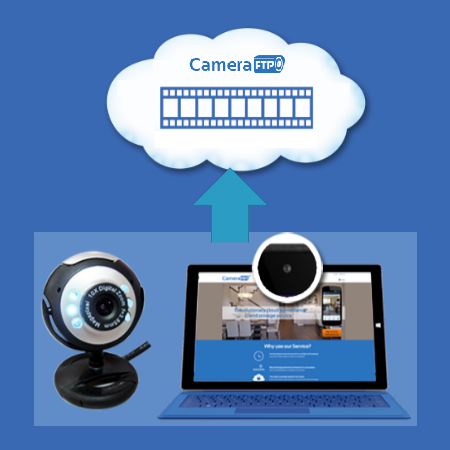
Cloud Storage
Some software saves video to the cloud. This protects your footage if your computer is stolen or damaged. Free plans are often limited, but they can be enough for basic needs.
Credit: www.cameraftp.com
Step-by-step Guide: Setting Up Your Security Camera
Let’s walk through a typical setup using your computer camera and free software. This example uses Yawcam, a simple and reliable choice for Windows users. The steps are similar for other programs.
Step 1: Download And Install Software
Go to the official Yawcam website and download the installer. Run the installer and follow the on-screen instructions.
Tip: Always download from the official website to avoid malware.
Step 2: Connect Your Camera
Plug in your external webcam, or use your laptop’s built-in camera. Make sure the camera is working—open your computer’s camera app to check.
Step 3: Launch The Software
Open Yawcam. The software should detect your camera automatically. If not, go to “Settings” → “Device” and select your camera from the list.
Step 4: Configure Motion Detection
- In Yawcam, go to “Window” → “Motion Detection.”
- Set the sensitivity. Higher sensitivity means the software will trigger more easily, even for small movements.
- Choose what happens when motion is detected—save a video, send an alert, or both.
Non-obvious insight: Start with medium sensitivity. Too high and you’ll get false alarms from shadows or pets; too low and you’ll miss real events.
Step 5: Choose Where To Save Video
Go to “Settings” → “File. ” Choose a folder for your recordings. Make sure you have enough free space.
Tip: Use an external drive for longer recording times. Local storage fills up fast.
Step 6: Set Up Alerts (optional)
Many programs can send an email when motion is detected. Enter your email address in the “Alert” or “Notification” section, and set up the alert type.
Step 7: Test Your Setup
Wave your hand in front of the camera or walk past it. Make sure the software records video and sends alerts as expected.
Step 8: Secure Your Computer
If you’re leaving your computer unattended, lock your user account and set a strong password. This prevents others from disabling your camera or stealing footage.
Tips To Improve Your Security Camera Setup
Turning a computer camera into a security system is simple, but a few extra steps can make it much more effective.
Use Multiple Cameras
Most software supports several cameras. You can cover more areas—like front and back doors, or multiple rooms—by connecting extra webcams.
Hide Or Disguise The Camera
Visible cameras deter some intruders, but others may try to avoid or disable them. If security is critical, hide the camera among books, plants, or on a high shelf.
Schedule Recording Times
Some software lets you record only at certain times—like when you’re at work or asleep. This saves storage space and makes reviewing footage easier.
Regularly Check Footage
Don’t just set it and forget it. Review your recordings every few days to make sure the camera is working, and clear out old files to free up space.
Update Your Software
Security software updates fix bugs and close vulnerabilities. Always keep your software up to date to avoid hacking or glitches.
Protect Your Privacy
If you use cloud storage or remote access, set strong passwords and use two-factor authentication if available. Avoid sharing access with people you don’t trust.
Manage Notifications
Too many false alerts can be annoying. Adjust motion sensitivity, block out areas (like windows with moving trees), and fine-tune your settings to reduce unwanted notifications.
Advanced Features And Upgrades
As you get comfortable with your basic setup, you might want to add more features. Here’s what’s possible:
Remote Access
Many programs allow you to view your camera feed from your phone or another computer. This is helpful if you travel or want to check on your home while at work.
Cloud Recording
Some paid software offers cloud recording for a monthly fee. This means your footage is saved on the internet, not just your computer. If your computer is stolen or damaged, you can still access your videos.
Smart Home Integration
Advanced software can connect with smart home devices. For example, you can set your camera to start recording if a smart door sensor is triggered.
Face Recognition
Some high-end programs can recognize faces, letting you know if a family member or a stranger is detected. This feature usually costs extra.
Using Old Phones As Cameras
A creative way to expand your coverage is to use an old smartphone as a security camera. Apps like AlfredCamera or IP Webcam turn your phone into a wireless camera, which you can monitor from your computer or another device.
This is often overlooked but can be a powerful upgrade.
Common Mistakes And How To Avoid Them
Even simple setups can go wrong. Here’s how to avoid the most common beginner mistakes:
- Forgetting to Check Camera Angle: Many people set up a camera and never check if it covers the right area. Always test and adjust until you see what you want.
- Ignoring Lighting: Poor lighting makes footage useless. Always test your camera at night and add a lamp if needed.
- Running Out of Storage: High-resolution video fills up hard drives fast. Set limits or use software that overwrites old footage.
- Leaving Software Outdated: Old versions can have bugs or security holes. Check for updates at least once a month.
- Not Securing Remote Access: If you use remote viewing, always use strong passwords and never share links publicly.
- Recording Where You Shouldn’t: Always check local laws. Never record in bathrooms or guest bedrooms, and inform roommates or guests about cameras.
Real-world Examples
To see how this works in practice, here are a few real-world scenarios:
Home Security
Jane set up her old laptop in the living room facing the front door. Using iSpy, she configured motion detection to record whenever someone enters. While on vacation, she checked the live feed from her phone and got an alert when her neighbor came by to water her plants.
Office Monitoring
A small business owner used three external webcams connected to an old desktop. With free ContaCam software, he monitored the main entrance, warehouse, and back door. He caught a delivery mix-up on video, helping resolve a dispute with a supplier.
Pet Surveillance
Mark used his computer camera to watch his dog while at work. Yawcam let him check the live feed from his office and even record funny moments when his dog played with toys. The recordings helped him train his pet and spot signs of boredom.
When To Upgrade To A Dedicated Security System
While a computer camera is a great start, there are times when a dedicated security system makes more sense:
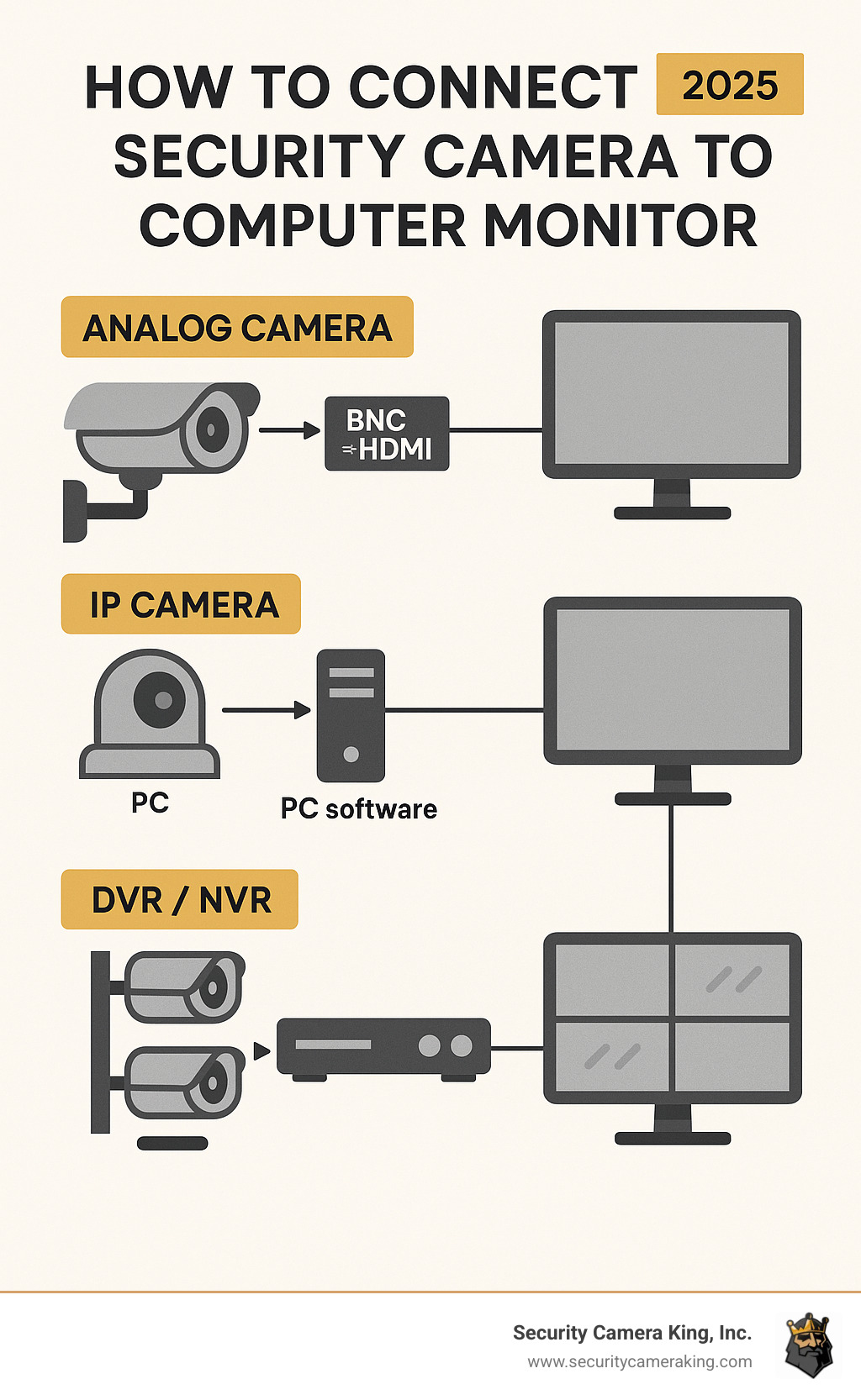
- Large Properties: If you need to cover a big area, multiple wired cameras with a central recorder are more reliable.
- Outdoor Monitoring: Webcams aren’t weatherproof. For outdoor use, buy cameras designed for rain, snow, and direct sunlight.
- Professional Monitoring: If you want police or fire department alerts, or 24/7 monitoring, consider a professional system.
- Legal or Insurance Needs: For businesses, insurance companies may require approved security cameras.
Still, for apartments, small offices, or extra coverage, a computer camera setup is a smart, low-cost solution.
Credit: www.securitycameraking.com
Security And Privacy Risks
Turning your computer camera into a security device has some risks. Hackers can target webcams if you don’t secure them. Here’s how to protect yourself:
- Change Default Passwords: If your software has a default password, change it immediately.
- Keep Software Updated: Updates often fix security issues.
- Use a Firewall: Block unwanted internet access to your camera.
- Turn Off When Not Needed: Close the software or unplug the camera when you’re home.
- Cover the Camera: When not in use, a simple sticky note or camera cover adds extra safety.
Always balance security with privacy. Only record what you need, and keep footage safe from prying eyes.
Comparison: Computer Camera Vs. Dedicated Security Camera
To help you decide if using your computer camera is right for you, here’s a side-by-side comparison:
| Feature | Computer Camera | Dedicated Security Camera |
|---|---|---|
| Cost | Low / Free | Medium to High |
| Installation | Easy, plug-and-play | May require wiring |
| Image Quality | Good (depends on webcam) | Excellent (designed for security) |
| Flexibility | High (moveable) | Fixed, purpose-built |
| Outdoor Use | No (indoor only) | Yes |
| Features | Software-based | Hardware & advanced features |
| Reliability | Depends on computer uptime | Always-on, designed for 24/7 use |
For many, starting with a computer camera is enough. If you outgrow it, you can upgrade later.
Saving And Managing Your Footage
One challenge with computer camera security is managing your video files. Here’s how to handle it smoothly:
- Set File Limits: Most software lets you set a maximum size or delete old videos automatically.
- Organize by Date: Save files in folders by date for easy searching.
- Backup Important Clips: If you capture a break-in or important event, back up the file to cloud storage or a USB drive.
- Encrypt Sensitive Files: Use tools like VeraCrypt to add a password to private videos.
If you need more storage, consider buying an external hard drive or using free cloud services like Google Drive for short clips.
Accessibility: Watching Your Camera Feed Anywhere
A big advantage of software-based security is remote access. Here’s how you can check your camera feed from anywhere:
- Web Interface: Many programs let you log in from any browser.
- Mobile Apps: Download the app for your software to your phone.
- Email Alerts: Get snapshots or short clips sent to your inbox.
To make this work, you’ll need to keep your computer on and connected to the internet. Set a strong password and use two-factor authentication if your software supports it.
Environmental Factors To Consider
Webcams are designed for indoor use. Heat, cold, and humidity can damage them. Never put a webcam outside unless you protect it from the elements. For windows, beware of glare and condensation.
In high-humidity rooms (like kitchens), check your camera regularly for fogging or damage. For long-term use, keep the area clean and dust-free.
Integrating With Other Devices
A fun upgrade is connecting your camera system to other smart devices. For example:
- Link a motion sensor to turn on lights when the camera detects movement.
- Send camera alerts to your smart speaker or phone.
- Use IFTTT (If This Then That) to automate actions based on camera events.
Some setups require technical knowledge, but basic connections are easy with modern software.
Legal And Ethical Considerations
Recording video, even in your home, carries responsibilities. Always:
- Inform roommates or guests if you have cameras.
- Do not point cameras at private spaces (like bathrooms).
- Avoid recording audio unless everyone consents—audio laws are stricter than video.
- For businesses, display signs if you record public areas.
For more on privacy rules, check resources like the Wikipedia page on video surveillance.
Frequently Asked Questions
How Much Storage Space Do I Need For Security Recordings?
It depends on video quality and how much you record. For 720p video, an hour can take 500 MB to 1 GB. If you record only on motion, most people can save a week or more of footage on a 64 GB drive.
Can I Use My Laptop As A Security Camera While Doing Other Work?
Yes, most software runs in the background. However, heavy use (like gaming or video editing) can slow performance. Make sure your computer is powerful enough for both tasks.
Is It Possible To Get Alerts On My Phone If The Camera Detects Motion?
Yes, many programs (like iSpy, Yawcam, and SecuritySpy) can send email or app notifications to your phone when motion is detected. Check your software’s settings for alert options.
What If My Computer Turns Off Or Restarts—will My Camera Still Work?
No, the camera only works when the computer and security software are running. To avoid downtime, set your computer to never sleep, and consider using a laptop with battery backup during power outages.
Are Free Security Camera Programs Safe To Use?
Most are safe if downloaded from the official site. Always scan files with antivirus software, and avoid giving software more permissions than needed.
Turning your computer camera into a security camera is practical, cost-effective, and flexible. With the right setup, you can monitor your home or office, check in from anywhere, and get peace of mind—without expensive hardware. By following the steps in this guide, you’ll be ready to set up your own system and avoid common pitfalls.
Whether you’re watching your front door, checking on pets, or starting small before upgrading, you now have the knowledge to get started and stay safe.