
Using a Dish remote control can seem simple, but many people miss out on its full power. The truth is, your Dish remote is more than just a tool to change channels. It gives you control over your TV, your receiver, and even other devices in your home.
If you ever felt confused by the buttons, wanted to program your remote, or wondered how to fix common problems, you’re not alone. This guide will help you master every part of your Dish remote, from the basics to advanced features.
By the end, you’ll understand every button, learn how to set up your remote, and discover tips that even experienced users often miss.
Understanding The Different Types Of Dish Remote Controls
Before you start using your Dish remote, it’s important to know which model you have. Dish Network has released several types over the years, and each has unique features.
Common Dish Remote Models
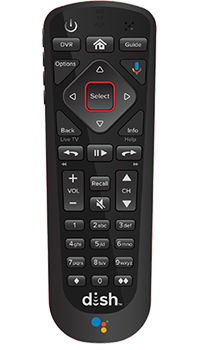
- 40.0/50.0/52.0/54.0 Voice Remotes: These are the most recent models, with voice command buttons and smart features.
- 21.1/20.1 IR Remotes: Older versions, often paired with SD and early HD receivers. They use infrared (IR) to send signals.
- 32.0/21.0/6.3 UHF Pro Remotes: These can control your receiver from another room, using radio frequency (RF).
- TV1/TV2 Remotes: Some receivers come with two remotes—one for the main room (TV1, usually IR) and one for a second room (TV2, usually RF).
Knowing your model helps you find the right instructions and troubleshoot more easily.
How To Identify Your Remote
- Look for the model number: Usually printed on the back or inside the battery compartment.
- Check for a microphone button: Voice remotes have a microphone symbol or a button labeled “Voice.”
- Notice the color and button layout: Newer remotes have a sleeker design and more colorful buttons.
Dish Remote Features At A Glance
Here’s a quick comparison of popular Dish remote models:
| Model | Main Technology | Voice Support | Backlit Buttons | Controls Other Devices |
|---|---|---|---|---|
| 54.0 Voice Remote | RF/IR | Yes | Yes | Yes |
| 50.0 Voice Remote | RF/IR | Yes | No | Yes |
| 21.1 IR Remote | IR | No | No | Yes |
| 32.0 UHF Pro | RF | No | No | No |
Insight: Many users don’t realize that newer Dish remotes can also control their TV’s volume, power, and even soundbars. This feature saves space and simplifies your setup.
Getting Started: Basic Functions And Navigation
Learning the basics is the first step to using your Dish remote with confidence. Each button is designed for a specific function.
Powering On And Off
- Power button: Turns your TV and receiver on or off. On most remotes, pressing once turns both devices on, pressing again turns them off.
- TV button: Some remotes have a separate TV button to control just the TV’s power.
Channel And Volume Controls
- Channel Up/Down: Changes the channel by one.
- Guide button: Opens the on-screen program guide.
- Volume Up/Down: Adjusts the TV’s or receiver’s volume.
- Mute: Instantly silences the sound.
Navigating Menus
- Arrow keys: Move the on-screen cursor up, down, left, or right.
- Select/OK button: Confirms a choice or enters a menu.
- Back/Exit: Returns to the previous screen or exits a menu.
Fast Access Keys
- DVR button: Opens your recorded shows.
- Info: Displays details about the current program.
- Menu: Opens the main system menu for settings and options.
- Recall/Last: Returns to the last channel you watched.
Colored Shortcut Buttons
Some remotes have red, green, yellow, and blue buttons. These give quick access to special features, like closed captions or search.
Non-obvious tip: You can often customize what some shortcut buttons do in your receiver’s settings. Check your receiver’s manual for details.
Setting Up Your Dish Remote Control
Getting your remote ready is more than just inserting batteries. Correct setup means you can control your TV, receiver, and other devices smoothly.
Inserting And Replacing Batteries
- Open the battery cover on the back.
- Insert two fresh AA batteries, matching the plus (+) and minus (–) signs.
- Replace the cover. If your remote acts slow or stops working, try new batteries first.
Pairing Your Remote With The Dish Receiver
For Voice Remotes (54.0, 50.0)
- Press the Home button twice, or the Menu button once.
- Go to Settings > Remote Control.
- Select Pairing Wizard.
- Follow the on-screen steps to pair your remote. You may need to press and hold the SAT button until all mode buttons light up.
For Older Ir/uhf Remotes
- Usually, just point the remote at the receiver and press any button. If not, press and hold the SAT button, then enter the receiver’s address code (found in the receiver menu).
Programming The Remote To Control Your Tv
You can use your Dish remote to control your TV’s power, volume, and sometimes input.
- Find the code for your TV brand: Check the manual or Dish’s website.
- Press and hold the TV button until all mode buttons light up.
- Enter the code using the number keys.
- Press the Power button. If the TV turns off, setup is complete. If not, try the next code.
Programming For Other Devices
Many Dish remotes can also control soundbars, DVD players, or audio receivers. The steps are similar—just use the AUX or DVD button and the correct device code.
Insight: If your TV or device brand isn’t listed, use the “scan” method. Hold the device button, then repeatedly press the Power or Channel Up button until your device responds.
Mastering Advanced Features
Your Dish remote can do more than change channels. Understanding advanced options will help you get the most from your setup.
Using Voice Commands
Voice remotes let you search for shows, open apps, or change channels by speaking.
- Hold the Microphone button and say, for example, “Find comedy movies” or “Go to ESPN.”
- Release the button and wait for a response.
Common mistake: Speaking too soon. Wait for the microphone icon on your TV before talking.
Customizing Remote Settings
In your receiver’s menu, you can:
- Change the remote’s backlight brightness.
- Turn on “Remote Finder” if your remote gets lost (available on some models).
- Enable or disable shortcut buttons.
Using The Remote Finder
Some newer receivers and remotes have a Remote Finder feature. Press the button on your receiver, and your remote will beep loudly, helping you find it under the couch or in another room.
Setting Up Favorites And Shortcuts
You can assign favorite channels to shortcut buttons for faster access.
- Open the Guide.
- Highlight a channel, press Options, and choose Add to Favorites.
- Assign it to a shortcut button if your remote allows.
Parental Controls
Use your remote to set up parental controls:
- Press Menu > Parental Controls.
- Set a PIN and select restrictions, like blocking certain channels or ratings.
Credit: www.colegiofenixpa.com.br
Troubleshooting Common Remote Control Problems
Dish remotes are reliable, but problems can happen. Here’s how to solve them quickly.
Remote Not Responding
- Try new batteries first.
- Make sure you’re pointing the remote at the receiver (for IR models).
- Reset the remote: Remove batteries for 10 seconds, then reinsert.
- For RF remotes, check if the receiver is set to RF mode.
Buttons Not Working Or Sticking
- Gently clean the remote with a dry cloth.
- For sticky buttons, use a cotton swab and a small amount of rubbing alcohol (with batteries removed).
- If a button still fails, the remote may need replacement.
Volume Or Power Controls Not Working
- Reprogram the remote for your TV or audio device.
- Some TVs need a different code or method. Try the “scan” method if direct codes fail.
Pairing Issues
- Unpair and re-pair your remote by following the setup steps again.
- Make sure your receiver’s software is up to date.
Lost Remote
- Use the Remote Finder if available.
- Download the Dish Anywhere app to use your smartphone as a temporary remote.
Non-obvious insight: Interference from other remotes or wireless devices can cause problems. Keep your receiver away from Wi-Fi routers, cordless phones, or other electronics.
Dish Remote Shortcuts And Hidden Functions
There are several clever shortcuts and features that many users never discover.
Quick-access Buttons
- Double-press the Guide button: Switches between all channels, subscribed channels, or favorites.
- Press and hold the Info button: Opens advanced program details.
- Press the Recall/Last button twice: Shows a list of recently watched channels.
Picture-in-picture (pip) Controls
If your receiver supports PIP:
- PIP button: Activates or deactivates picture-in-picture mode.
- Swap button: Switches the main and PIP channels.
Closed Captioning
- Press the Options or CC button to quickly turn captions on or off.
Accessing Apps And On-demand Content
- Use the Home or Apps button to open streaming apps like Netflix or YouTube (available on Hopper receivers).
- Use voice commands to search for movies or launch apps.
Remote Control For Multiple Rooms
If you have a multi-TV setup, make sure each remote is paired to the correct receiver and TV. Use the colored tab or sticker on the remote to identify which room it belongs to.
Pro tip: Older UHF remotes can work from another room, but thick walls or metal objects can reduce range.
Comparison: Dish Remote Vs Universal Remotes
Some people wonder if they should use a universal remote instead of the Dish remote. Here’s how they compare:
| Feature | Dish Remote | Universal Remote |
|---|---|---|
| Direct Dish Control | Yes | Sometimes (with setup) |
| Voice Commands | Yes (newer models) | Rare |
| Controls Other Devices | Yes (TV, soundbar, etc.) | Yes |
| Easy Setup | Yes (with pairing or codes) | Varies |
| Advanced Features (DVR, Guide) | Full support | Partial |
| Replacement Cost | Usually free/low ($20-30) | $10-$100+ |
Key takeaway: While universal remotes can control many devices, the Dish remote is best for full Dish Network features. If you use DVR, voice, or advanced menus, the original remote is usually easier.
Practical Tips For Everyday Use
Keep Your Remote Updated
Some remotes and receivers update automatically. Check for updates in your receiver menu under Settings > Updates. Updates fix bugs and add new features.
Label Your Remotes
If you have more than one remote, add a small sticker with the room name (like “Living Room” or “Bedroom”). This avoids confusion and saves time.
Use Parental Controls Wisely
If you have children at home, set up PINs and channel locks to control what they can watch.
Clean The Remote Regularly
Remotes get dirty quickly. Wipe with a dry or slightly damp cloth (never soak). Avoid harsh cleaners.
Store A Spare
If you lose your remote, you can order a replacement from Dish or use the Dish Anywhere app on your smartphone.
Safety And Maintenance
Keep Away From Water
Never let your remote get wet. Water can damage the electronics and cause corrosion.
Battery Safety
Replace batteries every 6-12 months. Remove batteries if you won’t use the remote for a long time.
Avoid Dropping
Dropping the remote can break buttons or the battery compartment. Use a remote holder or store it in a safe spot.
Safe Cleaning
For sticky or dirty buttons, use a cotton swab with a little rubbing alcohol, but keep liquid away from the inside.
When To Replace Your Dish Remote
Even with good care, remotes can wear out. You may need a new remote if:
- Multiple buttons stop working.
- The remote only works very close to the receiver.
- The battery compartment is damaged.
- The remote is lost and you can’t find it with the Remote Finder.
Contact Dish customer support or visit the official website to order a new remote.
Non-obvious insight: If your receiver is very old, a new remote may not be compatible. Check the model numbers before ordering.

Credit: www.amazon.com
Accessibility Features
Dish remotes include features to help people with vision or mobility challenges.
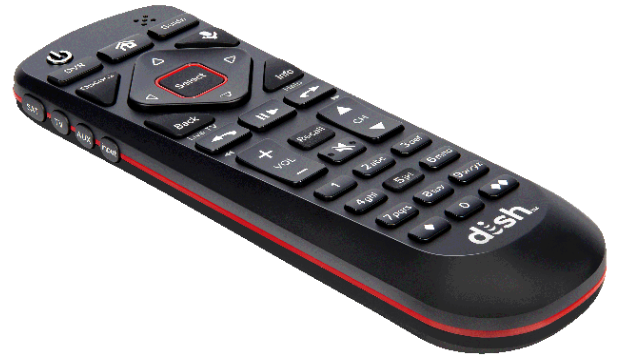
- Backlit buttons: Easier to see in low light.
- Large buttons: On some models, for easier pressing.
- Voice guidance: Some receivers can read out on-screen menus when paired with the remote.
If you need more help, Dish offers accessibility support and can recommend the best remote for your needs.
Future Trends In Remote Controls
The future of TV remotes is exciting. New features include:
- Smartphone integration: Control your TV and receiver with your phone.
- Touchpad controls: Swipe and tap instead of pressing buttons.
- Voice and gesture control: Speak or wave your hand to change channels.
- Universal smart remotes: Control all devices, including smart home gadgets.
Manufacturers are also making remotes more eco-friendly, using recycled materials and rechargeable batteries.
For more on remote technology, see the Remote control Wikipedia page.
Credit: www.dish.com
Frequently Asked Questions
How Do I Find The Code For My Tv Brand?
You can find codes in your Dish remote’s manual or on the Dish website. If your brand isn’t listed, use the “scan” method by holding the device button and repeatedly pressing Channel Up until your TV responds.
My Remote Isn’t Working—what Should I Do First?
Start by replacing the batteries with fresh ones. Make sure you’re pointing the remote at the receiver (for IR models). If it still doesn’t work, try re-pairing or resetting the remote.
Can I Use My Dish Remote To Control My Soundbar?
Yes, most Dish remotes can be programmed to control soundbars. Use the AUX button and enter the correct code for your soundbar brand. If you don’t have the code, try the scan method.
What Should I Do If My Remote Is Lost?
Use the Remote Finder feature if your receiver supports it. If not, download the Dish Anywhere app to use your smartphone as a temporary remote. You can also order a replacement from Dish.
How Can I Turn On Closed Captions With My Remote?
Press the Options or CC button on your remote to quickly enable or disable closed captions. You can also find caption settings in the receiver’s menu.
Using your Dish remote control doesn’t have to be confusing or limited. With the right setup, a little practice, and the tips above, you can control your TV and receiver quickly and easily. Whether you’re a beginner or a long-time user, there’s always something new to discover with your Dish remote.
Enjoy the convenience, and never miss your favorite show again!