
Using your iPhone as a remote control can change how you interact with your home devices. Many people don’t realize that their iPhone is more than a phone—it can also control TVs, streaming boxes, air conditioners, smart lights, and even presentations.
This power saves time, reduces clutter, and makes your daily routine smoother. If you have lost your TV remote or want to manage your smart devices from one place, your iPhone is a handy solution.
This guide will walk you through everything you need to know: the best apps to use, setup steps, what devices your iPhone can control, and how to solve common problems. You’ll also learn about advanced uses, like using Siri for voice commands, or controlling your devices when you’re not at home. Even if you are not very tech-savvy, you’ll find easy instructions and tips to help you get started. By the end, you’ll see how your iPhone can simplify your life in ways you might not expect.
Iphone As A Universal Remote: What’s Possible?
The iPhone’s power as a universal remote comes from its hardware and the wide range of apps available. It can send signals through Wi-Fi, Bluetooth, and sometimes infrared (with extra hardware). Here’s what you can usually control:
- Smart TVs (Samsung, LG, Sony, Vizio, TCL, etc.)
- Streaming devices (Apple TV, Roku, Fire TV, Chromecast)
- Cable/satellite boxes
- Home theater receivers
- Smart lights and plugs
- Air conditioners and fans (if Wi-Fi enabled)
- Projectors
- Presentation software (PowerPoint, Keynote, Google Slides)
- Smart home hubs (HomeKit, Google Home, Alexa)
Not all devices are supported. Older or basic electronics that use infrared (IR) and do not have Wi-Fi or Bluetooth may need an IR adapter for your iPhone. But for most modern devices, your iPhone can connect directly.
Example: Iphone As Tv Remote
You can use your iPhone to change channels, adjust volume, open apps like Netflix, and even type using your phone’s keyboard. For smart lights, you can dim or turn them off from your bed. If you use Apple TV, your iPhone can fully replace the physical remote, including using Siri for voice search.
Key Apps For Turning Your Iphone Into A Remote
There are many apps that let your iPhone act as a remote. Some are built-in, while others you download. Here are the most popular and useful ones:
1. Apple Tv Remote (built-in)
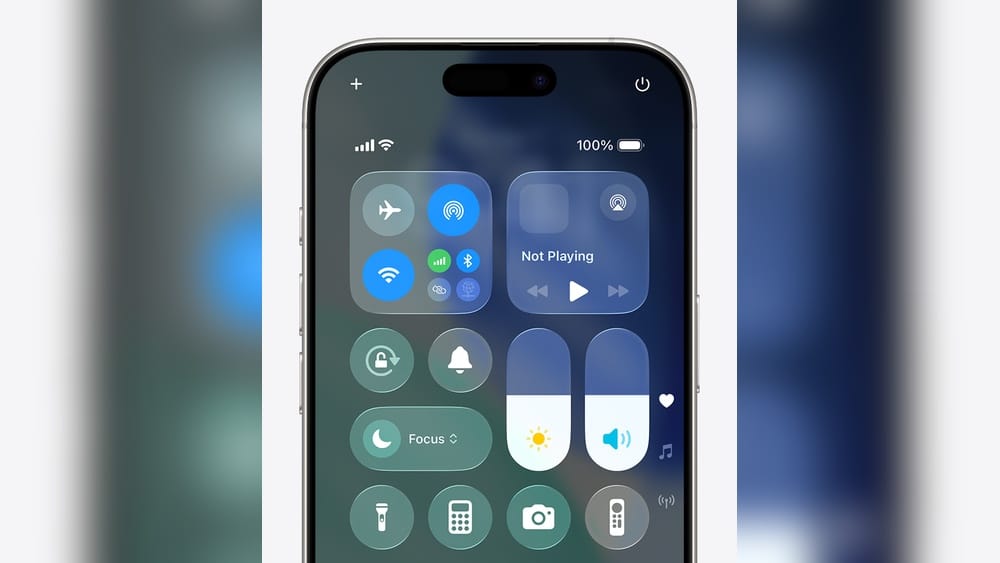
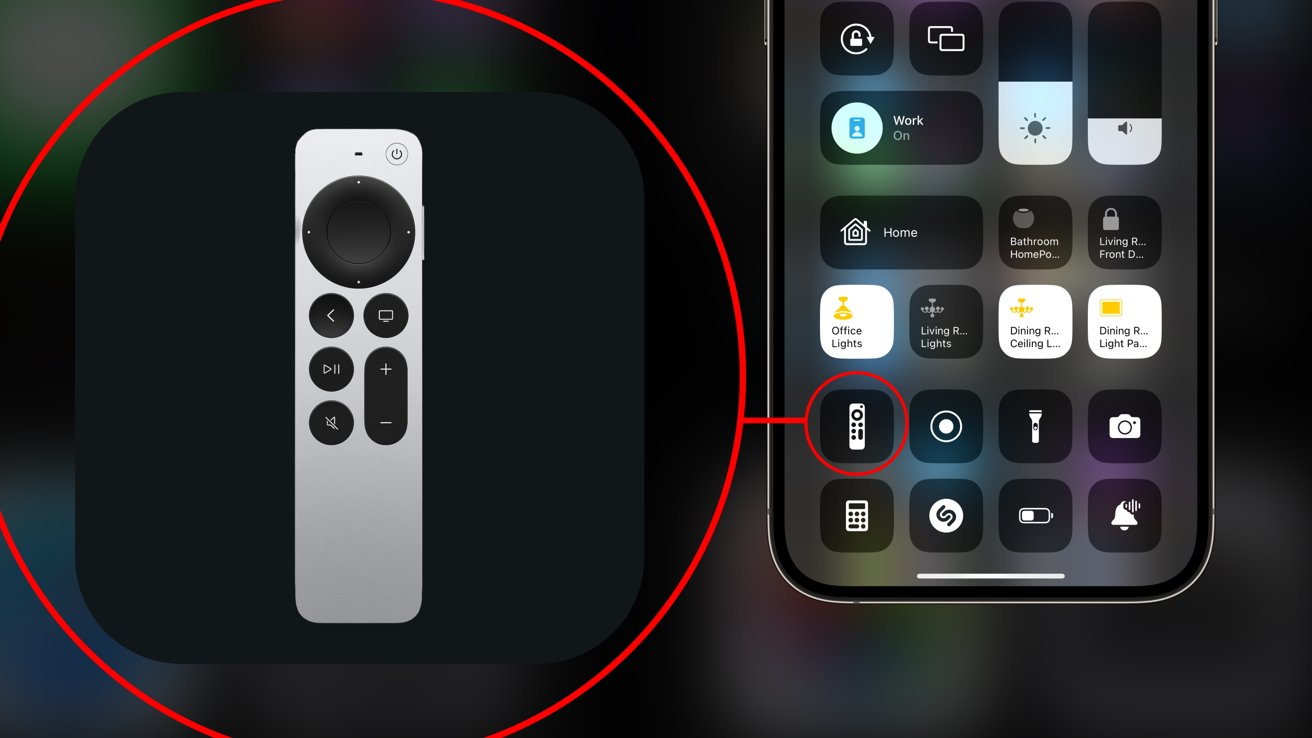
If you have an Apple TV, your iPhone already has the remote built-in with the Apple TV Remote in the Control Center (iOS 12 and later).
- Open Control Center: Swipe down from the upper-right corner.
- Tap the remote icon.
- Connect to your Apple TV and control it directly.
2. Google Home
Controls Chromecast, Google TV, and smart home devices like lights, plugs, and thermostats.
- Download Google Home from the App Store.
- Sign in with your Google account.
- Add devices and control them from your iPhone.
3. Roku App
Turns your iPhone into a full-featured Roku remote. Supports voice search, private listening, and channel shortcuts.
4. Samsung Smartthings
Controls Samsung TVs, appliances, and other smart devices. Works over Wi-Fi.
5. Lg Thinq
For LG TVs and smart home products. Enables advanced control and settings.
6. Amazon Fire Tv App
Works as a remote for Fire TV devices. Supports keyboard input and voice search.
7. Universal Remote Apps
Apps like AnyMote or Unified Remote can control many devices, but may need additional setup or hardware for older (IR-only) devices.
8. Homekit (home App)
Apple’s built-in Home app lets you control HomeKit-enabled devices like lights, plugs, thermostats, and more.
9. Third-party Presentation Apps
Apps like Microsoft PowerPoint Remote and Keynote Remote let you control slideshows from your iPhone.
Non-obvious Insight
Some apps also let you control your devices outside your home if you have set up remote access (e.g., Apple Home or Google Home with a hub). This is handy for turning on lights before you arrive or checking if you left something on.
Credit: appleinsider.com
Setting Up Your Iphone As A Remote
Getting started is straightforward if you follow these steps. The process depends on your device and the app you choose.
Step 1: Make Sure Your Devices Are Compatible
- Smart TVs made after 2015 often support Wi-Fi/Bluetooth control.
- Streaming devices like Apple TV, Roku, Fire TV, and Chromecast are designed for app control.
- Smart home products (lights, plugs, thermostats) must support HomeKit, Google Home, or Alexa.
If your device uses only IR, you’ll need an IR accessory for your iPhone (see below).
Step 2: Connect Devices To The Same Network
Most remote apps require both your iPhone and the target device to be on the same Wi-Fi network. Double-check in your settings.
Step 3: Download The Right App
- Use the device brand’s official app for the best experience (e.g., Samsung SmartThings for Samsung TVs).
- If you have multiple brands, a universal app may help but can be less reliable.
Step 4: Pair Or Add Devices
- Open the app and follow prompts to discover your device.
- Some apps auto-detect devices; others require you to enter a code or select from a list.
- For some setups (Apple TV, HomeKit), you may need to scan a QR code on the device or TV screen.
Step 5: Test The Controls
- Try basic commands like power, volume, and input.
- Test advanced features like voice search, keyboard input, or launching apps.
Step 6: Enable Remote Access (optional)
- For control when you’re away from home, set up remote access (e.g., HomeKit hub, Google Nest Hub).
- This step is often skipped but unlocks more possibilities.
Common Beginner Mistake
Many people skip connecting to the same Wi-Fi network, which causes the app to not find their devices. Always check your network first.
Iphone As Remote: Device Compatibility Guide
Not all electronics work with iPhone remote apps. Here’s a quick look at what works best:
| Device Type | Direct App Support | Extra Hardware Needed | Best App(s) |
|---|---|---|---|
| Apple TV (4th gen+) | Yes | No | Apple TV Remote |
| Roku | Yes | No | Roku App |
| Modern Smart TVs (Wi-Fi) | Yes | No | Brand App (e.g., SmartThings) |
| Older TVs (IR only) | No | Yes (IR Blaster) | AnyMote, Universal Remote |
| Smart Lights | Yes | No | Home, Google Home |
| AC/Fans (Wi-Fi) | Yes | No | Brand App, SmartThings |
| Projectors | Some | Sometimes | Brand App, Universal Remote |
Credit: www.zdnet.com
Using Ir Blasters With Iphone
The iPhone does not have a built-in infrared (IR) blaster. To control older TVs, air conditioners, or fans that use IR, you’ll need an external IR accessory. Here’s how it works:
- Purchase an IR blaster that plugs into the Lightning port (for older iPhones) or USB-C (newer models).
- Download the companion app (often provided by the IR blaster brand).
- Pair the IR blaster with your devices by pointing it at the device and following setup instructions.
These adapters are small (about the size of a thumb drive) and usually cost $20–$40. Popular brands include AnyMote and BroadLink.
Pros And Cons Of Ir Blasters
| Pros | Cons |
|---|---|
| Controls nearly any IR device | Extra hardware to carry |
| Easy to set up | May not work with all cases |
| Affordable | Some compatibility issues |
Non-obvious Insight
Some smart IR blasters can be placed anywhere in your room and controlled over Wi-Fi. This means your iPhone sends the command to the blaster, and the blaster sends the IR signal to your TV or AC—even if you’re not pointing directly at the device.
Step-by-step Setup For Popular Devices
This section gives you quick-start guides for the most common devices.
Apple Tv
- Open Control Center on your iPhone.
- Tap the Apple TV Remote icon.
- Select your Apple TV from the list.
- Enter the 4-digit code shown on your TV screen (if prompted).
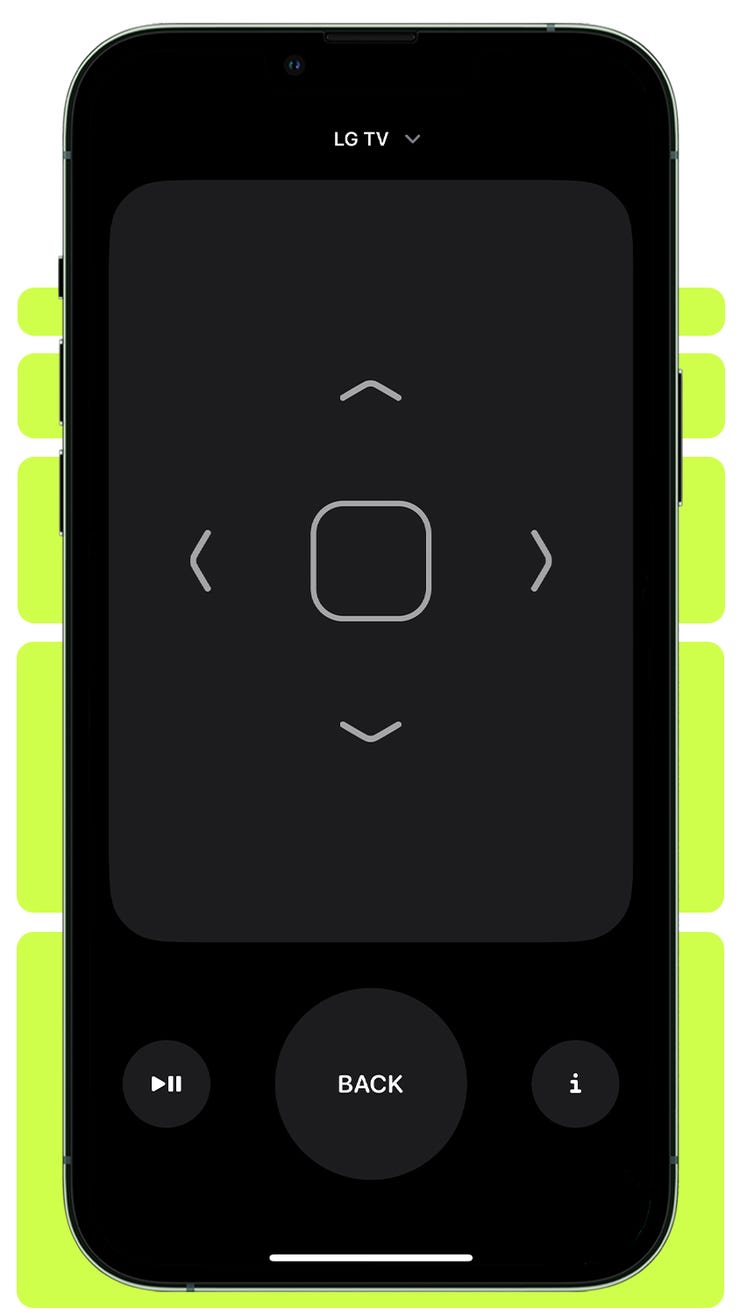
- Start using the on-screen controls.
Features: Navigation, keyboard input, Siri voice search, play/pause, app launching.
Roku
- Download the Roku app from the App Store.
- Make sure your iPhone and Roku are on the same Wi-Fi.
- Open the app and select your Roku device.
- Use the remote interface in the app.
Features: Navigation, voice search, private listening (with headphones), channel shortcuts.
Smart Tvs (samsung, Lg, Sony)
- Download your TV brand’s official app (e.g., SmartThings for Samsung).
- Connect your iPhone and TV to the same Wi-Fi.
- Open the app and let it search for your TV.
- Confirm the connection on your TV screen, if prompted.
Features: Change channels, volume, input, open apps, smart functions.
Chromecast/google Tv
- Download Google Home from the App Store.
- Sign in with your Google account.
- Add your Chromecast/Google TV device.
- Tap the remote icon in the app.
Features: Navigation, launch streaming apps, voice search.
Smart Lights And Plugs
- Open the Home app (for HomeKit devices) or Google Home.
- Add your smart device (scan QR code or follow app prompts).
- Assign devices to rooms for easier control.
Features: Turn on/off, dim, change colors, set schedules.
Presentations (powerpoint/keynote/google Slides)
- Download the relevant remote app (e.g., Microsoft PowerPoint).
- Connect your iPhone and presentation device to the same network.
- Pair the devices by entering a code or scanning a QR.
- Use your iPhone to change slides, view notes, or use a laser pointer feature.
Credit: support.apple.com
Advanced Tips And Tricks
Turning your iPhone into a remote opens up more possibilities than most people realize. Here are some power-user tips:
1. Use Siri For Voice Commands
For Apple TV and HomeKit devices, you can use Siri. Just say, “Hey Siri, turn on the TV,” or “Dim the lights to 50%.” This is faster than tapping buttons.
2. Create Home Automation Scenes
With the Home app, you can set up scenes like “Movie Night” that dim lights, close blinds, and turn on the TV—all with one tap.
3. Set Up Remote Access
If you have a HomePod, Apple TV, or iPad at home (set as a hub), you can control HomeKit devices from anywhere. Google Home and Alexa offer similar features with their hubs.
4. Use Widgets
Add remote control widgets to your iPhone’s Today View for fast access to controls without opening an app.
5. Customize Controls
Many apps let you rearrange buttons, add shortcuts, or create macros (e.g., “Turn off TV, then lights”).
6. Family Sharing
Let family members control devices from their own iPhones by inviting them in the app settings.
Overlooked Detail
Some apps support private listening—plug headphones into your iPhone and listen to TV sound privately, which is great for late-night viewing.
Troubleshooting: Common Problems And Fixes
While most setups are easy, you might run into issues. Here’s how to solve the most common ones:
Problem: Device Not Detected
- Check Wi-Fi: Both devices must be on the same network.
- Restart devices: Power cycle your TV/streamer and iPhone.
- Update apps and firmware: Outdated apps or device software can break compatibility.
- Disable VPNs: VPNs can block device discovery.
Problem: Lag Or Unresponsive Controls
- Check Wi-Fi strength: Weak signal causes delays.
- Close unused apps: Free up iPhone resources.
- Reduce network traffic: Pause large downloads or streams.
Problem: Ir Blaster Not Working
- Check adapter fit: Some cases block the port.
- Test with different devices: Make sure the device uses standard IR codes.
- Replace batteries: Some IR blasters need their own power.
Problem: Can’t Control Device Away From Home
- Set up a hub: Apple TV, HomePod, or iPad needed for HomeKit remote access.
- Enable remote access: Check settings in Google Home or Alexa.
- Check internet connection: Both iPhone and devices need internet.
Problem: App Missing Features
- Try the official app—universal remotes don’t support every function.
- Update to the latest app version.
Advanced Tip
If you keep having issues, reset your Wi-Fi router and reconnect all devices. This solves most network-related problems.
Security And Privacy Considerations
Controlling home devices from your iPhone is convenient, but it’s important to stay safe:
- Use strong Wi-Fi passwords to prevent outsiders from joining your network.
- Only download official apps from the App Store to avoid malware.
- Review app permissions—only allow necessary access.
- Enable two-factor authentication on your accounts (Google, Apple).
Some smart home devices have had security flaws in the past. Keeping your apps and devices updated reduces risk. For more information on smart home security, check the FTC’s guide to connected home security.
Real-world Examples
Many users find creative ways to use their iPhone as a remote. Here are a few:
- Travelers: Bring a small IR blaster and control hotel TVs or air conditioners.
- Parents: Limit TV time by controlling the TV from their phone, even from another room.
- Presenters: Move around the room while controlling slides with their iPhone.
- People with mobility issues: Manage multiple devices from bed or a chair.
These examples show that an iPhone remote is more than a gimmick—it can solve real problems.
Comparing Iphone Remote Apps: Key Differences
Not all remote apps are equal. Here is a comparison of the top options:
| App | Best For | Supported Devices | Voice Control | Extra Features |
|---|---|---|---|---|
| Apple TV Remote | Apple TV users | Apple TV | Yes (Siri) | Keyboard, trackpad, app launching |
| Google Home | Chromecast, smart home | Google TV, smart devices | Yes (Google Assistant) | Scenes, routines |
| Roku App | Roku devices | Roku streamers/TVs | Yes | Private listening, channel shortcuts |
| SmartThings | Samsung devices | Samsung TVs, appliances | Yes (Bixby) | Home automation |
| AnyMote | Older devices (IR) | IR TVs, ACs, etc. | No | Macros, custom remotes |
Future Trends: Where Is Iphone Remote Technology Going?
The line between remotes and phones keeps fading. Here’s what’s coming soon:
- More voice integration: Controlling everything by talking to Siri, Google, or Alexa.
- AI-powered automation: Your iPhone can predict what you want (e.g., lights dim when you start Netflix).
- Matter standard: A new smart home protocol that makes all devices work together, making iPhone remotes even more universal.
- Ultra-wideband (UWB): Some iPhones can already detect device location in your home, which could allow context-aware controls (“point at the TV to control it”).
As the smart home grows, your iPhone will likely become the only remote you need.
Frequently Asked Questions
How Can I Use My Iphone As A Remote For A Non-smart Tv?
You need an IR blaster accessory. Plug it into your iPhone, download the manufacturer’s app, and point it at your TV. Follow setup instructions to pair the device. This works for most TVs made before 2015.
Can I Control My Devices When I’m Not At Home?
Yes, but only if you set up remote access. For HomeKit devices, you need a HomePod, Apple TV, or iPad at home set as a hub. For Google Home or Alexa, a compatible smart speaker or display works as a hub. Make sure your devices are online.
Is It Safe To Control My Home Devices With My Iphone?
Generally, yes, if you use secure Wi-Fi, official apps, and keep your software updated. Avoid public Wi-Fi for device setup. Always review app permissions and enable two-factor authentication when possible.
Which Is The Best Universal Remote App For Iphone?
It depends on your devices. Apple TV Remote is best for Apple TV, Roku App for Roku, Google Home for smart devices, and AnyMote for older IR electronics. Universal apps can be less reliable than official brand apps.
Can I Use Siri To Control All My Devices?
You can use Siri for Apple TV and HomeKit-enabled devices. For other brands, you may need to use their voice assistants (Google Assistant, Alexa) or their official app’s voice features.
The ability to use your iPhone as a remote control is more useful than ever. With the right app and a little setup, you can manage nearly everything in your home from the device already in your pocket. Whether you want to simplify your entertainment, automate your lights, or impress your friends during a presentation, your iPhone can handle the job.
As more devices become smart, your phone’s role as a universal remote will only grow. Start exploring these features now, and you’ll soon wonder how you ever lived without them.