
Using Your iPhone as a TV Remote Control: The Complete Guide
Ever wished you could control your TV without searching for that tiny remote? If you own an iPhone, you’re in luck. Modern technology lets you use your iPhone as a TV remote control—and it’s easier than you might think. Whether you’ve lost your remote, want to simplify your coffee table, or just love tech convenience, your iPhone can step in. But how does it actually work? What do you need? And can it really replace all your remotes? This guide will walk you through everything: from setup to troubleshooting, plus smart tips and lesser-known features. By the end, you’ll know exactly how to turn your iPhone into a powerful, flexible remote for nearly any TV.
How Does An Iphone Control A Tv?
Before you start, it helps to understand the basics. iPhones don’t have an infrared (IR) blaster—the traditional method TV remotes use. Instead, they rely on Wi-Fi, Bluetooth, or special accessories to send signals to your TV. Most smart TVs today support these wireless connections, making the process smooth.
If your TV isn’t a smart TV, you still have options. Some external devices let your iPhone send IR signals. Understanding these methods will help you pick the right setup for your home.
Common Ways Iphones Connect To Tvs
- Wi-Fi: Most smart TVs connect to home Wi-Fi networks. Your iPhone can talk to these TVs using the same Wi-Fi, usually through a special app.
- Bluetooth: Some TVs and streaming devices (like Apple TV or Roku) support Bluetooth for remote functions.
- IR Blaster Accessory: Small gadgets plug into your iPhone and act as an IR transmitter, letting you control older TVs.
- HDMI Dongles/Streaming Sticks: Devices like Chromecast or Fire TV Stick have their own apps for iPhone control.
Knowing which method fits your TV will make setup much easier.
Setting Up Your Iphone As A Tv Remote
There’s no single universal solution. The exact steps depend on your TV brand, model, and what devices you already have. We’ll cover the most popular methods with step-by-step instructions.
1. Using The Apple Tv Remote App (control Center)
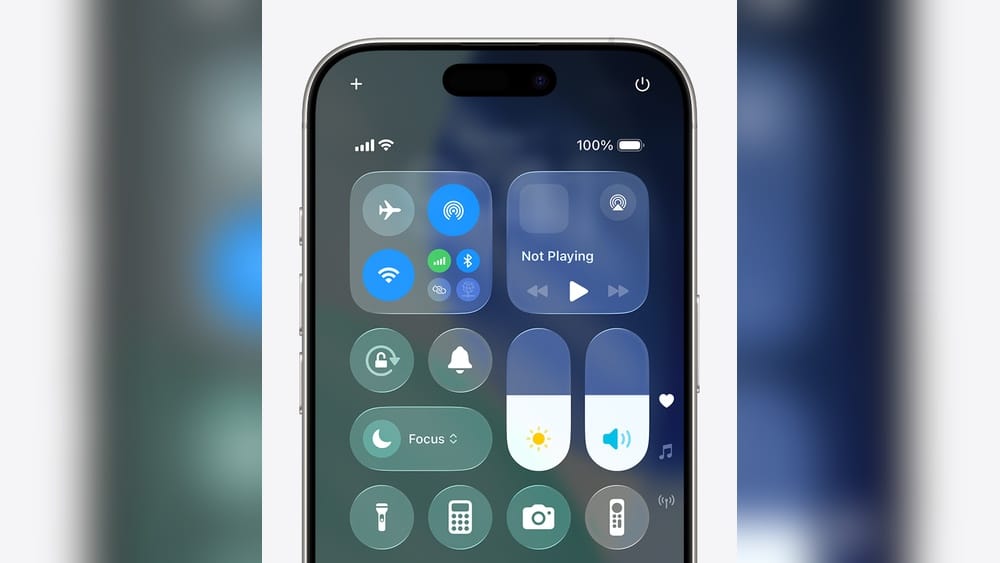
If you have an Apple TV or AirPlay 2-compatible smart TV, this method is the easiest. Apple built a remote feature right into the iPhone’s Control Center.
Steps:
- Make sure your iPhone and Apple TV (or compatible smart TV) are on the same Wi-Fi network.
- On your iPhone, swipe down from the top-right corner to open Control Center (or swipe up on older models).
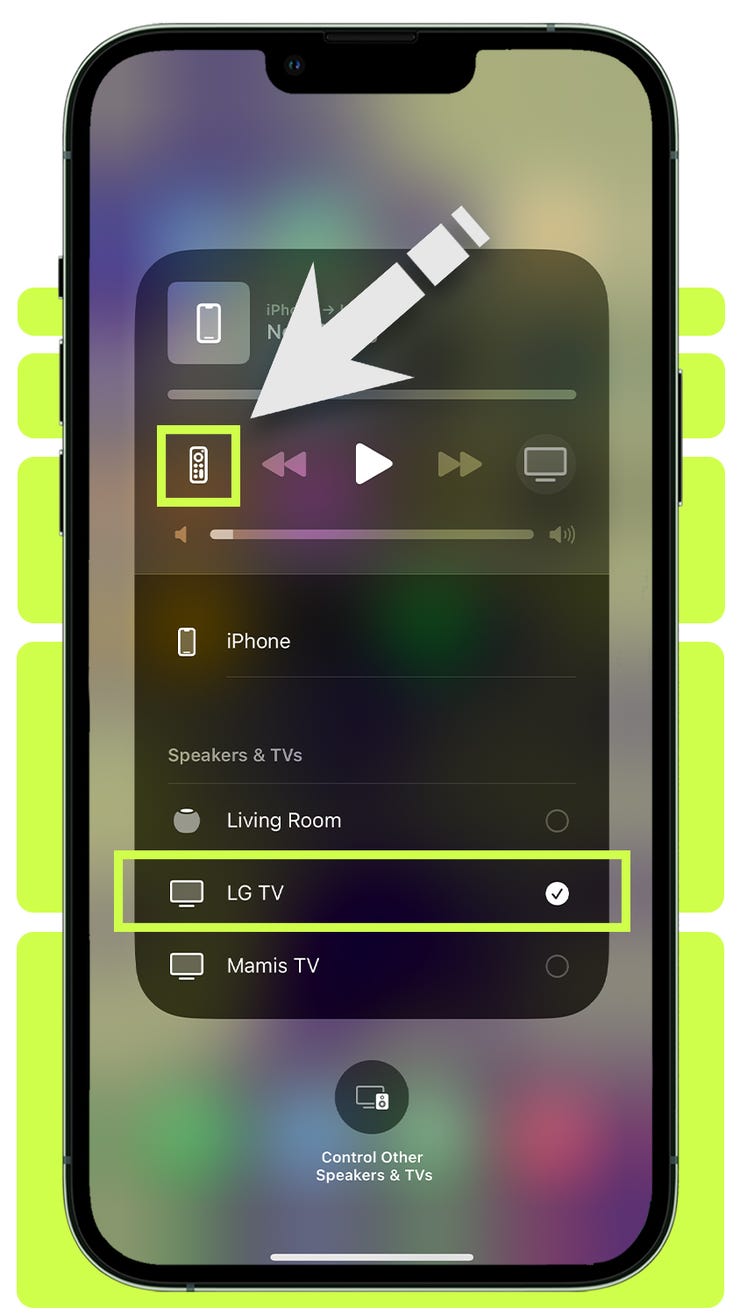
- Look for the Apple TV Remote icon (a remote-shaped button). If you don’t see it, go to Settings > Control Center and add it.
- Tap the icon. Your iPhone will search for nearby Apple TVs or compatible TVs.
- Select your device. You may need to enter a 4-digit code shown on your TV.
- Once connected, use your iPhone to navigate menus, adjust volume, and type with your keyboard.
Tip: For Samsung, LG, Sony, and Vizio smart TVs with AirPlay 2, this feature often works out of the box.
2. Using Tv Manufacturer Remote Apps
Nearly every big TV brand has its own official remote app. These apps use Wi-Fi or Bluetooth to connect.
Popular TV Remote Apps:
- Samsung: SmartThings
- LG: LG ThinQ
- Sony: Video & TV SideView (or Google TV Remote for Android TV models)
- Vizio: SmartCast Mobile
- TCL: Roku app (if Roku-powered), or Google TV Remote
General Steps:
- Download your TV brand’s remote app from the App Store.
- Make sure your iPhone and TV are on the same Wi-Fi network.
- Open the app and follow the on-screen instructions.
- The app will scan for your TV. Select it, and confirm any prompts on your TV screen.
- Use the app’s interface to control your TV.
Example: Setting Up Samsung SmartThings
- Open SmartThings.
- Tap the “+” to add a device.
- Select “TV” and choose your model.
- Enter any PIN or confirm pairing on your TV.
Pro Insight: Many apps offer extra features, like launching apps (Netflix, YouTube), adjusting picture settings, or streaming content from your iPhone.
3. Universal Remote Apps
If you have TVs from different brands, a universal remote app can control several devices from one place. These apps work best on smart TVs or streaming devices connected to Wi-Fi.
Popular Universal Remote Apps:
- Universal TV Remote Control
- AnyMote Smart Remote
- RemoteMaster
Steps:
- Download a universal remote app from the App Store.
- Open the app and follow setup instructions to add your TV or devices.
- These apps often support hundreds of brands. Select your TV’s brand and model.
- Test the remote functions.
Note: Some apps offer in-app purchases for advanced features, like macros or custom layouts.
4. Using Streaming Device Apps
If you use a Roku, Amazon Fire TV, Google Chromecast, or similar device, you can control your streaming and even TV functions from their official apps.
Examples:
- Roku App: Controls Roku players and TVs, including power and volume on supported models.
- Amazon Fire TV App: Controls Fire TV sticks and cubes.
- Google TV App: Controls Chromecast with Google TV or Android TV devices.
Setup:
- Download the relevant app from the App Store.
- Connect your iPhone and device to the same Wi-Fi.
- The app should auto-detect your device; select it to pair.
- Use the app to navigate, type, or launch apps.
Hidden Benefit: These apps make typing passwords and searching much faster than using a physical remote.
5. For Non-smart Tvs: Ir Blaster Accessories
Older TVs without Wi-Fi or Bluetooth need a different approach. Some accessories plug into your iPhone’s charging port and act as an IR blaster.
Popular Accessories:
- AnyMote Home IR Hub
- MoGo IR Blaster
- Pronto Peel Smart Remote
How to Use:
- Plug the IR accessory into your iPhone.
- Download the companion app.
- Follow the setup to choose your TV brand/model.
- Point your iPhone (with accessory) at the TV to send commands.
Important: Not all IR accessories are compatible with the latest iPhones (especially models without headphone jacks). Always check device compatibility.
Advanced Tip: Some IR blaster hubs connect to Wi-Fi and can be placed anywhere in the room, letting you control devices even when your iPhone isn’t pointing directly at the TV.
Comparing Different Iphone Remote Methods
Not sure which method is best for your setup? Here’s a side-by-side look to help you choose:
| Method | Best For | Requires Wi-Fi? | Supports Old TVs? | Extra Features |
|---|---|---|---|---|
| Apple TV Remote (Control Center) | Apple TV, AirPlay 2 TVs | Yes | No | Keyboard, Siri, app launch |
| TV Manufacturer Apps | Most smart TVs | Yes | No | TV settings, app launch |
| Universal Remote Apps | Multiple brands/devices | Yes (or IR Accessory) | With IR Accessory | Macros, custom layouts |
| Streaming Device Apps | Roku, Fire TV, Chromecast | Yes | No | Voice search, text input |
| IR Blaster Accessories | Non-smart, old TVs | No | Yes | Full remote functions |
Quick Guidance: If you have a smart TV, start with your manufacturer’s app or Apple’s built-in remote. For streaming sticks, use their official apps. For older TVs, consider an IR accessory.
Key Features You Can Control From Your Iphone
You might be surprised by how much control your iPhone gives you. Here are the most common (and some advanced) features:
- Power On/Off: Most smart TV apps support this, but some TVs limit remote power-on for security.
- Volume and Mute: Adjust volume, mute, or even control connected soundbars.
- Channel Surfing: Quickly switch channels or enter numbers.
- Navigation: Move through menus, settings, and apps.
- Text Input: Use your iPhone’s keyboard to search or enter passwords (a huge time-saver).
- App Launch: Open Netflix, YouTube, or other apps directly from your phone.
- Settings Access: Change picture, sound, or network settings.
- Voice Control: Many apps support voice search or commands.
- Casting/Screen Mirroring: Send photos, videos, or mirror your iPhone screen to your TV.
Example: With the LG ThinQ app, you can adjust picture modes (like Cinema or Sports) or even set sleep timers—all from your phone.
Pro Tip: Some apps allow you to create custom remote layouts or set up routines (like “Movie Night” to dim lights and open Netflix).
Credit: www.zdnet.com
Troubleshooting Common Issues
Sometimes, things don’t work perfectly. Here are frequent problems and how to solve them:
Iphone Can’t Find Tv
- Check Wi-Fi: Both iPhone and TV must be on the same Wi-Fi network. A common beginner mistake is connecting one device to a guest network.
- Restart Devices: Power cycle both your TV and iPhone.
- Update Software: Make sure both your TV and the remote app are updated.
Remote Functions Not Working
- Limited Features: Some apps can’t control power or volume due to TV limitations.
- Permission Settings: Check your TV’s settings for “Mobile Device Access” or similar options.
- Network Problems: Slow or unstable Wi-Fi can cause lag or dropped connections.
Ir Accessories Not Responding
- Accessory Compatibility: Some iPhone models (especially newer ones) don’t support certain accessories.
- Proper Placement: Make sure the IR blaster points directly at your TV’s IR receiver.
- Battery Issues: If you’re using a hub accessory, check batteries or power supply.
Insider Insight: If your app shows your TV but can’t control it, try resetting your router. Home network conflicts often cause this.
Advantages And Limitations Of Using An Iphone As Tv Remote
Is using your iPhone better than a regular remote? Here’s what you gain—and what to watch out for.
Benefits
- Always Handy: Your phone is usually nearby, so you lose remotes less often.
- Faster Text Input: Typing with your phone keyboard is much quicker than arrowing through on-screen letters.
- Extra Features: Access to picture settings, app launch, and sometimes smart home controls.
- Voice Search: Search for shows or change channels with your voice in supported apps.
- Multi-Device Control: Many apps let you control your TV, set-top box, and streaming stick from one place.
- Accessible for All: Larger buttons and voice features can help users with limited mobility or vision.
Drawbacks
- Battery Drain: Using your iPhone as a remote can drain its battery faster, especially with screen on and vibration feedback.
- Network Dependency: Most methods require Wi-Fi. If your network goes down, you’ll need the original remote.
- Accessory Limits: IR blasters aren’t supported on all iPhones.
- Learning Curve: Some apps have complex interfaces or ads.
- Feature Gaps: Not every app can turn your TV on from “cold” (powered off), especially on older models.

Credit: www.youtube.com
Security And Privacy Considerations
Many users worry about installing TV remote apps. Are they safe? Here’s what to know.
What Data Is Collected?
Most official apps collect basic usage data—like which features you use or app crashes. Some ask for access to your local network, which is needed to find and control your TV. Universal apps may request extra permissions, so check their privacy policy.
Protecting Your Privacy
- Official Apps Are Best: Stick to apps from your TV brand or trusted developers.
- Review Permissions: Only allow network or Bluetooth access if needed.
- Avoid Suspicious Apps: Universal apps with excessive ads or permissions can be risky.
Insider Tip: If you’re privacy-focused, use the built-in Apple TV Remote or streaming device apps, which are held to higher App Store standards.
Enhancing Your Experience: Advanced Tips
Once you’ve mastered basic control, try these advanced tricks to get more from your iPhone remote setup.
1. Automate With Siri Shortcuts
You can use Siri Shortcuts to automate TV actions. For example, create a shortcut that turns on the TV, opens Netflix, and sets your lights for movie night.
2. Integrate With Smart Home
Many TV brands (like Samsung and LG) allow integration with smart home systems. Use apps like Apple HomeKit or Google Home to control multiple devices together.
3. Use Widgets Or Quick Actions
Some remote apps offer widgets for the iPhone Home Screen. These let you access power, mute, or app launch without opening the full app.
4. Cast Content Instantly
With AirPlay or Chromecast, you can send photos, videos, or even mirror your iPhone screen to your TV—no extra remote needed.
5. Parental Controls
Remote apps sometimes offer parental controls—lock certain apps, set viewing limits, or block inputs from your phone.
Real-World Example: A parent sets up their iPhone to only allow PBS Kids on the family TV during weekdays, using app controls instead of hiding the remote.

Credit: www.youtube.com
How Iphone Remote Control Compares To Physical Remotes
Still unsure if you should ditch your old remote? Here’s a direct comparison:
| Feature | iPhone Remote | Physical Remote |
|---|---|---|
| Power Control | Most smart TVs; may not work when TV is fully off | Always works |
| Volume/Channel | Yes (with most apps) | Yes |
| Text Input | Fast keyboard | Slow, on-screen |
| Device Compatibility | Multiple brands/devices | Usually one device |
| Voice Search | Supported in many apps | Limited; only in higher-end remotes |
| Battery Life | Drains iPhone battery | Lasts months |
| Lost Easily? | No (your phone) | Yes |
| Customization | High (layouts, macros) | Low |
Key Takeaway: For everyday use, the iPhone remote is more flexible and powerful. But for quick, simple tasks, the physical remote still has its place.
Common Mistakes To Avoid
Even tech-savvy users make mistakes. Here’s how to avoid frustration:
- Wrong Wi-Fi Network: Always check that both your iPhone and TV are on the same network.
- Ignoring App Updates: Updates often fix bugs and add features.
- Using Unofficial Apps: These can be buggy or even steal data.
- Not Checking Compatibility: Some TVs or streaming sticks don’t support remote apps.
- Overlooking Parental Controls: If you have kids, set up limits in the app.
- Not Backing Up Settings: If you switch phones, back up your remote app settings to avoid reconfiguring everything.
Real-World Tip: If you set up multiple TVs, label them clearly in your app to prevent confusion.
When To Use An Iphone Remote—and When Not To
Best Situations:
- Typing passwords or searching for shows
- Controlling multiple devices (TV, soundbar, streaming stick)
- When the physical remote is lost or broken
- For people with limited mobility (voice and large button support)
Not Ideal When:
- Your TV is very old and doesn’t support Wi-Fi or IR accessories
- You need to turn on the TV from “cold off” and the app can’t do it
- Your phone battery is very low
Expert Insight: Many users keep both their phone and the physical remote handy. Use your iPhone for complex tasks and the physical remote for fast, simple commands.
Future Trends: Where Is This Technology Going?
The way we interact with TVs is changing fast. Here are some trends:
- More Voice Control: Apps and TVs are adding smarter voice assistants.
- Deeper Smart Home Integration: TVs will work more closely with lights, speakers, and home routines.
- Universal Compatibility: New standards aim to let one app control every device.
- Augmented Reality Remotes: Some apps are testing AR controls, where you “point” your phone at the TV to control it.
Example: Samsung now lets you control the TV, lights, and even your robot vacuum from one app.
To keep up with the latest, check the official Apple support page: Apple TV Remote Support.
Frequently Asked Questions
Can I Use My Iphone As A Remote For Any Tv?
You can use your iPhone as a remote for most smart TVs and streaming devices. For older TVs, you’ll need an IR blaster accessory. Always check compatibility with your TV brand and model.
Why Doesn’t My Iphone Remote App Turn On My Tv?
Some TVs don’t support power-on via apps, especially if they’re fully powered off (not in standby). Try leaving your TV in standby mode or use the physical remote for turning it on.
Is It Safe To Use Third-party Remote Apps?
Most official apps are safe, but some third-party apps can show ads or collect extra data. Always download from the App Store, read reviews, and check permissions before installing.
Can I Control Volume On My Soundbar Or Av Receiver?
Yes, if your soundbar or receiver is connected via HDMI ARC or supports network control. Many remote apps can control both TV and audio devices.
What Should I Do If My Tv Isn’t Detected By The App?
First, check that both devices are on the same Wi-Fi network. Restart your TV and iPhone. If it still doesn’t work, check your TV’s settings for “Mobile Device Access” or contact the TV manufacturer’s support.
Turning your iPhone into a TV remote isn’t just a fun trick—it’s a practical upgrade for your living room. With the right setup, you’ll gain speed, flexibility, and new features that old remotes can’t match. Try out these methods, explore advanced options, and enjoy a smarter, simpler TV experience right from your iPhone.