
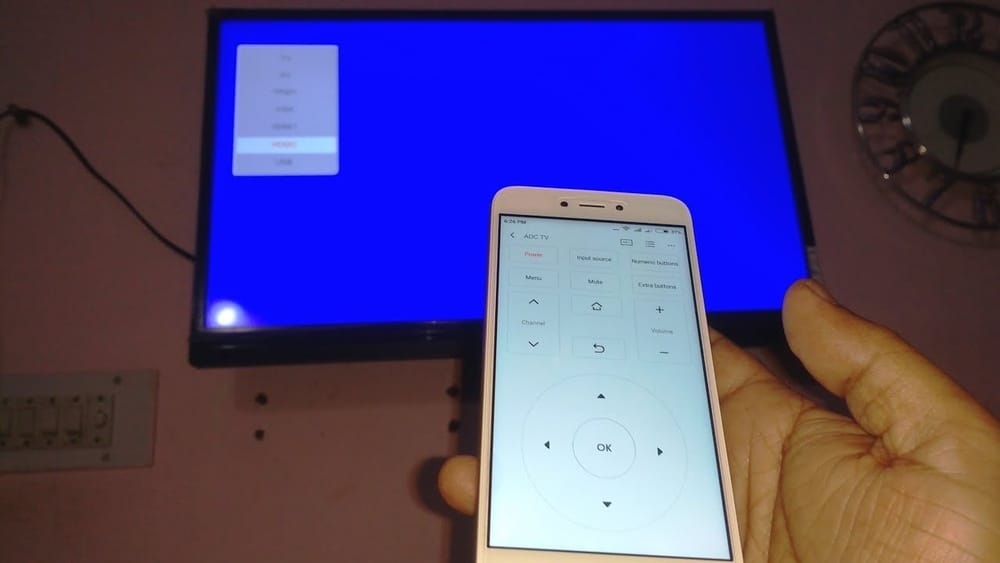
Using Your Phone as a TV Remote Control: The Complete Guide
Have you ever lost your TV remote between couch cushions, or wished you could control your TV from the other side of the house? Today, almost anyone with a smartphone can use it as a TV remote control. This isn’t just a fun trick—it’s a practical way to make your living room smarter and your life easier. With the right app or setup, you’ll never worry about dead remote batteries or missing buttons again.
In this guide, you’ll learn everything about using your phone as a TV remote. We’ll cover what you need, how different TVs and phones work together, step-by-step instructions, troubleshooting tips, and even security advice. Whether you have a smart TV, a traditional model, an Android phone, or an iPhone, you’ll find clear answers here.
Why Use Your Phone As A Tv Remote?
Phones have become universal tools, and remote control is one of their best features for the modern home. Here’s why more people are choosing this option:
- Convenience: Your phone is always nearby. No more searching for the remote.
- Fewer Devices: One device for everything—TV, streaming box, soundbar, and even lights.
- Extra Features: Many TV remote apps offer voice commands, keyboard input, and program guides.
- Accessibility: Larger screens and customizable layouts can be easier for people with vision or dexterity challenges.
According to a 2023 survey by Statista, over 40% of smart TV owners regularly use their phones as remotes. This number is growing fast as smart home tech becomes more popular.
How Phone-to-tv Remote Control Works
To control your TV with a phone, both devices must be able to “talk” to each other. There are two main ways this happens:
1. Infrared (ir) Blaster
Some smartphones (mainly older or certain Android models) have a tiny IR blaster. This sends the same type of light signal as a traditional remote. If your phone has IR, it can control most TVs, set-top boxes, and even air conditioners.
2. Wi-fi Or Bluetooth
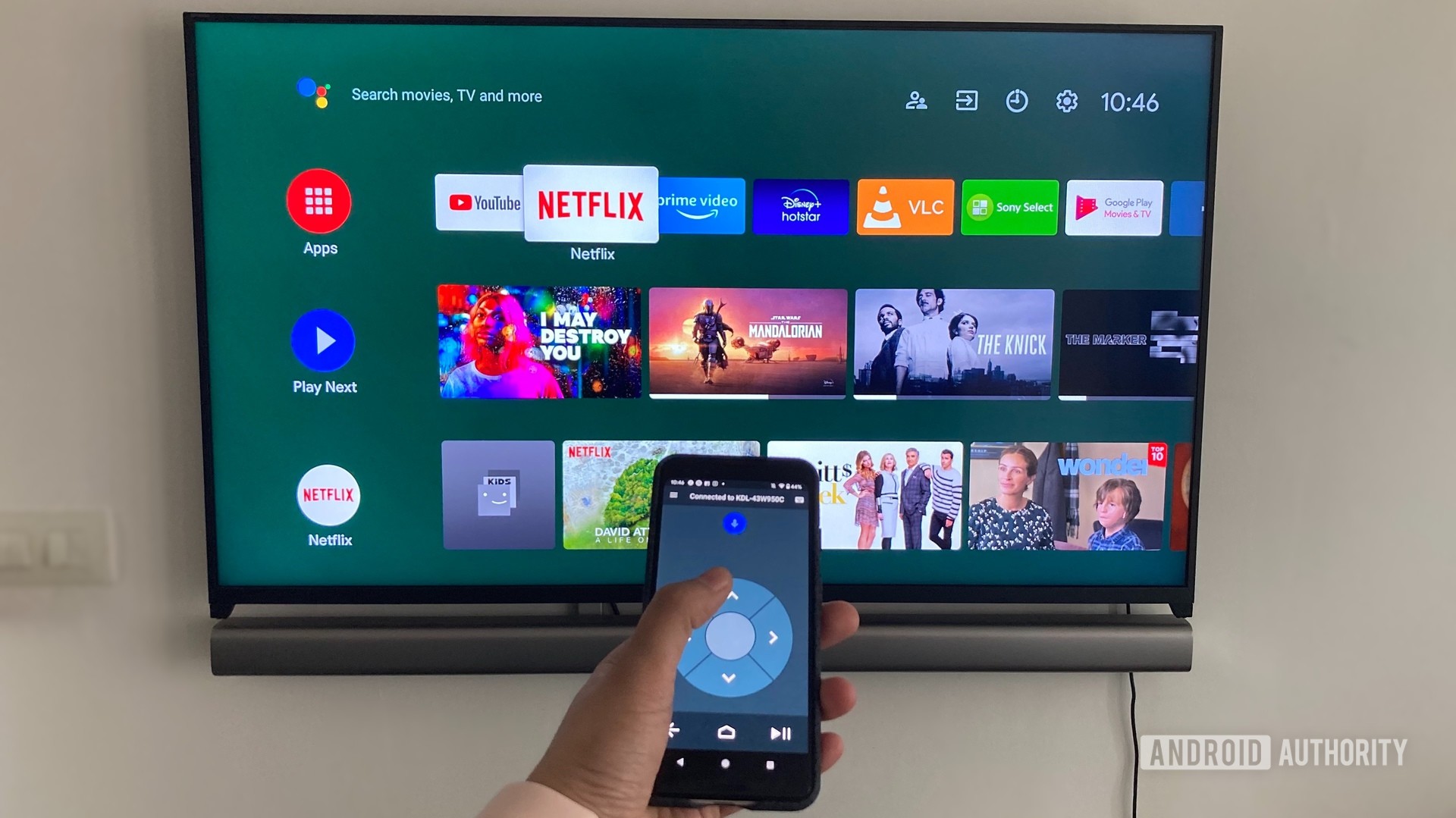
Most modern TVs are now smart TVs. They connect to your home Wi-Fi or sometimes Bluetooth. Your phone uses the same network to send commands. This method is common for Samsung, LG, Sony, Roku, Fire TV, and Android TVs.
Non-obvious insight: IR blasters are less common in new phones, but Wi-Fi control works on almost all smart TVs. Always check your phone’s specs—many users don’t realize their phone can’t send IR signals, but Wi-Fi still offers remote functions.
What You Need Before Getting Started
Before you can use your phone as a TV remote, make sure you have:
- A compatible phone – Android or iPhone (for IR, check if your phone has an IR blaster).
- A compatible TV – Smart TVs from 2014 or later usually support mobile apps; for IR, almost any TV will work.
- Home Wi-Fi network (for smart TVs).
- TV remote app – Downloadable from the Google Play Store or Apple App Store.
- TV and phone on the same Wi-Fi network (for most smart TV apps).
If you’re not sure about your devices, check the TV’s manual or look up your phone’s specifications online.
Setting Up: A Step-by-step Guide
The process depends on your TV and phone type. Let’s break it down into the most common scenarios.
Using An Android Phone With A Smart Tv (wi-fi/bluetooth Method)
Most Android phones work well with smart TVs made after 2014. Here’s how to set it up:
- Connect TV and Phone to Wi-Fi
- Both devices must use the same Wi-Fi network.
- Download the TV Manufacturer’s App
- Samsung: “SmartThings”
- LG: “LG ThinQ”
- Sony: “Video & TV SideView”
- TCL/Philips/others: “Android TV Remote Service”
- Open the App and Pair Devices
- The app will automatically search for TVs on your network.
- Select your TV and follow the prompts (you may need to enter a code shown on the TV).
- Control Your TV
- Use the app’s remote, keyboard, or voice features.
Using An Iphone With A Smart Tv
IPhones can control most smart TVs via Wi-Fi.
- Connect TV and iPhone to Wi-Fi
- Must be on the same network.
- Download the TV’s Official Remote App
- For example, LG ThinQ, Samsung SmartThings, or the Apple TV app.
- Pair Your Devices
- Open the app, select your TV, and follow prompts.
- Start Using as a Remote
- Enjoy channel changes, volume control, and even voice input.
Using Ir Blaster (android Only)
Some Android phones (especially Xiaomi, Huawei, and older Samsung models) have an IR blaster. Here’s how:
- Check for IR Blaster
- Look for a small black dot (like a sensor) on the top edge of your phone.
- Download a Universal Remote App
- Examples: “Mi Remote Controller,” “Peel Smart Remote,” “AnyMote.”
- Open the App and Choose TV Brand
- Follow on-screen steps to pair.
- Test Remote Functions
- Try power, volume, and channel buttons.
Beginner tip: Not all TV brands are listed in every app. Try several apps if your TV isn’t recognized at first.
Using Streaming Devices (roku, Fire Tv, Chromecast, Apple Tv)
Popular streaming devices have their own remote apps. Here’s a quick comparison:
| Device | Remote App Name | Main Features | Phone Compatibility |
|---|---|---|---|
| Roku | Roku Official Remote | Navigation, voice search, private listening | Android, iPhone |
| Amazon Fire TV | Fire TV Remote App | Navigation, keyboard, voice, playback controls | Android, iPhone |
| Google Chromecast | Google Home | Launch/stop streaming, volume, device control | Android, iPhone |
| Apple TV | Apple TV Remote (built into iOS) | Navigation, Siri voice, keyboard | iPhone only |
Non-obvious insight: If your TV isn’t smart, but you use a streaming device, you can still control almost everything (except turning the TV on/off) with your phone.
Popular Tv Remote Apps: Which One Should You Use?
With so many apps available, choosing the right one can be confusing. Here are the most common options, their strengths, and possible downsides.
| App Name | Best For | Works With | Key Features | Free Version? |
|---|---|---|---|---|
| SmartThings | Samsung TVs | Samsung smart TVs, some devices | Remote, device automation, voice | Yes |
| LG ThinQ | LG TVs | LG smart TVs, appliances | Remote, device status, automation | Yes |
| Android TV Remote Service | Android TVs | Any Android TV | Remote, keyboard, voice | Yes |
| Roku Official Remote | Roku devices | Roku TVs & sticks | Remote, private listening, voice | Yes |
| Mi Remote Controller | Phones with IR | Many TV brands | Remote, device list | Yes |
| Peel Smart Remote | Universal remote | IR TVs, cable boxes, ACs | Remote, TV guide | Yes (ads) |
Pro tip: Always use the official app for your TV brand if available. They’re usually safer and more reliable than third-party options.
Common Setup Problems (and How To Fix Them)
Even with the best apps, problems can happen. Here’s how to solve the most frequent issues.
Phone Can’t Find The Tv
- Make sure both are on the same Wi-Fi network. Double-check if you have multiple networks (like 2.4 GHz and 5 GHz).
- Restart your TV and phone.
- Check if your TV’s “Remote/Control by App” setting is enabled (some TVs disable this by default).
Remote App Doesn’t Work
- Update the app and your TV’s firmware.
- Try uninstalling and reinstalling the remote app.
- For IR, make sure nothing blocks the phone’s IR blaster and that your phone actually has one.
Lag Or Delay
- Wi-Fi congestion can cause slow responses. Move your router closer, or use the 5 GHz band if possible.
- Too many devices on the network can also cause delays.
App Won’t Control Volume Or Power
- Some smart TV apps can’t control power or volume if the TV is in “deep sleep” mode.
- For IR, the app should control everything; for Wi-Fi, check your TV’s settings.
Security Warning Or Permissions
- Remote apps often need location, Bluetooth, or local network permissions. Grant these for full functionality.
- Only download apps from official stores to avoid malware.
Beginner mistake to avoid: Don’t expect every app to control every TV. Compatibility depends on both your phone and your TV model.

Credit: www.youtube.com
Extra Features: Going Beyond Basic Remote Control
Using your phone as a remote isn’t just about changing channels. Here are some features many users miss:
- Voice search: Talk to your TV to find shows, control volume, or open apps.
- Keyboard input: Typing passwords or searching for titles is much faster on your phone.
- Screen mirroring: Show photos, videos, or even your whole phone screen on the TV.
- Private listening: Some apps (like Roku) let you listen to TV audio on your phone with headphones.
- Program guide and recommendations: See what’s on or get suggestions without interrupting what you’re watching.
- Smart home integration: Control lights, thermostats, or other devices from the same app.
Security And Privacy When Using Remote Apps
Many users never think about security when using their phone as a TV remote. But these apps often need access to your network, microphone, or even location. Here’s how to stay safe:
- Use official apps from your TV or device manufacturer.
- Read app permissions before installing. Don’t grant unnecessary access.
- Update apps regularly to get the latest security patches.
- Secure your Wi-Fi network with a strong password.
- Turn off remote access or “Wake on LAN” in TV settings if you’re not using the feature.
Important note: Never download remote control apps from unofficial websites. These can steal data or add ads to your phone.
Credit: www.androidauthority.com
When Your Tv Is Not Smart: Universal Ir Remote Solutions
If you have a traditional TV (not smart or Wi-Fi enabled), you can still use your phone—if it has an IR blaster. Here’s how:
- Download a universal IR remote app.
- Select your TV brand and follow instructions.
- Most basic functions (power, volume, channels) will work.
If your phone doesn’t have IR, you can buy a small external IR blaster that plugs into your phone’s headphone jack or charging port. These cost $10–$20 but may not be as reliable.
Practical tip: Check the app’s reviews before buying an external IR blaster. Some work better with certain phones.
Advanced Tips: Multi-room And Multiple Device Control
Did you know you can control more than one TV or device with your phone? Here’s how to go further:
- Use apps that support multiple profiles (like SmartThings or Roku).
- Give each device a unique name, such as “Living Room TV” and “Bedroom TV.”
- For larger homes, create routines: For example, “Turn off all TVs at 10 PM.”
If your family shares TVs, most apps allow several phones to control the same device. Set up access for everyone, but restrict who can change settings.
Non-obvious insight: Some apps let you control soundbars, streaming boxes, and other smart devices—making your phone a true universal remote.
Troubleshooting: What To Do When Things Go Wrong
Phone remote control is usually reliable, but here’s a quick guide if you hit problems:
- TV not responding? Try restarting both devices, check Wi-Fi, and re-pair the app.
- App crashes or freezes? Update or reinstall it.
- Can’t find your TV? Check for network isolation on your router (this can block devices from seeing each other).
- Volume or input not working? Not all apps support every feature—check app documentation.
If nothing works, look for help in the app’s support section or your TV’s official website. Some TVs need firmware updates to work with new remote apps.
The Future: Where Phone Remote Control Is Headed
As TVs and phones get smarter, remote control will become even more powerful. Voice assistants like Google Assistant, Alexa, and Siri are being built into TVs and remote apps. You’ll be able to control everything with your voice—even when you’re not in the room.
Matter and other smart home standards are making it easier to control all devices from one app, no matter the brand.
Stat to know: By 2026, experts predict that over 80% of new TVs will support phone-based control out of the box.
When Not To Use Your Phone As A Remote
Phones are great, but sometimes a real remote is still better:
- For seniors or children, physical buttons are easier to use.
- If your phone battery dies, you’ll lose control.
- Emergency situations: Physical remotes don’t need charging or Wi-Fi.
Advice: Keep the original remote as a backup, especially for important features like TV setup menus or firmware updates.
Accessibility Features For Disabled Or Elderly Users
Many phone remote apps offer accessibility features:
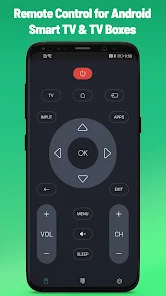
- Large buttons and high contrast themes for people with low vision.
- Voice control for hands-free operation.
- Customizable layouts for easier navigation.
If you have special needs, explore the app’s settings or look for accessibility-focused remote apps.
Credit: play.google.com
What To Do If You Lose Your Phone
Losing your phone means losing your remote—unless you plan ahead.
- Keep a spare remote in a known place.
- Set up multiple phones as remotes (spouse, roommates, etc. ).
- Enable “Find My Device” so you can locate your phone if lost.
Some TVs also support control from your computer or a smart speaker.
Frequently Asked Questions
Can I Use My Phone As A Remote For Any Tv?
You can use your phone as a remote for most smart TVs made after 2014, as long as both devices are on the same Wi-Fi network and you use the right app. For older TVs, your phone must have an IR blaster or you’ll need an external IR accessory. Not every phone supports IR, especially iPhones.
Do I Need Internet To Use My Phone As A Remote?
For smart TVs, your phone and TV must be on the same Wi-Fi network—internet access is not always required, just local network connection. For IR blaster methods, Wi-Fi is not needed at all. Some advanced features (like streaming content or voice search) may need internet.
Are Phone Remote Apps Safe To Use?
Most official apps from TV or device makers are safe. Only download apps from the Google Play Store or Apple App Store. Read reviews and check permissions before installing. Avoid third-party apps from unknown sources, as these can pose security risks. For more details, visit the Wikipedia entry on remote controls.
Can I Use My Phone As A Remote If I Lose The Original Remote?
Yes, in many cases. As long as your TV is already connected to Wi-Fi and you can install the app, your phone can act as a remote. However, if your TV isn’t connected to Wi-Fi and you lose the remote, you may need a physical remote to set up Wi-Fi first.
Which Phones Have An Ir Blaster?
Fewer new phones have IR blasters today. Some Xiaomi, Huawei, and older Samsung models include this feature. Most iPhones and newer Androids (like Google Pixel, Samsung Galaxy S20 or later) do not. Check your phone’s specs online if you’re unsure.
Using your phone as a TV remote is a smart, flexible, and often more powerful choice than a physical remote. With the right setup, you’ll enjoy convenience, extra features, and fewer lost remotes—plus, you’ll be ready for the future of smart home entertainment.