
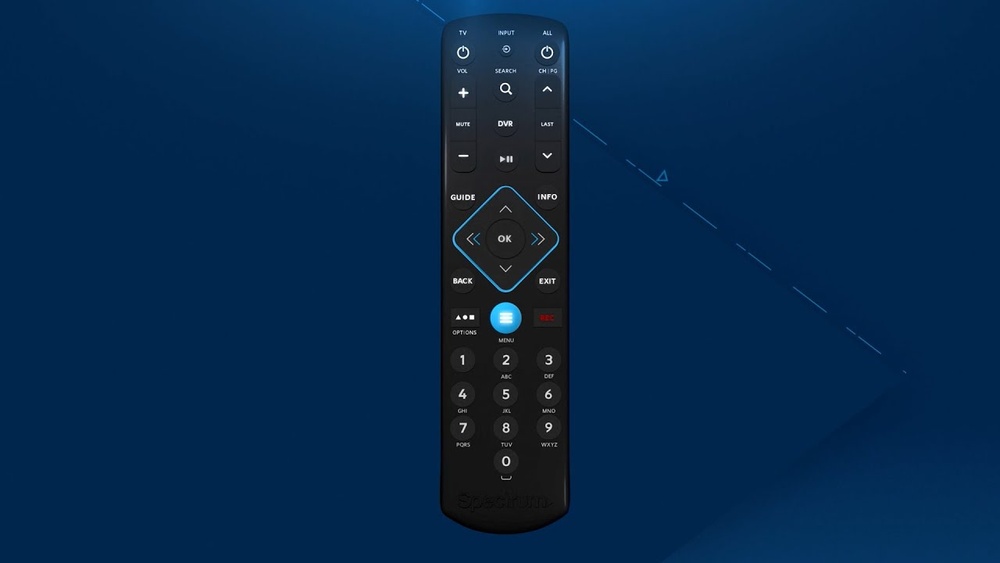
Using a remote control should feel simple. But for many people, the Spectrum remote control can be confusing at first. Maybe you just got new Spectrum service, or your old remote stopped working. Or maybe you want to use your Spectrum remote to control your TV, soundbar, or other devices. This guide will show you, step by step, how to use your Spectrum remote control with confidence. You’ll learn how to set it up, use its main features, fix common problems, and even discover some shortcuts that save time.
Spectrum is one of the biggest cable and internet providers in the US. Their remotes are designed to work with a wide range of devices, but each model has its own buttons and settings. If you’re new to Spectrum or remote controls in general, this article will help you understand everything you need to know—without confusing technical language.
Understanding Your Spectrum Remote Control
Before you start using your Spectrum remote, it helps to know what type you have. Spectrum offers several remote models, and each has slightly different buttons and layouts. The most common models are Spectrum 1060, Spectrum 210, and Spectrum URC1160.
Key Features And Buttons
Most Spectrum remotes share similar buttons. Here’s a quick overview of the main buttons and their functions:
- Power: Turns your TV or cable box on and off.
- Guide: Opens the channel guide.
- Menu: Accesses settings and options.
- Volume Up/Down: Adjusts sound level.
- Mute: Silences the sound.
- Channel Up/Down: Changes channels.
- OK/Select: Confirms choices or selects menu items.
- Arrow Keys: Moves up, down, left, right in menus.
- Number Pad (0-9): Enters channel numbers directly.
- Last: Returns to the previous channel.
- Input/Source: Switches between TV inputs (HDMI, AV, etc. ).
- DVR: Opens the DVR menu for recorded shows (if available).
Some remotes also have shortcut buttons for apps (like Netflix), colored buttons for special functions, and controls for extra devices (soundbars, DVD players).
Identifying Your Remote Model
Look at the top or back of your remote for a model number. If it’s worn out, check your Spectrum account online or in the manual. Knowing your model helps when searching for setup codes or troubleshooting.
Comparison Of Common Spectrum Remote Models
Here’s a quick comparison of three popular Spectrum remote models:
| Remote Model | Main Features | Device Control | Special Buttons |
|---|---|---|---|
| Spectrum 1060 | Basic cable functions | TV, cable box | Guide, Menu, Last |
| Spectrum 210 | Advanced device control | TV, cable box, audio, DVD | Colored shortcuts, Input |
| URC1160 | Universal control | TV, cable box, up to 3 devices | DVR, Apps, Mute |
Setting Up Your Spectrum Remote
Setting up your remote is the most important step. If you skip this, many buttons won’t work correctly. Setup can be done manually or automatically, depending on your remote model.
Step 1: Insert Batteries
Spectrum remotes use AA or AAA batteries. Open the back cover, place the batteries in the correct direction, and close the cover. If your remote doesn’t respond, try new batteries.
Step 2: Pairing With Devices
Most Spectrum remotes can control your cable box and TV. Some can control other devices too. Here’s how to set up your remote:
- Manual Code Entry
- Find the code for your TV brand in the Spectrum manual or online.
- Press and hold the TV button on your remote.
- While holding, press the OK/Select button for one second, then release both.
- Enter the code for your TV using the number pad.
- If the code is correct, the LED light will blink twice. If not, try another code.
- Auto-Search Setup
- Press and hold the TV button.
- Press and hold the OK/Select button.
- Release both buttons; the LED will stay on.
- Press the Channel Up button repeatedly until the TV turns off.
- When the TV turns off, press OK/Select to save the code.
- Pairing With Cable Box
Usually, Spectrum remotes are pre-programmed for the cable box. If not, repeat the steps above with the CBL or Cable button.
Step 3: Testing Your Remote
After setup, test the main functions:
- Press Power to turn your TV on/off.
- Use Volume and Mute.
- Change channels.
- Open the Guide and Menu.
If any button doesn’t work, repeat setup or check for the correct code.
Step 4: Programming Extra Devices
Many Spectrum remotes allow you to control extra devices, such as soundbars or DVD players. Use the manual or auto-search method above with the correct device button (like AUX).
Common Setup Mistakes
- Wrong code entry: Double-check the TV brand and model.
- Not holding buttons long enough: Hold buttons until the LED responds.
- Skipping battery check: Weak batteries cause setup failure.
- Trying codes for the wrong device: Use TV codes for TVs, not cable boxes.

Credit: www.spectrum.net
Using Your Spectrum Remote: Everyday Functions
Once your remote is set up, you can use it for many daily tasks. Here’s how to use the most important features.
Changing Channels
- Enter channel numbers directly with the number pad (e.g., 102).
- Use Channel Up/Down to move through channels one at a time.
- Press Guide to see all channels and select from the list.
Adjusting Volume
- Use Volume Up/Down to control sound.
- Press Mute to silence audio quickly.
- If volume doesn’t work, make sure your remote is set to control the TV.
Accessing The On-screen Guide
- Press the Guide button.
- Use Arrow keys to scroll through channels and programs.
- Press OK/Select to choose a channel or show.
Using Menu And Settings
- Press Menu for advanced options like parental controls, settings, and apps.
- Use Arrow keys and OK/Select to navigate.
Using Dvr And On-demand Features
If you have a Spectrum DVR:
- Press the DVR button to access recordings.
- Use Play, Pause, Fast Forward, Rewind to control playback.
- Press On Demand for movies and shows available anytime.
Shortcut Buttons And Apps
Some Spectrum remotes have colored buttons or dedicated app buttons:
- Press the Netflix button (if available) to launch the app.
- Use colored buttons for shortcuts in menus.
Switching Inputs
- Press Input/Source to switch between HDMI, AV, or other connections.
- Useful if you connect gaming consoles or DVD players.
Advanced Features And Shortcuts
Spectrum remotes offer several advanced features that can make life easier, but many users don’t know about them. These shortcuts save time and help you control multiple devices.
Programming Macros
Some remotes let you set up macros—a series of commands with one button press. For example, you can turn on your TV, cable box, and soundbar at once.
- Check your remote manual for macro programming instructions.
- Usually involves holding a button, entering a sequence, and saving.
Parental Controls
- Press Menu.
- Go to Settings or Parental Controls.
- Set up PIN codes to block certain channels or content.
Universal Control
Many Spectrum remotes can control up to 3 devices:
- TV
- Cable Box
- Soundbar or DVD Player
Use the device buttons (TV, CBL, AUX) to switch control.
Changing Remote Modes
Some remotes have modes for controlling different devices:
- Press the TV button to control TV functions.
- Press CBL for cable box functions.
- Press AUX for extra devices.
Customizing Buttons
If your remote allows, you can customize certain buttons for favorite channels or shortcuts. This is usually found in the Menu or Settings area.
Comparison: Basic Vs Advanced Remote Functions
To clarify which features are available on which remote, see this table:
| Feature | Basic Remote | Advanced Remote |
|---|---|---|
| Change channels | Yes | Yes |
| Control volume | Yes | Yes |
| DVR control | No | Yes |
| Shortcut buttons | No | Yes |
| Universal device control | No | Yes |
| Macro programming | No | Yes |

Credit: www.spectrum.net
Troubleshooting Common Spectrum Remote Problems
Even with perfect setup, remotes sometimes stop working or act strangely. Here are the most common problems and how to fix them.
Remote Not Responding
- Check batteries: Replace with new ones.
- Check signal: Point remote directly at the device. Remove any obstacles.
- Reset remote: Remove batteries, wait 60 seconds, then reinsert.
Buttons Not Working
- Device mode: Make sure you’re in the correct mode (TV, CBL, AUX).
- Reprogram remote: Try setup steps again with correct codes.
- Clean remote: Wipe buttons gently with a dry cloth.
Wrong Device Controls
- Mode confusion: If volume controls the cable box instead of TV, switch modes.
- Reprogram for correct device: Use the device button and setup code.
Signal Issues
- Range: Spectrum remotes work best within 20 feet.
- Interference: Other remotes or devices can interfere. Move other electronics away.
Resetting Your Remote
If all else fails:
- Remove batteries.
- Press every button for 2 seconds.
- Reinsert batteries.
- Program remote again.
Firmware Updates
Some advanced remotes update their firmware through the cable box. If your remote stops working after an update, reprogram it using the setup steps.
Real-world Examples And Data
Spectrum remote controls are used in millions of homes across the US. According to recent data, more than 30 million Spectrum subscribers use remote controls daily. Studies show that about 20% of customers experience setup problems in the first week, mostly due to incorrect code entry or weak batteries.
Example: Setting Up For A New Tv
Maria, a Spectrum customer in Texas, bought a new Samsung TV. She used the code entry method to program her remote. At first, the volume didn’t work. After checking the manual, she realized she entered the wrong code. With the correct code, her remote controlled both channels and volume.
Example: Using Macros For Convenience
John in California set up a macro on his Spectrum remote. Now, one button turns on his TV, cable box, and soundbar. He says it saves him “about 30 seconds every time he watches TV. ”
Data Table: Spectrum Remote Usage Stats
Here’s a look at some real usage statistics:
| Statistic | Value | Source |
|---|---|---|
| Total Spectrum subscribers | 30 million+ | Statista |
| Remote setup problems (first week) | 20% | Spectrum Customer Survey 2023 |
| Common fix: battery replacement | 35% of cases | Spectrum Support Data |
| Users programming extra devices | 12% | Spectrum Tech Forum |

Credit: www.youtube.com
Practical Tips For Using Your Spectrum Remote
Using your remote can be easier if you know a few practical tips. Here are insights that many beginners miss:
1. Label Your Devices
If you control multiple devices, use stickers or labels to remember which button controls which device.
2. Keep The Manual Handy
Most setup problems are solved by checking the manual or online code list.
3. Use Shortcuts
If your remote has colored buttons or app shortcuts, try them for faster access.
4. Learn Macro Programming
Save time by setting up macros, especially if you use several devices.
5. Clean Your Remote Regularly
Dust and dirt can block button signals. Wipe with a soft, dry cloth.
6. Check For Updates
Some advanced remotes receive firmware updates. If new features appear, check the manual.
7. Don’t Ignore Battery Quality
Cheap batteries can cause signal problems. Use trusted brands.
8. Try Auto-search If Codes Fail
If manual codes don’t work, use auto-search. It’s slower but often finds the right code.
9. Switch Modes When Needed
If you’re controlling a soundbar, switch to AUX mode. Don’t stay in TV or CBL mode.
10. Reset After Major Changes
If you change TV brands or move your cable box, reset and reprogram the remote.
Spectrum Remote Apps And Alternatives
While physical remotes are most common, Spectrum also offers remote apps. These let you use your smartphone as a remote.
Spectrum Tv App
- Download from Apple App Store or Google Play.
- Control channels, volume, and DVR with your phone.
- Useful if your remote is lost or broken.
Universal Remote Alternatives
There are universal remote controls from brands like Logitech or RCA. These offer more customization but may require extra setup.
- Universal remotes can control multiple devices.
- Some offer touch screens or voice control.
Voice Control
Some advanced Spectrum remotes offer voice control. Press the microphone button and speak commands like “Go to channel 101” or “Open Netflix.”
When To Replace Your Spectrum Remote
Remote controls wear out over time. Here are signs you may need a replacement:
- Buttons don’t work after cleaning and reset
- Remote won’t pair with any device
- Cracked case or water damage
- LED doesn’t light up with new batteries
- Firmware won’t update
Spectrum provides replacements for a small fee. You can request one online or at a local Spectrum store.
Frequently Asked Questions
What Should I Do If My Spectrum Remote Stops Working?
First, check the batteries and replace them if needed. Make sure you’re pointing the remote at the device. Try resetting the remote by removing batteries for 60 seconds. If it still doesn’t work, reprogram the remote or request a replacement from Spectrum.
Can I Use My Spectrum Remote To Control My Soundbar?
Yes, most Spectrum remotes can control soundbars. Use the AUX button and enter the correct setup code for your soundbar brand. If you don’t know the code, use auto-search.
How Do I Find The Correct Setup Code For My Tv?
Check the remote manual or visit Spectrum’s official support site. Each TV brand has several codes. Try the first code; if it doesn’t work, try the next until your remote controls the TV.
What Is Macro Programming, And How Does It Work?
Macro programming lets you set a series of commands to one button. For example, you can turn on your TV, cable box, and soundbar at once. Follow the instructions in your remote manual to set up macros.
Is There A Spectrum Remote App For Smartphones?
Yes, the Spectrum TV App allows you to control your channels, volume, and DVR with your phone. Download from the App Store or Google Play. It’s useful as a backup or for extra features.
Getting comfortable with your Spectrum remote control opens up a world of convenience. Whether you’re watching live TV, streaming apps, or using your DVR, the remote is your main tool. With the right setup, a few practical tips, and knowledge of advanced features, you can make the most of your Spectrum experience.
If you have problems, try the troubleshooting steps above. And remember, Spectrum offers support online and in stores if you need extra help.