
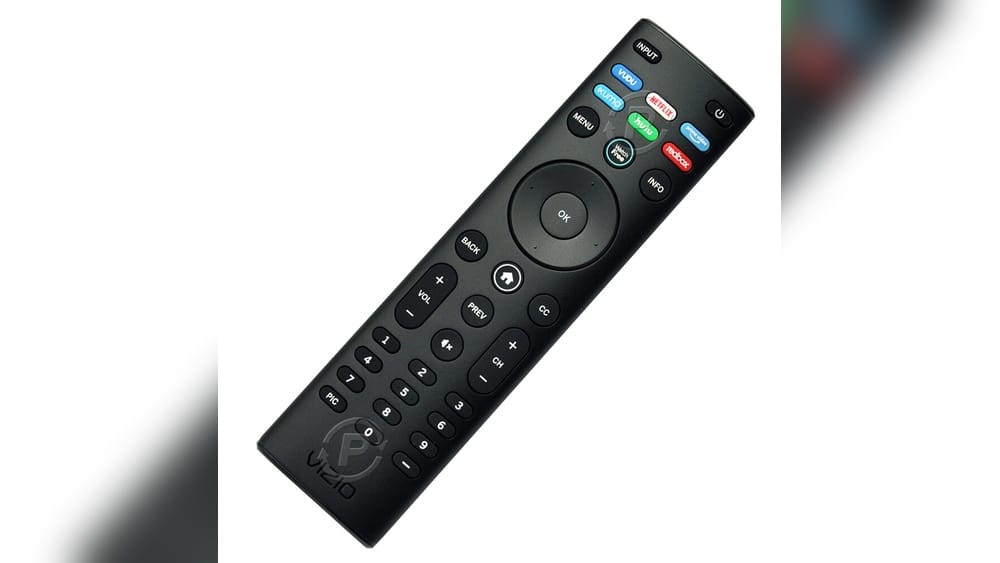
Getting The Most Out Of Your Vizio Remote Control
Imagine sitting down to watch your favorite movie, only to realize you can’t find the right button on your remote. Or maybe you just bought a new Vizio TV and the remote feels confusing. If this sounds familiar, you’re not alone. Many people struggle with remote controls, especially when there are so many buttons and features. But learning how to use your Vizio remote control can make your experience simple and enjoyable.
This guide will help you unlock the full power of your Vizio remote. We’ll cover basic functions, advanced features, troubleshooting, and even some hidden tricks. Whether you’re a beginner or just want to learn more, you’ll find clear explanations and practical advice.
By the end, you’ll be able to use your remote confidently, make your TV work better, and avoid common mistakes.
Understanding Your Vizio Remote Control
Before you start pressing buttons, it helps to know what each one does. Vizio remotes come in several models, but most share a similar layout. Here’s how to identify important parts and features.
Main Buttons And Layout
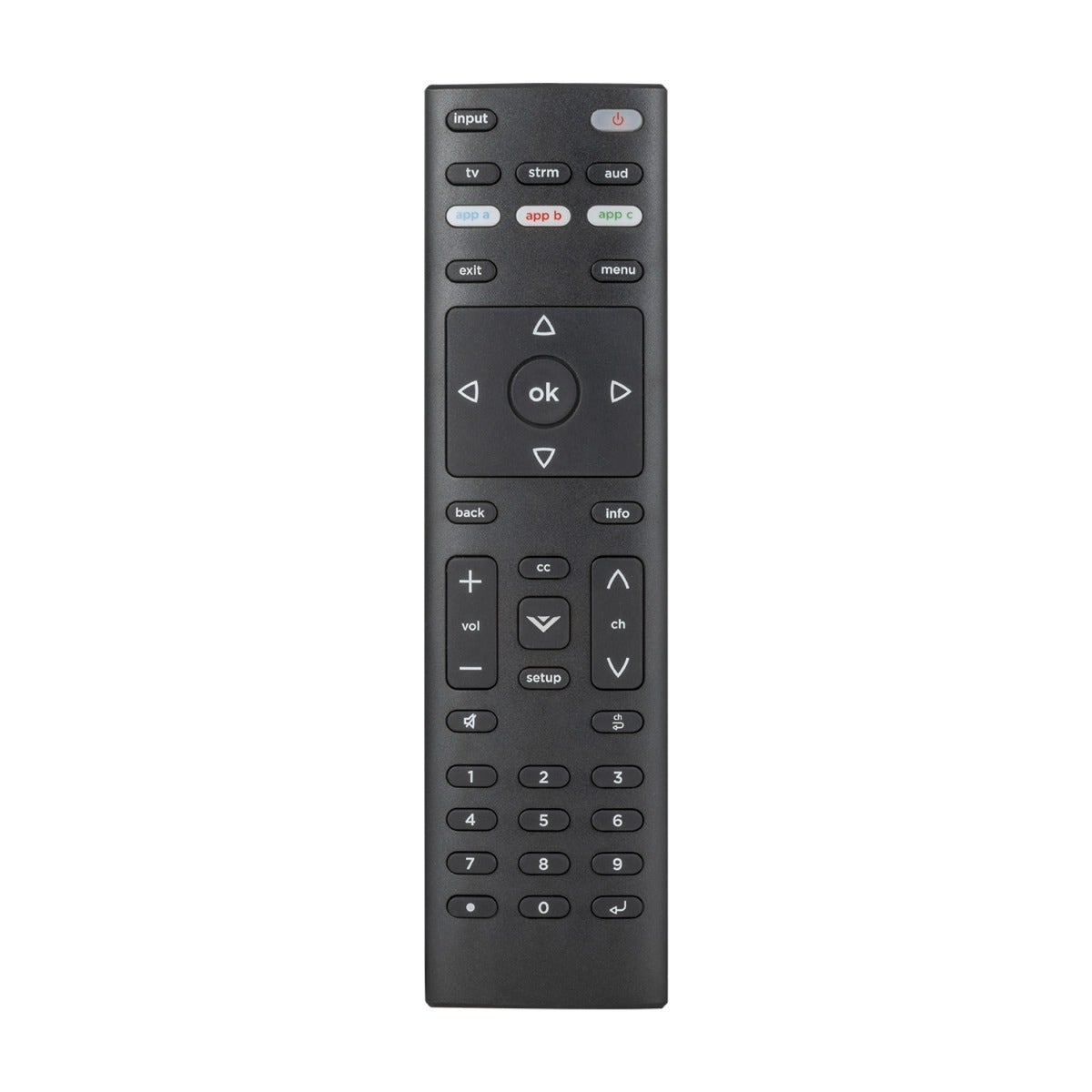
Most Vizio remotes have:
- Power button (usually at the top)
- Volume and channel buttons (often on the sides)
- Directional pad (arrows for moving up, down, left, right)
- OK/Select button (center of directional pad)
- Menu button (opens TV settings)
- Input button (switches between HDMI, USB, etc.)
- Mute button
- Number pad (for entering channels directly)
- Home button (for smart TV features)
- Back button (returns to previous screen)
- Media controls (play, pause, fast forward, rewind)
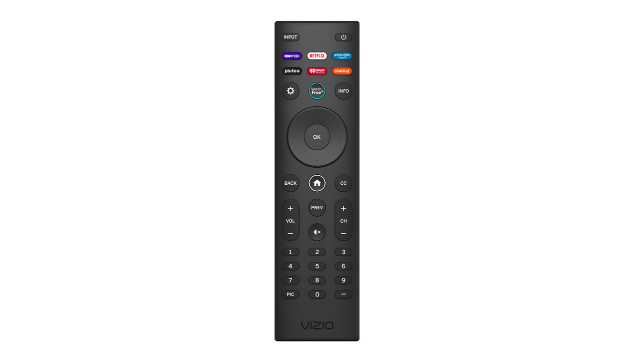
Some remotes include shortcut buttons for streaming apps like Netflix, Hulu, or Amazon Prime.
Vizio Remote Types
There are two main types:
- Basic IR Remotes: Use infrared signals. Must be pointed directly at the TV.
- Smart Remotes: Connect via Bluetooth or Wi-Fi. Can control multiple devices and don’t need direct line-of-sight.
Here’s a quick comparison of the main features:
| Remote Type | Connection | Device Control | Extra Features |
|---|---|---|---|
| Basic IR | Infrared | TV only | Standard buttons |
| Smart Remote | Bluetooth/Wi-Fi | TV, soundbar, streaming | Voice, app shortcuts |
Identifying Your Remote
Look on the back or inside the battery compartment for a model number. You can also check your TV’s manual or the Vizio website. Knowing your remote type helps you use the correct features and troubleshooting steps.
Setting Up Your Vizio Remote
Getting your remote ready is the first step. Most Vizio remotes work right out of the box, but some need pairing or setup.
Inserting Batteries
- Use fresh batteries (usually AAA or AA)
- Open the battery cover on the back
- Insert batteries with correct polarity (+ and -)
- Close the cover securely
If your remote isn’t working, try new batteries. Many users overlook this simple fix.
Pairing With Your Tv
For IR remotes, just point and press. For smart remotes:
- Turn on your TV manually.
- Press and hold the pairing button (often found under the battery cover) until the LED blinks.
- Wait for the TV to recognize the remote (may take up to 30 seconds).
Some Vizio TVs automatically pair with the remote during first setup.
Connecting To Other Devices
If your remote supports universal control, you can use it with soundbars, Blu-ray players, or streaming devices. Check your remote’s manual for codes or setup instructions.
Using Basic Functions
Once your remote is set up, you can use it to control your TV easily.
Turning Your Tv On And Off
Press the power button once to turn on your TV. Press again to turn it off. If nothing happens, check the batteries or make sure you’re pointing the remote at the TV’s sensor.
Adjusting Volume And Channels
- Press volume up/down to change sound level.
- Press channel up/down to switch channels.
- Use the mute button to silence the TV quickly.
Navigating Menus
Use the directional pad to move through menus. Press OK to select options. The menu button opens TV settings like picture, sound, or network.
Changing Inputs
Press the input button to switch between HDMI, USB, or AV sources. This is helpful for gaming consoles, Blu-ray players, or streaming sticks.
Accessing Smart Tv Features
Many Vizio TVs are smart TVs. Use the home button to open the smart menu. From here, select apps, settings, or streaming services.
Advanced Features And Shortcuts
Vizio remotes offer more than basic control. Explore these features for a better experience.
App Shortcut Buttons
Some remotes have dedicated buttons for apps like Netflix or YouTube. Pressing these opens the app directly, saving time.
Voice Control
Certain smart remotes have a microphone button. Press and hold to speak commands like “Open Netflix” or “Turn up volume.” Voice control is helpful for quick actions, especially for non-native English speakers.
Smartcast Features
Vizio’s SmartCast lets you stream content from your phone or tablet. You can:
- Use the remote to open SmartCast
- Control streaming with play/pause buttons
- Switch between apps easily
Universal Remote Setup
Some Vizio remotes control other devices. To set up:
- Find the device code from your remote’s manual or online.
- Press and hold the device button (like “Soundbar”) and enter the code.
- Test the buttons to confirm control.
Universal control reduces clutter and makes watching easier.
Input Renaming
You can rename inputs for clarity. In the menu, select the input, choose “Rename,” and enter a custom name like “Game Console” or “Blu-ray. ”
Common Troubleshooting Steps
Remote not working? Try these proven solutions.
No Response From Tv
- Check batteries first.
- Make sure nothing blocks the TV’s sensor.
- Clean the remote’s front with a soft cloth.
- Try resetting the remote (remove batteries, wait 30 seconds, reinsert).
Buttons Not Working
Sometimes only certain buttons fail. This may mean dirt inside or a faulty remote.
- Tap the remote gently to loosen debris.
- Use compressed air to clean around buttons.
- If the issue persists, consider a replacement.
Pairing Problems
For smart remotes:
- Re-pair by pressing the pairing button.
- Move closer to the TV.
- Restart both TV and remote.
Interference Issues
Other electronics can cause interference. Keep the remote away from Wi-Fi routers or microwaves.
Factory Reset
If all else fails, reset the remote:
- Remove batteries.
- Press every button once.
- Insert batteries and try again.
This can fix many stubborn problems.
Using The Vizio Remote App
Did you know you can control your Vizio TV with your smartphone? The Vizio SmartCast app turns your phone into a remote.
Downloading The App
- Available on iOS and Android
- Search for “Vizio SmartCast” in your app store
Connecting To Your Tv
- Open the app and follow prompts to connect to your TV via Wi-Fi
- Make sure both devices are on the same network
Features Of The App
- Controls volume, channels, and inputs
- Opens apps and streaming services
- Supports voice commands
- Keyboard for easier text entry
Using the app is great if you lose your remote or want more features.
App Vs Physical Remote Comparison
Here’s how the app compares to the physical remote:
| Feature | Physical Remote | Vizio SmartCast App |
|---|---|---|
| Button Control | Yes | Yes (virtual buttons) |
| Voice Commands | Limited | Full support |
| Keyboard Input | No | Yes |
| Device Pairing | Manual (for smart remote) | Automatic (via Wi-Fi) |
| Lost Remote Solution | No | Yes |
Customizing Your Remote Experience
Making your remote suit your needs can improve comfort and usability.
Setting Favorite Channels
Many Vizio remotes let you set favorites:
- Press “Menu”
- Navigate to “Channels”
- Add channels to favorites list
Now you can access them quickly.
Adjusting Button Sounds And Feedback
Some remotes let you turn sounds on or off for button presses. Find this in the settings menu. Silent operation is helpful for late-night use.
Accessibility Options
Vizio TVs offer features for people with disabilities:
- High-contrast menus
- Larger text
- Audio descriptions
Check your TV’s accessibility settings for options.
Parental Controls
If you want to limit access to certain channels or apps:
- Press “Menu”
- Go to “Parental Controls”
- Set a PIN and block content
Parental controls help keep children safe.
Hidden Tips And Tricks
Even experienced users miss some remote tricks. Here are two non-obvious insights:
- Long Press Shortcuts: Holding certain buttons for a few seconds unlocks extra functions. For example, holding the “Input” button may cycle through sources faster.
- Remote Locator: Some smart remotes have a built-in locator. Press a button on the TV or app to make the remote beep, helping you find it.
Practical Shortcuts
- Double-press “Home” to jump to the last used app
- Use “Back” repeatedly to exit to live TV
- Hold “Volume Down” to quickly mute
Cleaning And Maintenance
Keep your remote clean for best performance:
- Wipe with a damp cloth (not wet)
- Avoid harsh chemicals
- Replace batteries every 6–12 months
Updating Remote Firmware
Some smart remotes update automatically. If not:
- Go to TV settings
- Check for updates under “Remote” or “Accessories”
Updates can fix bugs or add features.
Comparing Vizio Remote Models
Different models offer unique features. Here’s a comparison of three popular types:
| Model | Buttons | Connectivity | Voice Control | App Shortcuts |
|---|---|---|---|---|
| XRT140 | Standard | Infrared | No | Yes |
| XRT500 | Advanced | Bluetooth | Yes | Yes |
| XRT510 | Minimalist | Wi-Fi | Yes | No |
Choose your remote based on your needs. If you want simple control, the XRT140 is enough. For voice and app shortcuts, look for XRT500 or similar.
Common Mistakes And How To Avoid Them
Even experienced users make mistakes. Here’s what to watch out for:
- Not pointing IR remotes directly at the TV: IR remotes need a clear path.
- Mixing up remote codes: When setting up universal control, always use the correct code.
- Ignoring battery issues: Low batteries cause unreliable performance.
- Skipping firmware updates: Updates fix bugs and improve features.
- Cleaning with water: Water can damage electronics. Use a dry or damp cloth only.
Avoid these mistakes for smoother operation.
Credit: byjasco.com
Using Vizio Remote For Gaming And Streaming
Many people use Vizio TVs for gaming or streaming. The remote helps you switch modes and adjust settings.
Quick Input Switching
Press the input button to change to your gaming console or streaming device. Rename inputs for clarity.
Adjusting Picture And Sound
Use the menu button to open settings. Adjust picture mode for gaming or movies. Change sound settings for better clarity.
Launching Streaming Apps
Use shortcut buttons or the home button to open Netflix, Hulu, or YouTube. Set up favorites for easy access.
Game Mode Activation
Some Vizio TVs have “Game Mode. ” Use the menu to turn it on. Game Mode reduces lag for better performance.
Using The Remote With Vizio Soundbars
If you own a Vizio soundbar, your remote can control it too. Here’s how:
Syncing Your Remote
- Press the “Soundbar” button (if available)
- Enter the device code
- Test volume and power controls
Adjusting Sound Settings
Use remote buttons to:
- Change sound modes (music, movie, dialogue)
- Adjust bass and treble
- Turn surround sound on/off
Troubleshooting Soundbar Control
If soundbar controls don’t work:
- Check for correct code
- Make sure the soundbar is powered on
- Try re-pairing

Credit: www.youtube.com
Eco-friendly Tips For Remote Use
You can reduce waste and save money with smart remote habits:
- Use rechargeable batteries
- Recycle old batteries safely
- Buy remotes with fewer plastic parts
- Turn off the TV when not in use
Eco-friendly choices help the environment and your wallet.
When To Replace Your Remote
Sometimes, a remote is beyond repair. Consider replacing if:
- Buttons stop working after cleaning
- Remote won’t pair after repeated tries
- Physical damage (cracks, water exposure)
- Age over 3–5 years
New remotes are available from Vizio or third-party sellers. Always check compatibility with your TV model.
Credit: www.vizio.com
Where To Find Vizio Remote Support
If you have trouble, visit the official Vizio support site. You’ll find manuals, troubleshooting guides, and contact info. For complex issues, call customer service or use live chat.
You can also find answers on forums or YouTube tutorials. Just be sure the advice matches your remote model.
For official information, see Vizio Support.
Frequently Asked Questions
How Do I Pair My Vizio Remote With The Tv?
Most IR remotes don’t need pairing. For smart remotes, press and hold the pairing button (often under the battery cover) until the LED blinks. Wait for your TV to recognize the remote. If pairing fails, try restarting both devices.
Can I Use My Vizio Remote To Control Other Devices?
Yes, many Vizio remotes have universal control. Use the manual to find device codes and follow setup instructions. You can control soundbars, Blu-ray players, and some streaming boxes.
What Should I Do If My Remote Stops Working?
First, check the batteries. Then, clean the remote and make sure nothing blocks the TV’s sensor. Try resetting the remote (remove batteries, press all buttons, reinsert batteries). If the issue continues, consider replacing the remote.
Are There App Shortcuts On Every Vizio Remote?
Not all remotes have app shortcut buttons. Check your remote for labeled buttons like “Netflix” or “YouTube.” If missing, use the home button to access apps through the TV’s menu.
Is There A Way To Find My Lost Vizio Remote?
Some smart remotes have a locator feature. Press a button on the TV or in the SmartCast app to make the remote beep. If your model doesn’t support this, use the Vizio SmartCast app as a temporary remote.
Getting comfortable with your Vizio remote control takes just a little learning and practice. Once you understand the buttons, features, and tricks, you’ll find watching TV easier and more enjoyable. Remember to keep your remote clean, update it when possible, and use shortcuts for faster access.
If you ever run into problems, troubleshooting is simple and help is always available. With these tips, your Vizio remote will become a powerful tool for entertainment at home.