
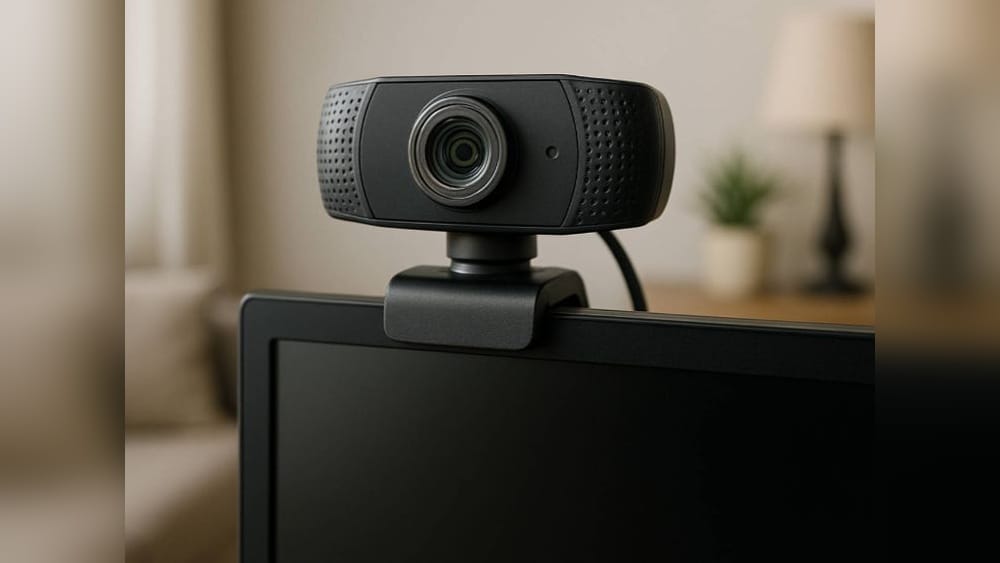
Many people want better security for their home or office, but buying a dedicated security camera system can be expensive. If you already have a webcam, you can turn it into a simple but effective security camera. This approach is practical, affordable, and easy for beginners.
In this guide, you’ll learn how to use your webcam as a security camera, step by step, with clear instructions and helpful tips. You’ll also see comparisons, practical examples, and answers to common questions.
Understanding The Basics: Why Use A Webcam As A Security Camera?
A webcam is a small camera that connects to your computer or laptop. Most webcams are made for video calls, but they can also capture video footage for security. Using a webcam as a security camera has several benefits:
- Cost savings: You avoid the high price of professional security cameras.
- Easy setup: Webcams are simple to install and use.
- Flexibility: You can move the webcam and monitor different locations.
When you use a webcam for security, you are using a device you already own. This means no extra cost for hardware. It is also less wasteful, as you get more value from your existing equipment. For renters or people who move often, a webcam security setup can be packed and moved easily, unlike wired security systems.
You might not get advanced features like night vision or motion detection out-of-the-box, but with the right software, you can add these functions. For most homes, offices, or small shops, a webcam can provide enough security to monitor entrances, rooms, or valuables.
Another advantage is privacy. With a do-it-yourself (DIY) webcam setup, you control where footage is stored. Unlike some commercial cameras, your videos do not have to go to a company’s cloud unless you choose to use cloud storage. This reduces the risk of unwanted access to your footage.
Choosing The Right Webcam
Not all webcams are equal for security purposes. The quality of your webcam affects the clarity and reliability of your footage. Here’s what to look for:
- Resolution: Choose a webcam with at least 720p HD resolution for clear images. Higher resolutions (1080p or 4K) offer better detail but require more storage space. Lower resolution can make it hard to recognize faces or details.
- Frame rate: Look for a frame rate of 30 fps (frames per second) or higher. This makes video smooth and easier to analyze. Lower frame rates can make fast movement look blurry or jumpy, which is not ideal for security.
- Low-light capability: If you need to monitor areas at night or with poor lighting, select a webcam that works well in low light. Some webcams have special sensors or built-in lights to help with this.
- Wide-angle lens: A wider field of view helps you cover more area. For example, a webcam with a 90° field of view can capture an entire room corner-to-corner, while a standard webcam may miss important spots.
- Reliable connection: USB webcams are stable; wireless webcams offer flexibility but can suffer from signal issues. If your Wi-Fi is weak, a USB webcam is more dependable.
Here is a quick comparison of popular webcam models for security use:
| Model | Resolution | Field of View | Low-Light Support | Price (USD) |
|---|---|---|---|---|
| Logitech C920 | 1080p | 78° | Yes | 65 |
| Microsoft LifeCam HD-3000 | 720p | 68° | No | 40 |
| Razer Kiyo | 1080p | 81° | Yes (Ring Light) | 90 |
| AUKEY FHD Webcam | 1080p | 90° | Limited | 55 |
A webcam with a ring light, like the Razer Kiyo, is especially good if you need to monitor areas with poor lighting. The ring light shines directly on the subject, making details easier to see. If you want to cover a large area, a webcam with a wide field of view (like the AUKEY FHD) is useful.
Non-obvious insight: Many webcams advertise high resolution, but wide-angle coverage is often more important for security. Also, webcams with built-in lights help in dark rooms, but external lighting gives more flexibility. Another often-missed point: some cheaper webcams have poor focus or struggle to adjust quickly to changing light, making footage less useful.
Setting Up Your Webcam: Hardware Placement
Proper placement of your webcam is critical. If you put the camera in the wrong location, you may miss important activity. Here are some practical tips:
- Place the webcam near entrances (doors, windows). This lets you see who comes in or out.
- Point it towards areas with valuables (safe, computers, cash drawer).
- Mount the webcam high up for a better view and to avoid tampering. High placement also reduces the chance of someone blocking or damaging the camera.
- Avoid pointing towards bright lights or windows; this causes glare. Direct sunlight can also make footage look washed out.
- Use USB extension cables if needed for better placement. This is helpful if your computer is far from the area you want to monitor.
If you plan to monitor multiple rooms, you can use several webcams on one computer. Some security software supports multiple camera feeds. You may need a USB hub if your computer does not have enough ports.
Practical tip: Test the webcam’s view before finalizing placement. Walk in front of the camera and check if the image is clear and covers the area you want. Adjust the angle, height, or distance as needed. For best results, place the webcam where it cannot be easily reached or unplugged.
A small but important detail: make sure the webcam’s cable is not hanging loosely where it can be tripped over or pulled out by accident.
Choosing Security Camera Software
A webcam alone can’t record or alert you. You need software to turn it into a security camera. There are many options, from free to paid. Here’s what to consider:
Key Features To Look For
- Motion detection: Records only when movement is detected. This saves storage space and makes reviewing footage easier.
- Notifications: Sends alerts by email or SMS. Immediate alerts help you react quickly if something happens.
- Cloud storage: Saves footage online for remote access. This is helpful if you want to check footage while away or in case your computer is stolen.
- Scheduling: Automatically records at certain times. For example, you can set it to record only at night or during business hours.
- Remote viewing: Lets you watch live video from anywhere.
- Multiple camera support: Useful if you use more than one webcam.
Some popular software choices:
- ISpy (Windows): Free and paid versions, motion detection, remote access, and cloud support. It is popular for its flexibility and wide range of settings.
- Yawcam (Windows): Simple, free, supports motion detection and streaming. Good for basic setups.
- ContaCam (Windows): Lightweight, supports multiple cameras. Easy to use with limited system resources.
- SecuritySpy (Mac): Paid, advanced features, multiple camera support. Designed for Mac users who want more control.
- ZoneMinder (Linux): Open-source, powerful but complex. Best for advanced users with Linux experience.
- ManyCam (Windows/Mac): Basic security, easy to use. Also popular for live streaming, so it’s flexible.
Here’s a quick feature comparison:
| Software | Motion Detection | Remote Access | Cloud Storage | Price |
|---|---|---|---|---|
| iSpy | Yes | Yes | Yes (Paid) | Free/Paid |
| Yawcam | Yes | Limited | No | Free |
| ContaCam | Yes | Limited | No | Free |
| SecuritySpy | Yes | Yes | Yes | Paid |
When choosing software, think about your technical skills. Some programs, like iSpy or Yawcam, are beginner-friendly. Others, like ZoneMinder, are very powerful but need more setup.
Common mistake: Beginners often choose software without checking compatibility with their webcam or operating system. Always check if your webcam is supported, and make sure your computer meets the software’s system requirements.
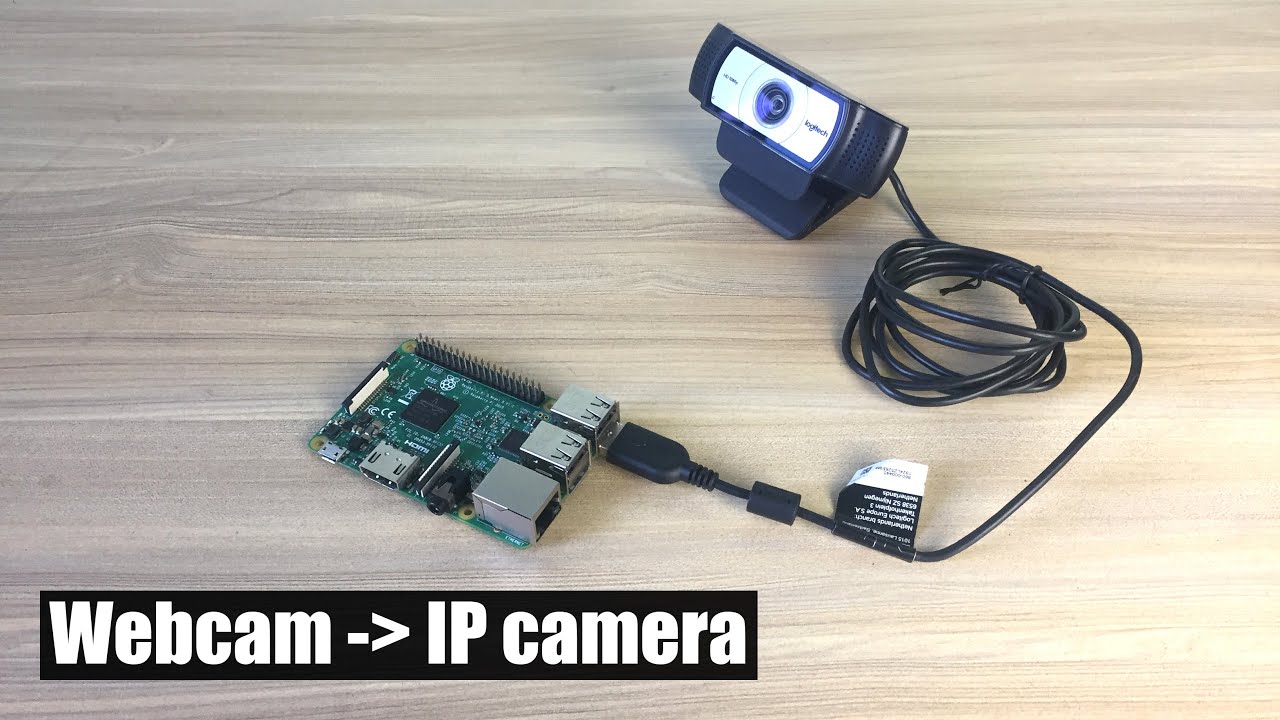
Credit: www.youtube.com
Installing And Configuring The Software
Once you select your software, follow these steps:
- Download and install the software from the official site. Avoid unofficial sources to prevent malware.
- Connect your webcam to your computer and make sure it’s recognized. You may need to install drivers, especially with older webcams.
- Open the software and add your webcam as a camera source. This usually means selecting your webcam from a list of devices.
- Set up motion detection. Adjust sensitivity so it detects people but not small movements (like pets or curtains). Some software lets you draw “zones” to focus on important areas.
- Choose recording options. Decide if you want to record 24/7 or only when motion is detected. Recording only on motion saves disk space.
- Set up notifications. Enter your email or phone number for alerts. Test this by walking in front of the camera.
- Select storage location. Choose a folder on your computer or cloud storage. Make sure you have enough free space.
- Test everything. Walk in front of the camera and check if it records and alerts you. Watch the recorded video to make sure it is clear.
Non-obvious insight: Many programs let you mask certain areas (like windows or trees) so they don’t trigger motion alerts. This reduces false alarms. Some software also lets you set different sensitivity levels for different times of day, which is useful if an area is busier at certain times.
If your webcam is not detected, try restarting your computer or using a different USB port. Sometimes antivirus programs block camera access, so check your security settings if you have trouble.
Improving Security And Reliability
Webcam-based security is not as advanced as professional systems, but you can boost reliability with a few tricks.
Power And Connectivity
- Use a uninterruptible power supply (UPS) to keep your computer running during power outages. Even a short outage can stop your security recording.
- Make sure your internet connection is stable for remote access. A wired (Ethernet) connection is often more reliable than Wi-Fi.
- Use wired connections for webcams when possible to avoid wireless interference. If you must use Wi-Fi, place your router close to your security setup.
If you live in an area with frequent power cuts, consider a battery backup for your modem/router too, so remote access works during outages.
Storage Management
Video files can be large. To avoid running out of space:
- Use motion detection to record only when needed. This can reduce storage needs by 80% or more.
- Set automatic deletion after a certain period (like 30 days). Some software does this for you.
- Consider external hard drives or cloud storage. External drives are cheap and easy to add.
Non-obvious insight: Some software can compress video files to save space, but very high compression can lower quality. Find a balance between file size and video clarity.
Privacy And Security
Security cameras can be hacked if not properly protected.
- Use strong passwords for software and remote access. Avoid default passwords and change them regularly.
- Keep your software updated to fix vulnerabilities. Updates often patch security holes.
- Limit who can access camera feeds. Only share access with people you trust.
- Consider using a dedicated computer for security to avoid mixing personal files and footage.
Example: In 2021, a study found that unsecured webcams were a common target for hackers, leading to privacy risks. Always secure your devices.
You can also physically cover or unplug the webcam when not in use for extra peace of mind.
Monitoring And Accessing Your Footage
You can monitor live video or review recorded clips. Most software lets you:
- View footage on your computer screen.
- Access live video from your phone or another computer.
- Download or share video files.
For remote access, you may need to open ports on your router or use cloud-based features. Always follow security guidelines when enabling remote access. Set up two-factor authentication if available.
Practical tip: If you travel often, set up mobile notifications. Many programs send alerts when motion is detected, so you can react quickly. Some software even shows a preview image in the alert, letting you decide if it’s urgent.
If you want to give someone temporary access (for example, a neighbor while you’re away), create a guest account with limited permissions.
Using Multiple Webcams
If your security needs are bigger, you can use more than one webcam. Here’s how:
- Choose software with multi-camera support.
- Connect all webcams to your computer (use USB hubs if needed).
- Assign each camera to a different location.
- Label camera feeds for easy identification.
- Adjust settings for each camera separately.
You can mix different webcam models, but check that your software can handle them. Some older computers may slow down with many cameras. For four or more webcams, use a computer with a fast processor and plenty of RAM (at least 8GB).
Common mistake: Connecting too many webcams can overload your computer. Check your PC’s RAM and processor. Most computers handle up to 2-4 webcams easily, but more may require a more powerful system.
For very large setups, consider splitting cameras across two computers and using software that can combine feeds.

Credit: buysecuritycameras.com.au
Comparing Webcam Security Vs. Dedicated Security Cameras
Is a webcam setup as good as a professional system? Here’s a comparison:
| Feature | Webcam Setup | Dedicated Camera |
|---|---|---|
| Cost | Low | High |
| Installation | Easy | Often complex |
| Video Quality | Varies | Usually high |
| Motion Detection | Software-based | Built-in |
| Night Vision | Limited | Advanced |
| Remote Access | Software-based | Standard |
| Reliability | Medium | High |
Webcam setups are best for indoor use and temporary or portable needs. They are less suited for outdoor or all-weather use, since most webcams are not weatherproof. Dedicated cameras often include features like two-way audio, built-in sirens, or advanced motion zones.
Non-obvious insight: Dedicated cameras often have weatherproof and tamper-resistant designs. Webcams are for indoor use and can be easier to disconnect or move. Still, webcams are good for temporary or budget solutions.
If you only need short-term monitoring—such as watching a renovation project or keeping an eye on a new pet—a webcam is usually enough.
Advanced Features: Adding More Functionality
You can make your webcam security setup smarter with extra features.
Night Vision
Most webcams struggle in darkness. Here are solutions:
- Add external lights (LED lamps) near the camera. Motion-activated lights are a good choice.
- Use webcams with built-in ring lights. These help in low-light conditions but have limited range.
- Buy a night vision webcam (rare and usually expensive). Some webcams claim “night vision,” but check reviews to see if it works well.
Another tip: Use a cheap infrared (IR) illuminator. Some webcams can “see” infrared light, even though it’s invisible to people. Place an IR lamp near the camera to increase night visibility without bright lights.
Audio Recording
Some software lets you record audio with video. This can help understand incidents.
- Make sure your webcam has a microphone. Not all do.
- Enable audio recording in your software settings.
Remember, in some countries, recording audio without consent is illegal. Check your local laws first.
Cloud Storage
Cloud storage keeps your footage safe even if your computer is stolen or damaged.
- Use built-in cloud features if your software supports them.
- Services like Dropbox, Google Drive, or software-specific options can be used.
Cloud storage usually costs a monthly fee but is more secure than keeping footage only on your computer.
Scheduling And Automation
Many programs let you schedule recording times or automate actions (like sending alerts). This is helpful if you only need monitoring at night or during certain hours.
Practical tip: Automation saves storage space and reduces false alarms. Schedule your webcam to record only when you’re away.
Some software can even trigger actions like turning on lights or sending a message when motion is detected, which adds another layer of security.
Legal And Ethical Considerations
Before you start recording, consider local laws and privacy issues.
- Never record people without their knowledge in private areas (bathrooms, bedrooms).
- In many places, it’s illegal to record audio without consent.
- Display a sign if you monitor public spaces.
- Check your country’s laws about video surveillance.
Laws are different in every country and sometimes even by state or city. If you rent your home, check your rental agreement for any rules about cameras.
Example: In the US, most states allow video recording in your own home, but audio recording may require consent. For more information, see Privacy Rights Clearinghouse.
If you have roommates or employees, be open about your security setup. Respect for others’ privacy builds trust and avoids legal trouble.
Practical Use Cases
Webcam security is useful for:
- Home monitoring: Watch your front door or backyard.
- Office security: Monitor entrances or sensitive areas.
- Shop surveillance: Keep an eye on your cash register or storage.
- Temporary setups: Watch over construction sites or rental properties.
You can also use webcam security to check that children arrive home safely from school, or to make sure cleaning staff or contractors are working as agreed.
Non-obvious insight: Webcams are also useful for monitoring pets, elderly family members, or package deliveries. For example, a webcam at the front door can show you when a package arrives, or if a pet is safe while you’re out.
Some people use webcam security to watch over their car parked in a garage, or to monitor a baby’s room (though baby monitors are usually better for that job).

Credit: www.youtube.com
Troubleshooting Common Problems
You might face issues during setup. Here’s how to solve them:
- Webcam not recognized: Check drivers, try another USB port. Make sure no other program is using the webcam.
- Poor video quality: Clean the lens, adjust lighting, check settings. Sometimes, changing the resolution in your software helps.
- Motion detection too sensitive: Lower sensitivity, mask areas with movement (like curtains). Some software lets you set different zones with different sensitivities.
- Footage not saving: Check storage space and permissions. Make sure the folder is not write-protected.
- Remote access issues: Make sure your firewall and router settings allow access. Restart your router if needed.
If problems persist, check your software’s help section or forums. Many issues are covered in community guides.
Extra tip: If your webcam disconnects randomly, check for loose cables or power-saving settings on your computer that may turn off USB ports.
Tips For Better Security
- Use strong passwords for software and cloud accounts.
- Update software regularly.
- Back up important footage.
- Limit who can access live feeds.
- Hide or secure your webcam to prevent tampering.
Practical tip: Don’t rely on webcam security alone. Combine it with locks, alarms, and good lighting for full protection.
Also, avoid placing webcams where they can easily be seen and unplugged. Use cable clips or covers to secure wires.
Frequently Asked Questions
How Can I Use My Webcam As A Security Camera On Windows?
Most webcam security software works well on Windows. Download a program like iSpy or Yawcam, connect your webcam, and follow the setup wizard. Enable motion detection and notifications. Make sure your webcam drivers are updated. Test your setup before relying on it.
Can I Use My Webcam For Security On Mac Computers?
Yes, software like SecuritySpy and ManyCam work on Mac. Connect your webcam, install the software, and configure settings for motion detection and recording. MacOS supports most USB webcams. Check your privacy settings to allow camera access.
Is Webcam Security Safe From Hacking?
Webcams can be hacked if not protected. Always use strong passwords, keep your software up to date, and limit remote access. If possible, use a dedicated computer for security cameras. Avoid sharing your live feed publicly. For extra safety, disconnect your webcam when not in use.
Can I Monitor My Webcam Security Camera From My Phone?
Most security software offers remote access features. You can view live video, receive alerts, and watch recorded clips from your smartphone. Some programs have dedicated apps; others use web browsers. Make sure your internet connection is reliable.
How Long Can I Store Footage From My Webcam Security Camera?
Storage time depends on your hard drive space and recording settings. With motion detection, you can save weeks of clips on a 500GB drive. Automatic deletion and cloud storage help manage space. Adjust settings to match your needs.
Turning your webcam into a security camera is a smart and affordable solution. With the right setup, software, and security practices, you can protect your home or office without spending a lot. Remember to check local laws, secure your devices, and combine webcam monitoring with other safety measures.
This approach is flexible and easy for beginners, making it a good choice for anyone who wants simple, reliable security.