
The world is moving fast toward digital communication, and the way we interact with devices is changing every day. On modern Windows computers, you might have noticed a special feature called the Touch Keyboard And Handwriting Panel Service. It may sound technical, but this service is playing a big part in making devices more accessible and easier to use, especially for people who rely on touchscreens or want to write by hand. If you’ve ever wondered how your computer lets you type without a physical keyboard or convert your handwriting into text, this article will help you understand the details. We’ll explore what this service does, how it works, why it matters, and how it compares to other input options. You’ll also get practical tips, examples, and answers to common questions.
What Is Touch Keyboard And Handwriting Panel Service?
The Touch Keyboard And Handwriting Panel Service (sometimes called TabTip or Tablet Input Service) is a built-in Windows feature. It helps users enter text using a virtual keyboard or handwriting panel, especially on devices with a touchscreen. This service runs in the background and supports several input methods:
- On-screen keyboard: A virtual keyboard that appears on your screen, letting you tap keys with your finger or stylus.
- Handwriting panel: A space where you can write words with a pen or finger, and the system converts your handwriting into typed text.
This service is essential for tablets, convertible laptops, and devices where a physical keyboard isn’t always available. It also helps users with disabilities or those who prefer touch input.
Key Functions
- Enables virtual keyboard: Lets users type by tapping keys on the screen.
- Supports handwriting recognition: Converts written letters into digital text.
- Integrates with apps: Works with browsers, office programs, and messaging apps.
- Provides predictive text: Suggests words as you type or write, speeding up input.
Where You Find It
You’ll see the touch keyboard and handwriting panel when you tap a text box on a touchscreen device or when you manually enable it from the taskbar. It’s common on Windows 10 and Windows 11, but earlier versions had similar features.
How Does It Work?
This service runs as a background process named TabTip.exe. When you start typing or writing in a text field, the system detects your touch or stylus input and opens the keyboard or handwriting panel. The technology behind it combines several advanced tools:
- Touch detection: Recognizes finger or stylus taps.
- Handwriting recognition engine: Analyzes shapes and strokes, matching them to letters and words.
- User interface integration: Shows the keyboard or panel only when needed.
- Language support: Handles multiple languages, often switching based on user preference.
Step-by-step Input Process
- User taps or writes in a text field.
- Service launches virtual keyboard or handwriting panel.
- User enters text using touch or stylus.
- Service processes input: For typing, it sends each key press; for handwriting, it analyzes strokes.
- Text appears in the application.
Windows uses a mix of machine learning and traditional algorithms to recognize handwriting. It improves accuracy as you use it more, learning your style and common words.
Credit: www.top-password.com
Why Is It Important?
The Touch Keyboard And Handwriting Panel Service is more than a convenience—it’s vital for:
- Accessibility: Helps people with limited mobility or those who can’t use a physical keyboard.
- Flexibility: Supports devices without a built-in keyboard, like tablets.
- Multilingual support: Makes it easier to switch languages or use special characters.
- Mobile productivity: Lets you work anywhere, anytime, without carrying extra devices.
Real-world Impact
According to Microsoft, over 800 million devices run Windows 10, and a large portion are touch-enabled. In education, tablets and convertible laptops are common. Students can take notes by hand, which is faster and more natural for many. In business, field workers use touch devices to collect data, fill forms, and sign documents without a keyboard.
Who Uses It?
The service isn’t just for tech enthusiasts. It’s popular with:
- Students: Taking notes, drawing diagrams, or writing math equations.
- Professionals: Signing forms, annotating PDFs, or entering data on the go.
- Artists: Sketching or writing directly in creative software.
- People with disabilities: Using alternative input methods for easier access.
Examples
- A student uses a Surface Pro in class, switching between the touch keyboard and handwriting panel to answer questions.
- An engineer fills out checklists on a tablet during site inspections, writing notes in the handwriting panel.
- A graphic designer sketches ideas and adds quick labels using the virtual keyboard.
Credit: www.top-password.com
Comparing Input Methods
Windows offers several ways to enter text. Let’s compare the main options:
| Input Method | Best For | Strengths | Weaknesses |
|---|---|---|---|
| Physical keyboard | Desktop/laptop use | Speed, accuracy, tactile feedback | Needs desk, not portable |
| Touch keyboard | Tablet, convertible devices | Portability, flexible layout | Slower typing, less tactile |
| Handwriting panel | Notes, signatures, creative input | Natural writing, supports drawing | Recognition errors, slower for long text |
| Voice input | Hands-free, accessibility | Fast for dictation, no typing needed | Requires quiet environment, accent issues |
As you can see, each method suits different needs. The touch keyboard and handwriting panel fill the gap for users who want flexibility and natural input.
Features And Customization
The Touch Keyboard And Handwriting Panel Service offers many features you can adjust to fit your style.
Touch Keyboard Features
- Standard layout: QWERTY, AZERTY, and other layouts.
- Emoji and symbols: Quick access to emojis, numbers, and special characters.
- Predictive text: Word suggestions based on what you type.
- Theme customization: Light, dark, and high-contrast themes.
- Split keyboard: For easier thumb typing on larger screens.
Handwriting Panel Features
- Multiple languages: Switch between languages for handwriting recognition.
- Correction tools: Edit mistakes easily by tapping suggested alternatives.
- Learning mode: Improves accuracy over time by learning your handwriting style.
- Pen input support: Works with stylus pens for better precision.
- Shortcut gestures: Quick actions like deleting or inserting words with simple gestures.
Accessibility Options
- Large keys: Make keys bigger for easier tapping.
- Sticky keys: Helps users who struggle with holding multiple keys.
- High-contrast mode: Improves visibility for visually impaired users.

Credit: learn.microsoft.com
How To Enable Or Disable The Service
On most Windows devices, the service runs by default. If you want to control it, follow these steps:
Enabling The Touch Keyboard
- Right-click the taskbar.
- Select “Show touch keyboard button.”
- Tap the keyboard icon to open the touch keyboard.
Enabling The Handwriting Panel
- Tap a text box with your stylus or finger.
- The handwriting panel appears automatically.
Disabling The Service
If you don’t want the service running:
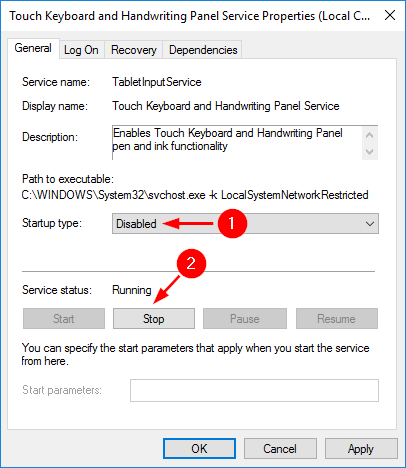
- Press Windows + R, type “services.msc”, and press Enter.
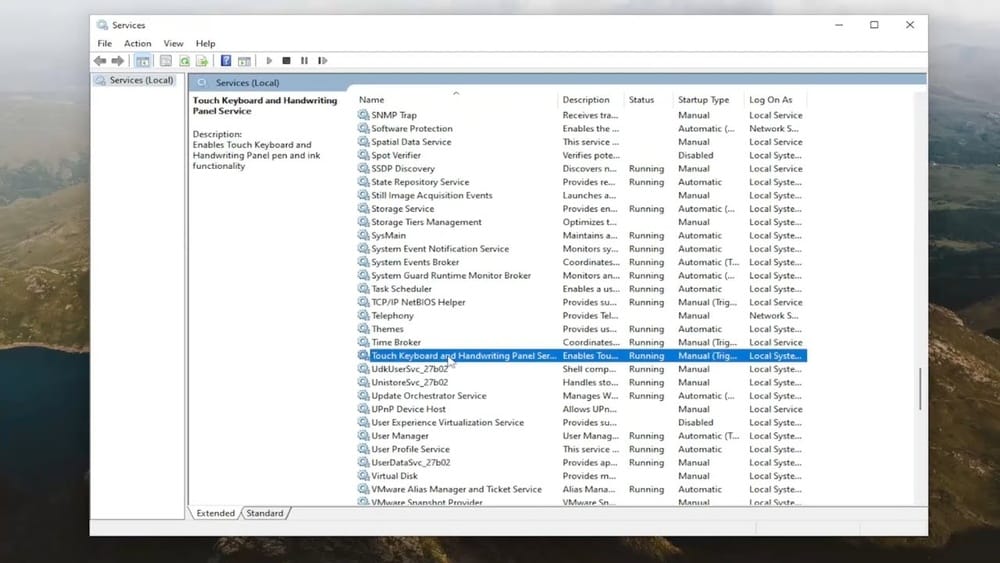
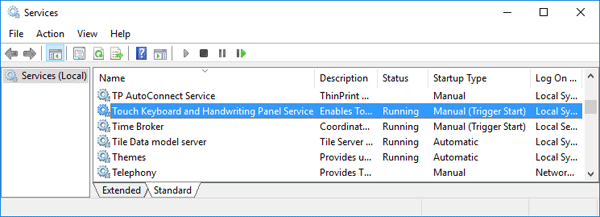
- Find “Touch Keyboard and Handwriting Panel Service.”
- Right-click and select “Stop” or “Disable.”
Disabling the service can affect input options, so do it only if you’re sure.
Security And Privacy
Many users worry about privacy and security when using touch or handwriting input. Here’s what you need to know:
- Local processing: Most handwriting recognition happens on your device, not sent to the cloud.
- Data storage: Windows does not save your handwriting by default.
- Learning mode: If enabled, the service remembers your handwriting style, but this data stays local.
If you use third-party apps for handwriting or keyboard input, check their privacy policies. Microsoft provides clear details on how your data is handled (Microsoft Privacy).
Common Problems And Solutions
Sometimes the Touch Keyboard And Handwriting Panel Service doesn’t work as expected. Here are frequent issues and how to solve them:
Keyboard Doesn’t Appear
- Check tablet mode: Make sure your device is in tablet mode.
- Restart the service: Go to Services, restart the “Touch Keyboard and Handwriting Panel Service.”
- Update drivers: Touchscreen drivers may need updating.
Handwriting Panel Not Recognizing Input
- Try a different stylus: Some pens may not be compatible.
- Check language settings: Make sure the correct language is selected.
- Clear learning data: If recognition is poor, reset the learning mode.
Slow Or Laggy Response
- Close unused apps: Free up memory.
- Update Windows: New updates fix bugs and improve performance.
- Check for malware: Unusual lag can be a sign of security issues.
Customization And Advanced Settings
Advanced users can tweak the service for better performance or more features.
Registry Settings
Some options are hidden in the Windows Registry. For example, you can change the keyboard layout or enable advanced gestures. Editing the registry is risky—always back up before making changes.
Group Policy
In business environments, IT managers use Group Policy to control the service. This helps standardize input methods across many devices.
Third-party Tools
Some companies offer extra features, like custom keyboard layouts, advanced handwriting recognition, or integration with other apps. Always check compatibility and security before installing.
Data And Usage Statistics
The touch keyboard and handwriting panel are widely used. Here are some stats:
- Windows usage: Over 50% of Windows tablets use touch input daily.
- Handwriting panel: Microsoft reports millions of handwriting inputs processed each month.
- Growth: The use of touch and handwriting input increased by 40% between 2018 and 2022, driven by remote learning and mobile work.
Many users don’t realize that touch and handwriting input can be faster for short messages or when you don’t want to type with two hands.
Examples In Real Life
Let’s see some real-world examples of the service in action:
- Medical professionals use tablets to write quick notes during patient visits, which are instantly converted to digital records.
- Students in math classes use the handwriting panel to write equations, which the system recognizes and solves.
- Artists draw and annotate designs, switching between the handwriting panel and touch keyboard.
- Travelers fill forms in airports or hotels using touch input, avoiding the need for a laptop.
These examples show the flexibility and practical impact of the service.
Comparison With Third-party Alternatives
There are many third-party keyboard and handwriting apps. How does the Windows service compare?
| Feature | Windows Service | Third-Party Apps |
|---|---|---|
| Integration | Native, works with all apps | Sometimes limited, may not work everywhere |
| Security | Local processing, Microsoft privacy | Varies, sometimes cloud-based |
| Language support | Wide, built-in | Depends on app, sometimes fewer languages |
| Customization | Basic themes, layouts | Advanced customization, extra features |
| Cost | Free, included with Windows | Some paid, some free |
Most users find the built-in service easier and safer, but advanced users sometimes prefer third-party apps for special needs.
Touch Keyboard And Handwriting Panel In Education
One area where the service has a big impact is education. Schools use tablets and laptops to help students learn. Here’s how the service helps:
- Note-taking: Students write notes by hand, which can be converted to text or kept as handwriting.
- Math and science: Writing equations or diagrams is easier than typing.
- Language learning: Handwriting panels help students practice new alphabets.
- Accessibility: Students with disabilities use touch input for easier access.
Teachers also use touch keyboards for quick grading and feedback. Studies show that digital handwriting improves memory and understanding compared to typing.
Touch Keyboard And Handwriting Panel In Business
Businesses benefit from flexible input options. Here are some uses:
- Field data collection: Workers enter data in forms on tablets.
- Signatures: Handwriting panel lets clients sign documents digitally.
- Mobile offices: Employees work on the go, using touch keyboards for emails and reports.
- International business: Easy switching between languages helps global teams.
Companies save time and reduce errors by using digital input instead of paper.
Future Trends And Improvements
Technology is always changing. Here’s what’s coming next for the touch keyboard and handwriting panel:
- Better AI: Improved handwriting recognition, even for messy writing.
- Custom gestures: More options for shortcuts and editing.
- Integration with cloud: Sync handwriting data across devices.
- More languages: Support for rare languages and regional scripts.
- Enhanced accessibility: Features for users with special needs, like eye-tracking and voice guidance.
Microsoft continues to invest in these features, making digital input easier and more natural.
Tips For Getting The Best Experience
To make the most of the touch keyboard and handwriting panel, try these tips:
- Update your device: New updates improve accuracy and speed.
- Practice handwriting: The more you use it, the better it recognizes your style.
- Customize settings: Adjust themes, layouts, and language for comfort.
- Use a stylus: Pen input is usually more accurate than finger writing.
- Learn shortcut gestures: Quick actions save time when editing.
Many beginners miss the importance of practicing handwriting input. The system adapts to your style, so using it regularly improves results. Also, customizing the keyboard layout and theme can make typing easier and more pleasant.
Frequently Asked Questions
What Devices Support The Touch Keyboard And Handwriting Panel Service?
Most modern Windows devices with a touchscreen, like tablets, convertibles, and some laptops, support the service. You can also use it on desktops with a touch-enabled monitor.
Can I Use The Handwriting Panel With Any Stylus?
The handwriting panel works best with a Windows-compatible stylus. Some generic pens may not be recognized. For the best experience, use a stylus designed for your device.
Is The Touch Keyboard And Handwriting Panel Service Secure?
Yes, most handwriting and touch input data is processed locally on your device. Microsoft does not send your handwriting to the cloud unless you use extra features like cloud sync. Always check privacy settings for third-party apps.
How Do I Fix Problems With The Touch Keyboard Or Handwriting Panel?
Common solutions include restarting the service, updating drivers, checking language settings, and making sure your device is in tablet mode. If the problem continues, search for device-specific troubleshooting guides.
Can I Customize The Keyboard Or Handwriting Panel?
Yes, you can change layouts, themes, and language settings in Windows. Advanced users can tweak registry settings or use third-party apps for more customization, but always back up your data first.
The Touch Keyboard And Handwriting Panel Service may seem like a small feature, but it’s a powerful tool for modern computing. It makes devices more flexible, accessible, and productive. Whether you’re typing, writing, or drawing, this service adapts to your needs. With new improvements on the way, touch and handwriting input will keep getting better—helping everyone connect, create, and communicate in the digital world.