
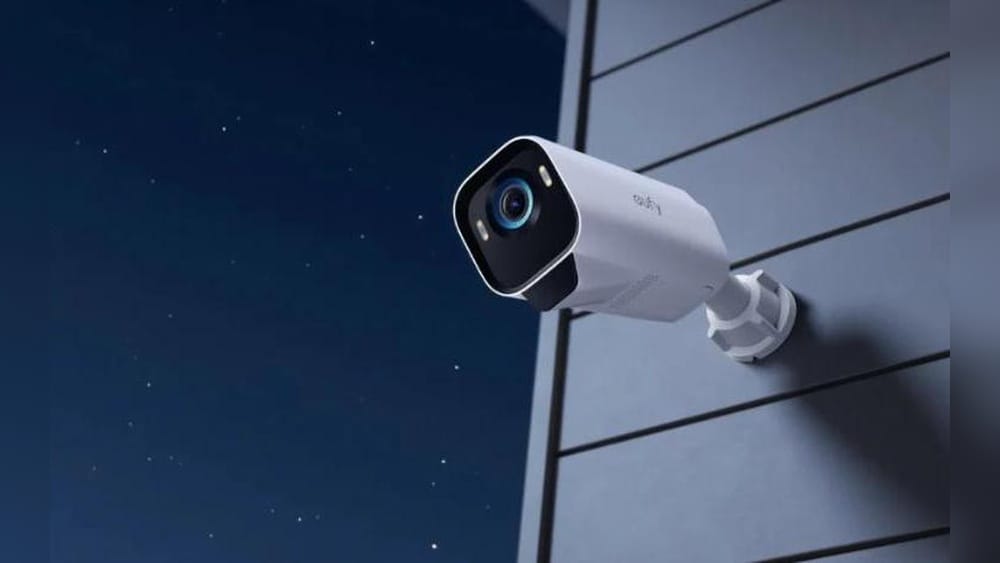
If you’re thinking about making your home smarter and safer, you’ve likely heard about Google Home. It’s a powerful smart assistant that works with many devices, including security cameras. But not all cameras are compatible, and knowing which ones work best isn’t always simple. The right camera can help you check on your house when you’re away, talk to visitors, or get alerts if something unusual happens. But how do you find the best security camera for Google Home? And what features should you look for?
This guide explains which security cameras work with Google Home, what to consider before buying, and how to get the most from your setup. It goes beyond the basics, offering non-obvious tips and comparing top choices. Whether you’re new to smart home tech or just want a camera that’s easy to control with your voice, you’ll find clear answers here.
How Google Home Works With Security Cameras
Google Home is a voice assistant that helps you control smart devices with simple commands. When a security camera is compatible with Google Home, you can use your voice or the Google Home app to do things like:
- View live video feeds on a smart display or TV (with Chromecast)
- Ask who’s at your door
- Turn cameras on or off
- Get alerts when movement is detected
Not all smart cameras offer the same level of integration. Some let you do more with voice commands, others only show live feeds. For example, “Hey Google, show me the front door camera” can instantly pull up video on your Nest Hub or Chromecast TV.
But not every camera brand lets you use two-way talk or record clips through Google Home.
Key Terms To Know
- Google Assistant: The smart voice system that powers Google Home devices.
- Google Home app: The main app for setting up and controlling all compatible devices.
- Chromecast: A device or built-in function that lets you stream content (including camera feeds) to your TV.
- Nest Hub / Nest Hub Max: Google’s smart displays with screens, great for viewing camera feeds.
Understanding these terms helps when you’re reading specs or setting up your smart home.
What Makes A Security Camera Compatible With Google Home?
Not every camera that says “smart” will work. For a camera to be compatible, it needs:
- Google Assistant support: The camera must work with Google’s voice commands.
- Streaming capability: It should allow live video streaming to Google smart displays or TVs.
- Easy setup in the Google Home app: You should be able to add the camera without complex steps.
Some brands offer deeper features, like push notifications or two-way talk through Google devices. Others might only let you view the live feed.
Camera Types That Work With Google Home
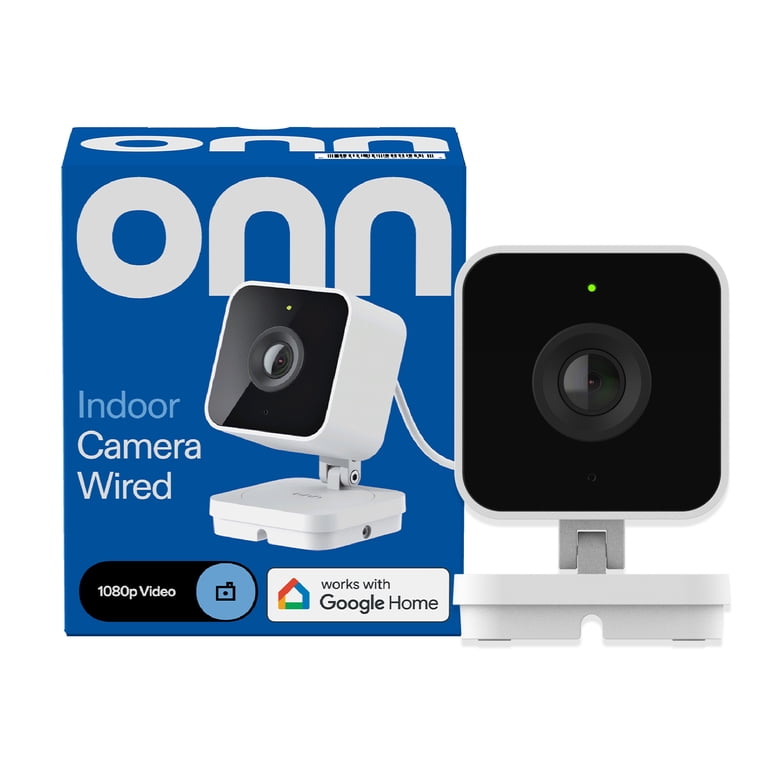
- Wired indoor cameras: Plug into power, placed inside.
- Wireless indoor cameras: Battery-powered or plug-in, use Wi-Fi.
- Outdoor cameras: Weatherproof for outside use.
- Doorbell cameras: Special cameras for your front door, often with two-way talk.
Top Security Camera Brands That Work With Google Home
Many people assume only Google’s own Nest cameras will work. That’s not true—there are several brands that support Google Home. Here’s a breakdown of the most popular and reliable options.
1. Google Nest Cameras
Google’s own cameras offer the deepest integration. You get full voice control, live streaming, and easy setup. They’re made to work seamlessly with Google Home.
- Nest Cam (Indoor/Outdoor, Battery): Flexible placement, up to 3 months battery, 1080p HD.
- Nest Cam (Wired, Indoor): Plug-in, sharp video, affordable.
- Nest Doorbell (Battery or Wired): Video doorbell with package detection.
Special Features:
- Activity zones
- Person, package, and animal alerts
- Built-in Google Assistant (on some models)
Downside: Higher price than many competitors.
2. Arlo
Arlo offers several popular cameras that work with Google Home, especially the Arlo Pro and Arlo Ultra lines.
- Arlo Pro 4: Wireless, color night vision, 2K HDR video.
- Arlo Essential: Budget-friendly, 1080p HD, weather-resistant.
- Arlo Ultra 2: Top-tier, 4K video.
Integration: You can stream live video to Google Nest Hub or Chromecast devices. Some features (like recording or two-way talk) may require the Arlo app.
3. Logitech
Logitech Circle View is well-known for its Apple HomeKit support, but it also works with Google Home for streaming.
- Circle View Camera: 1080p, wide view, night vision.
Limitations: Advanced features are best in Apple’s system, but you still get streaming and alerts in Google Home.
4. Eufy
Eufy’s cameras are budget-friendly and have local storage, which means you don’t always need a subscription.
- EufyCam 2C: Wireless, 180-day battery, 1080p HD.
- EufyCam Solo OutdoorCam: Wired, weatherproof, AI detection.
Google Home Features: View live feeds, basic controls.
5. Wyze
Wyze cameras are known for being affordable but powerful.
- Wyze Cam v3: Indoor/outdoor, 1080p, color night vision.
- Wyze Cam Pan v2: Pan and tilt, 1080p.
Integration: Stream to Google Nest Hub or Chromecast. Some advanced features only in Wyze app.
6. Tp-link Kasa
TP-Link’s Kasa cameras are easy to set up and work well with Google Home.
- Kasa Cam Outdoor: Weatherproof, 1080p.
- Kasa Spot Indoor: Simple, affordable.
Features: Live streaming, motion alerts.
7. Reolink
Reolink offers a range of cameras, including battery and solar-powered models.
- Reolink Argus 3 Pro: Wireless, 2K video, color night vision.
Compatibility: Supports Google Assistant streaming, but advanced features in Reolink app.
8. Ring (with Limitations)
Some Ring devices can be connected to Google Home, but not all features are available. You can use simple voice commands, but can’t stream video to Google Nest displays.
- Ring Video Doorbell 4: Popular option, 1080p.
Note: If you want full video integration, Nest or Arlo is better.
Comparison Of Popular Security Cameras With Google Home
To see how the main options compare, here’s a quick look at key features:
| Brand | Model | Resolution | Power | Google Home Integration | Special Features |
|---|---|---|---|---|---|
| Nest | Cam (Indoor/Outdoor) | 1080p | Battery/Wired | Full | AI alerts, Activity Zones |
| Arlo | Pro 4 | 2K | Battery | Live Stream | Color Night Vision |
| Wyze | Cam v3 | 1080p | Wired | Live Stream | Color Night Vision |
| Logitech | Circle View | 1080p | Wired | Live Stream | Apple HomeKit Focused |
| Eufy | Cam 2C | 1080p | Battery | Live Stream | 180-day battery |
Credit: www.walmart.com
Key Features To Consider When Choosing
Many people focus on price or video quality, but there are other important factors for choosing a security camera for Google Home.
1. Integration Level
Some cameras offer full integration—you can stream video, get alerts, and use two-way talk through Google Home. Others only support basic live streaming. For example, Nest cameras let you do more with voice commands than most competitors.
2. Video Quality
- 1080p HD is standard and enough for most homes.
- 2K or 4K offers more detail, good for wide areas or reading license plates.
- Lower resolution can save internet bandwidth, but may miss details.
3. Field Of View
A wider field of view lets you see more of a room or yard. Cameras range from 110° to 180°.
4. Power Options
- Wired cameras: No battery to recharge, but limited placement.
- Battery cameras: Easy to install anywhere, but must recharge batteries.
- Some models can use solar panels for outdoor use.
5. Night Vision
Good cameras offer infrared or color night vision, letting you see clearly in low light.
6. Cloud Vs Local Storage
- Cloud storage: Clips stored online, often with a subscription fee.
- Local storage: SD card or hard drive, no monthly fee.
Choosing local storage saves money, but cloud storage is safer if someone steals the camera.
7. Smart Detection
Some cameras can tell the difference between a person, animal, or package. This reduces false alerts.
8. Privacy Features
Look for features like camera covers, privacy zones, or easy ways to turn cameras off when you’re home.
How To Set Up A Security Camera With Google Home
Setting up a camera with Google Home is usually simple, but there are a few key steps. Here’s how to make the process smooth:
- Install and set up the camera using the brand’s app (Nest, Arlo, Wyze, etc. ).
- Open the Google Home app on your phone.
- Tap + Add, then Set up device.
- Select Works with Google.
- Find your camera brand in the list and sign in to link your account.
- Assign the camera to a room (like “Front Door”).
- Test with a command: “Hey Google, show me the front door camera.”
Tip: If you have trouble, make sure both apps (camera and Google Home) are updated and on the same Wi-Fi network.

Credit: www.eufy.com
Real-world Usage: What You Can (and Can’t) Do
Knowing what’s possible helps avoid disappointment. Here’s what you can expect with most Google Home-compatible cameras:
You can:
- Ask Google to stream a live feed to your smart display or Chromecast TV.
- Get notifications on your phone if motion is detected (via the camera’s app).
- Turn cameras on or off (with some brands).
- Create routines (e.g., “turn on camera at 10 p.m.”).
You can’t always:
- Record video clips with just your voice.
- Use two-way talk through Google Home (usually works only in the camera’s app).
- Get advanced notifications (like package detection) in Google Home—these often stay in the camera’s app.
Non-obvious insight: Some brands update their Google Home integration over time. Features can improve, so check for app updates and new firmware.
Common Buyer Mistakes To Avoid
Many buyers focus on the wrong details or don’t check integration properly. Here are mistakes to watch out for:
- Assuming all “smart” cameras work with Google Home. Always check for Google Assistant support.
- Not checking feature limitations. Some cameras only support live streaming, not two-way talk or advanced alerts in Google Home.
- Buying without thinking about power. If you can’t easily run a wire, a battery-powered model is best.
- Ignoring storage costs. Cloud video can require a monthly fee. Local storage can save money, but may lack backup security.
- Missing privacy controls. If privacy is a concern, pick cameras with physical covers or easy disable options.
Pros And Cons Of Major Brands
Here’s a quick overview of the strengths and weaknesses of top brands for Google Home users:
| Brand | Pros | Cons |
|---|---|---|
| Nest | Best integration, AI alerts, high quality | Expensive, cloud storage fee |
| Arlo | Wireless, high resolution, smart detection | Subscription needed for full features |
| Wyze | Very affordable, good video, weatherproof | Limited advanced Google features |
| Eufy | Local storage, long battery, budget-friendly | Some features only in Eufy app |
| Logitech | Good image, privacy controls | Best with Apple, basic Google Home support |
Practical Tips For Getting The Most From Your Google Home Security Camera
- Place cameras strategically. Put them near entrances, but avoid pointing directly at glass (which can cause glare at night).
- Name your cameras clearly. For example, “Front Door” or “Backyard”—this makes voice commands easier.
- Set up routines. Use Google Home routines to arm or disarm cameras automatically when you leave or arrive.
- Manage notifications. Tweak alert settings to avoid being overwhelmed by false alarms.
- Regularly update firmware. Updates add security patches and new features.
Advanced Tip: Some users link cameras to other smart devices (like smart lights or alarms) in Google Home. For example, you can set your porch lights to turn on when motion is detected at night.
Credit: runlabaustin.com
Are There Cameras That Don’t Work With Google Home?
Yes. Many cameras only support Amazon Alexa or Apple HomeKit. Some brands don’t offer any voice assistant support. Before buying, always look for “Works with Google Assistant” on the box or in the product description.
Examples of cameras that may NOT work with Google Home:
- Some older or generic Wi-Fi cameras
- Blink (Amazon-focused)
- Some Zmodo or D-Link models
If Google Home support is essential, stick to well-known brands like Nest, Arlo, Wyze, Eufy, Logitech, or TP-Link.
Security And Privacy Considerations
Adding a camera to Google Home is convenient, but it’s important to think about security and privacy:
- Use strong passwords for all accounts.
- Enable two-factor authentication where possible.
- Check privacy policies for where and how your video is stored.
- Physically cover cameras when you want privacy (some models include shutters).
Non-obvious tip: Some people create a separate Wi-Fi network just for smart devices. This keeps your main devices more secure if a camera is hacked.
Real-world Example Setups
Small Apartment
- Wyze Cam v3 in the living room
- Google Nest Hub in the kitchen
- Control: “Hey Google, show me the living room camera.”
Family Home
- Nest Cam (Outdoor) at the front door and backyard
- EufyCam 2C inside for pets
- Chromecast TV in the main room
Large Property
- Arlo Pro 4 at all entrances
- Reolink Argus 3 Pro for the garage
- Google Nest Hub Max in the office
Each setup uses the Google Home app to group and control cameras easily.
Future Trends: Matter And Expanded Compatibility
The new smart home standard Matter is designed to make devices from different brands work together more easily. Many camera makers are planning to support Matter, which could improve Google Home compatibility in the future.
Non-obvious insight: Some current cameras may get software updates to work with Matter. This could add new features without buying new hardware.
Where To Buy And What To Watch Out For
You can find Google Home-compatible cameras at electronics stores, online retailers, and brand websites. Always check for the “Works with Google Assistant” label. If buying used, make sure the camera hasn’t been locked to a previous user’s account.
For more details on how Google Home devices work with smart cameras, check the official Google Nest Support page.
Frequently Asked Questions
Can I Use Any Security Camera With Google Home?
No, only cameras that support Google Assistant can be added to Google Home. Look for “Works with Google Assistant” on the packaging or in the specs.
Can I View My Camera On My Tv With Google Home?
Yes, if you have a Chromecast or a TV with Chromecast built-in. Just say, “Hey Google, show me the [camera name] on [TV name].”
Do I Need A Subscription To Use Cameras With Google Home?
You don’t need a subscription for basic live streaming and alerts. However, some features (like video history or smart alerts) may require a subscription, especially with brands like Nest or Arlo.
Is It Safe To Connect Security Cameras To Google Home?
Yes, as long as you use strong passwords and keep your devices updated. For extra safety, enable two-factor authentication and check privacy settings regularly.
Can I Control Cameras With Google Home When I’m Not At Home?
Yes, you can use the Google Home app to view live feeds and control cameras from anywhere, as long as you have internet access.
Smart home security doesn’t have to be complicated. With the right camera and a few careful steps, you can keep your home safer and more connected—no matter where you are.