
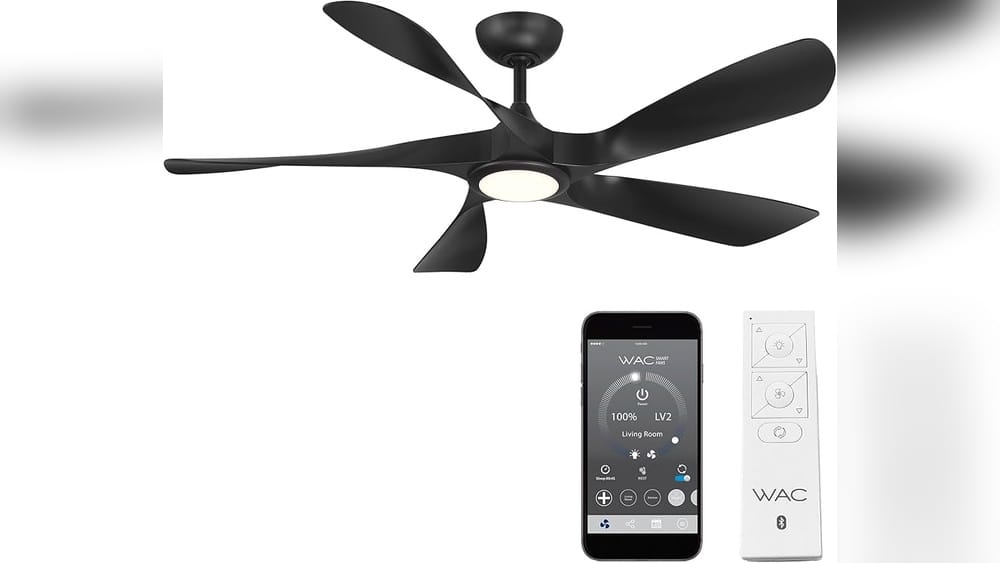
Smart homes are changing how people live. One of the biggest reasons? The ability to control devices from anywhere. Nest products, made by Google, are among the most popular for remote control. But many people wonder: Which Nest can I control remotely? Can you change the temperature or check security cameras if you’re far from home? This guide explains which Nest devices support remote control, how they work, and what you need to know before buying.
Whether you want to save energy, improve security, or just enjoy convenience, controlling Nest devices remotely is a major advantage. But not every Nest product works the same way. There are differences in features, compatibility, and the level of control you get.
Let’s explore the details so you can make a smart choice.
What Does “remotely Control” Mean For Nest Devices?
Remote control means you can use your phone, tablet, or computer to manage a device even when you’re not physically near it. For Nest products, this usually happens through the Google Home app or the Nest app. You can:
- Adjust settings (like temperature or camera angle)
- View live feeds (for cameras)
- Receive alerts and notifications
- Turn devices on or off
Nest devices use Wi-Fi to connect to the internet. Once set up, you can access them from almost anywhere. This is different from older devices that need manual operation or only work with local controls.
Overview: Which Nest Devices Offer Remote Control?
Nest makes several types of products. Here are the main categories:
- Nest Thermostats
- Nest Cameras
- Nest Doorbells
- Nest Protect (Smoke and CO Alarm)
- Nest Speakers and Displays
Each category has models with different features. Not all models offer full remote control. Let’s look at each type in detail.
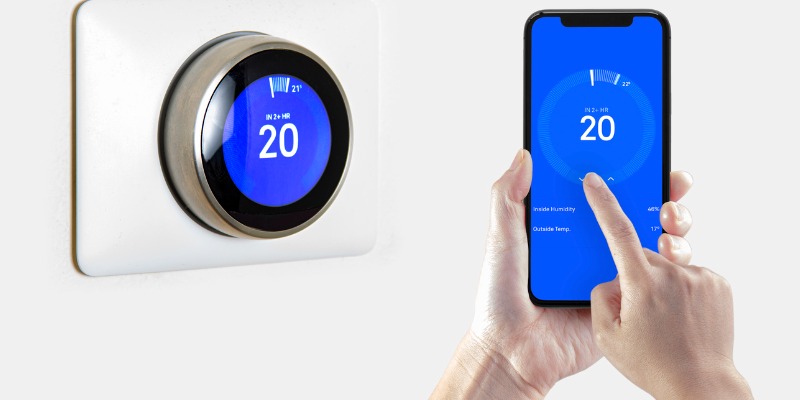
Credit: www.dandbclimatecare.com
Nest Thermostats: Remote Control Features
Nest thermostats are famous for smart temperature management. You can adjust your home’s climate from anywhere, as long as the thermostat is connected to Wi-Fi.
Main Nest Thermostat Models
| Model | Remote Control? | App Used | Key Features |
|---|---|---|---|
| Nest Learning Thermostat | Yes | Nest/Google Home | Auto-schedule, Energy reports, Voice support |
| Nest Thermostat E | Yes | Nest/Google Home | Simple design, Energy savings, Remote access |
| Nest Thermostat (2020) | Yes | Google Home | Affordable, Remote control, HVAC monitoring |
Remote Controls You Get
- Change temperature settings
- Set schedules
- Turn heating/cooling on or off
- Check energy history
- Receive alerts (like if your home gets too cold)
Example
Imagine you’re on vacation and forgot to turn down the heat. With a Nest thermostat, you can open the app and lower the temperature from your hotel room. This saves energy and money.
Common Beginner Mistake
Many people don’t realize they need a strong and stable Wi-Fi connection for remote control. If your home Wi-Fi goes down, you lose the ability to manage your thermostat remotely.
Nest Cameras: Remote Viewing And Control
Nest cameras are made for security and peace of mind. You can check live video, receive alerts, and even talk through the camera—no matter where you are.
Popular Nest Camera Models
| Model | Remote Control? | App Used | Resolution | Special Features |
|---|---|---|---|---|
| Nest Cam (Indoor) | Yes | Nest/Google Home | 1080p | Night vision, Two-way audio |
| Nest Cam (Outdoor) | Yes | Nest/Google Home | 1080p | Weatherproof, Alerts |
| Nest Cam IQ (Indoor/Outdoor) | Yes | Nest/Google Home | 1080p/4K | Person alerts, Supersight |
| Nest Cam (Battery) | Yes | Google Home | 1080p | Wireless, Portable |
Remote Controls You Get
- Watch live video feeds
- Review recorded clips
- Get instant alerts for motion or sound
- Speak through the camera’s speaker (two-way audio)
- Adjust camera settings
Example
If you’re at work and want to check if a package arrived, just open the app and view your front porch camera. If you see someone suspicious, you can speak through the camera to scare them away.
Common Beginner Insight
Nest cameras keep recording even if you’re not watching. Many new users don’t realize they can set activity zones, so you only get alerts for certain areas (like doors or driveways), reducing false alarms.
Nest Doorbells: Remote Answering And Monitoring
Nest doorbells combine video and audio so you can see and speak to visitors. Remote control means you can answer the door from anywhere.
Nest Doorbell Models
| Model | Remote Control? | App Used | Power Type | Features |
|---|---|---|---|---|
| Nest Hello | Yes | Nest/Google Home | Wired | HD video, Two-way audio |
| Nest Doorbell (Battery) | Yes | Google Home | Battery/Wired | Wireless, Portable, Alerts |
Remote Controls You Get
- View live video of your door
- Answer and talk to visitors
- Get notifications for motion or packages
- Review video history
Practical Example
You’re out shopping, and someone rings your doorbell. The app lets you see who’s there and talk to them. You can even ask delivery drivers to leave packages in a safe spot.
Non-obvious Insight
Nest doorbells don’t just record visitors. You can set up custom alerts (like package detection). Many users miss out on this advanced feature, thinking doorbells only notify for people.
Nest Protect: Remote Monitoring (limited Control)
Nest Protect is a smart smoke and carbon monoxide alarm. Remote control here is more about monitoring than active management.
Remote Features
- Receive alerts if smoke or CO is detected
- Silence alarms from the app (if it’s safe)
- Check battery and sensor status
- Review safety history
Limitations
You can’t trigger tests or change sensitivity remotely. Nest Protect is mainly for peace of mind and fast alerts.
Example
If a smoke alarm goes off while you’re away, you’ll get an instant notification. If you know it’s a false alarm (like cooking smoke), you can silence the alarm from your app, but only if you’re near enough (within Bluetooth range).
Common Mistake
Some buyers expect full remote control for safety tests. It’s not possible for security reasons. The device limits remote commands for your protection.
Nest Speakers And Displays: Remote Management
Nest speakers (like Nest Audio) and smart displays (like Nest Hub) are also part of the ecosystem. Remote control works differently here.
Remote Features
- Stream music and manage playlists
- Control smart home devices (lights, locks, etc.)
- Send voice commands through Google Assistant
- View routines and reminders
Example
You can use your phone to play music on your Nest Audio while you’re in another room, or even outside the house. You can also adjust volume or group devices for whole-home audio.
Non-obvious Insight
Remote control for speakers often means sending commands from the app or using Google Assistant. Many users don’t realize you can create multi-room audio groups and manage them remotely.
Requirements For Remote Control
To use remote control features, you need:
- Wi-Fi connection: All Nest devices must connect to your home Wi-Fi.
- Compatible app: Use the Nest app or Google Home app, depending on the device.
- Google account: Devices are linked to your Google account for security.
- Device setup: Follow the instructions to pair the device with your app.
If any step is missed, remote control won’t work.
Common Setup Problems
- Weak Wi-Fi signal
- Outdated app version
- Wrong Google account
- Device not paired correctly
Solving these issues is easy, but beginners often overlook them.
How To Remotely Control Nest Devices: Step-by-step Guide
1. Set Up Your Device
- Install the device following the manual
- Connect it to Wi-Fi
- Pair it with the Nest app or Google Home app
2. Link To Your Google Account
- Sign in with your Google account
- Authorize access for remote control
3. Enable Notifications
- Turn on alerts for important events (motion, smoke, visitor, etc.)
4. Access From Anywhere
- Open the app on your phone, tablet, or computer
- Manage settings, watch live feeds, or send commands
Example Flow
Suppose you install a Nest Learning Thermostat. After setup, you use the Nest app to lower the temperature before arriving home. The app shows current settings, energy use, and allows scheduling, all remotely.
Comparison: Nest Devices Vs. Other Brands For Remote Control
Choosing Nest means you get reliable remote access. But how does it compare to other brands? Here’s a simple comparison.
| Brand | Remote Control | App Support | Unique Features |
|---|---|---|---|
| Nest | Yes (all main devices) | Nest/Google Home | Integration, Alerts, Scheduling |
| Ecobee | Yes | Ecobee app | Voice control, Room sensors |
| Ring | Yes | Ring app | Security focus, Neighborhood alerts |
| Honeywell | Yes | Honeywell app | HVAC support, Multiple device types |
Nest stands out for its strong integration with Google services and wide device support.
Security And Privacy: What Happens When You Control Nest Remotely?
Remote control is powerful, but it raises questions about privacy and security. Google uses strong encryption and authentication to protect your data. Here’s what happens:
- All remote commands travel over secure channels
- Devices require Google account login
- Cameras and microphones can only be accessed by authorized users
You can manage permissions, remove old devices, and check login history in your Google account. Always use strong passwords and enable two-factor authentication for best security.
Data Statistics
According to Google, over 50 million Nest devices are active worldwide. More than 90% of users use remote control at least weekly. Security is a top concern, so updates are frequent.
Limitations And Risks Of Remote Control
While remote control is convenient, there are some limits:
- If your Wi-Fi or internet is down, devices can’t be accessed remotely
- Some features (like silencing Nest Protect) require you to be nearby for safety
- Devices may not support every function remotely (example: Full camera settings)
- Privacy depends on how you manage account access
Real-world Example
A user traveling abroad tried to check their Nest Cam but couldn’t because their home Wi-Fi was offline. Knowing this risk helps you plan backup solutions, like mobile hotspots or alerting neighbors.
Advanced Remote Features: What Most Users Miss
Nest devices have hidden features that many people never use:
- Scheduling: Set heating or camera alerts for specific times.
- Energy reports: Review detailed energy use from anywhere.
- Activity zones: Customize alerts for certain parts of a camera view.
- Voice routines: Trigger multiple actions remotely with one command.
- Family accounts: Share remote control with trusted people.
Using these features can make your smart home more efficient and secure.
How To Optimize Remote Control For Nest Devices
For best results, follow these tips:
- Place devices where Wi-Fi signal is strong
- Update apps regularly
- Enable two-factor authentication
- Set custom alerts to avoid unnecessary notifications
- Share access only with trusted people
Non-obvious Insight
Many homes have Wi-Fi “dead spots. ” If your Nest device is in a weak area, remote control will be unreliable. Using a Wi-Fi extender or mesh system can solve this.
Credit: www.bedbathandbeyond.com
Troubleshooting Remote Control Problems
If you can’t control your Nest device remotely, try these steps:
- Check Wi-Fi connection
- Restart the device
- Update the app
- Re-link your Google account
- Reset the device if needed
Most issues are solved by reconnecting to Wi-Fi or updating software. If problems persist, contact Google support.
Smart Home Integration: Using Nest Remotely With Other Devices
Nest devices work with other smart products. You can control lights, locks, and more from the same app. This is called smart home integration.
Examples
- Use Nest Hub to manage security cameras and thermostats
- Create routines: “Away mode” turns off lights, locks doors, and lowers thermostat
- Control devices by voice using Google Assistant
This makes remote control even more useful. You don’t have to switch between apps.
Cost And Subscription: What You Need To Know
Remote control is free with most Nest devices. But some features, like video history and advanced alerts, require a Nest Aware subscription.
Nest Aware Pricing (as Of 2024)
- $6 per month: 30 days event video history
- $12 per month: 60 days event video history, 10 days 24/7 recording
You don’t need a subscription for basic remote control. But for full security and monitoring, Nest Aware is helpful.
Real-life Use Cases: How Remote Control Helps
1. Energy Savings
You leave for work and forget to adjust the thermostat. Remote control lets you lower the heat, saving money.
2. Security
You’re on vacation and get an alert of movement near your door. You check the camera and speak to the visitor.
3. Family Access
Multiple people can manage devices remotely, such as children adjusting the thermostat or parents checking cameras.
4. Emergency Alerts
Nest Protect sends you a notification if smoke is detected while you’re away, so you can act fast.
5. Convenience
You play music in the living room using your phone while upstairs, or adjust lighting from anywhere.

Credit: www.amazon.com
Practical Buying Advice: Choosing The Right Nest Device For Remote Control
When shopping for Nest products, consider:
- Type of device: Thermostat, camera, doorbell, alarm, speaker
- Remote features: What controls are most important for you?
- App compatibility: Most new devices use Google Home, older ones may need the Nest app
- Integration: Will you use other smart home devices?
- Subscription needs: For advanced camera features, budget for Nest Aware
Common Buyer Mistakes
- Buying an older device without checking app compatibility
- Not considering Wi-Fi coverage in the area of installation
- Forgetting that battery devices need regular charging for remote access
Nest Device Remote Control: Summary Table
Here’s a quick summary of which Nest devices can be controlled remotely and what you can do.
| Device | Remote Control? | Main Features | Limitations |
|---|---|---|---|
| Nest Thermostat | Yes | Adjust temp, schedule, alerts | Needs Wi-Fi, some older models limited |
| Nest Cam | Yes | Live video, alerts, two-way audio | Subscription needed for history |
| Nest Doorbell | Yes | Answer door, video, alerts | Battery needs charging, subscription for history |
| Nest Protect | Limited | Alerts, silence alarm (nearby) | No full remote test/control |
| Nest Speakers/Displays | Yes | Music, smart home control, routines | Voice remote, limited device settings |
Frequently Asked Questions
Can I Control Every Nest Device Remotely?
Almost every main Nest device supports remote control. Thermostats, cameras, doorbells, speakers, and displays all allow you to manage settings, view feeds, and receive alerts from anywhere. Nest Protect offers remote monitoring but limits active control for safety.
What App Should I Use For Remote Control?
Newer Nest devices use the Google Home app. Older devices (like Nest Learning Thermostat or Nest Hello) may use the Nest app. Some devices support both. Always check compatibility before buying.
Is Remote Control Secure?
Remote control is protected by encryption and Google account authentication. Use strong passwords and enable two-factor authentication. You can manage who has access and review device activity in your Google account.
Do I Need A Nest Aware Subscription For Remote Control?
Basic remote control is free. Nest Aware is needed for advanced camera features, like video history and smart alerts. For thermostats and speakers, all main remote functions are included without extra cost.
What Happens If My Wi-fi Goes Down?
If your home Wi-Fi is offline, you lose remote access until it’s restored. Devices may keep working locally, but you can’t manage them from outside. To avoid problems, use a strong Wi-Fi network and consider backup solutions.
Smart homes are about comfort, security, and efficiency. Nest devices make it easy to manage your home from anywhere, as long as you choose the right model and set it up properly. With strong remote control features, you can relax knowing your home is safe and under control—even when you’re far away. For more details on Nest products and their remote control capabilities, check the official Google Nest Store.