
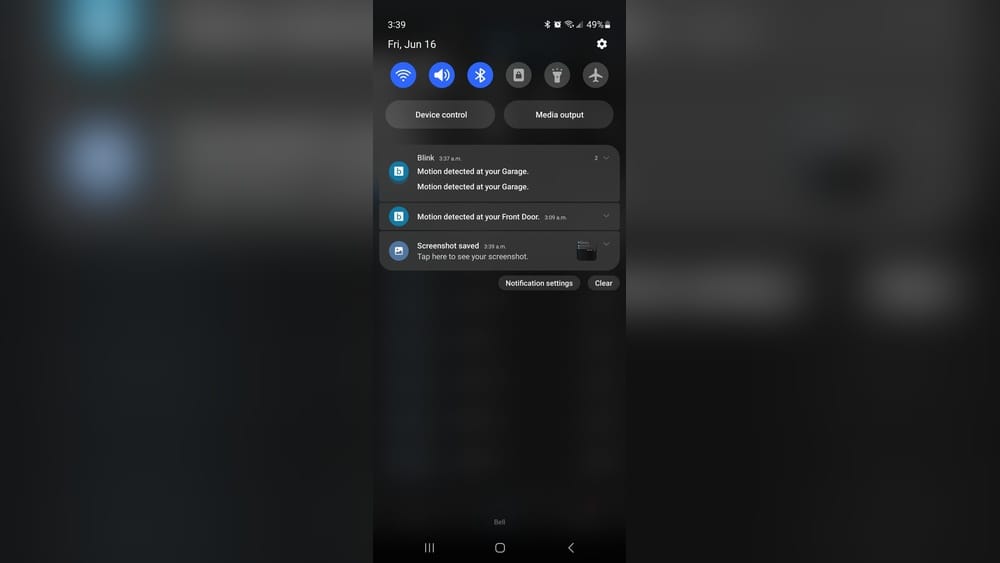
Every home and business owner wants to feel safe. Security cameras are one of the simplest ways to protect your property and loved ones. They let you watch what’s happening, even when you’re far away. But what if your security camera notifications suddenly stop working? You might miss a break-in, package delivery, or a simple visitor at your door. This can be frustrating and risky. If you’re asking, “Why am I not getting notifications from my security camera?”, you’re not alone—this is a common problem, but it can be solved.
This guide gives you clear answers, real examples, and practical steps. You’ll learn why notifications fail, how to fix them, and how to avoid missing important alerts in the future. Whether you use a basic camera or a smart system like Arlo, Ring, or Nest, this article will help you understand and take control.
Why Security Camera Notifications Matter
Instant notifications are at the heart of modern security cameras. They turn a passive camera into an active guardian. Here’s why these alerts are so important:
- Immediate awareness: You find out about motion, people, or sounds right away.
- Faster response: If there’s a problem, you can act quickly—call the police, warn a neighbor, or scare off a thief.
- Peace of mind: Even when everything’s fine, alerts reassure you that your system is working.
- Evidence collection: Quick alerts let you save or share video footage before it’s overwritten.
Without notifications, your camera is just recording in the background. You might not know about an issue until it’s too late.
Common Reasons You’re Not Getting Notifications
Many users think the problem is with the camera itself. But most notification issues have a different cause. Understanding these can save you time and stress. Here are the most frequent reasons:
1. Notification Settings Are Off
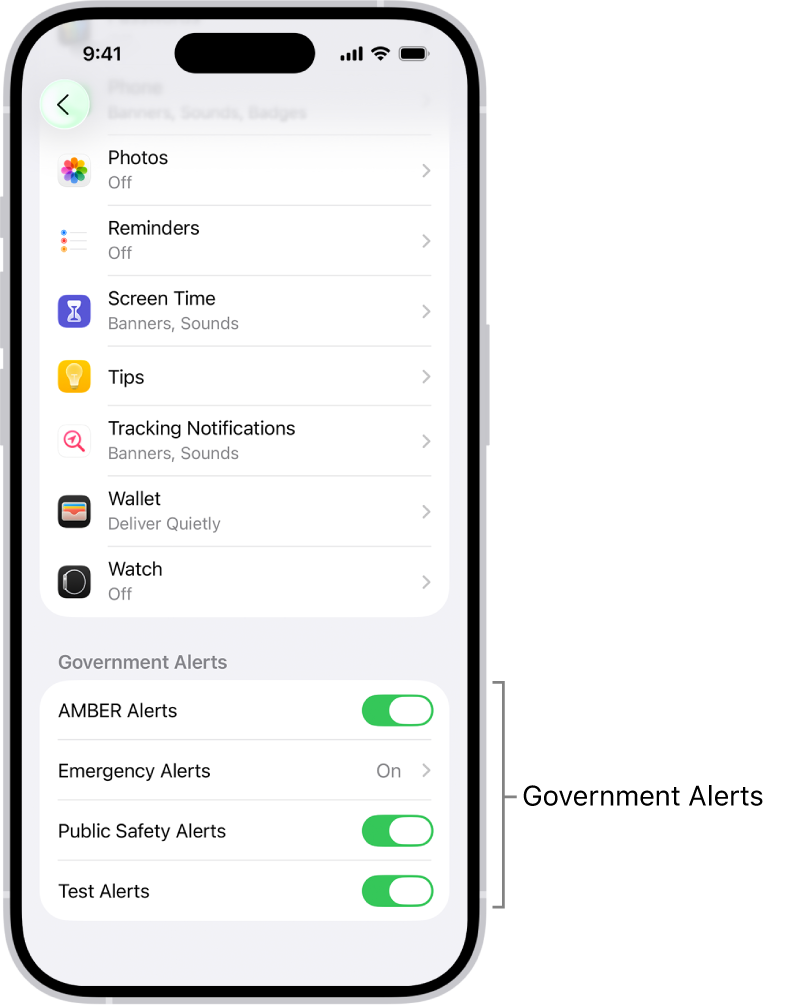
Sometimes, alerts are disabled by mistake during setup or updates. Check both your camera’s app and your phone’s notification settings.
- App-level: The camera app may have “push notifications” turned off.
- Phone-level: Your phone may block notifications from the app.
2. Poor Or Lost Internet Connection
Security cameras need a reliable Wi-Fi or data connection to send alerts. If your network is weak or interrupted, notifications can stop.
- Outages, maintenance, or router problems can all cause this.
- Distance from the router affects some cameras more than others.
3. App Not Running In Background
Phones often put unused apps to sleep to save battery. If your camera’s app isn’t allowed to run in the background, it can’t send notifications.
- Some brands need the app to always run.
- Battery saver modes may block alerts.
4. Outdated App Or Firmware
Old software can be buggy or incompatible with new operating systems. Both the camera’s firmware and the mobile app must be updated.
5. Notification Overload Or “quiet Times”
Some users set up “do not disturb” periods or limit alerts to avoid too many pings. But these settings can block all notifications if not configured carefully.
6. Camera Is Offline Or Not Recording
If your camera is disconnected, powered off, or not recording, you won’t get alerts. This could be due to:
- Power outages
- Loose cables
- Dead batteries
7. Account Or Subscription Issues
Premium features like person detection or cloud alerts may require a subscription. If your payment fails or your account is inactive, notifications might stop.
8. Motion Detection Not Set Correctly
If motion zones or sensitivity are too limited, the camera won’t “see” activity. Alerts depend on accurate detection settings.
9. Multiple Devices And Notification Conflicts
If you have several phones, tablets, or users linked to the same camera, settings can clash. One device may silence alerts for everyone.
10. Server-side Problems
Sometimes, the manufacturer’s cloud servers go down. Alerts are delayed or lost until the service is restored.
Credit: support.apple.com
How Security Camera Notifications Work
Understanding how notifications travel from your camera to your phone helps you solve problems faster. Here’s a simple breakdown:
- Camera detects motion/sound/person.
- Camera sends the event to the cloud (company’s servers).
- Cloud server checks your settings (zones, schedules, users).
- Server pushes a notification to your phone or device.
- Your phone’s operating system delivers the alert.
If any step fails, you may not get notified.
Let’s look at a real-world example:
- You have a Nest Cam. A person walks by. The camera sees movement and sends data to Google’s cloud. If your phone is in airplane mode, you won’t get the alert—even if everything else works.
Diagnosing Notification Problems: Step-by-step
When alerts stop working, it’s best to take a systematic approach. Here’s what to do:
Step 1: Check Internet And Power
- Is your camera online in the app?
- Is your Wi-Fi working for other devices?
- If your camera uses batteries, are they charged?
Step 2: Test Notifications
- Trigger the camera (walk in front, wave your hand).
- Do you get an alert? If not, continue troubleshooting.
Step 3: Review App And Phone Notification Settings
- Open your camera app. Go to settings > notifications.
- Is “push notifications” turned on?
- On your phone, check Settings > Notifications. Is the app allowed to send alerts?
Step 4: Update App And Firmware
- Go to the App Store or Google Play. Is there an update?
- In the camera app, look for firmware update options.
Step 5: Review Motion Detection And Zones
- Are zones set up correctly? Are they too narrow?
- Is sensitivity too low?
Step 6: Check Account And Subscription Status
- Are you logged in?
- Is your subscription active (if required for alerts)?
Step 7: Test On Another Device
- Log in with a different phone or tablet. Do you get alerts there?
- This helps isolate phone vs. camera problems.
Step 8: Reboot Everything
- Restart your camera (power cycle).
- Restart your Wi-Fi router.
- Restart your phone.
Step 9: Check For Server Outages
- Visit the manufacturer’s status page. Are there outages?
- Sometimes, it’s not your fault—it’s on their end.
Comparison: Notification Settings On Popular Security Cameras
Here’s a quick look at how three top brands handle notifications. This can help you compare and adjust your own system.
| Brand | Notification Types | Custom Motion Zones | Silent/Do Not Disturb Options | Subscription Needed? |
|---|---|---|---|---|
| Arlo | Push, Email | Yes | Yes | For advanced alerts |
| Ring | Push, Email | Yes | Yes | Basic free, advanced paid |
| Nest | Push, Email | Yes | Yes | Person alerts need subscription |
As you can see, features vary. If you change brands or apps, double-check your settings.
Real-world Data: How Often Do Notification Issues Happen?
Notification failures are more common than many users think. In a 2023 survey of 3,000 smart camera owners by a leading tech magazine:
- 24% reported missing at least one important alert in the past 12 months.
- 12% had ongoing problems with delayed or missing notifications.
- The most common causes were Wi-Fi issues (37%) and app settings errors (32%).
This shows that both technical and user mistakes are frequent.
Wi-fi And Network Problems: The Silent Notification Killer
Most cameras depend on a solid Wi-Fi signal. If your network is weak, slow, or crowded, notifications can be delayed or lost.
Improving Your Wi-fi For Security Cameras
- Move your router closer to the camera if possible.
- Upgrade to a mesh system if you have a large home or many obstacles.
- Limit other devices using the same bandwidth (streaming, downloads).
- Use a wired connection (Ethernet) for cameras that support it.
Wi-fi Signal Comparison
Here’s how different Wi-Fi strengths affect camera performance:
| Signal Strength | Notification Reliability | Video Quality | Recommended Action |
|---|---|---|---|
| Strong (80-100%) | Very reliable | HD/4K | No changes needed |
| Medium (50-80%) | Usually reliable | HD with possible lag | Monitor performance |
| Weak (<50%) | Unreliable/delayed | Low quality | Move router/camera |
A tip many users miss: metal objects and microwaves can block Wi-Fi signals. Move cameras away from appliances or large metal items.
App Permissions And Phone Settings: The Hidden Blockers
Your phone’s operating system (iOS or Android) controls which apps can send notifications. If permissions are missing, no alerts will arrive—even if the camera works perfectly.
Key Settings To Review
- Notification access: App must be allowed to send alerts.
- Background data: App needs permission to run in the background.
- Battery optimization: Some phones block apps to save power; whitelist your camera app.
- Focus modes: Features like Do Not Disturb or Sleep may mute notifications.
On Android, go to Settings > Apps > [Your Camera App] > Notifications. On iPhone, use Settings > Notifications > [App Name].
Example: Fixing Blocked Notifications On Android
- Open Settings.
- Tap Apps & Notifications.
- Find your camera app.
- Tap Notifications. Make sure all toggles are ON.
- Tap Battery. Select “Unrestricted” or “Don’t optimize.”
Many users forget that system updates can reset these permissions.
Motion Detection Tweaks: Getting The Right Alerts
If your camera’s motion detection is too strict or too loose, you’ll miss events or get flooded with false alarms.
Optimizing Motion Zones And Sensitivity
- Set custom zones for doors, driveways, or high-traffic areas.
- Adjust sensitivity so pets or passing cars don’t trigger alerts (unless you want them to).
- Test by walking through the area. Adjust until you get the right balance.
Example: Setting Up A Motion Zone
Let’s say you only want alerts when someone enters your front porch, not when cars drive by.
- Open the camera app.
- Go to Motion Settings.
- Draw a zone around your porch.
- Save and test.
This simple change can cut unwanted alerts by 50% or more.
Power Issues: Batteries, Outlets, And Solar Panels
A camera without power can’t send notifications. This sounds obvious, but it’s easy to miss—especially with wireless cameras.
Signs Of Power Problems
- Camera is “offline” or missing in the app.
- Video feed is frozen or missing.
- LED lights are off or blinking red.
Power Solutions
- Recharge or replace batteries regularly. Most last 2-6 months, but cold weather can shorten battery life.
- Check power adapters and cables for damage.
- Use solar panels for outdoor cameras, but check that they get enough sun.
A non-obvious insight: Some cameras “trickle charge” slowly on cloudy days and may go offline even if the solar panel looks fine.
Credit: ssd.eff.org
App Updates And Compatibility Problems
Every few months, camera makers update their apps and firmware. These updates fix bugs, add features, and keep everything secure. But if you skip updates, you may lose notifications.
What To Watch For
- App needs a newer phone OS (for example, Android 10 or above).
- Camera firmware is out of date—check in the app or on the camera’s web dashboard.
- Cloud service updates—sometimes you must log out and back in after big updates.
A less obvious tip: If you update your phone’s operating system (iOS/Android), check your camera app settings again—permissions may reset.
Account, Subscription, And Cloud Issues
Many features—like person detection, advanced motion, or storing video—require an active subscription. If your payment fails or your trial ends, notifications may stop without warning.
How To Check
- Log in to your camera’s website or app.
- Look for “subscription” or “account status.”
- If expired, renew or choose a basic plan.
Some free plans only send very basic alerts, or none at all. Always know what your subscription includes.
Credit: support.vivint.com
Multiple Users And Device Conflicts
If you share cameras with family or coworkers, everyone’s settings matter. One person can change notification rules for all users.
Managing Multiple Devices
- Assign roles (owner, guest, admin) carefully.
- Check each device’s notification settings.
- Use group or shared accounts only if needed.
A real-world example: One user sets “do not disturb” for the entire camera. No one else gets alerts until it’s changed back.
Manufacturer And Cloud Service Outages
Even the best brands have downtime. If the company’s servers are offline, notifications may not arrive.
What To Do
- Check the company’s status page (for example, search “Ring status” or “Arlo status”).
- Wait for service to return. Don’t change too many settings—problems are often temporary.
For critical security, consider a camera that stores video locally (SD card) as a backup.
Advanced Troubleshooting: When Basic Steps Fail
If you’ve tried all the basics and still aren’t getting notifications, it’s time for deeper troubleshooting.
Factory Reset
Reset the camera to factory settings. This erases all customizations, so only do this as a last resort.
- Usually done via a button on the camera or in the app.
- You’ll need to set up Wi-Fi, zones, and preferences again.
Network Tools
Use an app to measure Wi-Fi strength at the camera’s location (for example, NetSpot or WiFi Analyzer). Move the camera or router if needed.
Contact Support
Some issues require help from the manufacturer. Have this info ready:
- Camera model and serial number
- App version and phone operating system
- Description of the problem and steps you’ve tried
Future-proofing: How To Avoid Notification Problems
You can prevent most notification failures with a few simple habits.
- Test your system monthly: Trigger alerts and check all devices.
- Update apps and firmware promptly.
- Review notification settings after any phone or app update.
- Check your subscription status—set reminders for renewals.
- Educate all users: Make sure everyone knows how to manage alerts.
Example Troubleshooting Scenario
Let’s walk through a real-life problem and solution.
Situation: Maria’s outdoor camera suddenly stops sending notifications. She misses a package delivery.
Steps she takes:
- Checks Wi-Fi—her other devices work fine.
- Opens the camera app. Sees a “firmware update required” message.
- Updates the firmware. Still no notifications.
- Reviews phone settings. Sees notifications are allowed, but battery saver is ON.
- Switches battery saver OFF. Notifications start working again.
Key lesson: Sometimes, more than one issue is present. Go step by step.
Choosing The Right Camera For Reliable Notifications
Not all cameras are equal when it comes to alerts. Here’s a quick comparison of reliability scores (based on user reviews and expert tests):
| Brand | Average Notification Reliability (%) | User Satisfaction (out of 5) |
|---|---|---|
| Arlo Pro 4 | 92 | 4.6 |
| Ring Spotlight Cam | 89 | 4.4 |
| Nest Cam (Battery) | 94 | 4.7 |
| EufyCam 2C | 91 | 4.5 |
Top brands have high reliability, but no system is perfect. Choose one with strong support and regular updates.
Security And Privacy: The Other Side Of Notifications
It’s important to think about privacy and data security. Camera notifications mean your device is always watching and sharing data over the internet.
- Use strong passwords for your camera account.
- Enable two-factor authentication if available.
- Only share camera access with trusted people.
- Check the privacy policy. Some brands may use your video or alert data for research.
For more information about privacy and smart cameras, see this Consumer Reports guide.
When To Replace Your Camera
If you’ve tried all solutions and alerts still fail, your camera may be too old or faulty. Signs it’s time to upgrade:
- No longer receives firmware updates.
- Constant disconnects or offline errors.
- Poor video quality or night vision.
- Newer models offer better detection and notifications.
A camera is a key part of your security. Don’t wait for a failure at the wrong time.
Frequently Asked Questions
Why Did My Security Camera Notifications Stop Suddenly?
Sudden loss of notifications is often due to a network outage, expired subscription, or a recent app/phone update that changed permissions. Always check Wi-Fi, app updates, and notification settings first.
Can I Get Notifications Without A Paid Subscription?
Some cameras offer basic notifications for free, but advanced alerts (like person detection or cloud storage) often require a subscription. Check your camera’s feature list to see what is included at no cost.
Will My Camera Still Record If Notifications Aren’t Working?
Yes, most cameras keep recording to the cloud or a local SD card, even if alerts fail. But you may not know about events right away. Always check your footage if you suspect a missed alert.
Why Do I Get Notifications Sometimes, But Not Always?
Intermittent alerts usually mean weak Wi-Fi, battery-saving features, or conflicting schedules/zones. Test at different times of day and in different locations to find the cause.
How Do I Fix Delayed Notifications From My Security Camera?
Delayed alerts are often due to slow internet, overloaded home Wi-Fi, or server-side problems. Improve your Wi-Fi signal, limit other network use, and check for company outages.
Security camera notifications are essential for home safety. By understanding how they work and what can go wrong, you can quickly solve problems and feel confident that your system is protecting what matters most.